
1. Introduction
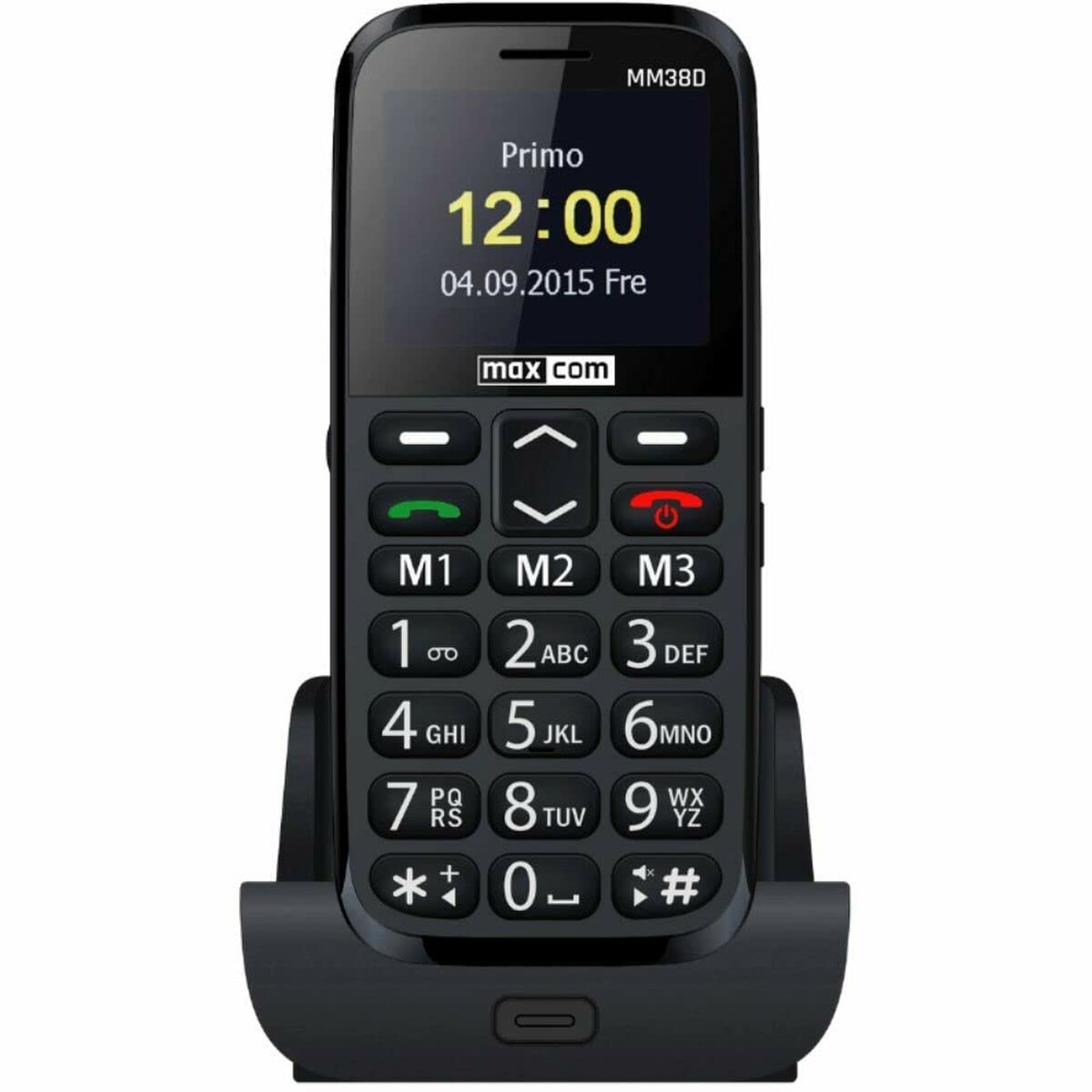
The Maxcom MM38D is a portable senior phone designed for ease of use, featuring large backlit keys, a clear 2.2-inch display, and essential communication functions. This manual provides comprehensive instructions for setting up, operating, and maintaining your device, ensuring you can utilize all its features effectively, including the dedicated SOS button, FM radio, and camera.
2. Safety Information
- Do not expose the phone to extreme temperatures, direct sunlight, or moisture.
- Use only original or approved batteries and chargers to prevent damage and ensure safety.
- Avoid dropping or subjecting the phone to severe impacts.
- Do not attempt to disassemble or repair the device yourself. Refer to authorized service personnel.
- Dispose of batteries and the device responsibly according to local regulations.
3. Package Contents
Before using your Maxcom MM38D, please verify that all the following items are included in the package:
- Maxcom MM38D Phone
- Battery
- Charger
- User Manual
4. Device Layout
Familiarize yourself with the physical components of your Maxcom MM38D phone.
This image displays the rear panel of the Maxcom MM38D phone. Visible components include the camera lens in the upper left, a circular SOS button to its right, and a speaker grille with a grid pattern further to the right. The 'max com' logo is printed at the bottom.
Key Components:
- Display Screen: 2.2-inch color display for menus and information.
- Alphanumeric Keypad: Large, backlit keys for dialing and text input.
- Navigation Keys: For scrolling through menus and options.
- Call/End Call Buttons: To initiate and terminate calls.
- SOS Button: Located on the back for emergency calls and messages.
- Camera: 2-megapixel camera on the rear.
- Flashlight: Integrated light source.
- Charging Port: For connecting the charger.
- Headphone Jack: For connecting headphones (may also serve as FM antenna).
5. Setup
5.1. Installing the SIM Card
- Remove the back cover of the phone.
- Carefully remove the battery.
- Locate the SIM card slot. Insert your 2G compatible SIM card into the slot, ensuring the gold contacts face downwards and the cut corner aligns with the slot's orientation.
- Gently push the SIM card until it clicks into place.
5.2. Installing the Battery
- Align the battery's metal contacts with the contacts in the phone's battery compartment.
- Press the battery down gently until it fits securely.
- Replace the back cover, ensuring it snaps firmly into place.
5.3. Charging the Battery
- Connect the charger cable to the charging port on your phone.
- Plug the charger into a standard electrical outlet.
- The battery indicator on the screen will show the charging status. Allow the phone to charge fully before first use.
5.4. Powering On/Off
- To Power On: Press and hold the Power/End Call button until the screen lights up.
- To Power Off: Press and hold the Power/End Call button until the power-off options appear, then confirm.
6. Operating Instructions
6.1. Basic Navigation
Use the Navigation Keys (up, down, left, right) to move through menus and options. Press the central OK/Select button to confirm a selection.
6.2. Making and Receiving Calls
- To Make a Call: Enter the phone number using the keypad and press the Call button.
- To Answer a Call: When the phone rings, press the Call button.
- To End a Call: Press the End Call button.
- Hands-free Function: Activate the hands-free speaker during a call via the on-screen option.
6.3. Sending and Receiving Messages (SMS)
- Navigate to the Messages menu.
- Select Write Message or New SMS.
- Type your message using the alphanumeric keypad.
- Enter the recipient's number or select from your contacts.
- Press Send.
6.4. Using the SOS Button
The SOS button is a critical safety feature. To use it:
- Ensure emergency contacts are pre-programmed in the phone's settings (usually under SOS settings).
- In an emergency, press and hold the SOS button on the back of the phone for a few seconds.
- The phone will automatically call and send a pre-set emergency message to your designated contacts.
6.5. Other Features
- FM Radio: Access the 'FM Radio' application from the main menu. Connect headphones to serve as an antenna for better reception.
- Flashlight: Activate the flashlight function through the menu or a dedicated shortcut key (refer to your phone's specific key assignments).
- Camera: Open the 'Camera' application to take photos. The phone is equipped with a 2-megapixel camera.
- Contacts: Store up to 300 contacts. Access the 'Contacts' menu to add, edit, or search for entries.
- Calendar & Alarm: Set reminders and multiple alarms through the 'Calendar' and 'Alarm' applications.
- Bluetooth: Enable Bluetooth in the 'Settings' menu to connect to compatible wireless headsets or other devices.
- Audio/Video Player: Play audio and video files stored on the phone or a Micro SD card.
7. Maintenance
- Cleaning: Use a soft, dry, lint-free cloth to clean the phone's screen and body. Avoid using liquid cleaners or aerosols.
- Battery Care: To prolong battery life, avoid fully discharging the battery frequently. Do not leave the phone connected to the charger for extended periods after it is fully charged.
- Storage: Store the phone in a cool, dry place when not in use. Avoid dusty environments.
- Water Resistance: The Maxcom MM38D is not water-resistant. Keep it away from liquids.
8. Troubleshooting
If you encounter issues with your Maxcom MM38D, refer to the following common problems and solutions:
| Problem | Solution |
|---|---|
| Phone does not turn on | Ensure the battery is charged and correctly inserted. Try charging the phone for at least 30 minutes. |
| Cannot make or receive calls | Check if the SIM card is properly inserted and activated. Verify network signal strength. Ensure you have sufficient credit or an active plan. |
| SOS button not working | Confirm that emergency contacts are set up in the SOS settings menu. Ensure the phone has network coverage. |
| Poor audio quality during calls | Check the call volume settings. Ensure the speaker and microphone are not obstructed. Move to an area with better network reception. |
| Battery drains quickly | Reduce screen brightness. Close unused applications. Limit background data usage. Consider replacing an old battery. |
9. Specifications
| Feature | Specification |
|---|---|
| Brand | Maxcom |
| Model | MM38D |
| Operating System | Android 10.0 |
| Screen Size | 2.2 Inches |
| Camera Resolution | 2 Megapixels |
| Connectivity | Bluetooth, 2G GSM |
| Memory Storage | 1 GB |
| Color | Black |
| Special Features | SOS button, FM Radio, Flashlight, Calendar, Audio/Video Player, Alarm, Hands-free function, Large backlit keys, 300-contact directory, Micro SD support |
10. Warranty and Support
For detailed warranty information, terms, and conditions, please refer to the warranty card or documentation included with your purchase. For technical support, product inquiries, or service requests, please visit the official Maxcom website or contact their customer service department using the contact information provided in your product packaging.


