
j5create JCDP392
j5create USB-C Travel Hub with PD 65W Power Supply (Model JCDP392) User Manual
Comprehensive instructions for setup, operation, and maintenance.
1. Introduction
Thank you for choosing the j5create USB-C Travel Hub with PD 65W Power Supply (Model JCDP392). This device is designed to expand the connectivity of your USB-C enabled laptop, tablet, or smartphone, providing essential ports for power delivery, video output, and data transfer in a compact form factor. This manual will guide you through the setup, operation, and troubleshooting of your new travel hub.
2. Package Contents
Verify that all items are present in your package:
- j5create USB-C Travel Hub (JCDP392)
- USB-C 3.0 Cable with E-Mark (1.97 ft / 60 cm)
- Detachable Power Cord (3.28 ft / 100 cm)

Image: The j5create USB-C Travel Hub (JCDP392) shown with its included USB-C 3.0 cable and detachable power cord.
3. Product Overview
The j5create JCDP392 features multiple ports for versatile connectivity:

Image: A detailed view of the hub's ports, including the Power Delivery (PD) input, two USB 3.0 ports, and an HDMI output, along with a charging status LED indicator.
- USB-C Power Delivery (PD) Port: Connects to your host device (laptop, tablet) and provides up to 65W pass-through charging.
- USB 3.0 Ports (x2): For connecting USB peripherals such as keyboards, mice, external hard drives, or USB flash drives. Supports data transfer speeds up to 5 Gbps.
- HDMI Port: Connects to an external display, supporting resolutions up to 4K.
- Charging Status LED Indicator: Indicates the power status of the hub and connected devices.
4. Setup Instructions
- Connect Power:
Plug the detachable power cord into the j5create JCDP392 hub, then connect the other end to a wall outlet. The hub has a built-in power supply.
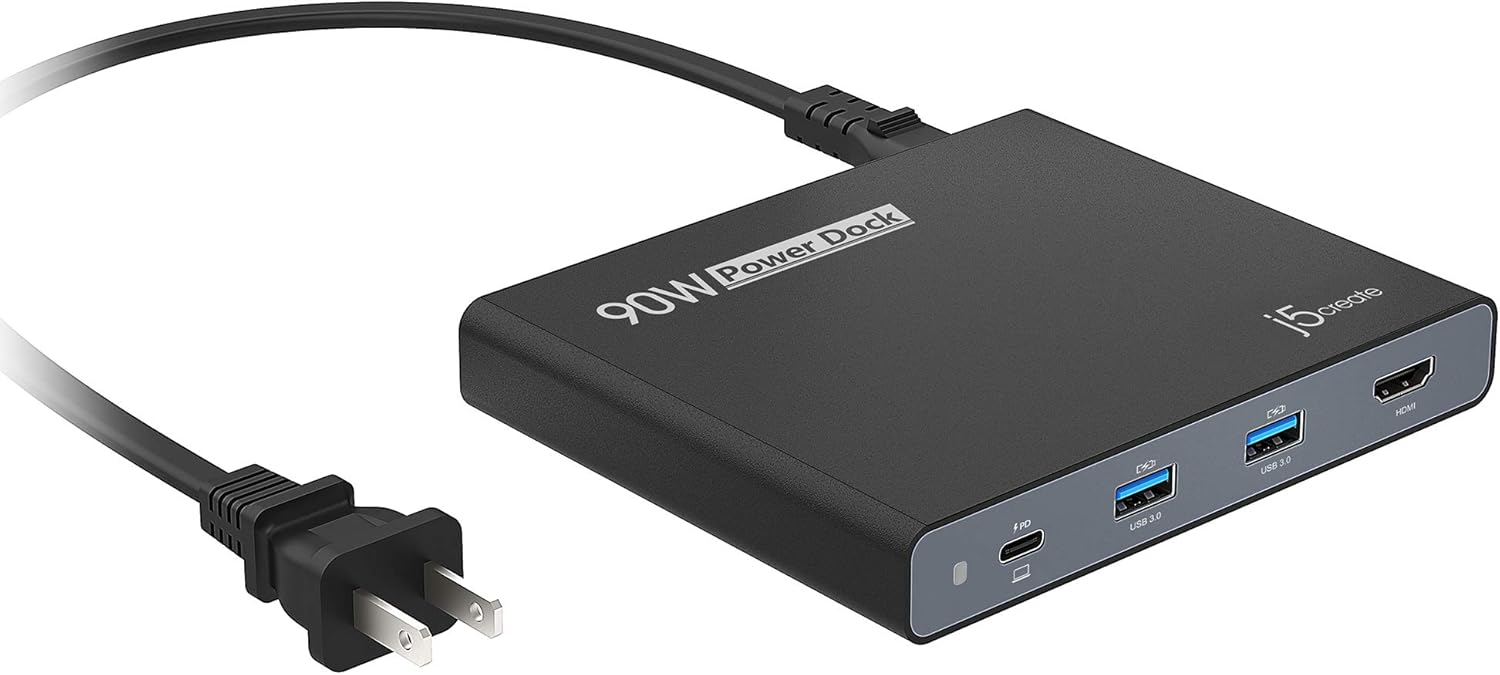
Image: The j5create JCDP392 hub with its power cable connected, ready for use.
- Connect to Host Device:
Use the included USB-C 3.0 cable to connect the hub's USB-C PD port to the USB-C port on your laptop, tablet, or smartphone. Ensure your host device supports USB-C Power Delivery and DisplayPort Alternate Mode for full functionality.
- Connect External Display (Optional):
If you wish to use an external monitor, connect an HDMI cable from your monitor to the HDMI port on the j5create JCDP392 hub.

Image: The hub connected to a laptop and an external display, demonstrating a typical workstation setup.
- Connect USB Peripherals (Optional):
Plug your USB devices (e.g., keyboard, mouse, USB drive) into the available USB 3.0 ports on the hub.
The hub is plug-and-play and generally does not require driver installation for Windows, macOS, or Android devices.
5. Operating Instructions
5.1 Power Delivery
The j5create JCDP392 provides up to 65W of Power Delivery to your connected USB-C laptop, ensuring it charges while you use the hub's other functions. The hub itself draws power from the wall outlet via its detachable power cord.
5.2 Video Output
Connect an HDMI-enabled monitor or TV to the hub's HDMI port. Your host device should automatically detect the external display. You may need to adjust display settings (e.g., extend, duplicate) within your operating system's display preferences.
Supported resolution: Up to 4K (3840 x 2160) at 30Hz.
5.3 USB Data Transfer
The two USB 3.0 ports support data transfer speeds of up to 5 Gbps. Connect your USB storage devices for fast file transfers or other USB peripherals for seamless operation.
5.4 Charging Other Devices
The USB 3.0 ports can also provide charging for mobile devices. When the USB-C laptop is off or disconnected, the USB-A ports can provide up to 2.4A/5V fast-charging. When the USB-C laptop is in use, they can provide up to 1.5A/5V fast-charging.

Image: The j5create JCDP392 hub simultaneously charging a tablet and a smartphone, demonstrating its capability to charge devices even without a laptop connected.
5.5 Universal Compatibility
The JCDP392 is compatible with a wide range of operating systems and devices, including:
- Windows-based laptops
- macOS (MacBook Air, MacBook Pro 13")
- ChromeBook
- Dell XPS 13 / XPS 15
- Android phones (e.g., Samsung Galaxy S20/S10)
- Tablets (e.g., iPad Pro)
- Other USB-C laptops and smartphones

Image: An illustration showing the j5create JCDP392 hub's compatibility with laptops, Android phones, and tablets.
6. Maintenance
- Cleaning: Use a soft, dry cloth to clean the surface of the hub. Avoid liquid cleaners or abrasive materials.
- Storage: When not in use, store the hub in a cool, dry place away from direct sunlight and extreme temperatures. The detachable cables allow for compact storage.
- Handling: Avoid dropping the device or subjecting it to strong impacts.
- Protection Features: The hub is designed with built-in protections against overheating, short-circuits, overcharge, and overcurrent to ensure device safety.

Image: Icons representing the hub's protection features: Perfect for Travel, Overheat Protection, Short-Circuit Protection, Overcharge Protection, and Overcurrent Protection.
7. Troubleshooting
- No power to laptop or hub not functioning:
- Ensure the detachable power cord is securely connected to both the hub and a working wall outlet.
- Verify the USB-C cable is firmly connected between the hub and your host device.
- Confirm your host device's USB-C port supports Power Delivery.
- Try a different wall outlet.
- No display on external monitor:
- Check the HDMI cable connection between the hub and the monitor.
- Ensure the monitor is powered on and set to the correct input source (HDMI).
- Verify your host device's USB-C port supports DisplayPort Alternate Mode.
- Update your graphics drivers on your host device.
- Adjust display settings in your operating system.
- USB devices not recognized or slow data transfer:
- Ensure USB devices are properly plugged into the hub's USB 3.0 ports.
- Try connecting the USB device directly to your host device to confirm functionality.
- Disconnect and reconnect the hub from your host device.
- For optimal performance, avoid connecting high-power-draw devices to the USB ports if the hub is already under heavy load.
- Hub gets warm during use:
It is normal for the hub to generate some heat during operation, especially when charging a laptop and using multiple ports. Ensure adequate ventilation around the device.
8. Specifications
| Model | JCDP392 |
| Brand | j5create |
| Host Interface | USB-C |
| Video Output | HDMI (up to 4K @ 30Hz) |
| USB Ports | 2x USB 3.0 Type-A (5 Gbps) |
| Power Delivery | Up to 65W pass-through to host device |
| USB-A Charging Output | Up to 2.4A/5V (laptop off/disconnected), 1.5A/5V (laptop in use) |
| Dimensions | 5 x 4.1 x 0.8 inches (12.7 x 10.4 x 2.0 cm) |
| Weight | 9 ounces (255 grams) |
| Operating System Compatibility | Windows, macOS, Android |
9. Warranty and Support
9.1 Warranty Information
j5create products typically come with a limited warranty. Please refer to the warranty card included with your product or visit the official j5create website for detailed warranty terms and conditions specific to your region.
9.2 Technical Support
If you encounter any issues that cannot be resolved using the troubleshooting guide, or if you require further assistance, please contact j5create technical support:
- Website: www.j5create.com/support
- Email: Refer to the support section on the j5create website for contact email.
- Phone: Refer to the support section on the j5create website for phone numbers.
When contacting support, please have your product model (JCDP392) and purchase information ready.
Related documentsJCDP392


Ask a question about this manual
Ask about setup, troubleshooting, compatibility, parts, safety, or missing instructions. Manuals+ will review the question and use this page’s manual context to help answer it.