
1. Introduction
This manual provides essential information for the safe and efficient use of your Hannspree HT161CGB Portable Touch Monitor. Please read this manual thoroughly before operating the device and retain it for future reference. This monitor is designed to extend your workspace or provide a portable display solution with multi-touch capabilities.
2. Safety Information
- Do not expose the monitor to rain or moisture to prevent fire or shock hazards.
- Avoid placing the monitor in direct sunlight or near heat sources.
- Ensure proper ventilation; do not block ventilation openings.
- Use only the power adapter and cables supplied or recommended by the manufacturer.
- Clean the screen with a soft, lint-free cloth. Avoid abrasive cleaners.
- Do not attempt to disassemble or repair the monitor yourself. Refer all servicing to qualified personnel.
3. Package Contents
Verify that all items are present in your package:
- Hannspree HT161CGB Portable Touch Monitor
- Protective Smart Cover (doubles as a stand)
- USB-C to USB-C Cable
- Mini HDMI to HDMI Cable
- USB-A to USB-C Cable (for power/data)
- User Manual (this document)
4. Product Overview
The Hannspree HT161CGB is a 15.6-inch Full HD portable touch monitor designed for versatility and productivity. It features a slim profile and lightweight design, making it ideal for mobile use.
4.1 Front View
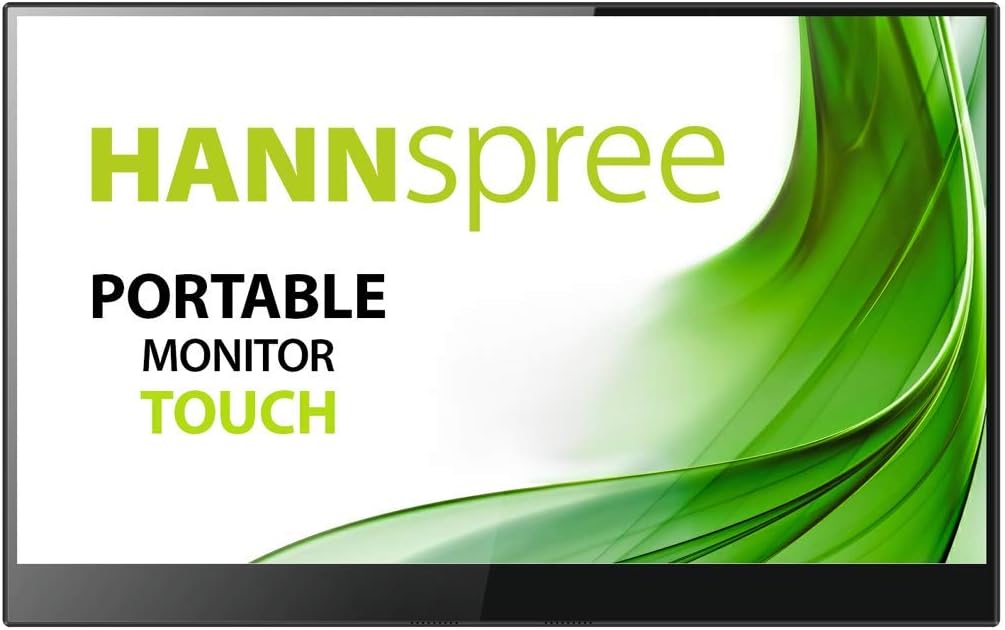
Image: Front view of the Hannspree HT161CGB Portable Touch Monitor, showcasing its sleek design and screen.
4.2 Back View

Image: Back view of the Hannspree HT161CGB Portable Touch Monitor, showing the Hannspree logo.
4.3 Side View with Ports

Image: Side view of the Hannspree HT161CGB Portable Touch Monitor, highlighting the various input and power ports.
4.4 Protective Smart Cover

Image: The Hannspree HT161CGB Portable Touch Monitor positioned with its smart cover folded to act as a stand.
5. Setup
5.1 Connecting to a Computer (Laptop/PC)
- Using a single USB-C cable (for compatible devices): Connect one end of the USB-C to USB-C cable to the monitor's USB-C port and the other end to a full-featured USB-C port on your laptop/PC that supports DisplayPort Alternate Mode and power delivery. This single cable can provide both video, touch, and power.
- Using HDMI and USB for power/touch:
- Connect the Mini HDMI to HDMI cable from the monitor's Mini HDMI port to your computer's HDMI port for video output.
- Connect the USB-A to USB-C cable from your computer's USB-A port to the monitor's USB-C port for power and touch functionality. An external power adapter (not always included) may be required if your computer's USB port does not provide sufficient power.
5.2 Using the Protective Smart Cover as a Stand
The included smart cover can be folded to create a stable stand for the monitor. Position the monitor in the desired viewing angle by adjusting the folds of the cover. Ensure the monitor is securely seated to prevent it from tipping over.
5.3 Touchscreen Configuration for Windows
After connecting the monitor, Windows may require configuration for touch input, especially if multiple displays are connected. If the touch input is not responding correctly or is mapped to the wrong screen:
- Go to Windows Control Panel > Hardware and Sound > Tablet PC Settings.
- Click on Setup... under the 'Configure your pen and touch displays' section.
- Follow the on-screen prompts, touching the portable monitor when instructed to identify it as the touch input device.
6. Operating
6.1 Power On/Off
The monitor typically powers on automatically when connected to a power source and a video signal. To manually power off or on, use the designated power button located on the side of the monitor.
6.2 On-Screen Display (OSD) Menu
The OSD menu allows you to adjust various display settings such as brightness, contrast, color temperature, and input source. Navigate the OSD menu using the physical buttons on the side of the monitor. Refer to the on-screen prompts for button functions (e.g., Menu, Up, Down, Enter).
6.3 Touch Functionality
The monitor supports multi-touch input. Once properly configured (see Section 5.3), you can interact with your connected device using gestures similar to a tablet or smartphone. Ensure the screen is clean for optimal touch response.
6.4 Connecting to Smartphones
For compatible smartphones (e.g., Sony Xperia 5, Samsung devices with DeX mode), you can connect the monitor via a single USB-C cable. This can transform your phone into a desktop-like experience on the larger monitor. Ensure your phone supports DisplayPort Alternate Mode over USB-C.
7. Maintenance
7.1 Cleaning the Screen
- Turn off the monitor and disconnect all cables.
- Gently wipe the screen with a soft, lint-free cloth.
- For stubborn marks, lightly dampen the cloth with water or a screen-specific cleaning solution. Do not spray liquid directly onto the screen.
- Avoid using alcohol, ammonia, or abrasive cleaners, as they can damage the screen surface.
7.2 General Care and Storage
- When not in use, store the monitor in its protective smart cover to prevent scratches and damage.
- Avoid extreme temperatures and high humidity.
- Do not place heavy objects on the monitor.
8. Troubleshooting
8.1 No Display / No Signal
- Ensure all cables (video and power) are securely connected.
- Verify that your computer's display settings are configured to extend or duplicate the display to the portable monitor.
- If using USB-C, ensure the port on your computer supports DisplayPort Alternate Mode and sufficient power delivery. Try connecting an external power source to the monitor if available.
- Try a different video cable or port on your computer if possible.
8.2 Touch Functionality Not Working
- Ensure the USB cable providing touch data (usually USB-C or a separate USB-A to USB-C) is properly connected.
- Perform the touchscreen calibration steps in Windows (refer to Section 5.3).
- Restart your computer and the monitor.
- Ensure your operating system and drivers are up to date.
8.3 Audible Noise (Coil Whine)
- Some users have reported a faint coil whine noise, particularly at certain brightness levels.
- Adjusting the monitor's brightness settings may reduce or eliminate the noise. Setting brightness to 100% has been noted to resolve this for some users.
- Ensure the monitor is not placed on a surface that might amplify vibrations.
8.4 Short Cables Provided
- The included cables (Mini HDMI, USB-C) are approximately 1 meter long.
- If longer reach is required, you may need to purchase longer, high-quality replacement cables or appropriate adapters/extenders.
9. Specifications
| Feature | Specification |
|---|---|
| Brand | Hannspree |
| Model Number | HT161CGB |
| Screen Size | 15.6 Inches |
| Resolution | FHD 1080p (1920 x 1080) |
| Aspect Ratio | 16:9 |
| Screen Surface | Glossy |
| Contrast Ratio | 800:1 |
| Response Time | 1 Millisecond |
| Refresh Rate | 240 Hz |
| Special Feature | Touchscreen |
| Display Technology | LED, LCD |
| Image Enhancement | Low Blue Light Mode |
| Item Weight | 770 Grams |
| Connectivity Technology | USB |
| Hardware Interface | HDMI, Mini HDMI, USB, USB-C |
| Total HDMI Ports | 1 |
| Total USB Ports | 2 (1x USB 2.0, 3x USB 3.0 - Note: Discrepancy in source data, typically 1-2 USB-C and 1-2 USB-A) |
| Compatible Devices | Smartphone, PC, Laptop |
| Color | Black, Silver (Product title mentions Black, Silver; specifications mention Blue) |
10. Warranty and Support
10.1 Warranty Information
The Hannspree HT161CGB Portable Touch Monitor comes with a 2-year manufacturer's warranty. Please retain your proof of purchase for warranty claims. The warranty covers defects in materials and workmanship under normal use.
10.2 Customer Support
For technical assistance, troubleshooting beyond this manual, or warranty inquiries, please contact Hannspree customer support through their official website or the retailer where the product was purchased. Have your model number (HT161CGB) and purchase details ready when contacting support.


