
ONN 16 GB USB 2.0 Flash Drive
ONN 16 GB USB 2.0 Flash Drive User Manual
Model: 16 GB USB 2.0 Flash Drive
Product Overview
The ONN 16 GB USB 2.0 Flash Drive is a portable storage device designed for easy transfer and storage of digital files. Its compact size and protective slider design make it convenient for everyday use.

This image displays the front of the ONN 16 GB USB 2.0 Flash Drive's retail packaging. The packaging features the ONN logo, '16GB' capacity, and 'USB 2.0 FLASH DRIVE' text. The flash drive, with its protective slider design, is visible in front of a graphic of a laptop screen.
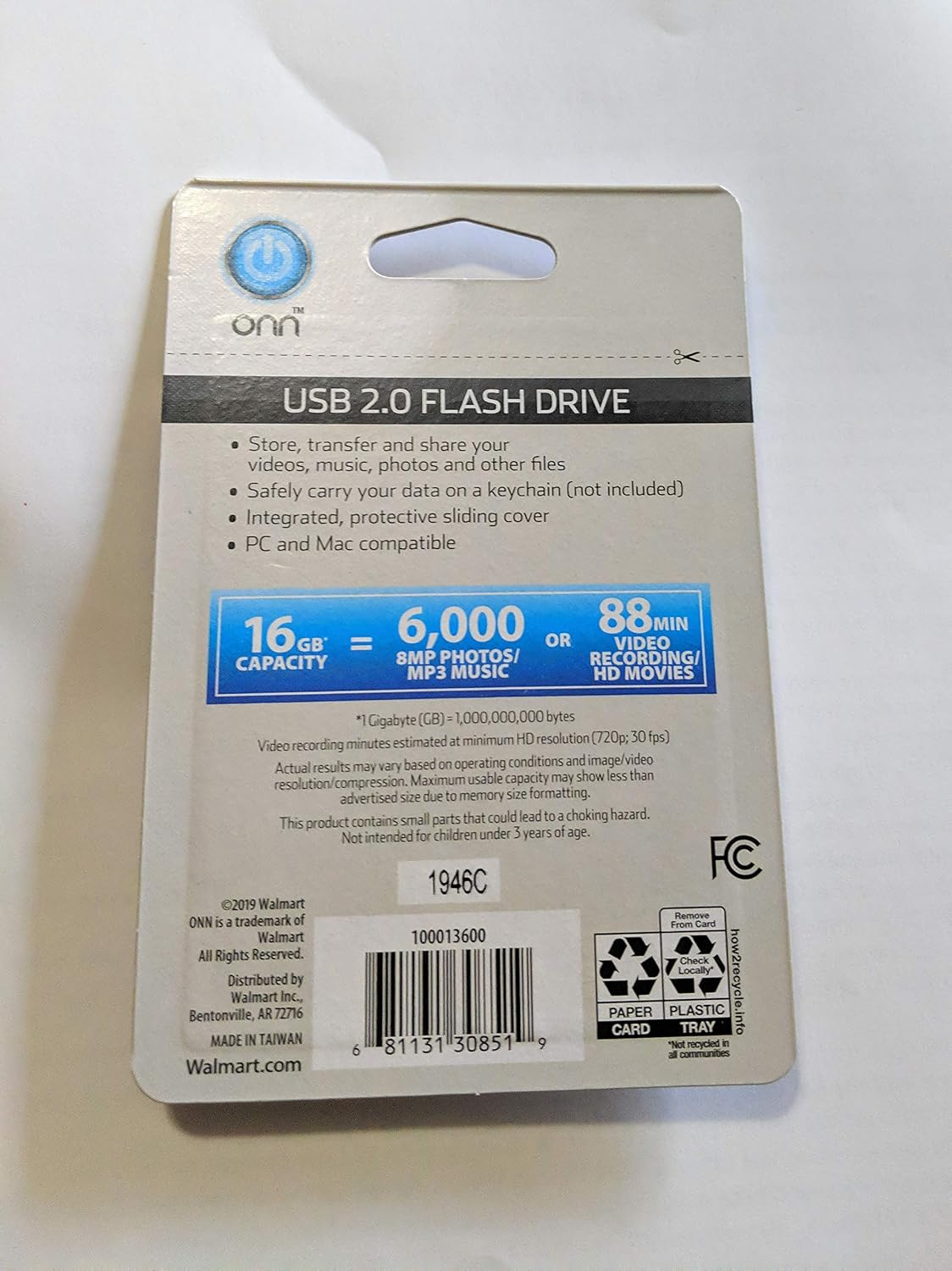
This image shows the back of the ONN 16 GB USB 2.0 Flash Drive's retail packaging. It lists key features such as 'Store, transfer and share your videos, music, photos and other files', 'Safely carry your data on a keychain (not included)', 'Integrated, protective sliding cover', and 'PC and Mac compatible'. It also indicates '16 GB capacity' equivalent to '6,000 8MP PHOTOS' or '88 min VIDEO RECORDING/HD MOVIES'. Manufacturing details, UPC (681131308519), and recycling information are also present.
Setup
The ONN 16 GB USB 2.0 Flash Drive is a plug-and-play device, requiring no special software installation for basic functionality on most operating systems.
- Unpack the Device: Carefully remove the flash drive from its packaging.
- Identify USB Port: Locate an available USB Type-A port on your computer (desktop, laptop, or other compatible device).
- Insert Flash Drive: Slide the protective cover to expose the USB connector. Gently insert the flash drive into the USB port. Ensure it is fully seated.
- Device Recognition: Your operating system should automatically detect the new hardware and make the drive accessible. A notification may appear indicating the device is ready for use.
Operating Instructions
Once the flash drive is recognized by your computer, you can begin transferring files.
Copying Files To The Flash Drive
- Open File Explorer/Finder: Navigate to 'This PC' or 'My Computer' (Windows) or 'Finder' (macOS).
- Locate Flash Drive: Find the drive listed under 'Devices and drives' or 'Locations'. It will typically be labeled as 'ONN USB' or 'Removable Disk'. Double-click to open it.
- Select Files: Browse to the location of the files you wish to copy on your computer. Select the desired files or folders.
- Copy/Paste: Right-click on the selected files and choose 'Copy'. Then, navigate back to the opened flash drive window, right-click in an empty area, and select 'Paste'. Alternatively, drag and drop the selected files directly into the flash drive window.
Copying Files From The Flash Drive
- Open Flash Drive: Open the flash drive as described above.
- Select Files: Select the files or folders you wish to copy from the flash drive.
- Copy/Paste: Right-click on the selected files and choose 'Copy'. Navigate to the desired destination folder on your computer, right-click, and select 'Paste'. Alternatively, drag and drop the selected files to the destination.
Safely Removing The Flash Drive
It is crucial to safely eject the flash drive before physically removing it to prevent data corruption.
- Windows: Locate the 'Safely Remove Hardware and Eject Media' icon in the system tray (bottom-right corner of the taskbar). Click it, then select the ONN USB device. Wait for the 'Safe to Remove Hardware' message before unplugging.
- macOS: Drag the flash drive icon from the desktop or Finder sidebar to the Trash icon (which will change to an Eject icon). Alternatively, right-click (or Control-click) the flash drive icon and select 'Eject'. Wait for the icon to disappear before unplugging.
Maintenance
- Physical Care: Keep the flash drive clean and free from dust and debris. Use a soft, dry cloth to wipe the exterior. Avoid exposing the drive to extreme temperatures, moisture, or direct sunlight.
- Protect Connector: Always use the integrated protective slider to cover the USB connector when the drive is not in use. This prevents damage to the connector and keeps it clean.
- Data Backup: While flash drives are convenient, they are not a permanent backup solution. Regularly back up important data stored on the flash drive to another storage medium (e.g., computer hard drive, cloud storage).
- Avoid Sudden Removal: Always follow the safe removal procedures to prevent data corruption and prolong the life of the drive.
Troubleshooting
- Drive Not Recognized:
- Try inserting the drive into a different USB port on your computer.
- Test the drive on another computer to determine if the issue is with the drive or your computer's USB ports.
- Ensure the USB drivers on your computer are up to date.
- Slow Transfer Speeds:
- Ensure you are using a USB 2.0 compatible port for optimal performance. While compatible with USB 3.0 ports, the drive will operate at USB 2.0 speeds.
- Close other applications that might be using system resources.
- Defragmenting the drive (Windows) or verifying the disk (macOS) can sometimes improve performance, though generally not necessary for flash drives.
- Cannot Write Files / Drive is Read-Only:
- Check if the drive is full. Delete unnecessary files to free up space.
- The drive might be formatted with a file system (e.g., NTFS) that macOS can read but not write to without third-party software. Consider reformatting the drive to exFAT or FAT32 if cross-platform compatibility is needed (Note: Reformatting will erase all data on the drive).
- Check for disk errors using your operating system's disk utility tools.
- Data Corruption:
- Always safely eject the drive before removal.
- Avoid interrupting file transfers.
- If data is corrupted, you may need to reformat the drive.
Specifications
| Feature | Detail |
|---|---|
| Brand | ONN |
| Model | 16 GB USB 2.0 Flash Drive |
| Memory Storage Capacity | 16 GB |
| Hardware Interface | USB 2.0 |
| Connectivity Technology | USB |
| Flash Memory Type | USB |
| Hardware Connectivity Technology | USB Type A |
| Write Speed | 40 MB/s |
| Special Feature | Lightweight |
| Item Weight | 4.8 ounces |
| Package Dimensions | 5.9 x 4 x 0.5 inches |
| Manufacturer | Onn |
| UPC | 0681131308519 |
| ASIN | B088QMMHJ2 |
| Date First Available | May 17, 2020 |
Warranty and Support
For warranty information and customer support, please refer to the documentation included with your purchase or visit the official ONN website. Specific warranty terms may vary by region and retailer.
For general inquiries or technical assistance, you may also refer to the product's listing page on Amazon: ONN 16 GB USB 2.0 Flash Drive on Amazon.
Ask a question about this manual
Ask about setup, troubleshooting, compatibility, parts, safety, or missing instructions. Manuals+ will review the question and use this page’s manual context to help answer it.