1. Introduction
This manual provides comprehensive instructions for the setup, operation, and maintenance of your AURSINC MMDVM Hotspot. This device is a digital voice modem designed for amateur radio enthusiasts, enabling communication across various digital modes such as C4FM, YSF, NXDN, DSTAR, P25, and DMR. It integrates with a Raspberry Pi Zero W and comes with pre-installed Pi-Star software for ease of use.
The hotspot operates on specified UHF and VHF frequencies, providing a reliable link for digital voice communications. Please read this manual thoroughly before using the device to ensure proper functionality and to maximize your experience.

Figure 1.1: The AURSINC MMDVM Hotspot, including the main unit, antenna, Ethernet adapter, and an elbow connector.
2. What's Included
Please verify that all items listed below are present in your package:
- 1x MMDVM Hotspot Spot Radio Unit
- 1x Ethernet Cable
- 1x Elbow Connector (for antenna)
- 1x Micro USB Charging Cable

Figure 2.1: Contents of the AURSINC MMDVM Hotspot package.
3. Setup Guide
3.1 Initial Setup and Powering On
- Connect the Antenna: Screw the included antenna onto the gold connector on the MMDVM Hotspot unit. If desired, use the elbow connector for a different antenna orientation.
- Power Connection: Connect the micro USB charging cable to the hotspot unit and to a power source (e.g., power bank, laptop USB port, or USB wall adapter). The device will power on automatically.
- Initial Boot: Allow the hotspot approximately 2 minutes to boot up and attempt to auto-connect to a Wi-Fi network. The Pi-Star software is preloaded on the TF card, eliminating the need for initial software installation.
3.2 Wi-Fi Configuration
The Raspberry Pi Zero W in the hotspot supports 2.4GHz Wi-Fi networks only. Ensure your Wi-Fi network's SSID is for a 2.4GHz band and the password type is WPA, not WEP.
- Access Pi-Star Configuration: After the hotspot has been powered on for about 2 minutes, open a web browser on a computer connected to the same network and navigate to
pi-star/admin/configure.php. - Network Settings: Within the Pi-Star configuration interface, locate the network settings section to enter your Wi-Fi SSID and password. Save the changes.

Figure 3.1: Pi-Star configuration interface accessed via a laptop.
3.3 Optimized System Recommendation
For enhanced performance and additional features, it is recommended to switch to an optimized system such as WPSD. Detailed instructions for installing WPSD can be found on their official website:
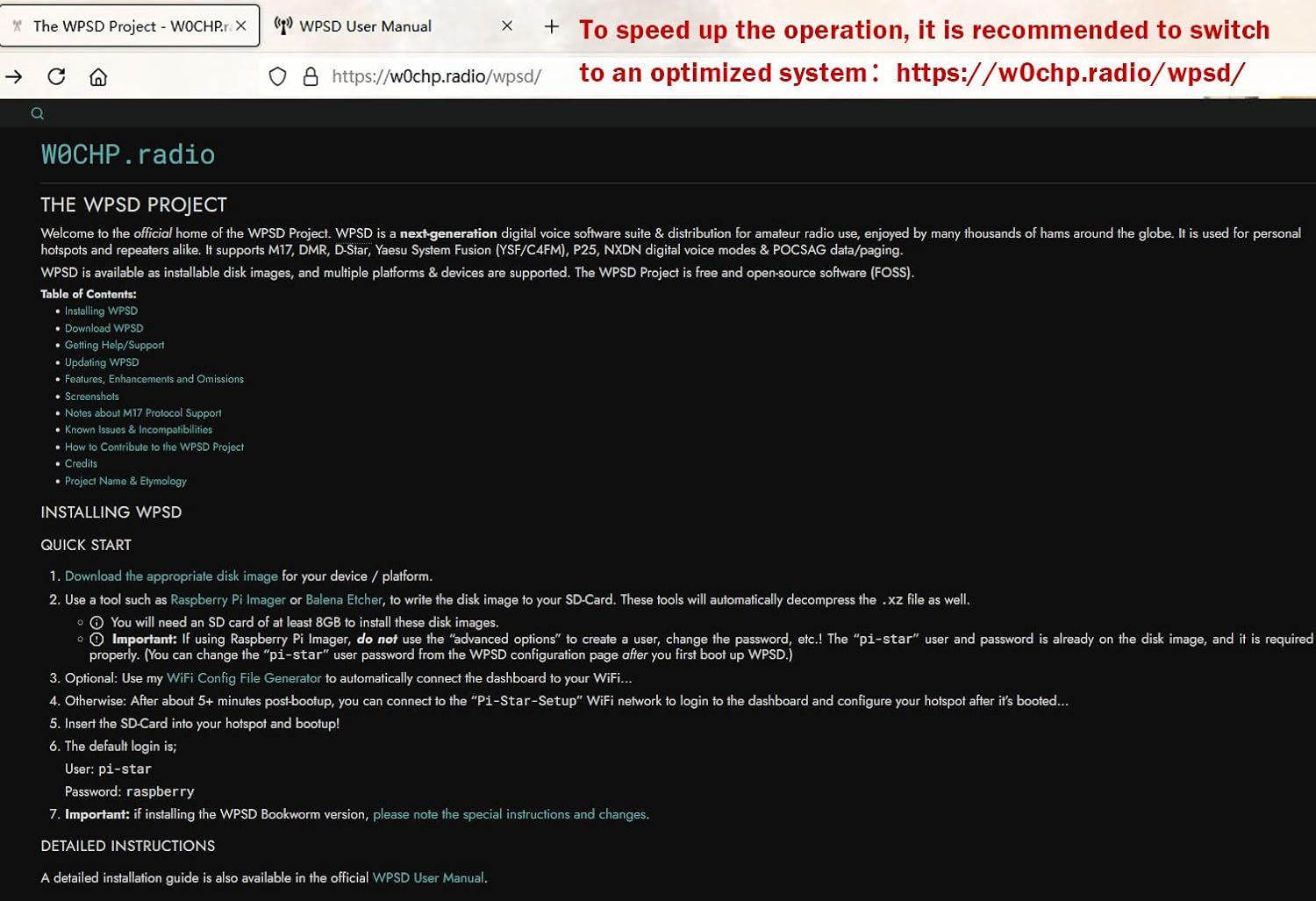
Figure 3.2: The WPSD Project website, a resource for an optimized hotspot system.
4. Operation
4.1 Supported Digital Modes
The AURSINC MMDVM Hotspot supports a wide range of digital voice modes, including:
- C4FM (System Fusion)
- YSF (Yaesu System Fusion)
- NXDN
- DSTAR
- P25
- DMR (Digital Mobile Radio)
The device defaults to working with UHF frequencies. Configuration for specific modes and parameters can be adjusted within the Pi-Star dashboard.
4.2 Radio Frequencies
The supported radio frequencies are:
- UHF: 430-440 MHz
- VHF: 144-146 MHz
This upgraded version of the hotspot does not require setting RXOFFSET and TXOFFSET; they are defaulted to 0.
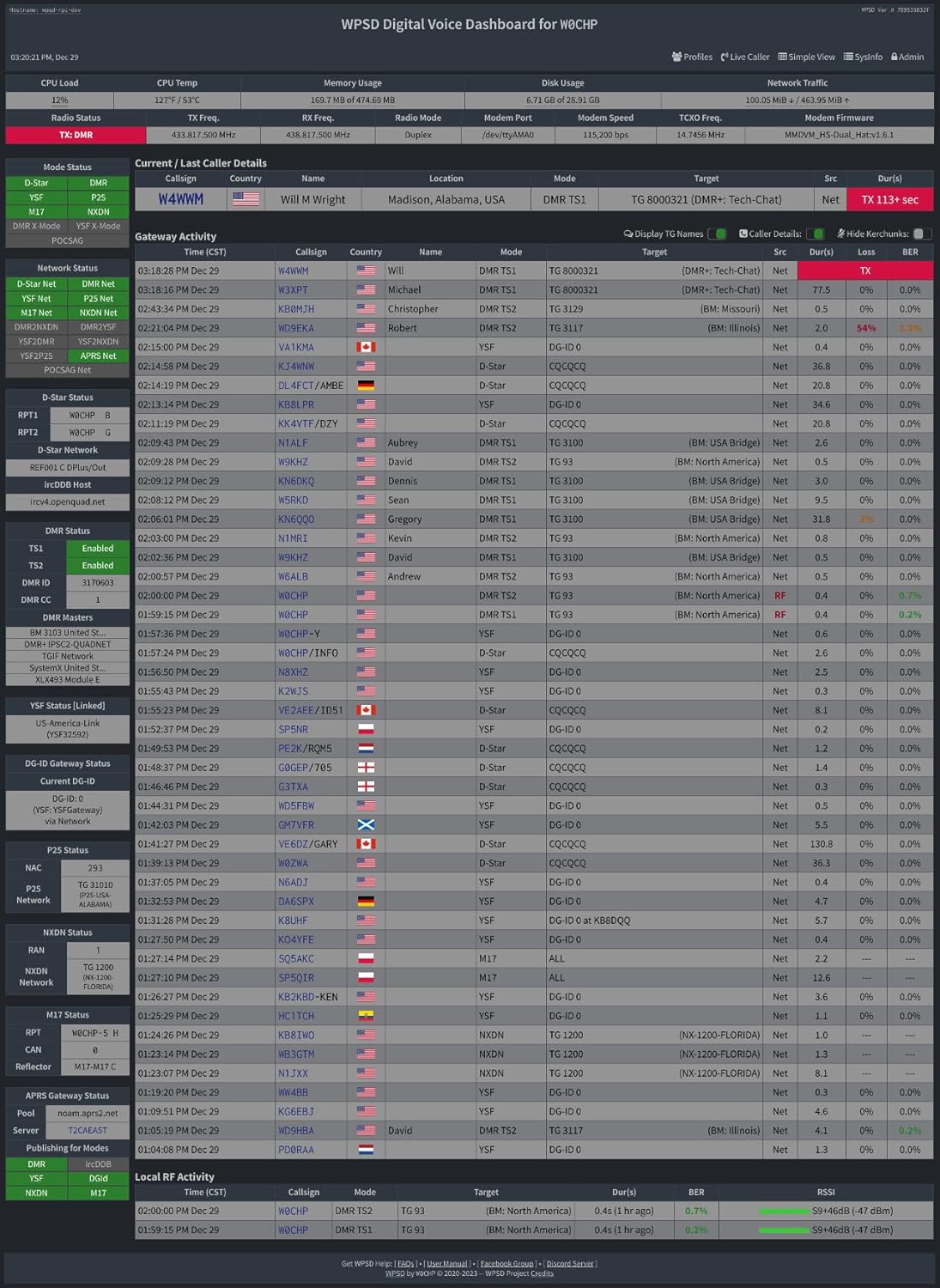
Figure 4.1: Pi-Star Digital Voice Dashboard, providing real-time operational status.
5. Maintenance
5.1 Firmware Updates
The MMDVM hotspot board supports firmware updates. While it comes with Firmware V1.5.2, it can be updated to V1.6.1, especially if you switch to the WPSD system. Instructions for updating the MMDVM_HS firmware for WPSD 1.6.1 can be found at:
5.2 General Care
- Keep the device in a dry environment, away from direct sunlight and extreme temperatures.
- Avoid dropping the device or subjecting it to strong impacts.
- Clean the exterior with a soft, dry cloth. Do not use liquid cleaners.
6. Troubleshooting
6.1 Device Cannot Connect to Network
If the device fails to connect to the network after setup, try the following:
- Verify Wi-Fi Settings: Double-check that the Wi-Fi SSID and password entered in the Pi-Star configuration are correct and that the network is 2.4GHz with WPA encryption.
- Reflash SD Card: If connectivity issues persist, reflash the SD card using the provided firmware package. The package can be downloaded from: Google Drive Link.
6.2 Signal Reception or Transmission Issues
To test whether your device can receive or transmit signals, refer to the following website:
If you continue to experience issues with signal reception or transmission, please contact AURSINC customer support for assistance.
7. Specifications
| Feature | Detail |
|---|---|
| Product Dimensions | 4 x 4 x 2 inches |
| Item Weight | 4.6 ounces |
| Connectivity Technology | Wi-Fi (2.4GHz only) |
| Compatible Devices | Laptop (for configuration) |
| Total Ethernet Ports | 1 (via adapter) |
| Color | Black |
| Radio Frequency | UHF: 430-440 MHz, VHF: 144-146 MHz |
| Supported Modes | C4FM, YSF, NXDN, DSTAR, P25, DMR |
| Firmware Version | V1.5.2 (upgradable to V1.6.1) |
8. Warranty and Support
For any technical assistance, troubleshooting, or inquiries regarding your AURSINC MMDVM Hotspot, please contact AURSINC customer support directly. While specific warranty details are not provided in this manual, extended protection plans may be available for purchase separately.
Please refer to your purchase documentation or the AURSINC official website for the most current support contact information and warranty policies.
You can also find additional resources and an installation manual (PDF) at the following link: Installation Manual (PDF).


