1. Product Overview
The Lenovo ThinkPad L13 Yoga is a versatile 2-in-1 laptop designed for adaptability and performance. Featuring a 13.3-inch Full HD touch display, it is powered by an Intel Core i5-10210U processor, 8GB of DDR4 RAM, and a 256GB NVMe SSD. This device supports multiple modes of use, transitioning seamlessly between laptop and tablet functionalities. Connectivity options include HDMI, DisplayPort via USB-C, Wi-Fi 802.11ax, and Bluetooth. It operates on Windows 10 Home and includes a fingerprint reader for enhanced security.
Key Features:
- Intel Core i5-10210U Processor (1.60 - 4.2GHz)
- 8GB DDR4 RAM
- 256GB NVMe SSD
- 13.3" FHD Touch Display
- HDMI, DisplayPort via USB-C, Wi-Fi, Bluetooth
- Windows 10 Home Operating System
- Integrated Fingerprint Reader
2. Setup Guide
2.1 Initial Power On
- Unpack the Device: Carefully remove the laptop and all accessories from the packaging.
- Connect Power: Plug the power adapter into the laptop's USB-C port and then into a power outlet. Allow the battery to charge for at least 30 minutes before first use.
- Power On: Press the power button, typically located on the side or top right of the keyboard deck. The system will boot up.
- Follow On-Screen Instructions: Complete the initial Windows 10 Home setup, including language selection, network connection, user account creation, and privacy settings.
2.2 Network Connection
During initial setup or at any time, connect to a Wi-Fi network:
- Click the Network icon in the taskbar.
- Select your desired Wi-Fi network from the list.
- Click Connect and enter the network security key (password) if prompted.
3. Operating Instructions
3.1 Understanding 2-in-1 Modes
The ThinkPad L13 Yoga offers four primary modes:
- Laptop Mode: Standard laptop configuration for typing and productivity.
- Stand Mode: Fold the keyboard back so the screen faces outwards, ideal for presentations or media viewing.
- Tent Mode: Position the device like a tent, suitable for touch-based interaction or watching videos in confined spaces.
- Tablet Mode: Fold the keyboard completely behind the screen for a full tablet experience. The keyboard and trackpad are automatically disabled in this mode.

Figure 1: Lenovo ThinkPad L13 Yoga in standard laptop mode, displaying a presentation.

Figure 2: Lenovo ThinkPad L13 Yoga in tent mode, displaying a presentation.
3.2 Touch Screen and Pen Usage
The 13.3-inch display is touch-sensitive, allowing for direct interaction with the screen using your fingers or a compatible stylus (sold separately). Use gestures common to Windows touch devices, such as tapping, swiping, and pinching to zoom.

Figure 3: Front view of the Lenovo ThinkPad L13 Yoga screen displaying a vibrant landscape image.
3.3 Keyboard and TrackPoint
The laptop features a full-sized keyboard and a TrackPoint pointing device located in the center of the keyboard. The TrackPoint allows for precise cursor control without moving your hands from the keyboard. A traditional touchpad is also available below the keyboard.
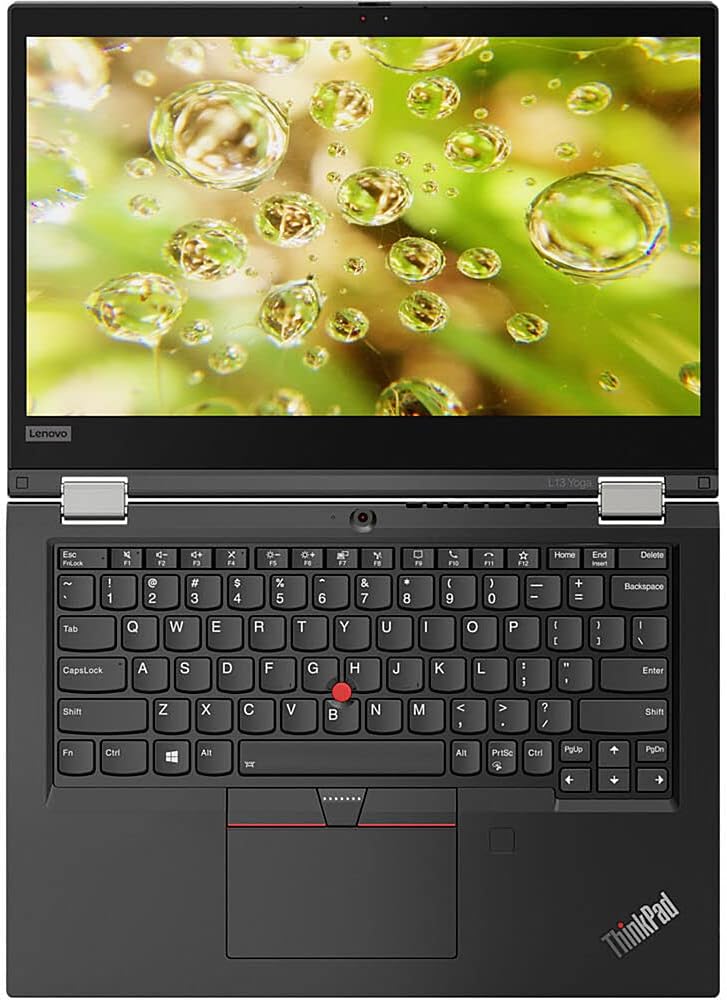
Figure 4: Top-down view of the Lenovo ThinkPad L13 Yoga keyboard and trackpad.
3.4 Fingerprint Reader
For secure and quick login, the ThinkPad L13 Yoga includes a fingerprint reader. To set up, navigate to Settings > Accounts > Sign-in options and follow the instructions to register your fingerprint.
4. Maintenance
4.1 Cleaning the Device
- Screen: Use a soft, lint-free cloth lightly dampened with water or a screen-cleaning solution. Avoid harsh chemicals.
- Keyboard and Chassis: Use a soft cloth. For stubborn dirt, a slightly damp cloth with mild soap can be used, ensuring no liquid enters openings.
- Ports: Keep ports free of dust and debris. Use compressed air if necessary, holding the can upright.
4.2 Battery Care
- Avoid extreme temperatures, which can degrade battery life.
- For optimal long-term health, try to keep the battery charge between 20% and 80% when possible.
- Use only the original Lenovo power adapter or a certified compatible charger.
5. Troubleshooting
5.1 Common Issues and Solutions
- Device Not Powering On: Ensure the power adapter is securely connected and the battery has sufficient charge. Try holding the power button for 10-15 seconds for a hard reset.
- No Wi-Fi Connection: Check if Wi-Fi is enabled in Windows settings. Restart your router and the laptop. Ensure drivers are up to date via Device Manager.
- Touch Screen Unresponsive: Restart the laptop. Check for any physical obstructions or screen protectors that might interfere. Update touch screen drivers.
- Slow Performance: Close unnecessary applications. Check Task Manager for high CPU/RAM usage. Ensure Windows and drivers are updated. Consider running a disk cleanup.
5.2 System Updates
Regularly check for and install Windows updates and Lenovo Vantage updates to ensure optimal performance, security, and compatibility. These updates often include bug fixes and performance enhancements.
6. Specifications
| Feature | Detail |
|---|---|
| Model Number | 20R5A000US |
| Processor | Intel Core i5-10210U (1.60 - 4.2GHz) |
| RAM | 8GB DDR4 |
| Storage | 256GB NVMe SSD |
| Display | 13.3-inch FHD (1920x1080) Touch-Screen |
| Graphics | Intel Iris Xe Graphics (Integrated) |
| Operating System | Windows 10 Home |
| Wireless Connectivity | 802.11ax Wi-Fi, Bluetooth |
| Ports | HDMI, DisplayPort via USB-C |
| Security Features | Fingerprint Reader |
| Weight | 3.15 pounds |
| Dimensions (LxWxH) | 12.3 x 8.6 x 0.6 inches |
7. Warranty and Support
7.1 Return Policy
This product is eligible for a 30-day refund or replacement policy from the date of purchase. Please refer to your retailer's specific return terms for detailed instructions.
7.2 Protection Plans
Extended protection plans may be available for this product:
- 2-Year Protection Plan: Available for a one-time payment of $99.99.
- 4-Year Protection Plan: Available for a one-time payment of $159.99.
- Complete Protect: A monthly plan covering eligible past and future purchases for $16.99/month.
For specific terms and conditions of these plans, please consult the provider or your point of purchase.
7.3 Technical Support
For technical assistance, driver downloads, or further support, please visit the official Lenovo support website or contact their customer service.


