
1. Introduction
This manual provides detailed instructions for the PRITOM L10 10-inch Android Tablet. It covers essential information regarding device setup, operation, maintenance, and troubleshooting to ensure optimal performance and user experience. Please read this manual thoroughly before using your tablet.
2. Device Overview
The PRITOM L10 tablet is designed for portability and performance, featuring a 10-inch display and the Android 10.0 operating system.

Figure 2.1: The PRITOM L10 tablet's home screen, showing the Android interface with pre-installed applications like Google, YouTube, Netflix, Instagram, and Facebook.
2.1 Key Features
- Operating System: Android 10.0
- Processor: Octa-core, up to 1.6 GHz
- Memory: 3GB RAM, 32GB Internal Storage (ROM)
- Display: 10-inch HD IPS (1280 x 800 pixels)
- Cameras: 5 MP Front, 8 MP Rear
- Battery: 6000 mAh Lithium-polymer
- Connectivity: Dual-band Wi-Fi (2.4G/5G), Bluetooth, GPS
- Expandable Storage: Micro SD card slot (up to 128GB)
- Audio: Dual BOX speakers

Figure 2.2: An illustration highlighting the tablet's 3GB RAM, 32GB internal storage (ROM), and the capability to expand storage up to 128GB via a Micro SD card.
3. Setup
3.1 Initial Power On
- Charge the Tablet: Before first use, fully charge the tablet using the provided USB-C cable and power adapter. The charging port is typically located on the side or bottom edge of the device.
- Power On: Press and hold the Power button (usually on the side) for a few seconds until the PRITOM logo appears on the screen.
- Initial Setup Wizard: Follow the on-screen instructions to select your language, connect to a Wi-Fi network, set up your Google account, and configure basic settings.
3.2 Wi-Fi Connection
To connect to a Wi-Fi network:
- Go to Settings > Network & internet > Wi-Fi.
- Toggle the Wi-Fi switch to the On position.
- Select your desired network from the list of available networks.
- If prompted, enter the network password and tap Connect.

Figure 3.1: This image illustrates the tablet's support for both 2.4G and 5G Wi-Fi bands, indicating faster and more stable internet connectivity.
4. Operating the Tablet
4.1 Navigation
- Home Screen: Tap the home button (circle icon) to return to the main screen.
- Back: Tap the back button (triangle icon) to go back to the previous screen.
- Recent Apps: Tap the square icon to view and switch between recently opened applications.
- Notifications: Swipe down from the top of the screen to access notifications and quick settings.
4.2 Installing and Managing Apps
The PRITOM L10 tablet is Google Certified, allowing access to the Google Play Store for downloading applications.
- Download Apps: Open the Play Store app, search for your desired application, and tap Install.
- Uninstall Apps: Go to Settings > Apps & notifications, select the app, and tap Uninstall.
4.3 Camera Usage
The tablet features a 5 MP front camera and an 8 MP rear camera.
- Open the Camera app.
- Tap the shutter button to take a photo.
- Switch between front and rear cameras using the camera switch icon.
- Select video mode to record videos.
5. Battery Management
The PRITOM L10 tablet is equipped with a 6000 mAh lithium-polymer battery.

Figure 5.1: A visual showing the tablet's 6000mAh battery, with estimated usage times: 9 hours for video playback, 11 hours for mixed use, and 15 hours for reading.
5.1 Charging
- Use only the original charger and USB-C cable provided with the tablet.
- Avoid charging in extreme temperatures.
5.2 Optimizing Battery Life
- Reduce screen brightness.
- Turn off Wi-Fi, Bluetooth, and GPS when not in use.
- Close background applications.
- Enable battery saver mode in Settings > Battery.
6. Storage Management
The tablet comes with 32GB of internal storage, which can be expanded.
6.1 Expanding Storage
You can expand the tablet's storage up to 128GB using a Micro SD card.
- Locate the Micro SD card slot on the tablet (refer to the device diagram if available).
- Carefully insert the Micro SD card into the slot until it clicks into place.
- The tablet will detect the new storage. You may be prompted to format the card for optimal use with the device.
6.2 Managing Internal Storage
To check and manage storage usage:
- Go to Settings > Storage.
- Here you can see how much space is used by apps, photos, videos, and other files.
- You can clear cached data or uninstall unused apps to free up space.
7. Display Settings
The PRITOM L10 features a 10-inch HD IPS display with a resolution of 1280 x 800 pixels.

Figure 7.1: A detailed view of the tablet's 10-inch HD IPS display, emphasizing its clear resolution and vibrant color reproduction.
7.1 Adjusting Brightness and Eye Health Mode
- Go to Settings > Display.
- Adjust the brightness slider to your preference.
- Look for an option like 'Eye Comfort Shield' or 'Reading Mode' to reduce blue light emission, which can be beneficial for eye health during prolonged use.
8. Maintenance
8.1 Cleaning the Tablet
- Power off the tablet before cleaning.
- Use a soft, lint-free cloth to wipe the screen and body.
- For stubborn marks, slightly dampen the cloth with water or a screen cleaner. Avoid harsh chemicals.
8.2 General Care
- Avoid dropping the tablet or exposing it to strong impacts.
- Keep the tablet away from extreme temperatures, direct sunlight, and moisture.
- Do not attempt to disassemble the tablet, as this will void the warranty.
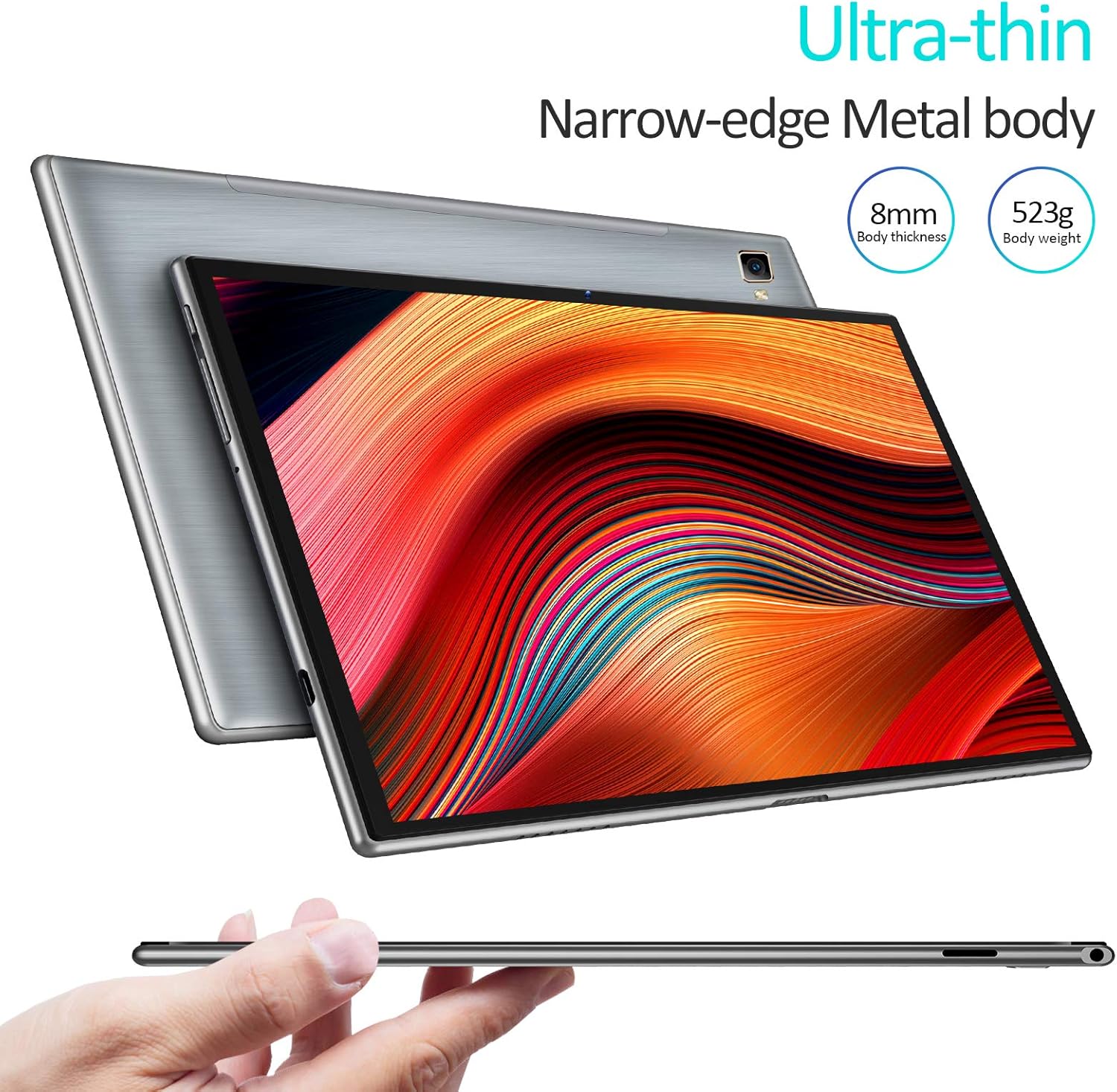
Figure 8.1: This image showcases the tablet's slim profile (8mm thickness) and lightweight metal body (523g), highlighting its portable design.
9. Troubleshooting
9.1 Common Issues and Solutions
- Tablet not turning on: Ensure the battery is charged. Connect the charger and wait a few minutes before attempting to power on again.
- Screen frozen: Press and hold the Power button for about 10-15 seconds to force a restart.
- Wi-Fi connection issues: Check if Wi-Fi is enabled in settings. Restart your router and the tablet. Forget the network and reconnect.
- Apps crashing: Clear the app's cache (Settings > Apps & notifications > [App Name] > Storage & cache > Clear cache). If the issue persists, uninstall and reinstall the app.
- Slow performance: Close unused apps, clear unnecessary files, and consider performing a factory reset if the issue is severe (back up your data first).
10. Specifications
| Feature | Specification |
|---|---|
| Brand | PRITOM |
| Model Number | L10 |
| Operating System | Android 10.0 |
| Processor | Octa-core Unisoc, 1.6 GHz |
| RAM | 3 GB |
| Internal Storage (ROM) | 32 GB |
| Expandable Storage | Micro SD up to 128 GB |
| Screen Size | 10 Inches |
| Screen Resolution | 1280 x 800 pixels (HD IPS) |
| Front Camera | 5 MP |
| Rear Camera | 8 MP |
| Battery | 6000 mAh Lithium-polymer |
| Wi-Fi | Dual-band (2.4G & 5G) |
| Bluetooth | Yes |
| GPS | Yes |
| Dimensions (L x W x H) | 24.3 x 16.2 x 8.9 cm |
| Weight | 520 grams |
| Special Features | Stereo speakers, Metal body |
11. Safety Information
- Do not use the tablet in environments with extreme temperatures or high humidity.
- Avoid exposing the tablet to water or other liquids.
- Keep the tablet away from strong magnetic fields.
- Do not use damaged accessories, such as chargers or cables.
- Dispose of the tablet and its battery responsibly according to local regulations.
12. Warranty and Support
The PRITOM L10 tablet typically comes with a manufacturer's warranty. Please refer to the warranty card included in your product packaging for specific terms and conditions, including the warranty period and coverage details.
For technical support, troubleshooting assistance, or warranty claims, please contact PRITOM customer service through their official website or the contact information provided with your purchase. When contacting support, please have your tablet's model number (L10) and purchase details ready.


