
LEDVANCE 75672
SYLVANIA SMART+ WiFi LED Smart Light Bulb A19 (Model 75672) Instruction Manual
Model: 75672 | Brand: LEDVANCE
1. Introduction
This manual provides detailed instructions for the installation, operation, and maintenance of your SYLVANIA SMART+ WiFi LED Smart Light Bulb A19. This product offers dimmable soft white lighting and is designed for seamless integration with Amazon Alexa and Google Home voice assistants.

Image: Four SYLVANIA SMART+ WiFi LED Smart Light Bulbs, showcasing the product design.
2. Important Safety Information
- Indoor Use Only: These LED light bulbs are designed for indoor use exclusively.
- Avoid Enclosed Fixtures: Do not use these bulbs in fully enclosed light fixtures. This can lead to overheating and reduced product lifespan.
- Dimmers: These bulbs are dimmable via the app or voice control with a smart speaker. They are not compatible with traditional wall dimmers. Do not install this device on a circuit with a dimmer switch.
- Power Off Before Installation: Always ensure power is turned off at the switch before installing or removing the bulb.
- 2.4 GHz WiFi Network: A 2.4 GHz WiFi network is required for proper functionality and setup.
3. Package Contents
Your package should contain the following items:
- 4 x SYLVANIA SMART+ WiFi LED Smart Light Bulbs (A19, Soft White)
4. Product Specifications
| Brand | LEDVANCE |
| Model Number | 75672 |
| Light Type | LED |
| Bulb Shape Size | A19 |
| Bulb Base | E26 Medium |
| Wattage | 9 Watts |
| Incandescent Equivalent | 60 Watts |
| Brightness | 800 Lumens |
| Light Color | Soft White (2700 Kelvin) |
| Voltage | 120 Volts |
| Control Method | Voice, App |
| Average Life | 15,000 Hours |
| Product Dimensions | 2.36"W x 4.41"H |
| Connectivity | WiFi (2.4 GHz only) |

Image: Diagram illustrating the dimensions of the SYLVANIA SMART+ A19 bulb, with measurements for width and height.
5. Setup Instructions
Follow these steps to set up your SYLVANIA SMART+ WiFi LED Smart Light Bulbs:
- Install the Bulb: Screw the SYLVANIA SMART+ WiFi LED Smart Light Bulb into a standard E26 medium base socket. Ensure the power to the fixture is turned off before installation.
- Download the App: Download the free SYLVANIA SMART+ WiFi App from your device's app store. You can find links to the app on the official LEDVANCE website or by searching "SYLVANIA SMART+ WiFi" in your app store.
- Create an Account: Open the SYLVANIA SMART+ WiFi App and follow the on-screen prompts to create a new user account.
- Connect to WiFi: Ensure your smartphone is connected to a 2.4 GHz WiFi network. The SYLVANIA SMART+ bulbs require a 2.4 GHz network for initial pairing and operation. (Note: 5 GHz networks are not supported.)
- Pair the Bulb:
- Turn on the light fixture. The bulb should begin flashing, indicating it is in pairing mode.
- In the SYLVANIA SMART+ WiFi App, select "Add Device" or the "+" icon.
- Follow the app's instructions to discover and connect your new bulb. This typically involves confirming the flashing light and entering your WiFi network password.
- Once successfully paired, the bulb will stop flashing and remain steadily lit.
- Integrate with Voice Assistants (Optional):
- For Amazon Alexa: Open the Alexa app, go to "Skills & Games," search for "SYLVANIA SMART+ WiFi," enable the skill, and link your SYLVANIA account. Then, discover devices.
- For Google Home: Open the Google Home app, tap "Add" > "Set up device" > "Works with Google," search for "SYLVANIA SMART+ WiFi," link your account, and assign rooms.
- For Siri Shortcuts: Use the SYLVANIA SMART+ WiFi App to create custom scenes and then add them as Siri Shortcuts.

Image: A graphic illustrating the three easy steps for setup: 1) Download the SYLVANIA SMART WiFi app, 2) Create an account and pair your light with your account, 3) Easily control your new bulb with voice or phone. A 2.4GHz WiFi network is required.
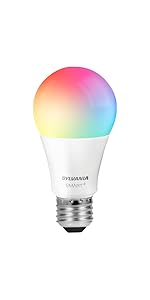
Image: A graphic showing simplified setup steps: download the app, create an account and pair, control lights from phone or smart speaker.
6. Operating Instructions
6.1. App Control
The SYLVANIA SMART+ WiFi App provides full control over your smart bulbs:
- Turn On/Off: Tap the bulb icon in the app to toggle power.
- Dimming: Use the brightness slider to adjust the light intensity from 1% to 100%.
- Scheduling: Set schedules for your lights to turn on/off or dim at specific times, such as morning routines or bedtime.
- Remote Control: Control your lights from anywhere with an internet connection, even when you are away from home.

Image: A screenshot of the SYLVANIA SMART+ WiFi app, showing controls for brightness and on/off functionality.
Image: People on a boat using a smartphone, demonstrating remote control capabilities of the smart bulbs to manage home lighting while away.
6.2. Voice Control
Once integrated with Amazon Alexa or Google Home, you can control your lights using simple voice commands:
- "Alexa, turn on the living room light."
- "Hey Google, dim the bedroom light to 50%."
- "Alexa, set the kitchen light to soft white."
- "Hey Google, turn off all lights."
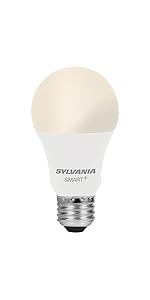
Image: A woman painting in a brightly lit room, with a speech bubble indicating a voice command: "Alexa, turn on the dining room!" This illustrates hands-free voice control.
7. Maintenance
The SYLVANIA SMART+ WiFi LED Smart Light Bulbs require minimal maintenance:
- Cleaning: Ensure the bulb is cool and the power is off before cleaning. Wipe with a soft, dry cloth. Do not use liquid or abrasive cleaners.
- Firmware Updates: Periodically check the SYLVANIA SMART+ WiFi App for available firmware updates to ensure optimal performance and security.
- Storage: If storing the bulbs, keep them in a cool, dry place away from direct sunlight and extreme temperatures.
8. Troubleshooting
| Problem | Possible Cause | Solution |
|---|---|---|
| Bulb does not turn on. | No power to the fixture; bulb not screwed in properly; bulb failure. | Check the light switch and circuit breaker. Ensure the bulb is securely screwed into the socket. Test the bulb in another working fixture. |
| Bulb does not connect to WiFi or app. | Incorrect WiFi network (5 GHz); weak WiFi signal; incorrect pairing steps; network congestion. |
|
| Bulb flickers or flashes unexpectedly. | Incompatible dimmer switch; unstable power supply; faulty bulb. |
|
| Voice control not working. | Incorrect integration; device not discovered; voice assistant not connected to internet. |
|
9. Warranty and Support
Warranty: This SYLVANIA SMART+ WiFi LED Smart Light Bulb comes with a 2-year limited warranty from the date of purchase. This warranty covers defects in materials and workmanship under normal use.
Support: For technical assistance, troubleshooting beyond this manual, or warranty claims, please visit the official LEDVANCE website or contact their customer support. Refer to the product packaging for specific contact details.
You can also visit the LEDVANCE Store on Amazon for additional product information and resources.
Related documents75672


Ask a question about this manual
Ask about setup, troubleshooting, compatibility, parts, safety, or missing instructions. Manuals+ will review the question and use this page’s manual context to help answer it.