
Product Overview
The SUNTRSI 4-in-1 Multi-Port SD Card Reader is a versatile device designed for easy file transfer between various platforms. It features multiple interfaces including USB, USB-C (Type C), Micro USB, Lightning (for iOS devices), and dedicated slots for SD and Micro SD (TF) cards. This reader allows for convenient data management and real-time sharing across iPhone, iPad, Android devices, Mac, and Windows computers.

Image: Overview of the 4-in-1 multi-port card reader and its various connections.
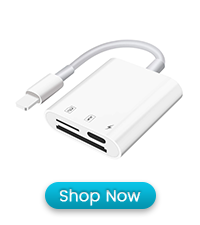
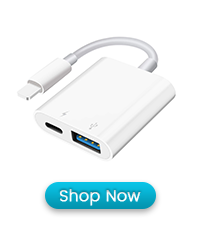
Image: Supported card types: TF (Micro SD) Card and SD Card.
Setup and Connection
The card reader is designed for plug-and-play functionality, requiring no additional app installation for most operations.
Inserting Memory Cards
- Identify the correct slot for your memory card: SD card slot for standard SD cards and Micro SD (TF) card slot for smaller Micro SD cards.
- Gently insert the memory card into the appropriate slot until it clicks into place. Ensure the card is inserted in the correct orientation.
Connecting to Devices
- For iPhone/iPad (iOS 8.0 and up): Use the Lightning connector.
- For Android Phones (OTG compatible): Use the Micro USB or USB-C connector, depending on your device's port. Ensure OTG function is enabled in your device settings if necessary.
- For Mac/PC: Use the standard USB-A or USB-C connector.

Image: Friendly Design with 2mm extended connector base for phone case compatibility.
Operating Instructions
File Transfer (Card to Device)
- Insert the memory card into the card reader.
- Connect the card reader to your device (iPhone/iPad, Android, PC/Mac).
- For iOS 13 and later: Open the 'Files' app. The card reader will appear as an external storage device (e.g., 'Untitled'). Navigate to the desired files on the card, select them, and use the 'Save to Files' or 'Copy' option to transfer them to your iPhone/iPad storage.
- For Android: Your device's file manager app should automatically detect the external storage. You can then browse and transfer files.
- For PC/Mac: The card reader will appear as a removable drive. Open 'File Explorer' (Windows) or 'Finder' (Mac) to access and transfer files.

Image: Uploading photos/videos from cameras to iPhone.
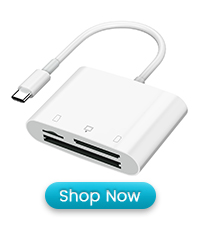
Image: User Guide for iOS 13 and Later: SD Card to iPhone/iPad.
File Transfer (Device to Card)
- Insert the memory card into the card reader and connect it to your device.
- For iOS 13 and later: In the 'Photos' app, select the photos/videos you wish to transfer. Tap the share icon, then select 'Save to Files'. Choose the connected card reader (e.g., 'Untitled') as the destination and tap 'Save'.
- For Android: Use your device's file manager to copy or move files from internal storage to the external storage represented by the card reader.
- For PC/Mac: Drag and drop files from your computer to the card reader's drive.

Image: No App Needed, Plug and Play for iPhone.

Image: Plug and Play for Android devices.
Simultaneous Charging and Data Transfer
The card reader includes a charging port for iOS devices. This allows you to charge your iPhone or iPad while simultaneously transferring data, preventing power shortage during extended operations.

Image: Simultaneous charging and card reading.
Supported File Formats
| Category | Formats |
|---|---|
| Picture | jpg, jpeg, png, bmp, gif, tif, tiff, ico, xbm, cur, cr2, Bng, Orf, Nef, Ram, Crw, Raf, Sr2, Dng, X3f, Pef, Mef, Mrw, Heic, Heif |
| Text | txt, h, m, c, java, pages, numbers, keynote, pdf, doc, docx, xls, xlsx, ppt, pptx, rtf, html, psd, xml, json, plist |
| Video | mp4, mov, mav, mkv, avi, flv, f4v, rmvb, wmv, vob, 3pg, rm, mlv, mp2, mpe, mpg, wmaa, mpeg, m4v, pgpp, 3gpp2, webm, mts, ts, tp, aspasx, qt, dat, ogv, ogg, viv, vivo, avs, swf, yuv, 264, v264, h264 |
| Music | mp3, caf, wav, m4a, aac, aif, aiff, wma |
| Mail list | vcf |
Table: Supported file formats for the card reader.
Maintenance
- Keep the card reader clean and free from dust and debris. Use a soft, dry cloth for cleaning.
- Avoid exposing the device to extreme temperatures or humidity.
- Store the card reader in a safe place when not in use, ideally with the protective caps on the connectors. The keychain design helps prevent loss.
- Do not force memory cards or connectors into their slots, as this can cause damage.
Troubleshooting
- Device not recognized: Ensure the card reader is fully inserted into the device's port. Try connecting to a different port or device to rule out port issues. For Android, verify OTG is enabled. For iOS, ensure you are using the 'Files' app.
- Memory card not detected: Ensure the memory card is fully and correctly inserted into its slot. Try a different memory card to check if the issue is with the card itself.
- Slow transfer speeds: Transfer speeds can vary based on the memory card's speed class, the device's USB version, and the size of the files. Ensure your memory card is high-speed for optimal performance.
- Connection issues with phone cases: The card reader features a 2mm extended connector base. If you still experience poor contact, your phone case might be exceptionally bulky and may need to be removed during use.
Specifications
| Feature | Detail |
|---|---|
| Brand | SUNTRSI |
| Model Number | Y-BD |
| Media Type | SD, MicroSD (TF) |
| Connectivity Technology | USB Type C, USB, Micro USB, Lightning |
| Special Feature | Plug & Play, Charging Port |
| Compatible Devices | iPhone (iOS 8.0+), iPad (iOS 8.0+), OTG Android Phones, Mac, PC, Camera |
| Data Transfer Rate | Up to 25 Megabytes Per Second |
| Hardware Interface | USB |
| Slot Count | 2 (1x SD, 1x Micro SD) |
| Operating System | Android, Mac OS, iOS |
| Item Dimensions (L x W x H) | 2.72" x 1.38" x 0.39" |
| Item Weight | 0.35 Ounces |
| Maximum Memory Card Capacity | 1TB |
Warranty and Support
This product comes with a 1-year warranty. For technical support or warranty claims, please contact SUNTRSI customer service through your purchase platform or the official brand website.
Official Product Video
Video: A demonstration of the SUNTRSI 4-in-1 SD Card Reader for iPhone, showcasing its features and ease of use.
