Introduction
This manual provides comprehensive instructions for the setup, operation, and maintenance of your new XVEFAT replacement remote control. Designed for seamless compatibility with various Insignia TV models, this remote offers a straightforward, plug-and-play experience without the need for complex programming or pairing. Please read this manual carefully to ensure optimal performance and longevity of your remote control.
Setup: Battery Installation
The remote control requires two (2) 1.5V AAA alkaline batteries for operation. Follow these steps to install the batteries correctly:
- Locate the battery compartment on the back of the remote control.
- Press down on the tab and slide the battery cover downwards to open it.
- Insert two (2) AAA alkaline batteries, ensuring that the positive (+) and negative (-) terminals align correctly with the markings inside the compartment. Incorrect installation can prevent the remote from functioning.
- Slide the battery cover back into place until it clicks securely.

Figure 1: Side view of the remote control, illustrating the location of the battery compartment.
Once batteries are installed, the remote is ready for use with compatible Insignia TV models without any additional programming or pairing.
Operating Instructions
This remote control provides full functionality for your Insignia TV. Below is a guide to the main buttons and their functions:
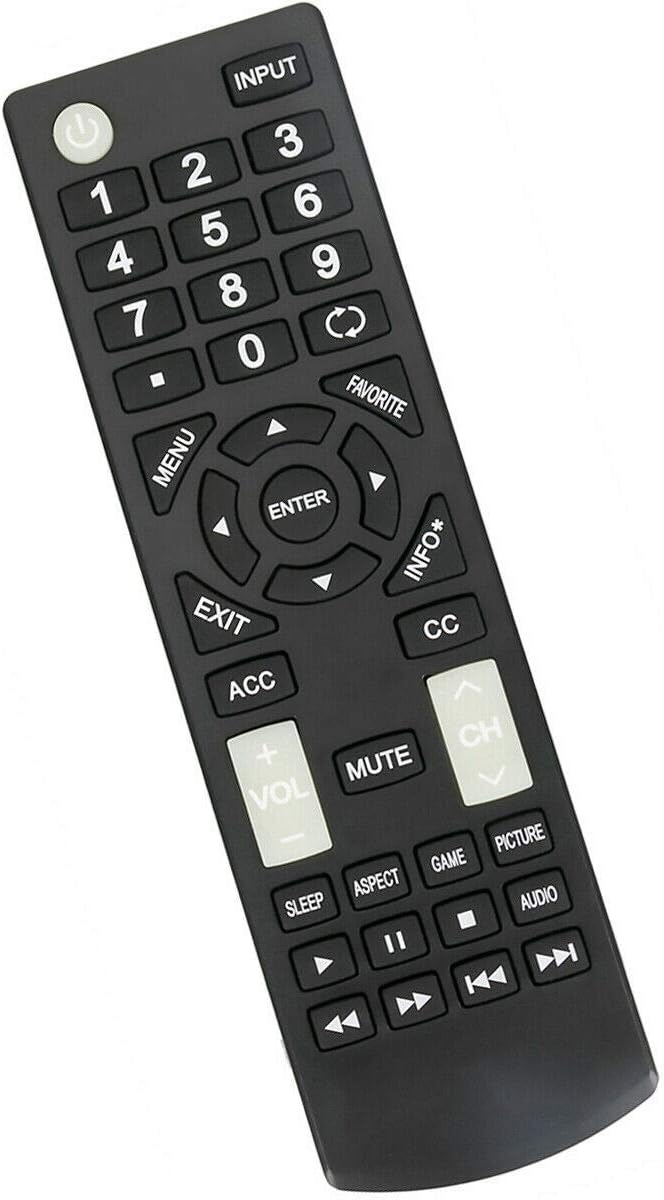
Figure 2: Front view of the remote control, highlighting the layout of all functional buttons.
- Power Button (⏻): Turns the TV on or off.
- INPUT: Cycles through available input sources (HDMI, AV, Component, etc.).
- Number Buttons (0-9): Directly enter channel numbers.
- MENU: Opens the TV's main menu for settings and options.
- Navigation Buttons (▲ ▼ ◄ ►): Used to navigate through menus and options.
- ENTER: Confirms a selection in menus or selects a channel.
- EXIT: Exits the current menu or on-screen display.
- VOL (+/-): Adjusts the volume level.
- MUTE: Mutes or unmutes the TV audio.
- CH (∧/∨): Changes the channel up or down.
- INFO*: Displays information about the current program or input.
- FAVORITE: Accesses favorite channels list.
- ACC: Accesses accessibility options.
- CC: Toggles Closed Captions on or off.
- SLEEP: Sets a sleep timer for the TV.
- ASPECT: Changes the screen aspect ratio.
- GAME: Activates game mode (if supported by TV).
- PICTURE: Accesses picture settings.
- AUDIO: Accesses audio settings.
- Media Playback Controls (◄◄, ►►, ■, ►||, ►): Control playback of media (e.g., from a connected USB drive or streaming app).

Figure 3: Alternative front view of the remote control, providing another perspective of the button arrangement.
Maintenance
Proper maintenance ensures the longevity and reliable performance of your remote control.
Cleaning
To clean the remote control, gently wipe its surface with a soft, dry cloth. For stubborn dirt, slightly dampen the cloth with water or a mild, non-abrasive cleaner. Avoid using harsh chemicals, solvents, or abrasive materials, as these can damage the remote's finish or internal components.
Battery Replacement
Replace batteries when the remote's responsiveness decreases or it stops functioning. Always replace both batteries at the same time with new 1.5V AAA alkaline batteries. Do not mix old and new batteries, or different types of batteries, as this can lead to leakage or improper operation. Dispose of used batteries according to local regulations.
Troubleshooting
If you encounter issues with your remote control, refer to the following common troubleshooting steps:
- Remote Not Responding:
- Check if the batteries are inserted correctly with the correct polarity (+/-).
- Replace the batteries with fresh 1.5V AAA alkaline batteries.
- Ensure there are no obstructions between the remote control and the TV's infrared sensor.
- Confirm that the remote is pointed directly at the TV's sensor.
- Specific Buttons Not Working:
- Clean the remote's surface, especially around the unresponsive buttons, to remove any dirt or debris that might be preventing proper contact.
- If only a few buttons are unresponsive after trying new batteries, the remote might be damaged and may require replacement.
- TV Not Responding to Remote:
- Verify that the remote control is compatible with your specific Insignia TV model (e.g., NS-39D310NA19, NS-19D310NA19, NS-24D310NA19, NS-22D510NA19).
- Ensure the TV itself is powered on and not in standby mode.
- Try restarting your TV by unplugging it from the power outlet for a few minutes, then plugging it back in.
If these steps do not resolve the issue, the remote control may be faulty or incompatible. Please refer to the support information provided by the seller.
Specifications
| Feature | Description |
|---|---|
| Product Type | Replacement Remote Control |
| Brand | XVEFAT |
| Compatible TV Brands | Insignia |
| Compatible TV Models | NS-39D310NA19, NS-19D310NA19, NS-24D310NA19, NS-22D510NA19, NS39D310NA19, NS19D310NA19, NS24D310NA19, NS22D510NA19 |
| Power Supply | 2 x 1.5V AAA Alkaline Battery (not included) |
| Programming Required | No (Ready to use) |
| Color | Black |
| Special Feature | Ergonomic design |
Warranty and Support
For any questions regarding the operation, troubleshooting, or compatibility of your XVEFAT replacement remote control, please contact the seller or manufacturer directly. Information regarding warranty coverage, if applicable, will be provided by the point of purchase. Always retain your proof of purchase for warranty claims.
For further assistance, you may also refer to the official Insignia TV user manual for your specific television model, which can often be found on the Insignia support website.