
1. Introduction
Thank you for choosing the Glorious Model O- (Minus) Gaming Mouse. This manual provides essential information for setting up, operating, and maintaining your new gaming mouse. The Model O- (Minus) is engineered for competitive e-sports, featuring an ultralight design, a flexible Ascended Cord, and customizable RGB lighting to enhance your gaming experience.
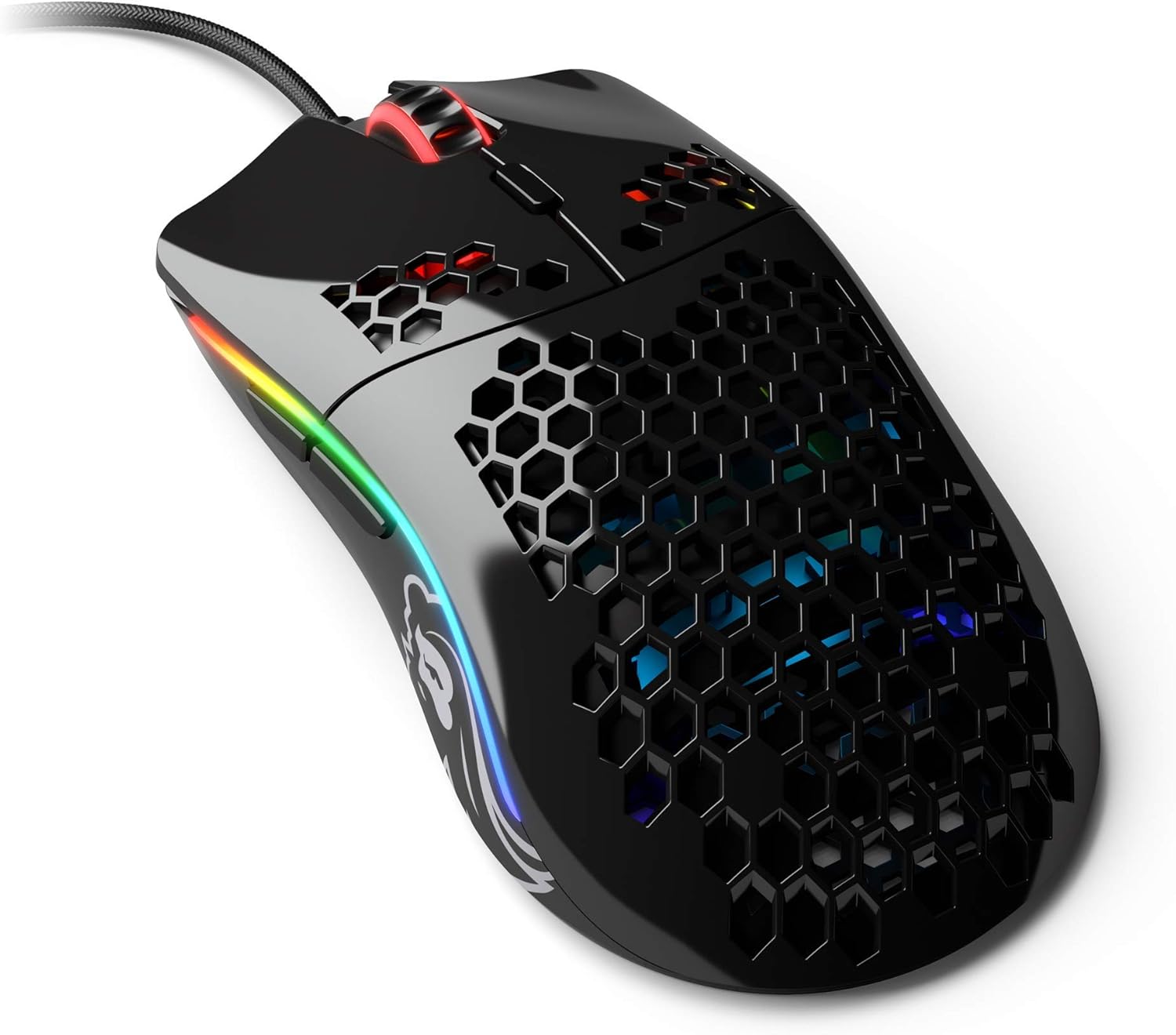
Image: The Glorious Model O- (Minus) Gaming Mouse in Glossy Black, showcasing its honeycomb shell design and RGB lighting.
2. Setup
2.1 Package Contents
Before proceeding, please ensure all components are present:
- Glorious Model O- (Minus) Gaming Mouse
- Ascended Cord (attached)
- Quick Start Guide (this document)
2.2 Connecting the Mouse
- Locate an available USB port on your computer.
- Plug the USB connector of the Glorious Model O- (Minus) into the USB port.
- The mouse is plug-and-play and should be recognized automatically by your operating system.

Image: The Glorious Ascended Cord, a lightweight and flexible USB cable designed to minimize drag.
2.3 Software Installation (Glorious Core)
For advanced customization of DPI settings, button assignments, and RGB lighting, download the Glorious Core software from the official Glorious website (www.gloriousgaming.com/pages/glorious-core). Follow the on-screen instructions for installation.

Image: Screenshot of the Glorious Core software interface, demonstrating options for lighting and key binding customization for the mouse.
3. Operating Instructions
3.1 Basic Mouse Functions
- Left Click: Primary action button.
- Right Click: Secondary action button, typically for context menus.
- Scroll Wheel: Scrolls content up/down. Can also be clicked for middle-click functionality.
- Side Buttons: Programmable buttons, typically for forward/back navigation in browsers or in-game actions.
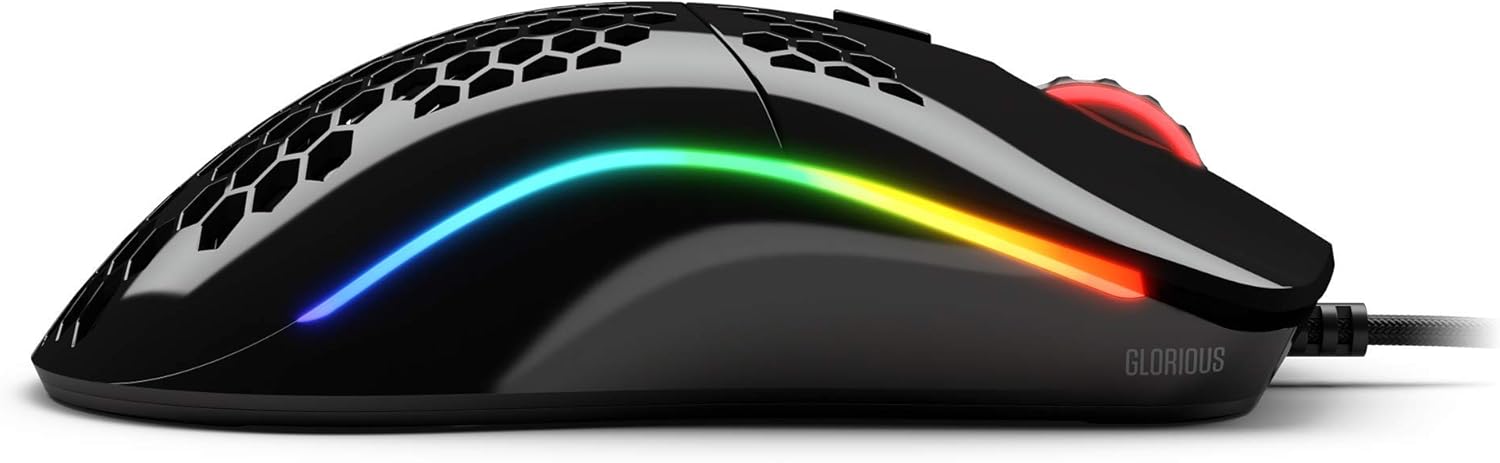
Image: Side view of the Glorious Model O- (Minus) mouse, highlighting the two programmable side buttons and the vibrant RGB lighting strip.
3.2 DPI Adjustment
The Model O- (Minus) features a dedicated DPI button on the underside of the mouse. Press this button to cycle through pre-set DPI stages. The default DPI stages can be customized using the Glorious Core software.
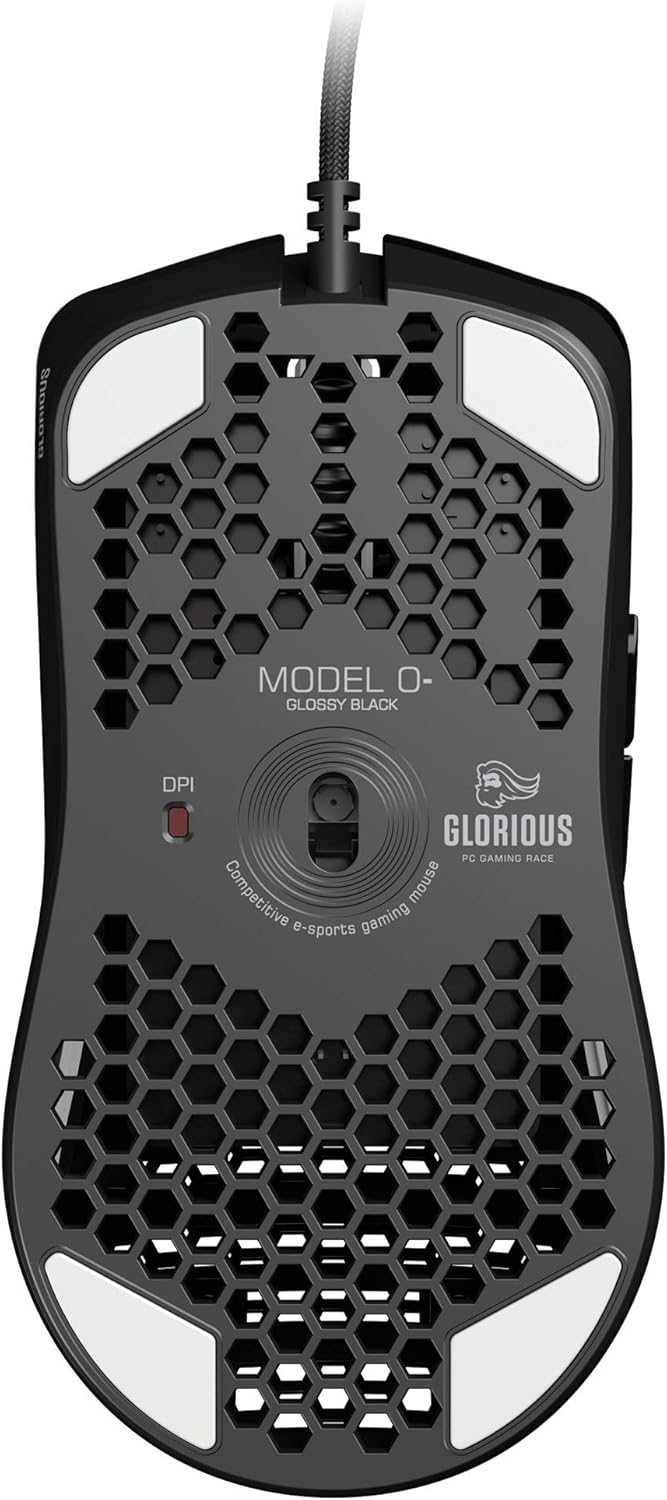
Image: The underside of the Glorious Model O- (Minus) mouse, clearly showing the DPI switch button and the optical sensor.
3.3 RGB Lighting Customization
The RGB lighting on your Glorious Model O- (Minus) can be fully customized using the Glorious Core software. You can select from various effects, colors, and brightness levels to match your setup or mood.
4. Maintenance
4.1 Cleaning the Mouse
- Ensure the mouse is disconnected from your computer before cleaning.
- Use a soft, lint-free cloth lightly dampened with water or a mild cleaning solution to wipe the surface of the mouse.
- For the optical sensor, use a cotton swab lightly dampened with isopropyl alcohol to gently clean the lens. Avoid excessive moisture.
- Do not use harsh chemicals or abrasive materials, as these can damage the mouse's finish or internal components.
4.2 Cable Care
The Ascended Cord is designed to be lightweight and flexible. Avoid sharp bends or excessive pulling on the cable to prevent damage. Use a cable tie or management system to keep the cable tidy and prevent tangles.
5. Troubleshooting
5.1 Mouse Not Responding
- Ensure the USB cable is securely plugged into a working USB port on your computer.
- Try plugging the mouse into a different USB port.
- Restart your computer.
- Test the mouse on another computer to determine if the issue is with the mouse or your system.
5.2 Inconsistent Tracking or Cursor Movement
- Clean the optical sensor as described in the Maintenance section.
- Ensure you are using the mouse on a clean, uniform surface (e.g., a mouse pad). Avoid highly reflective or transparent surfaces.
- Check DPI settings using the DPI button or Glorious Core software.
- Update your mouse drivers or Glorious Core software to the latest version.
5.3 RGB Lighting Not Working Correctly
- Ensure Glorious Core software is installed and up to date.
- Check the lighting settings within Glorious Core to ensure RGB is enabled and configured as desired.
- Restart your computer.
6. Specifications
| Feature | Detail |
|---|---|
| Product Dimensions | 4.72 x 2.48 x 1.42 inches |
| Item Weight | 2.08 ounces |
| Connectivity Technology | USB (Wired) |
| Movement Detection Technology | Optical |
| Color | Glossy Black |
| Special Feature | Ambidextrous design |
| Manufacturer | Glorious PC Gaming Race |
7. Warranty & Support
7.1 Warranty Information
The Glorious Model O- (Minus) Gaming Mouse comes with a 2-Year Warranty. This warranty covers manufacturing defects and ensures hassle-free return and replacement on all Glorious electronic devices. Please retain your proof of purchase for warranty claims.
7.2 Customer Support
If you encounter any issues not covered in this manual or require further assistance, please contact Glorious customer support through their official website:
- Website: www.gloriousgaming.com/pages/support
- Our dedicated support team is available to assist with any questions or concerns you may have.


