
PRITOM L10 Tablet User Manual
Model: L10
1. Introduction
Thank you for choosing the PRITOM L10 Tablet. This manual provides essential information for setting up, operating, and maintaining your device. Please read it thoroughly to ensure proper use and to maximize your tablet's performance and longevity.
2. Safety Information
- Do not expose the tablet to extreme temperatures, direct sunlight, or high humidity.
- Avoid dropping or subjecting the tablet to strong impacts.
- Use only the charger and cables provided or approved by PRITOM to prevent damage and ensure safety.
- Keep the tablet away from water and other liquids.
- Do not attempt to disassemble or repair the tablet yourself. Contact authorized service personnel for assistance.
- Dispose of the tablet and its battery responsibly according to local regulations.
3. Package Contents
Upon opening the package, please verify that all the following items are included:
- PRITOM Tronpad L10 Tablet PC
- Charger
- Type-C cable
- HD screen film
- User Manual
4. Product Overview
The PRITOM L10 tablet features a sleek design with a 10-inch IPS HD display and a durable metal body. Familiarize yourself with the device's physical components.

Image: Front and back view of the PRITOM L10 Tablet, showcasing its display and rear camera.
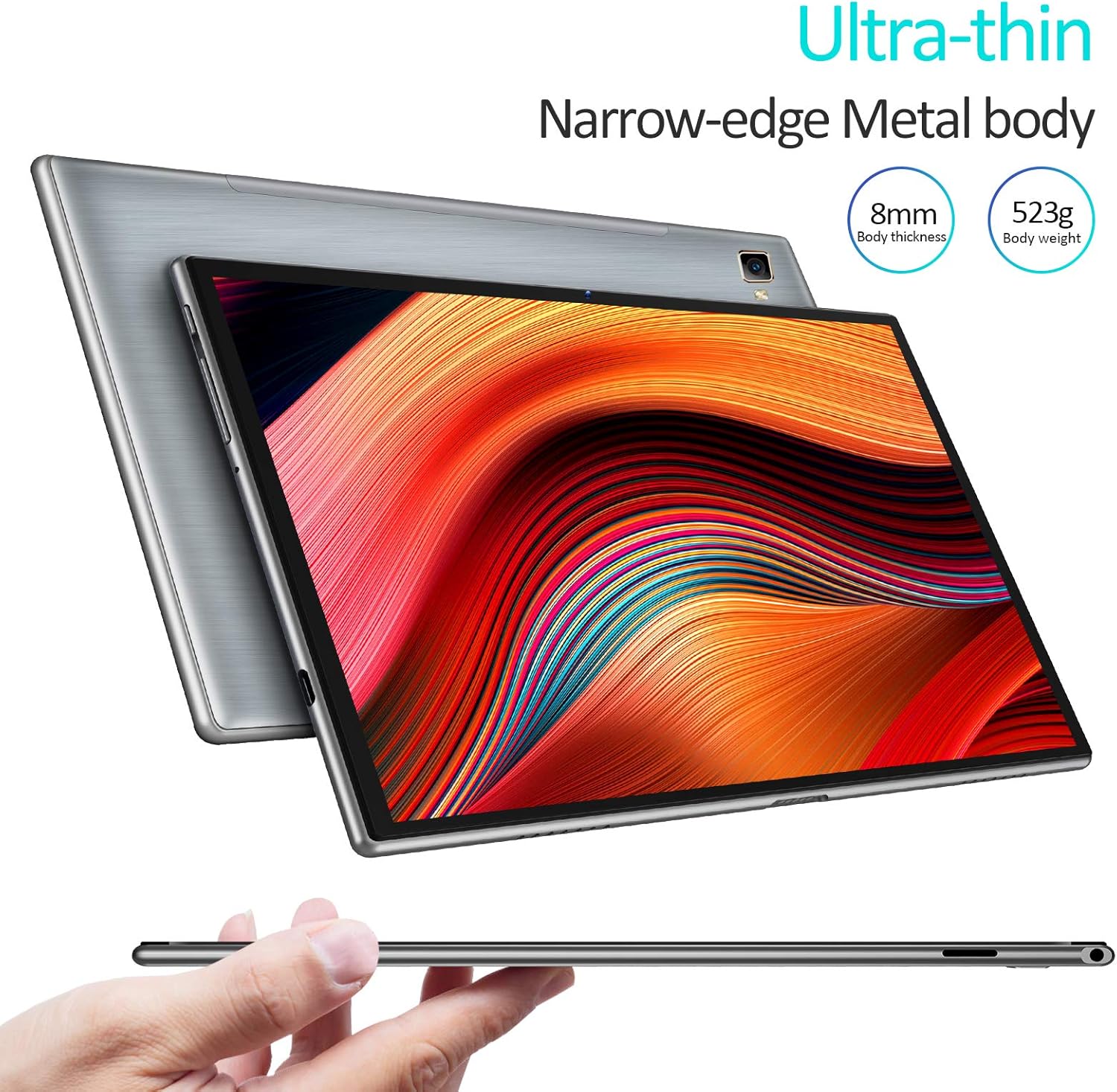
Image: The PRITOM L10 Tablet demonstrating its ultra-thin profile and narrow-edge metal body.
Physical Components:
- Display: 10-inch IPS HD (1280x800) with 2.5D glass touch panel.
- Front Camera: Located above the display.
- Rear Camera: Located on the back panel.
- Power Button: Typically on the side or top edge.
- Volume Buttons: Adjacent to the power button.
- Type-C Port: For charging and data transfer.
- Micro SD Card Slot: For expandable storage (up to 128GB).
- Dual BOX Speakers: For enhanced audio output.
5. Setup
5.1 Initial Charging
Before first use, fully charge your PRITOM L10 tablet. Connect the Type-C cable to the tablet's charging port and the other end to the provided charger. Plug the charger into a power outlet. The tablet supports 15W fast charging and can be fully charged in approximately 2.8 hours.
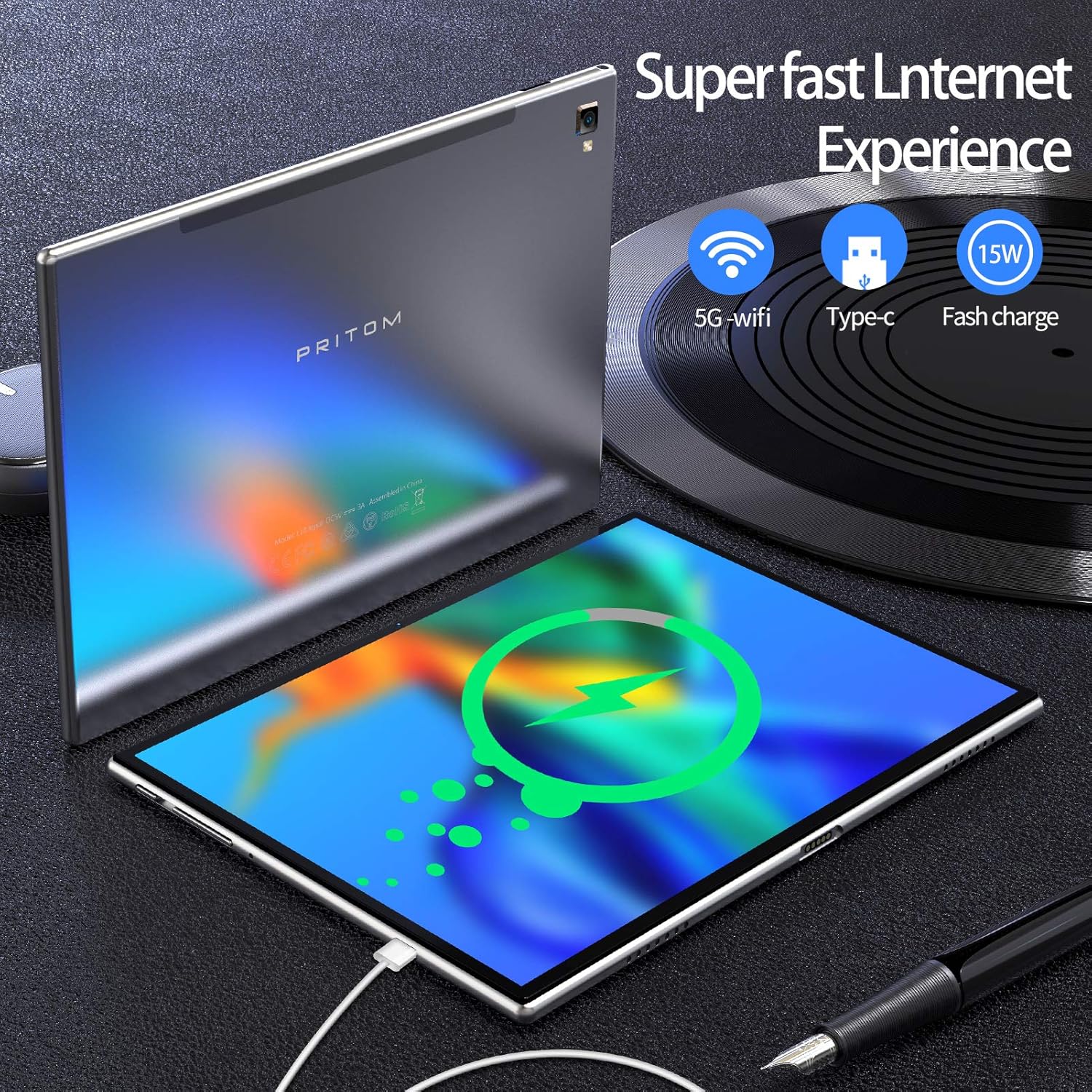
Image: The PRITOM L10 Tablet connected to a Type-C charger, illustrating its fast charging capability and 5G Wi-Fi support.
5.2 Powering On/Off
- To Power On: Press and hold the Power button until the PRITOM logo appears on the screen.
- To Power Off: Press and hold the Power button until a power-off menu appears. Select 'Power off' to shut down the device.
- To Restart: From the power-off menu, select 'Restart'.
5.3 Initial Setup Wizard
The first time you power on the tablet, you will be guided through an initial setup wizard. Follow the on-screen prompts to:
- Select your language.
- Connect to a Wi-Fi network.
- Set up your Google account (optional, but recommended for app downloads).
- Configure date and time.
6. Operating Your Tablet
6.1 Basic Navigation
The PRITOM L10 runs on Android 10.0, offering an intuitive user interface. Use touch gestures such as tapping, swiping, pinching, and spreading to navigate the system, open apps, and interact with content.
6.2 Wi-Fi Connectivity
To connect to a Wi-Fi network:
- Go to Settings > Network & internet > Wi-Fi.
- Turn on Wi-Fi.
- Select your desired network from the list.
- Enter the password if prompted and tap Connect.
The tablet supports both 2.4GHz and 5GHz Wi-Fi bands for faster and more stable connections.
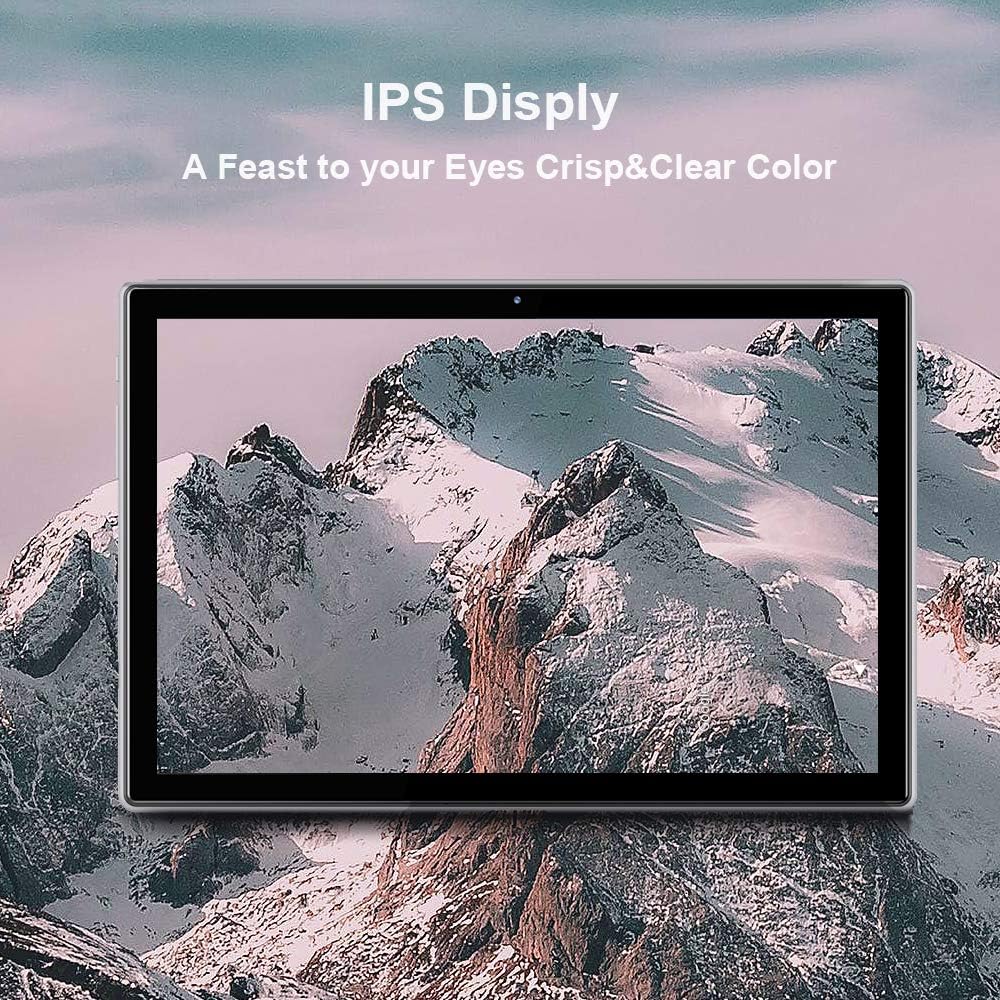
Image: A visual comparison demonstrating the speed advantage of 2.4G+5G dual-band Wi-Fi on the PRITOM L10 Tablet.
6.3 App Management
Download and install applications from the Google Play Store. You can also manage installed apps by going to Settings > Apps & notifications.

Image: The PRITOM L10 Tablet being used for creative or productivity tasks, demonstrating its versatility for various applications.
6.4 Storage Management
The tablet comes with 32GB of internal storage. You can expand this by inserting a microSD card (not included) into the dedicated slot, supporting up to an additional 128GB. This allows for ample space for apps, photos, videos, and documents.

Image: A visual representation of the PRITOM L10 Tablet's 3GB RAM, 32GB ROM, and expandable storage up to 128GB.
6.5 Display Settings
The 1280x800 HD IPS display provides crisp and clear visuals. Utilize the Eye Health mode, which automatically adjusts and optimizes the backlight for a more comfortable viewing experience, especially during nighttime reading.

Image: Close-up of the PRITOM L10 Tablet's stunning IPS display, highlighting its brilliant picture quality and 2.5D glass touch screen.
6.6 Audio
Equipped with dual BOX speakers, the PRITOM L10 enhances your audio experience with large volume and intelligent tuning for flexible music rendering and 3D surround sound.

Image: A visual representation of the PRITOM L10 Tablet's dual speaker system and intelligent tuning for enhanced audio.
7. Maintenance
7.1 Cleaning
To clean your tablet, use a soft, lint-free cloth. For stubborn smudges, slightly dampen the cloth with water or a screen cleaner. Avoid using harsh chemicals or abrasive materials.
7.2 Software Updates
Periodically check for system updates to ensure your tablet has the latest features and security patches. Go to Settings > System > System update.
7.3 Battery Care
The 6000mAh battery provides up to 10 hours of usage. To prolong battery life:
- Avoid fully discharging the battery frequently.
- Do not leave the tablet charging for extended periods after it's full.
- Keep the tablet in a cool, dry place when not in use.
8. Troubleshooting
If you encounter issues with your PRITOM L10 Tablet, refer to the following common solutions:
| Problem | Solution |
|---|---|
| Tablet does not power on. | Ensure the tablet is fully charged. Connect the charger and wait a few minutes before attempting to power on again. |
| Wi-Fi connection issues. | Check if Wi-Fi is enabled in settings. Restart your Wi-Fi router. Forget the network and reconnect. |
| Apps are running slowly or crashing. | Close unnecessary background apps. Clear app cache (Settings > Apps & notifications > [App Name] > Storage & cache). Restart the tablet. |
| Tablet storage is full. | Delete unnecessary files or apps. Transfer media to a computer. Insert a microSD card for expandable storage. |
| Screen is unresponsive. | Perform a forced restart by holding the Power button for about 10-15 seconds. |
9. Specifications
Key technical specifications for the PRITOM L10 Tablet:
| Feature | Detail |
|---|---|
| Model Number | L10 |
| Operating System | Android 10 |
| Processor | Octa-core, 1.7 GHz ARM |
| RAM | 3 GB |
| Internal Storage | 32 GB |
| Expandable Storage | MicroSD up to 128 GB (not included) |
| Screen Size | 10 Inches |
| Screen Resolution | 1280 x 800 HD IPS |
| Wireless Type | 802.11ac (2.4GHz & 5GHz) |
| Battery Capacity | 6000mAh |
| Item Weight | 1.15 pounds |
| Product Dimensions | 9.7 x 6.4 x 0.31 inches |
| Color | Silver |
10. Warranty and Support
For warranty information and technical support, please refer to the documentation included with your purchase or visit the official PRITOM website. Keep your proof of purchase for warranty claims.
