
Cozylady HBW242125U
Cozylady Smart LED Light Strip User Manual
Model: HBW242125U
Introduction
Thank you for choosing the Cozylady Smart LED Light Strip. This manual provides detailed instructions for the safe and efficient use of your new LED strip lights. Please read this manual thoroughly before installation and operation, and retain it for future reference.
The Cozylady Smart LED Light Strip offers a vibrant and customizable lighting experience for various indoor settings. With dual control via Bluetooth app and an infrared remote, music synchronization, and a wide spectrum of colors, it's designed to enhance your living space.
Safety Information
- Ensure the power supply is disconnected before installation or maintenance.
- This product is designed for indoor use only. Do not expose to water or high humidity.
- Do not cut the LED strip while it is connected to power.
- Use only the provided power adapter. Using an incompatible adapter may damage the product or pose a safety risk.
- Keep out of reach of children.
- Avoid bending the LED strip at sharp angles, as this may damage the circuit.
- The built-in sensitive protective circuit will automatically shut off in case of overload, overcurrent, or short circuit. If this occurs, disconnect power, check connections, and reconnect.
Package Contents
Verify that all items are present in the package:
- Cozylady Smart LED Light Strip (2 rolls, 7.5m each, total 15m)
- Control Box with built-in microphone
- IR Remote Control (with 1 CR2032 battery)
- Power Adapter
- Mounting Clips (with adhesive)
- User Manual (this document)

Setup and Installation
Follow these steps for proper installation:
- Prepare the Surface: Ensure the surface where you plan to install the LED strip is clean, dry, and smooth. Dust, dirt, or moisture can weaken the adhesive.
- Test the Lights: Before peeling off the adhesive, connect all components (LED strips to control box, control box to power adapter, power adapter to outlet) and test the lights using the remote or app to ensure they function correctly. This is crucial before permanent installation.
- Connect the LED Strips: Connect the two LED strip rolls to the control box. Ensure the arrows on the connectors align to establish a proper connection. Incorrect alignment may prevent the lights from working.
- Apply the LED Strip: Carefully peel off the adhesive backing from the LED strip and press it firmly onto the desired surface. Work in small sections to avoid tangling or uneven application.
- Secure with Clips (Optional but Recommended): For added security, especially on textured surfaces or corners, use the provided mounting clips. These clips can be adhered to the surface and then the LED strip can be snapped into them.
- Power Connection: Connect the power adapter to the control box, then plug the adapter into a standard wall outlet.
- Remote Control Battery: If the remote control is not working, ensure the plastic tab protecting the battery is removed. The remote uses one CR2032 battery.


Operating Instructions
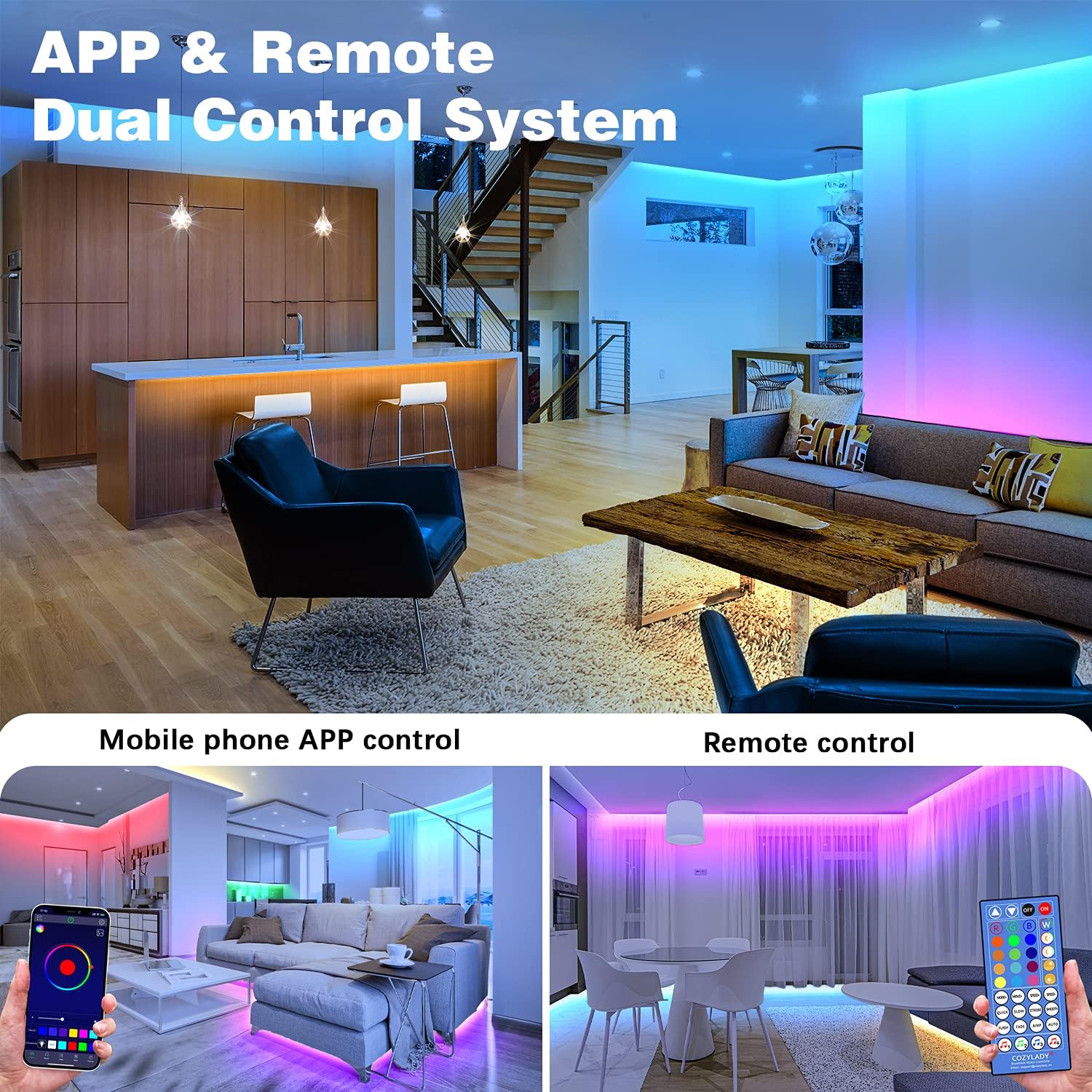
Dual Control System: Remote & App
Your Cozylady LED Light Strip can be controlled using either the included IR remote control or the dedicated smartphone application.
Using the IR Remote Control
The remote control allows for basic functions such as:
- Power On/Off
- Color Selection (pre-set colors)
- Brightness Adjustment
- Mode Selection (flash, fade, jump, etc.)
- Speed Adjustment for dynamic modes
Using the HappyLighting App (Bluetooth Control)
- Download the App: Scan the QR code on the control box or search for "HappyLighting" in your smartphone's app store (available on App Store for iOS and Google Play for Android).
- Enable Bluetooth: Ensure Bluetooth is enabled on your smartphone.
- Connect to Lights: Open the HappyLighting app. The app should automatically detect and connect to your LED strip lights. If not, refresh the device list within the app.
- Explore Features: The app offers advanced control options:
- Color Mode: Choose from over 16 million colors using a color wheel or pre-set options.
- Music Mode: The lights will synchronize with music played through your phone's microphone or internal music library.
- Mic Mode: The built-in sensitive microphone in the control box allows the lights to react to ambient sounds and music.
- Style Mode: Select from various dynamic lighting effects and customize their speed.
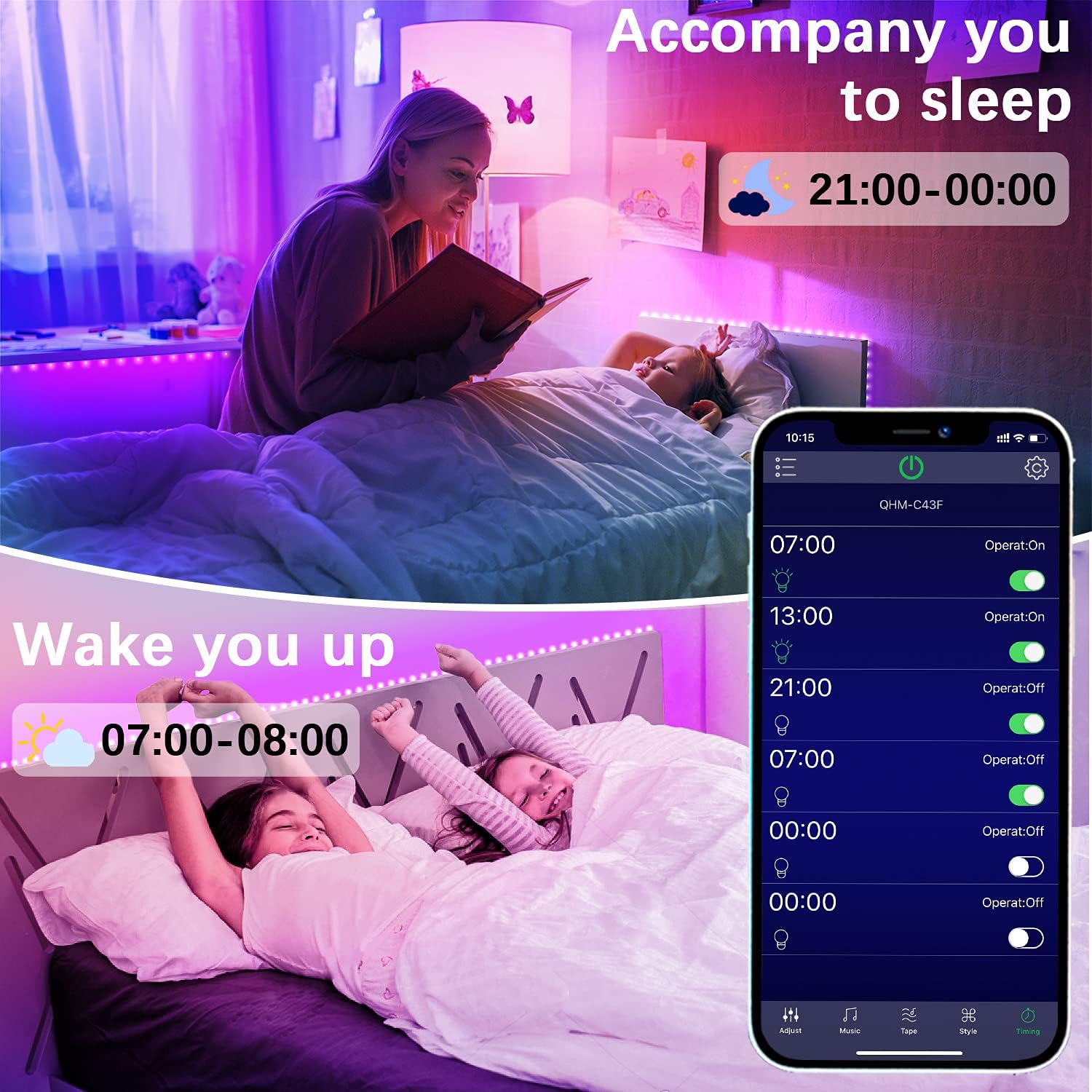
- Timing Mode: Set schedules for the lights to turn on/off at specific times, or to gently wake you up/help you sleep.

Music Synchronization
The LED strip features a highly sensitive microphone in the control unit, allowing the lights to dance and change colors in sync with music or ambient sounds. This feature can be activated via the remote or the HappyLighting app.

Timer Function
Utilize the timer function within the HappyLighting app to schedule when your lights turn on or off. This is ideal for creating routines, such as a gentle wake-up light or a soothing light to help you fall asleep.
Maintenance
- Cleaning: Disconnect power before cleaning. Use a soft, dry cloth to wipe the LED strips and control box. Do not use liquid cleaners or abrasive materials.
- Storage: If storing the lights for an extended period, ensure they are clean and dry. Store them in a cool, dry place away from direct sunlight.
- Battery Replacement: The remote control uses a CR2032 button cell battery. Replace it when the remote's range decreases or it stops responding. Ensure correct polarity when inserting the new battery.
Troubleshooting
| Problem | Possible Cause | Solution |
|---|---|---|
| Lights do not turn on. | No power, loose connection, remote battery dead/tab not removed. | Check power adapter connection to outlet and control box. Ensure LED strip connectors are aligned (arrow to arrow). Remove plastic tab from remote battery. Replace remote battery if needed. |
| Remote control not working. | Battery issue, remote not pointed at receiver. | Ensure plastic tab is removed. Replace CR2032 battery. Point remote directly at the IR receiver on the control box. |
| App cannot connect to lights. | Bluetooth off, app not refreshed, lights too far. | Ensure Bluetooth is enabled on your phone. Close and reopen the app. Move closer to the control box. Restart the lights by unplugging and replugging the power. |
| Lights are dim or flickering. | Insufficient power, damaged strip, faulty connection. | Ensure all connections are secure. Check if the power adapter is correctly plugged in. If only a section is affected, the strip might be damaged. |
| Adhesive not sticking well. | Surface not clean/dry, unsuitable surface. | Clean and dry the surface thoroughly before application. Use the provided mounting clips for extra security, especially on rough or painted walls. |
Specifications
| Feature | Detail |
|---|---|
| Brand | Cozylady |
| Model Number | HBW242125U |
| Light Strip Length | 15 meters (approx. 50 feet) - two 7.5m rolls |
| Product Dimensions | 1500 x 1 x 0.1 cm |
| Weight | 260 grams |
| Color Output | RGB (16 Million Colors) |
| Control Methods | Bluetooth App (HappyLighting), IR Remote Control |
| Special Features | Music Sync, Timer Function, Dimmable, Multiple Scenes |
| Indoor/Outdoor Use | Indoor Only |
| Power Source | AC Power Adapter (UL Certified) |
| Remote Battery | 1 x CR2032 (included) |

For detailed product data sheet, refer to: EPREL Database
Warranty and Support
Cozylady products are manufactured with high-quality standards. For warranty information or technical support, please contact the manufacturer directly.
Manufacturer: Shenzhen Huanbing Technology Co., Ltd.
Address: No.2, 3F, Hongdingta Science Park, Jinxing Industrial Zone, Xiani Village Committee, Qingxi Town, Dongguan City, Guangdong Province
Email: support@cozylady.cn
Website: www.cozyladyled.com

Related documentsHBW242125U


Ask a question about this manual
Ask about setup, troubleshooting, compatibility, parts, safety, or missing instructions. Manuals+ will review the question and use this page’s manual context to help answer it.