
Introduction
This manual provides detailed instructions for the ECHTPower Wireless Pro Controller, designed for use with Nintendo Switch and Switch OLED consoles. It covers setup, operation, maintenance, and troubleshooting to ensure an optimal gaming experience. Please read this manual carefully before using the product.
Product Overview
Familiarize yourself with the controller's buttons and ports.

Image: Front and top view of the ECHTPower Wireless Pro Controller, highlighting the D-Pad, Home button, Left and Right Joysticks, A/B/X/Y buttons, Capture button, Turbo button, Plus and Minus buttons, R/L/RZ/LZ triggers, Type-C Charging Port, and Skid-Proof Design.
- D-Pad: Directional Pad for movement and menu navigation.
- Left Joystick: Analog stick for precise movement.
- Right Joystick: Analog stick for camera control and aiming.
- A/B/X/Y Buttons: Action buttons for in-game commands.
- HOME Button: Returns to the Nintendo Switch Home menu.
- Capture Button: Takes screenshots or video clips.
- Turbo Button: Activates/deactivates turbo function for rapid button presses.
- + / - Buttons: Plus and Minus buttons for in-game functions and menu navigation.
- R / L / RZ / LZ Buttons: Shoulder and trigger buttons for various in-game actions.
- Type-C Charging Port: Used for charging the controller.
- NFC Area: Located near the HOME button, used for Amiibo functionality.
Setup
1. Pairing with Nintendo Switch/OLED
- Ensure your Nintendo Switch/OLED console is powered on and updated to the latest system version.
- From the HOME Menu, select "Controllers" > "Change Grip/Order".
- On the ECHTPower controller, press and hold the HOME button and the Y button simultaneously for 3-5 seconds until the LED indicators start flashing rapidly.
- The controller will automatically pair with the Switch. Once connected, the corresponding player LED(s) on the controller will light up solid.
2. Connecting to PC
The controller can also be connected to a Desktop PC or Notebook PC. Connection methods may vary depending on the PC's Bluetooth capabilities. For wired connection, use a USB-C cable.

Image: Illustration showing the ECHTPower Wireless Pro Controller compatible with Nintendo Switch, Desktop PC, and Notebook PC, allowing for multiplayer gaming.
Operating Instructions
1. Turbo Function
The Turbo function allows for continuous rapid pressing of a button. This can be useful in games requiring quick, repeated inputs.
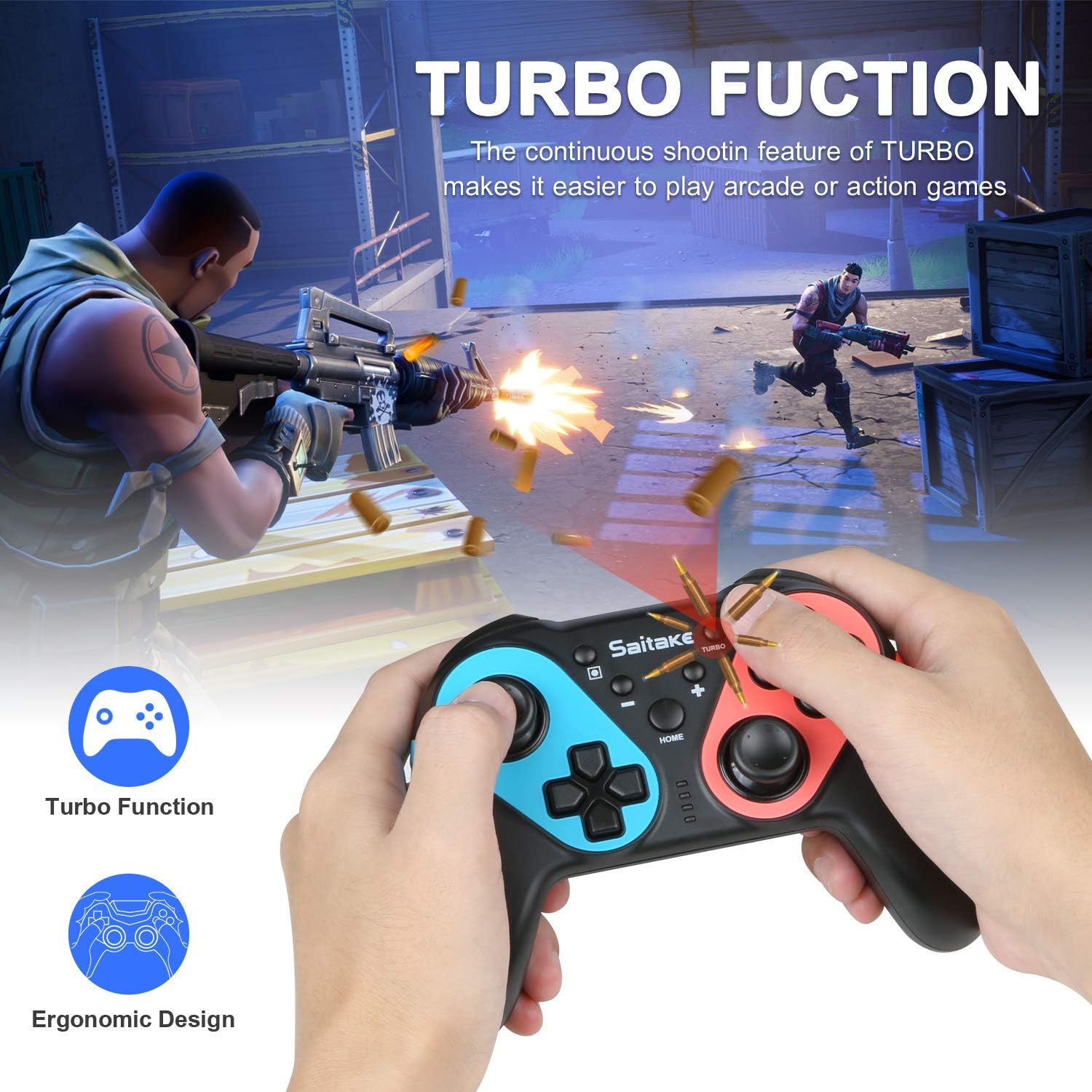
Image: Depiction of the Turbo function in action, showing rapid firing in a game, alongside an ergonomic design.
- To Activate Turbo: Press and hold the Turbo button, then press the desired action button (A/B/X/Y/L/R/ZL/ZR). The button will now continuously input when held down.
- To Deactivate Turbo: Repeat the activation steps (hold Turbo, then press the action button again).
2. Adjustable Vibration
The controller features dual motors with three levels of vibration feedback (Weak, Moderate, Strong) to enhance your gaming experience.

Image: Diagram illustrating the three adjustable vibration levels: Weak, Moderate, and Strong, with internal motor representation.
Specific instructions for adjusting vibration levels are typically found in the console's controller settings or through a button combination (refer to the product packaging or manufacturer's website if not detailed here).
3. NFC Function (Amiibo Support)
The controller includes built-in NFC functionality, allowing you to use Amiibo figures for in-game bonuses and features.
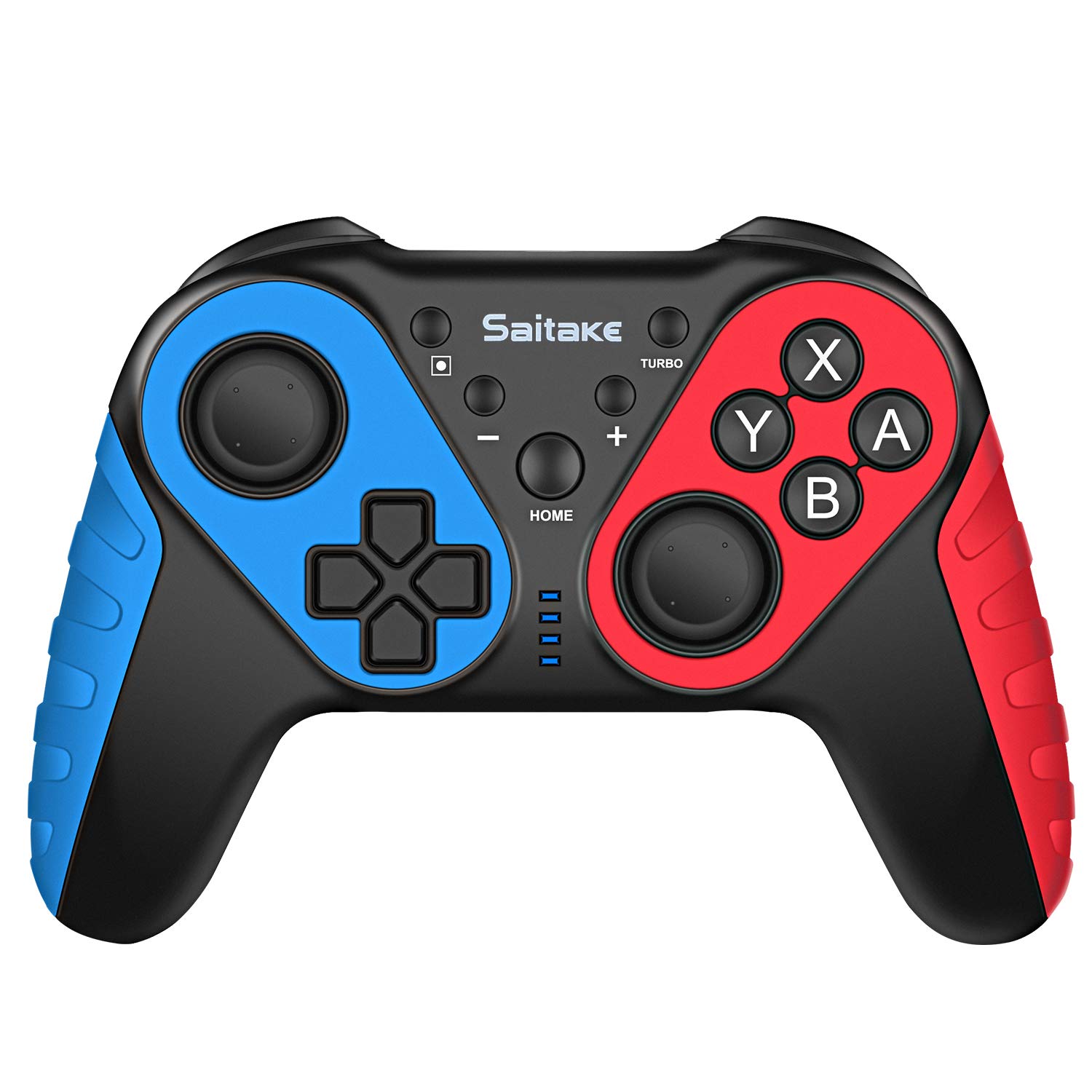
Image: The ECHTPower Wireless Pro Controller with an NFC icon, surrounded by various Amiibo figures (Pikachu, Ryu, Mario, Link, Rathalos), demonstrating quick induction for equipment.
- To use an Amiibo, place the Amiibo figure on the NFC area of the controller (typically near the HOME button) when prompted by a compatible game.
4. 6-Axis Gyroscope and High Precise Joysticks
The controller features a sensitive 6-axis gyroscope for motion control and high-precision joysticks for accurate input, enhancing gameplay in titles that utilize these features.
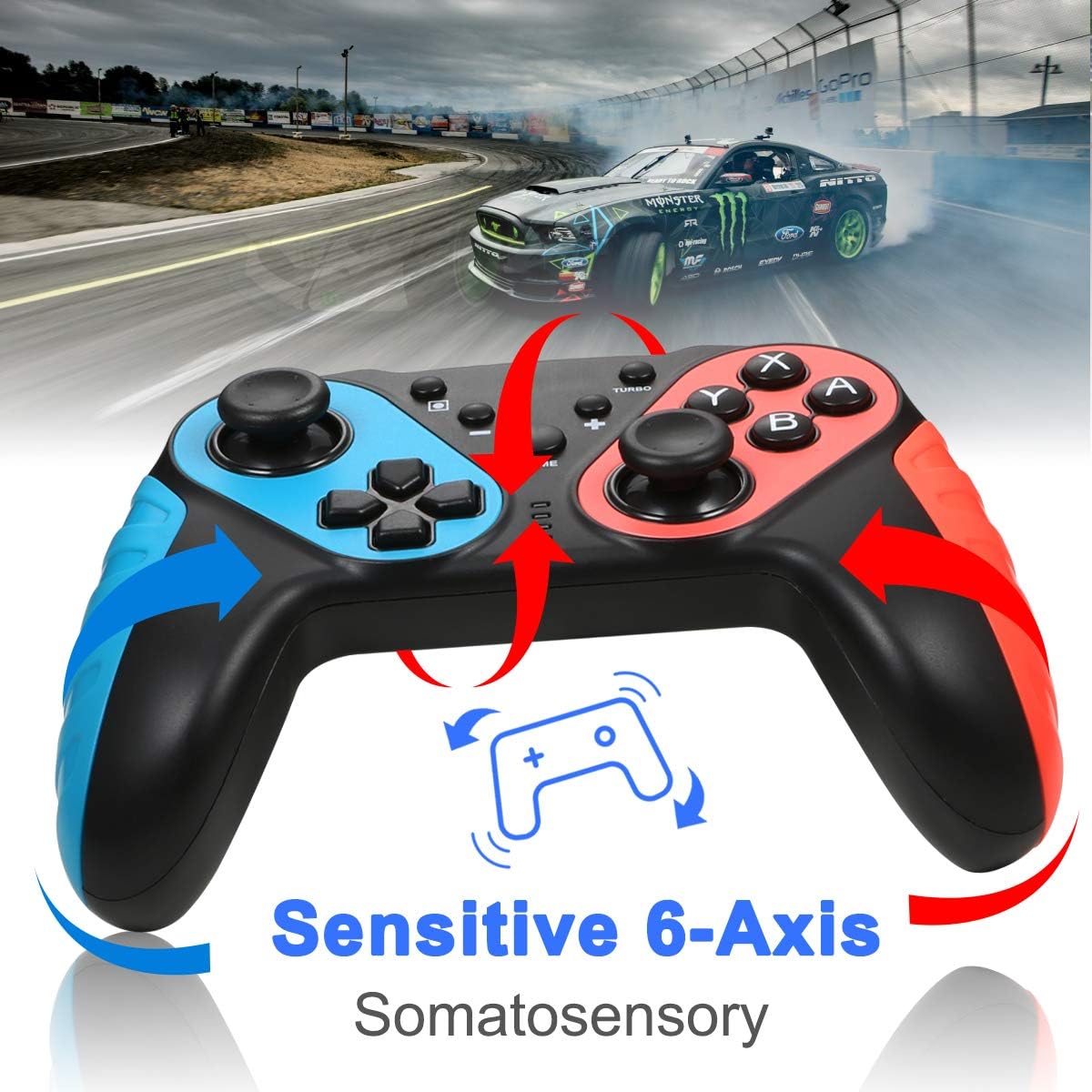
Image: The ECHTPower Wireless Pro Controller with arrows indicating sensitive 6-axis somatosensory movement, suggesting motion control capabilities.

Image: Close-up of the ECHTPower Wireless Pro Controller's joystick, highlighting its high precision with glowing effects.
5. Charging the Controller
- Connect the provided USB Type-C cable to the controller's charging port and the other end to a USB power source (e.g., Nintendo Switch dock, PC, USB wall adapter).
- The LED indicators on the controller will show charging status and turn off or change color when fully charged.
Maintenance
- Keep the controller dry and away from extreme temperatures.
- Clean the controller with a soft, dry cloth. Do not use harsh chemicals or abrasive materials.
- Avoid dropping or subjecting the controller to strong impacts.
- Store the controller in a safe place when not in use to prevent damage.
Troubleshooting
- Controller does not connect:
- Ensure the controller is charged.
- Repeat the pairing process (HOME + Y).
- Check if the Switch console's system software is up to date.
- Move closer to the Switch console to ensure a strong Bluetooth signal.
- Buttons or joysticks are unresponsive:
- Restart the controller by holding the HOME button for 10 seconds, then re-pair.
- Ensure no physical obstructions are affecting button presses.
- Vibration is not working:
- Check in-game settings and Switch console settings to ensure vibration is enabled.
- Adjust vibration intensity if applicable.
- NFC (Amiibo) not detected:
- Ensure the Amiibo is placed correctly on the NFC area.
- Verify the game supports Amiibo functionality.
Specifications
| Connectivity | Wireless (Bluetooth) / Wired (USB Type-C) |
| Compatibility | Nintendo Switch, Nintendo Switch OLED, Desktop PC, Notebook PC |
| Special Features | Turbo Function, 6-Axis Gyroscope, Dual Motor Vibration (3 levels), NFC (Amiibo Support), High Precise Joysticks, Ergonomic Design |
| Charging Port | USB Type-C |
Warranty and Support
For warranty information or technical support, please refer to the contact details provided on the product packaging or visit the official ECHTPower website. Keep your purchase receipt for warranty claims.


