
Introduction
The NETGEAR Orbi Tri-Band Mesh WiFi 6 Satellite (RBS750) is designed to expand the coverage of your existing Orbi Tri-band Mesh WiFi AX System. This add-on satellite provides speeds up to 4.2Gbps, extending your WiFi network by up to 2,500 sq ft. It is ideal for enhancing 4K/8K UHD streaming, ensuring lag-free gaming, and facilitating smooth streaming throughout your home. The Orbi app simplifies the setup and management of your new Orbi WiFi system.

Figure 1: Front view of the Orbi RBS750 Satellite, showing its sleek, white design with the Orbi logo at the base.
Setup
Setting up your Orbi RBS750 Satellite is a straightforward process, primarily managed through the Orbi app. Ensure your existing Orbi WiFi 6 System (e.g., RBK752) is already operational.
- Placement: Position the satellite in an area that requires extended WiFi coverage, ideally within range of your existing Orbi router or another satellite. Avoid placing it near large metal objects, concrete walls, or other sources of interference.
- Power On: Connect the provided 12V/2.5A power adapter to the satellite and plug it into a power outlet. The LED on the satellite will illuminate.
- Orbi App Setup: Download and open the NETGEAR Orbi app on your smartphone or tablet. Follow the on-screen instructions to add a new satellite to your existing Orbi system. The app will guide you through the synchronization process.
- Synchronization: During synchronization, the satellite's LED will change colors to indicate its status (e.g., pulsing white, solid blue for good connection, amber for fair connection, magenta for no connection). Once the LED turns solid blue and then off, the satellite is successfully connected and extending your network.
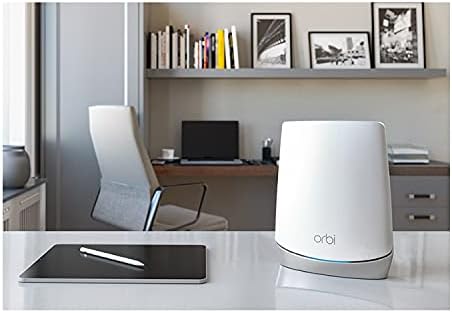
Figure 2: The Orbi RBS750 Satellite shown in an office environment, demonstrating its integration with the Orbi mobile application for easy setup and management.
Operating the Orbi Satellite
Once set up, the Orbi RBS750 Satellite seamlessly integrates into your existing Orbi mesh network, providing extended and reliable WiFi coverage. Devices will automatically connect to the strongest signal, whether from the router or a satellite, under a single network name.
Key Features:
- Extended Coverage: Adds up to 2,500 sq. ft. of WiFi coverage, eliminating dead zones in larger homes or multi-story buildings.
- High Performance: Delivers AX4200 WiFi 6 speeds (up to 4.2Gbps) for demanding applications like 4K/8K UHD streaming, online gaming, and video conferencing.
- Seamless Roaming: Maintain a single WiFi network name (SSID) across your entire home, allowing devices to move freely without losing connectivity.
- Ethernet Ports: The satellite includes two Gigabit Ethernet ports, allowing you to connect wired devices such as desktop computers, gaming consoles, or smart TVs for maximum speed and stability.
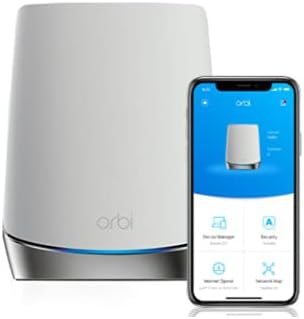
Figure 3: Rear view of the Orbi RBS750 Satellite, highlighting the two Gigabit Ethernet ports and the power input, enabling wired connections for devices.
Maintenance
To ensure optimal performance and security of your Orbi system, regular maintenance is recommended.
- Firmware Updates: Periodically check for and install the latest firmware updates for both your Orbi router and satellites. While the Orbi app may indicate no updates, it is advisable to manually check the official NETGEAR support website for the most current versions. Follow the instructions provided on the website for manual updates, typically involving downloading a .chk file and uploading it via the Orbi web interface (192.168.1.1).
- Cleaning: Keep the satellite free from dust and debris. Use a soft, dry cloth to wipe the exterior. Ensure ventilation openings are not obstructed.
- Restarting: If you experience minor connectivity issues, a simple restart of the satellite (and potentially the main router) can often resolve them. Unplug the power adapter, wait 10 seconds, and then plug it back in.
Troubleshooting
If you encounter issues with your Orbi RBS750 Satellite, refer to the following common troubleshooting steps:
- Satellite Not Connecting (Magenta LED):
- Ensure the satellite is within range of the main Orbi router or another satellite. Try moving it closer.
- Verify that your main Orbi router is powered on and functioning correctly.
- Attempt to re-synchronize the satellite using the Orbi app.
- If persistent, try connecting the satellite directly to the router via an Ethernet cable, then access the Orbi web interface (192.168.1.1) to check and manually update its firmware to match the router's firmware.
- Slow Speeds or Dropped Connections:
- Check the satellite's LED color: Blue indicates a good connection, Amber indicates a fair connection (consider repositioning for better signal).
- Ensure there are no physical obstructions or interference sources (e.g., microwaves, cordless phones) near the satellite.
- Perform a network speed test to confirm the issue.
- Restart both the Orbi router and all satellites.
- No Internet Access:
- Verify your internet service provider (ISP) connection is active. Check your modem's status lights.
- Ensure the Orbi router is properly connected to the modem.
- Restart your modem, then your Orbi router, and finally your Orbi satellite.
- Factory Reset: As a last resort, if issues persist, you may perform a factory reset on the satellite. Locate the reset button (often a small pinhole) on the back or bottom of the unit. Use a paperclip to press and hold the button for about 10 seconds until the LED flashes. This will revert the satellite to its default settings, requiring re-setup via the Orbi app.
Specifications
| Brand | NETGEAR |
| Model Name | RBS750-100NAS |
| Product Dimensions | 9.75 x 7.75 x 6 inches |
| Item Weight | 2.69 pounds |
| Frequency Band Class | Tri-Band |
| Wireless Communication Standard | 802.11ac, 802.11ax (WiFi 6) |
| Compatible Devices | Gaming Console, Smart Television, Smartphone, Tablet |
| Connectivity Technology | Ethernet, Wi-Fi |
| Included Components | One (1) Orbi Satellite (RBS750), One (1) 12V/2.5A power adapter, Quick start guide |
Warranty and Support
The NETGEAR Orbi RBS750 Satellite is backed by a 1-year limited hardware warranty. For detailed warranty information and support, please refer to the official NETGEAR website or the full user manual.
For further assistance, you can:
- Access the comprehensive User Manual (PDF) for in-depth instructions and diagrams.
- Utilize the Orbi app for managing your network settings and accessing basic troubleshooting tools.
- Visit the official NETGEAR Store on Amazon for product information and support resources.