
1. Introduction
This manual provides comprehensive instructions for the setup, operation, and maintenance of your NETGEAR Orbi 4G LTE Mesh WiFi Router (LBR20). The Orbi 4G LTE Whole Home Advanced Wi-Fi Router delivers up to 2.2Gbps high-performance Wi-Fi on 4G LTE networks, offering a reliable internet solution for homes or as a mobile hotspot. Its sleek, modern design incorporates high-gain internal antennas for extensive coverage.
Key Features:
- Requires Nano SIM card from carrier and activation of compatible BYOD (Bring Your Own Device) data plan.
- Download speeds up to 1.2Gbps (speeds may vary by service and proximity to nearest cell tower).
- Can be used as a primary or backup internet connection.
- Covers up to 2,000 sq. ft. and 25 devices with up to 2.2Gbps WiFi speed. Expandable with additional satellites (sold separately).
- Easy setup and management via the Orbi app.
- Equipped with 2 x 1G Ethernet ports for wired connections.
- Supports MU-MIMO and Beamforming for optimized performance.
- Includes Guest WiFi access and VPN support.
What's in the Box:
- One (1) Orbi 4G LTE Advanced WiFi Router (LBR20)
- One (1) 2m Ethernet cable
- One (1) 12V/2.5A power adapter
- Quick start guide
2. Setup
Follow these steps to set up your Orbi 4G LTE Mesh WiFi Router:
1. Power On the Orbi Router:
Connect the provided 12V/2.5A power adapter to the Orbi router's DC power port and plug it into a power outlet. The Orbi router will power on automatically.

Image: Front view of the Orbi LBR20 router, a white cylindrical device with a blue top ring.
2. Insert Nano SIM Card:
The Orbi LBR20 requires a Nano SIM card from your mobile service provider. Ensure you have an activated BYOD (Bring Your Own Device) data plan that meets your data needs. Insert the Nano SIM card into the Nano SIM slot on the back of the router. The SIM card slot is located near the LTE Antenna 2 port.

Image: A hand inserting a small Nano SIM card into the designated slot on the back of the Orbi router.

Image: Rear view of the Orbi LBR20 router, highlighting the WAN/LAN, LAN, DC power, Reset, NanoSIM, and LTE Antenna ports.
3. Download the Orbi App:
Download the NETGEAR Orbi app from your smartphone's app store. The app will guide you through the remaining setup steps, including creating an account, scanning the Orbi barcode, and configuring your SIM card settings (such as APN information, if required by your carrier).

Image: Multiple smartphone screens displaying the Orbi app interface, showing setup, security, and parental control options.
4. Connect to the Internet:
Once the SIM card is recognized and configured via the app, your Orbi router will establish an internet connection. You can connect devices wirelessly or use the Ethernet ports for wired connections.
Setup Video:
For a visual guide on setting up your Orbi 4G LTE WiFi Router, please watch the official video below:
Video: Official NETGEAR video demonstrating the setup and benefits of the Orbi 4G LTE Advanced Tri-Band WiFi Router (LBR20).
3. Operating Instructions
The Orbi LBR20 is designed for continuous operation. Once set up, it provides a seamless Wi-Fi network throughout your home or designated area.
Wi-Fi Connectivity:
Connect your wireless devices (smartphones, tablets, laptops, smart TVs, gaming consoles) to the Orbi Wi-Fi network using the Wi-Fi name (SSID) and password found on the label at the bottom of your Orbi router or within the Orbi app.
Wired Connections:
Use the two 1 Gigabit Ethernet LAN ports on the back of the router to connect wired devices such as computers, game consoles, or network-attached storage (NAS) for stable and high-speed connections.
Expanding Coverage:
If you require additional Wi-Fi coverage beyond the initial 2,000 sq. ft., you can expand your mesh Wi-Fi system by adding compatible Orbi AC Satellites (sold separately). The Orbi app provides instructions for integrating new satellites into your existing network.
Orbi App Features:
The Orbi app allows you to manage your network settings, view connected devices, monitor internet speed, and access advanced features such as:
- Guest WiFi Access: Create a separate network for guests without sharing your main network password.
- NETGEAR Armor: Provides an automatic shield of security across all your connected devices (30-day free trial included).
- NETGEAR Smart Parental Controls: Promotes healthy Internet habits and manages online time for your kids (30-day free trial included).
- VPN Support: Secure your network traffic.
4. Maintenance
To ensure optimal performance and longevity of your Orbi LBR20 router, consider the following maintenance tips:
- Placement: Place the router in a central location, away from obstructions and other electronic devices that may cause interference. Ensure adequate ventilation around the device.
- Cleaning: Periodically clean the exterior of the router with a soft, dry cloth. Avoid using liquid cleaners or aerosols.
- Firmware Updates: Regularly check for and install firmware updates through the Orbi app. Firmware updates often include performance improvements, security patches, and new features.
- Rebooting: If you experience minor performance issues, a simple reboot (unplugging the power adapter for 10 seconds and plugging it back in) can often resolve them.
5. Troubleshooting
If you encounter issues with your Orbi LBR20 router, refer to the following common troubleshooting steps:
- No Internet Connection:
- Verify that your Nano SIM card is correctly inserted and activated with your mobile service provider.
- Check the status LED on the top of the Orbi router. Different colors indicate different statuses (e.g., solid blue for good connection, magenta for no internet). Refer to the quick start guide for LED interpretations.
- Ensure your data plan is active and has sufficient data allowance.
- Confirm that the APN settings in the Orbi app match those provided by your mobile carrier.
- Try rebooting the Orbi router.
- Slow Wi-Fi Speeds:
- Check the signal strength of your cellular connection through the Orbi app. Weak cellular signal will result in slower Wi-Fi speeds.
- Ensure the router is placed in an optimal location, away from interference.
- Limit the number of devices actively streaming or downloading simultaneously.
- Consider adding an Orbi AC Satellite to extend coverage and improve speeds in larger homes.
- Devices Cannot Connect to Wi-Fi:
- Verify you are using the correct Wi-Fi name (SSID) and password.
- Ensure the Wi-Fi radio is enabled in the Orbi app.
- Reboot both the Orbi router and the device attempting to connect.
For more detailed troubleshooting, please refer to the official Troubleshooting Guide (PDF) or the User Guide (PDF).
6. Specifications
Below are the technical specifications for the NETGEAR Orbi 4G LTE Mesh WiFi Router (LBR20):
| Feature | Detail |
|---|---|
| Model Name | LBR20-100NAS |
| Wireless Type | 802.11ac (AC2200 Tri-band WiFi 5) |
| WiFi Speed | Up to 2.2Gbps |
| WiFi Coverage | Up to 2,000 sq. ft. (expandable with satellites) |
| Connected Devices | Up to 25 devices |
| Cellular Download Speed | Up to 1.2Gbps (via 4G LTE) |
| Ethernet Ports | 2 x 1G Ethernet ports (1 WAN/LAN, 1 LAN) |
| SIM Card Type | Nano SIM |
| Dimensions (LxWxH) | 3.1 x 8.9 x 6.7 inches |
| Item Weight | 1.72 pounds |
| Power Input | 12V/2.5A DC |
| Security Protocols | WPA2 wireless security protocols |
| Special Features | WPS, MU-MIMO, Beamforming, Guest WiFi, VPN |
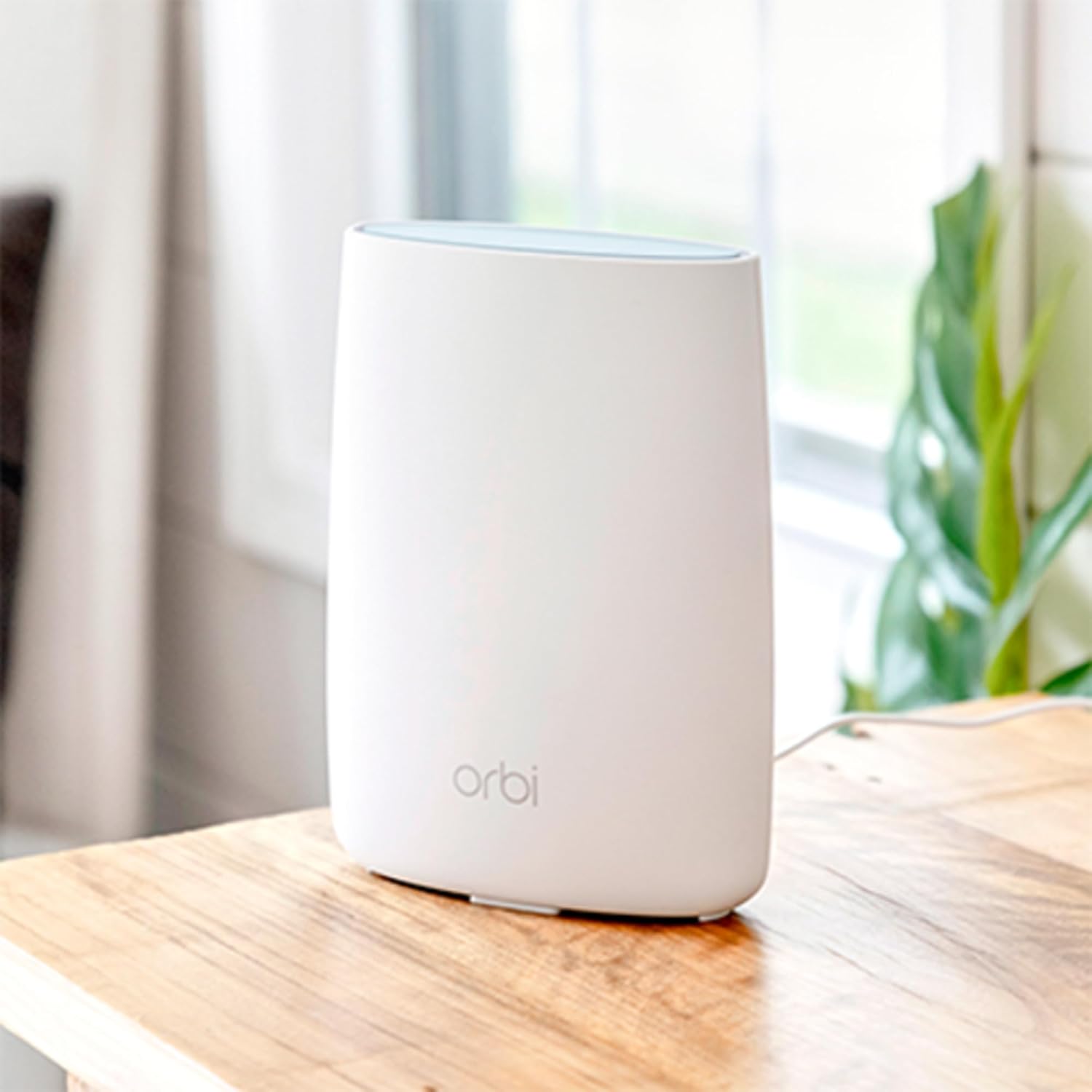
Image: Diagram illustrating the technical specifications and port layout of the Orbi LBR20 router.
7. Warranty and Support
Your NETGEAR Orbi 4G LTE Mesh WiFi Router (LBR20) comes with a 1-year limited hardware warranty.
For further assistance, product registration, and access to the latest software and support resources, please visit the official NETGEAR support website or use the Orbi app.
Additional resources: