
1. Product Overview
The Billboard BB425 Gaming Headset is designed for an immersive audio experience across various gaming platforms. It features a boom microphone for clear communication, enhanced bass for rich sound, and convenient in-line controls for volume adjustment and instant muting. The headset is lightweight and adjustable, ensuring a comfortable fit during extended use, and comes with a durable fabric cord.
- Boom Microphone: For clear voice communication.
- Enhanced Bass: Delivers a rich audio experience.
- In-line Control: Easily adjust volume and mute the microphone.
- Adjustable Design: Lightweight and comfortable for prolonged gaming sessions.
- Durable Fabric Cord: Designed for longevity.
2. Setup Instructions
Follow these steps to connect your Billboard BB425 Gaming Headset to your device.
- Identify the Connectors: The headset features a single 3.5mm TRRS jack for combined audio and microphone functionality. An included Y-splitter cable separates this into two 3.5mm TRS jacks: one for audio output (typically green) and one for microphone input (typically pink).
- For Devices with a Single 3.5mm Port (e.g., most laptops, gaming controllers, smartphones):
- Plug the headset's single 3.5mm TRRS jack directly into your device's combined audio/microphone port.
- For Devices with Separate Audio and Microphone Ports (e.g., most desktop PCs):
- Connect the headset's single 3.5mm TRRS jack into the female end of the Y-splitter cable.
- Plug the audio output jack (often green) of the Y-splitter into your device's audio output port.
- Plug the microphone input jack (often pink) of the Y-splitter into your device's microphone input port.
- Adjust Fit: Place the headset over your ears and adjust the headband for a comfortable and secure fit. Position the boom microphone near your mouth for optimal voice pickup.
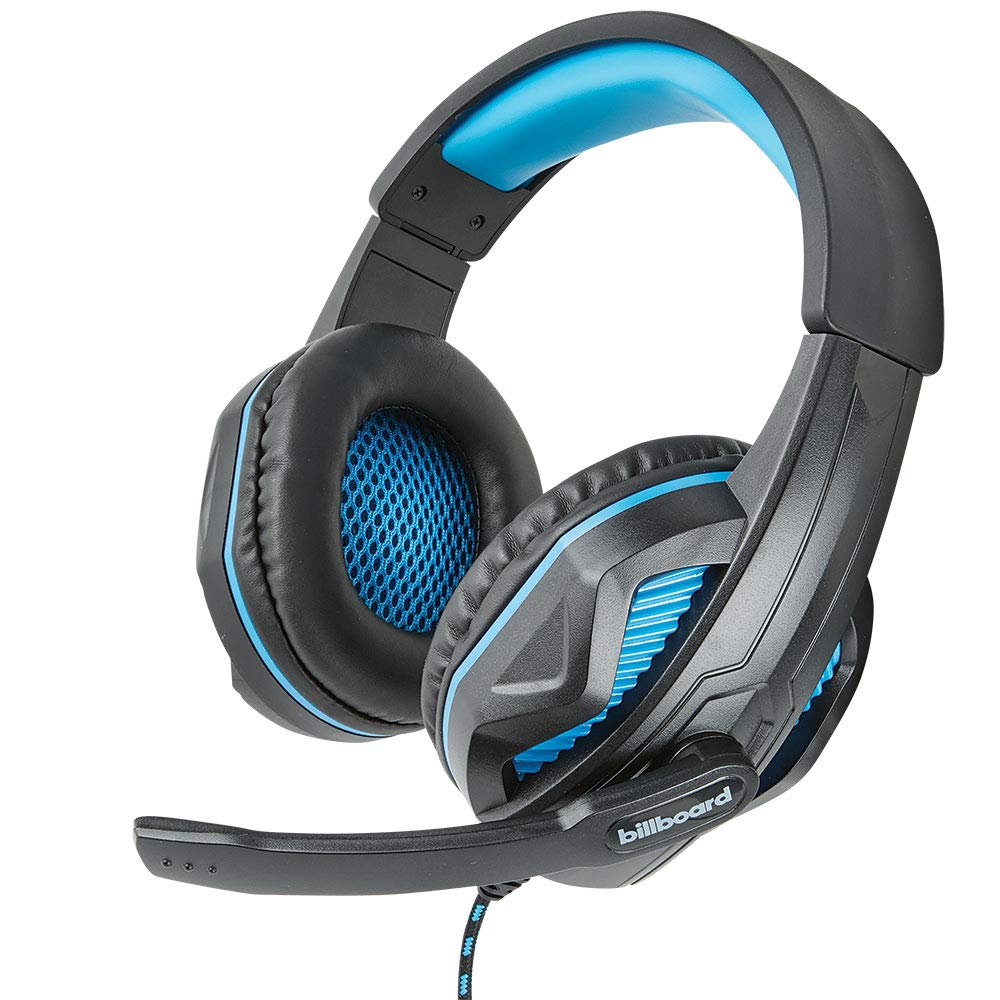
Image: The Billboard BB425 Gaming Headset's braided cable, in-line control unit, and the included Y-splitter cable with two 3.5mm TRS jacks for separate audio and microphone connections.
3. Operating Instructions
The in-line control unit provides easy access to essential audio functions.
- Volume Control: Use the scroll wheel on the in-line control unit to adjust the audio volume. Scroll up to increase volume and down to decrease it.
- Microphone Mute: The in-line control unit features a switch to mute or unmute the microphone. Slide the switch to the "OFF" position to mute your microphone, and to the "ON" position to enable it.
- Boom Microphone Adjustment: The flexible boom microphone can be positioned closer or further from your mouth to optimize voice clarity.
4. Maintenance and Care
Proper care will extend the life of your headset.
- Cleaning: Use a soft, dry cloth to wipe down the headset. For ear cushions, a slightly damp cloth with mild soap can be used, but ensure they are completely dry before use. Do not use harsh chemicals or abrasive cleaners.
- Storage: Store the headset in a clean, dry place away from extreme temperatures and direct sunlight. Avoid tangling the cable.
- Handling: Do not pull on the cable to disconnect the headset. Always grasp the plug firmly. Avoid dropping or subjecting the headset to strong impacts.
5. Troubleshooting
If you encounter issues with your Billboard BB425 Gaming Headset, refer to the following common solutions.
- No Sound or Low Volume:
- Ensure the headset's 3.5mm jack(s) are fully inserted into the correct port(s) on your device.
- Check the in-line volume control wheel and adjust it to an audible level.
- Verify your device's audio output settings. Ensure the headset is selected as the default playback device.
- Test the headset with another device to rule out a device-specific issue.
- Microphone Not Working:
- Ensure the microphone mute switch on the in-line control unit is in the "ON" position.
- If using the Y-splitter, ensure the microphone jack (typically pink) is correctly plugged into your device's microphone input port.
- Check your device's microphone input settings. Ensure the headset microphone is selected as the default recording device and that its input volume is not muted or set too low.
- Test the microphone with another application or device.
- Static or Distorted Audio:
- Ensure all connections are secure and free from dust or debris.
- Try connecting the headset to a different audio port or device to check if the issue persists.
- Avoid placing the cable near strong electromagnetic interference sources.
6. Specifications
| Feature | Detail |
|---|---|
| Model Name | BB425 |
| Brand | Billboard |
| Connectivity Technology | Wired |
| Headphone Jack | 3.5 mm Jack |
| Ear Placement | Over Ear |
| Form Factor | On Ear |
| Compatible Devices | Gaming Consoles, Desktops, Laptops, Telephones |
| Special Features | Enhanced bass |
| Control Type | In-line control (Volume, Mute) |
| Cable Feature | Retractable, Durable Fabric Cord |
| Material | Plastic |
| Color | Black |
| Product Dimensions | 25.15 x 22.86 x 8.89 cm |
| Item Weight | 386 g |
| Batteries Required | No |
7. Warranty Information
This product is covered by a manufacturer's warranty. For specific details regarding warranty coverage, duration, and terms, please refer to the warranty card included with your product or visit the official Billboard website. Keep your purchase receipt as proof of purchase for any warranty claims.
8. Customer Support
If you require further assistance or have questions not addressed in this manual, please contact Billboard customer support. Contact information can typically be found on the product packaging or the official Billboard website.
Manufacturer: ESI Cases & Accessories