1. Introduction
This manual provides essential information for the safe and efficient use of your Terra Greenline 1009700 2405HA All-in-One PC. Please read this manual thoroughly before operating the device and retain it for future reference. This All-in-One PC integrates a computer and monitor into a single unit, offering a compact and streamlined computing experience.
2. Safety Information
Observe the following safety precautions to prevent damage to the device or injury to yourself:
- Do not expose the device to rain, moisture, or extreme temperatures.
- Ensure proper ventilation; do not block ventilation openings.
- Use only the power adapter supplied with the device.
- Avoid placing heavy objects on the power cord.
- Do not attempt to disassemble or repair the device yourself. Refer all servicing to qualified personnel.
- Keep the device away from strong magnetic fields.
3. Package Contents
Verify that all items are present in the package:
- Terra Greenline 1009700 2405HA All-in-One PC
- Power Adapter and Cable
- Keyboard (Standard)
- Mouse
- Quick Start Guide (if included)
4. Product Overview
Familiarize yourself with the components and ports of your All-in-One PC.
4.1 Front View
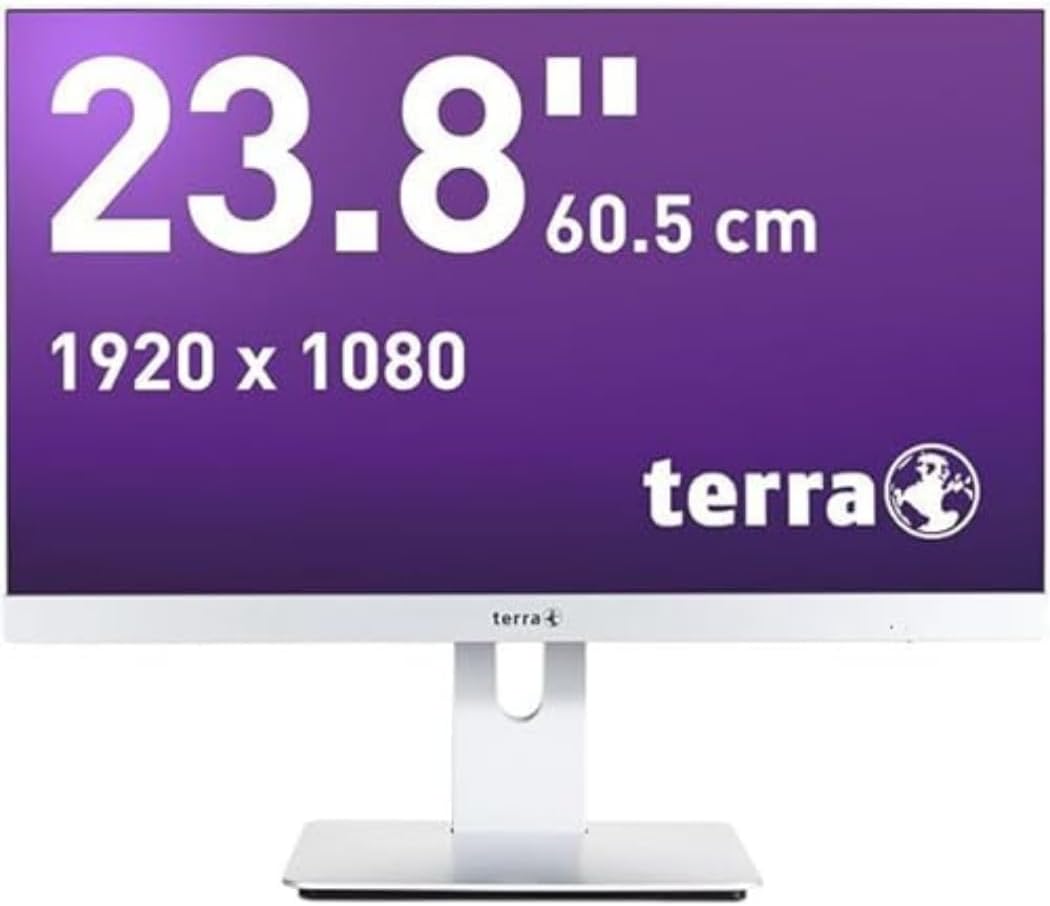
Figure 4.1: Front view of the Terra Greenline 2405HA All-in-One PC. The display shows its 23.8-inch size, 60.5 cm diagonal, and 1920x1080 resolution. The Terra logo is visible on the bottom bezel.
4.2 Side View and Ports

Figure 4.2: Side view of the Terra Greenline 2405HA All-in-One PC, highlighting the accessible ports on the left side, typically including USB ports and possibly an SD card reader.
The specific arrangement and type of ports may vary slightly. Common ports include USB 3.0, USB 2.0, HDMI, DisplayPort, Ethernet, and audio jacks.
5. Setup
Follow these steps for initial setup:
- Unpack the PC: Carefully remove the All-in-One PC and all accessories from the packaging.
- Position the PC: Place the PC on a stable, flat surface with adequate ventilation around the unit.
- Connect Peripherals: Connect the keyboard and mouse to the available USB ports.
- Connect Power: Plug the power adapter into the DC-in port on the PC, then plug the power cable into a wall outlet.
- Power On: Press the power button, usually located on the side or bottom bezel of the display.
- Initial Setup: Follow the on-screen instructions to complete the Windows 10 Pro operating system setup, including language, network connection, and user account creation.
6. Operating Instructions
6.1 Power On/Off
- To Power On: Press the power button.
- To Shut Down: Click the Start button in Windows, then select Power > Shut down.
- To Restart: Click the Start button, then select Power > Restart.
- To Sleep: Click the Start button, then select Power > Sleep.
6.2 Using Windows 10 Pro
Your PC comes pre-installed with Windows 10 Pro. Refer to Microsoft's official documentation for detailed instructions on using the operating system. Basic navigation includes:
- Start Menu: Access applications, settings, and power options.
- Taskbar: Quick access to running applications and system tray icons.
- File Explorer: Manage files and folders.
- Settings: Configure system preferences, network, and devices.
6.3 Network Connectivity
The PC supports Wi-Fi (802.11ac) and Ethernet connectivity.
- Wi-Fi: Click the network icon in the taskbar, select your Wi-Fi network, enter the password, and connect.
- Ethernet: Connect an Ethernet cable from your router/modem to the Ethernet port on the PC.
7. Maintenance
7.1 Cleaning
- Screen: Use a soft, lint-free cloth slightly dampened with water or a screen cleaner. Do not spray liquid directly onto the screen.
- Casing: Wipe with a soft, dry cloth. Avoid abrasive cleaners.
- Ventilation: Periodically clean dust from ventilation openings using compressed air to ensure proper airflow.
7.2 Software Updates
Regularly update your Windows operating system and drivers to ensure optimal performance and security. Access Windows Update via Settings > Update & Security > Windows Update.
8. Troubleshooting
If you encounter issues, try the following solutions:
- No Power: Ensure the power cable is securely connected to both the PC and the wall outlet. Test the outlet with another device.
- No Display: Check power connection. If the PC powers on but no display, try restarting.
- No Internet Connection: Verify Wi-Fi connection or Ethernet cable. Restart your router/modem.
- Peripheral Not Working: Ensure the keyboard/mouse is properly connected. Try a different USB port.
- System Slow: Close unnecessary applications. Check for background processes. Ensure sufficient free disk space.
- Operating System Issues: Use Windows troubleshooting tools or consider a system restore point.
9. Specifications
| Feature | Specification |
|---|---|
| Brand | Terra |
| Model Number | 1009700 |
| Series | 1009700 |
| Operating System | Windows 10 Pro |
| Processor Brand | Intel |
| Processor Type | Core i5 |
| Number of Cores | 6 |
| RAM | 8 GB |
| Hard Drive Size | 500 GB |
| Hard Drive Interface | Ethernet (Note: This likely refers to network interface, not storage interface. Storage is typically SSD.) |
| Screen Size | 23.8 Inches |
| Screen Resolution | 1920 x 1080 |
| Graphics Chipset Brand | Intel |
| Graphics Card Description | Integrated |
| Wireless Technology Type | 802.11ac |
| Hardware Interface | 802.11 ac/b/g/n |
| Special Features | Microphone |
| Product Dimensions (L x W x H) | 50 x 540 x 518 millimeters |
| Product Weight | 8 Kilograms |
10. Warranty and Support
For warranty information and technical support, please refer to the documentation provided with your purchase or visit the official Terra website. Keep your proof of purchase for warranty claims.


