1. Product Overview
The Lenovo Yoga Smart Tab is a versatile 10.1-inch Full HD Android tablet designed for entertainment and productivity. It features a unique multi-mode design with a built-in kickstand, allowing for various viewing angles and hands-free use. Powered by an Octa-Core processor, 4GB RAM, and 64GB storage, it offers smooth performance for everyday tasks, media consumption, and light gaming.
Key features include a vibrant 10.1-inch FHD display, integrated speakers for enhanced audio, and a long-lasting battery. The distinctive cylindrical hinge houses the battery and provides a comfortable grip, while also integrating the kickstand for stand, tilt, and hang modes.

Image: The Lenovo Yoga Smart Tab in landscape mode, showcasing its integrated kickstand and cylindrical battery housing, which also contains the speakers. The screen displays a digital clock.
2. Getting Started: Setup
2.1 Package Contents
Verify that your package contains the following items:
- Lenovo Yoga Smart Tab (Model ZA3V0005US)
- USB-C Cable
- Power Adapter
- Quick Start Guide (if included)
2.2 Charging the Tablet
Before first use, fully charge the tablet. Connect the USB-C cable to the tablet's USB-C port and the power adapter. Plug the power adapter into a wall outlet. The charging indicator light will illuminate.
2.3 Powering On/Off
- To Power On: Press and hold the Power button located on the side of the cylindrical hinge until the Lenovo logo appears on the screen.
- To Power Off: Press and hold the Power button until the power options menu appears. Select "Power off" and confirm.
- To Restart: From the power options menu, select "Restart" and confirm.
2.4 Initial Configuration
Upon first power-on, the tablet will guide you through the initial setup process:
- Select your language.
- Connect to a Wi-Fi network.
- Sign in with your Google account or create a new one. This is essential for downloading apps from the Google Play Store.
- Review and accept the terms and conditions.
- Set up screen lock (PIN, pattern, or password) for security.
- Configure other settings as prompted, such as date and time, and Google services.
3. Operating Instructions
3.1 Basic Navigation
The tablet uses a touch-sensitive screen for navigation:
- Tap: To select an item or open an app.
- Swipe: To scroll through screens or lists.
- Pinch: To zoom in or out on images and web pages.
- Long Press: To access contextual menus or move icons.

Image: The Lenovo Yoga Smart Tab held in portrait orientation, displaying a web browser with text content. This demonstrates the tablet's use for reading or browsing.
3.2 Using the Multi-Mode Kickstand
The integrated kickstand allows for flexible usage modes:
- Stand Mode: Rotate the kickstand out to prop the tablet upright on a flat surface for viewing videos or video calls.
- Tilt Mode: Partially open the kickstand to angle the tablet for comfortable typing or drawing.
- Hold Mode: The cylindrical edge provides a natural grip for holding the tablet in one hand.
- Hang Mode: Fully open the kickstand and use the cutout to hang the tablet on a hook for hands-free viewing in kitchens or workshops.

Image: A rear view of the Lenovo Yoga Smart Tab, highlighting its unique cylindrical hinge and the kickstand fully extended, ready for stand or hang mode.
3.3 Connecting to Wi-Fi
- Go to Settings > Network & internet > Wi-Fi.
- Toggle Wi-Fi On.
- Select your desired network from the list.
- Enter the network password if prompted and tap Connect.
3.4 Using the Camera
The tablet is equipped with front and rear cameras.
- Open the Camera app from the home screen or app drawer.
- Tap the shutter button to take a photo.
- Tap the video icon to record a video.
- Use the switch camera icon to toggle between front and rear cameras.
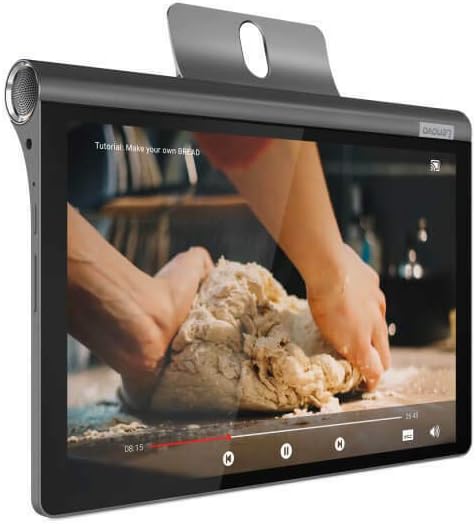
Image: The Lenovo Yoga Smart Tab displaying a video on its screen, demonstrating its capability for media consumption. The tablet is in landscape mode, likely using its kickstand.
4. Maintenance
4.1 Cleaning the Tablet
- Use a soft, lint-free cloth to clean the screen and body.
- For stubborn smudges, slightly dampen the cloth with water or a screen cleaner designed for electronics.
- Avoid using harsh chemicals, abrasive materials, or excessive moisture.
4.2 Battery Care
- Avoid exposing the tablet to extreme temperatures.
- Do not allow the battery to fully discharge frequently. Charge it when the battery level is low.
- Use only the original or certified compatible charger and cable.
4.3 Software Updates
Regularly check for and install software updates to ensure optimal performance and security.
- Go to Settings > System > System update.
- Follow the on-screen instructions to check for and install available updates.
5. Troubleshooting
5.1 Tablet Not Turning On
- Ensure the tablet is sufficiently charged. Connect it to the charger for at least 30 minutes.
- Press and hold the Power button for 10-15 seconds to perform a forced restart.
5.2 Wi-Fi Connection Issues
- Restart your Wi-Fi router and the tablet.
- Forget the network in Wi-Fi settings and reconnect.
- Ensure you are within range of the Wi-Fi signal.
5.3 Slow Performance
- Close unused applications running in the background.
- Clear cache data for frequently used apps (Settings > Apps > [App Name] > Storage & cache > Clear cache).
- Ensure sufficient storage space is available. Delete unnecessary files or apps.
- Restart the tablet regularly.
5.4 Apps Crashing or Not Responding
- Force close the app (Settings > Apps > [App Name] > Force stop).
- Clear the app's cache and data (Settings > Apps > [App Name] > Storage & cache).
- Uninstall and reinstall the app.
- Ensure the tablet's operating system is up to date.
6. Specifications
| Feature | Specification |
|---|---|
| Brand | Lenovo |
| Model Name | Yoga Smart Tab |
| Item Model Number | ZA3V0005US |
| Operating System | Android |
| Screen Size | 10.1 Inches |
| Screen Resolution | 1920 x 1200 pixels (FHD) |
| Processor | Qualcomm Snapdragon 439 (8C, 8x A53 @2.0GHz) |
| RAM | 4 GB DDR3 SDRAM |
| Internal Storage | 64 GB |
| Graphics Coprocessor | Adreno 505 |
| Wireless Connectivity | 802.11a/b/g/n/ac |
| Average Battery Life | 10 Hours |
| Rear Camera Resolution | 8 MP |
| Item Weight | 1.7 pounds |
| Product Dimensions (LxWxH) | 11.77 x 6.89 x 1.34 inches |
| Color | Grey |
7. Warranty and Support
For detailed warranty information, please refer to the warranty card included with your product or visit the official Lenovo support website. Lenovo provides customer support and resources for product assistance, driver downloads, and service information.
Official Lenovo Support: https://support.lenovo.com/