
1. Introduction
Thank you for choosing the XVEFAT EN2AJ27S Remote Control. This manual provides detailed instructions for setting up, operating, and maintaining your new remote control, ensuring optimal performance with your Sharp Smart TV. Please read this manual thoroughly before use and retain it for future reference.
2. Product Overview
The XVEFAT EN2AJ27S is a replacement remote control designed for seamless compatibility with various Sharp Smart TV models. It features an ergonomic design and dedicated buttons for common functions, including streaming services, to enhance your viewing experience.
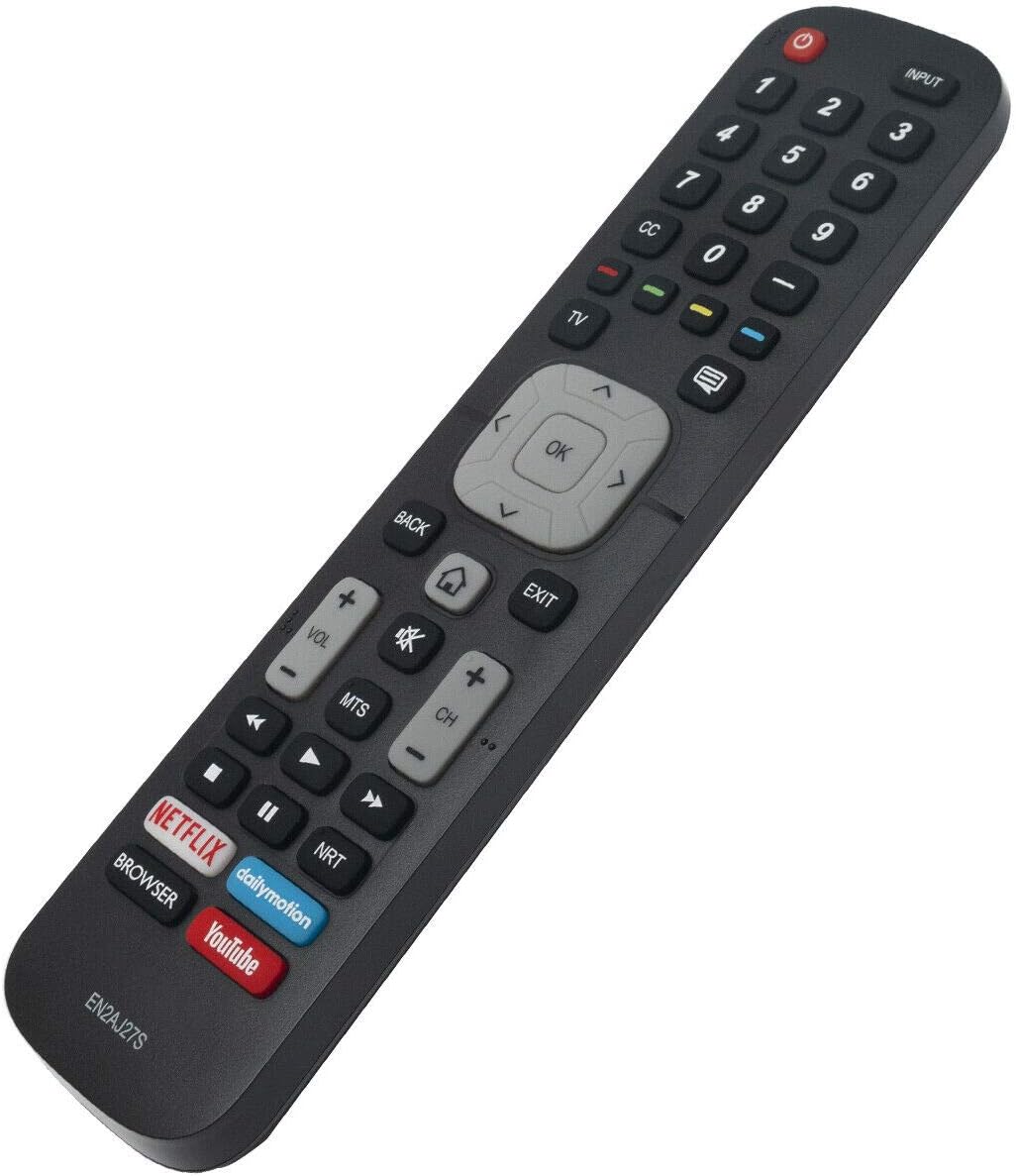
Figure 2.1: Angled view of the XVEFAT EN2AJ27S remote control, showcasing its ergonomic design and button layout.
3. Setup
3.1 Battery Installation
To begin using your remote control, you must first install the batteries.
- Locate the battery compartment cover on the back of the remote control.
- Slide the cover downwards or press the latch to open the compartment.
- Insert two (2) AAA batteries (not included), ensuring the positive (+) and negative (-) terminals match the diagrams inside the compartment.
- Replace the battery compartment cover by sliding it back into place until it clicks securely.
Note: Always use new batteries and replace both batteries at the same time. Do not mix old and new batteries or different types of batteries.
4. Operating Instructions
The EN2AJ27S remote control is pre-programmed for Sharp Smart TVs and typically requires no additional setup beyond battery installation. Point the remote directly at your TV's infrared receiver.
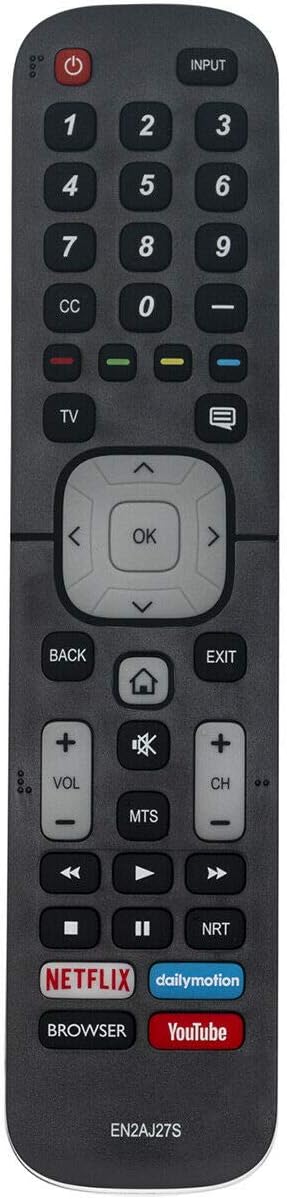
Figure 4.1: Top-down view of the XVEFAT EN2AJ27S remote control, illustrating the layout of all functional buttons.
4.1 Basic Functions
- Power (Red Button): Turns the TV on or off.
- Input: Cycles through available input sources (HDMI, AV, etc.).
- Number Pad (0-9): Directly selects channels or enters numerical values.
- Navigation Pad (Up, Down, Left, Right, OK): Navigates menus and confirms selections.
- Back: Returns to the previous menu or screen.
- Exit: Exits the current menu or application.
- Volume (+/-): Adjusts the TV's volume level.
- Mute (Speaker Icon): Mutes or unmutes the TV's audio.
- Channel (+/-): Changes the TV channel up or down.
- Home (House Icon): Accesses the TV's main smart hub or home screen.
- Netflix, Dailymotion, YouTube, Browser: Dedicated buttons for quick access to these applications.
5. Maintenance
5.1 Cleaning
To clean your remote control, gently wipe it with a soft, dry cloth. For stubborn dirt, slightly dampen the cloth with water or a mild, non-abrasive cleaner. Avoid using harsh chemicals or abrasive materials, as these can damage the remote's surface or internal components.
5.2 Battery Replacement
Replace batteries when the remote's response becomes sluggish or stops working. Follow the battery installation steps outlined in Section 3.1. Always dispose of used batteries responsibly according to local regulations.
6. Troubleshooting
If you encounter issues with your remote control, refer to the following common problems and solutions:
- Remote not responding:
- Check if the batteries are inserted correctly with the correct polarity.
- Replace old batteries with new ones.
- Ensure there are no obstructions between the remote and the TV's infrared sensor.
- Confirm the remote is pointed directly at the TV.
- Some buttons not working:
- This could indicate a specific button malfunction or a low battery. Try replacing batteries.
- Ensure the TV is in the correct mode (e.g., not in a menu that disables certain buttons).
- Short operating range:
- Replace batteries with new ones.
- Ensure no strong light sources (like direct sunlight) are interfering with the TV's IR sensor.
If problems persist after trying these solutions, please contact customer support.
7. Specifications
| Brand | XVEFAT |
| Model Number | EN2AJ27S |
| Compatible Devices | Television (Sharp Smart TV) |
| Connectivity Technology | Infrared |
| Controller Type | Button Control |
| Special Feature | Ergonomic |
8. Warranty and Support
For information regarding warranty coverage, technical support, or replacement parts, please refer to the documentation provided with your purchase or contact the seller directly. Keep your purchase receipt as proof of purchase.