
Introduction
This manual provides detailed instructions for the installation, operation, and maintenance of your LEXXSON Android 10.1 Car Radio Head Unit. Please read this manual thoroughly before using the product to ensure proper functionality and safety. This unit is specifically designed for the Honda Accord 7th generation, model years 2003-2007.

Image: LEXXSON Android 10.1 Car Radio Head Unit, showing the main display and physical controls.
Setup and Installation
The LEXXSON car radio is designed for plug-and-play installation in compatible Honda Accord 7th generation vehicles. The necessary frame kits are pre-installed on the unit, eliminating the need for separate purchases.
Package Contents
Verify that all components are present in the package:
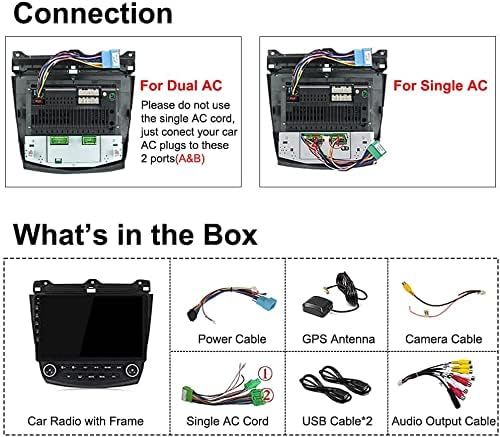
Image: Diagram showing the included components: Car Radio with Frame, Power Cable, GPS Antenna, Camera Cable, Single AC Cord, 2x USB Adapters, Audio Output Cable.
- 1 x LEXXSON Android Player (with pre-installed frame kit)
- 1 x GPS Antenna
- 1 x Power Harness
- 1 x RCA Input/Output Cable
- 2 x USB Adapters
- 1 x Camera Input Cable
- 1 x User Manual (this document)
- 1 x Single AC Cord (for specific AC configurations)
Wiring Connections
Carefully connect the provided cables to the corresponding ports on the head unit and your vehicle's wiring harness. Pay close attention to the AC wiring based on your vehicle's air conditioning system (single or dual zone).

Image: Rear view of the LEXXSON car radio unit, illustrating various connection ports for power, audio, video, and antennas.
For vehicles with Dual AC, do not use the single AC cord. Connect your car's AC plugs directly to ports A and B on the unit. For Single AC, use the provided single AC cord as instructed.
Steering Wheel Control Integration
After correct wiring, the unit supports the original car's steering wheel controls. Navigate to the settings menu on the head unit to initiate the steering wheel button learning process. Follow the on-screen prompts to assign functions to each button.
Installation Overview

Image: Comparison showing the original Honda Accord 7th dashboard before installation and the dashboard after the LEXXSON car radio has been installed.
For a visual guide on the installation process, please refer to the official installation video below:
Video: Detailed installation guide for the LEXXSON Android Radio in a Honda Accord 2002-2007 model. This video demonstrates the steps involved in replacing the original head unit with the new Android system.
Operating Instructions
System Overview
The head unit operates on an Android system, typically version 10.1 or 11, powered by an Octa Core CPU with 2GB RAM and 32GB ROM. It features a 10.1-inch high-definition TFT capacitive touch screen with a resolution of 1280 x 720 pixels, providing clear visuals and responsive interaction.

Image: Screenshot of the Android 11 interface on the head unit, highlighting the Octa Core processor capability and various application icons.
Apple CarPlay and Android Auto
The unit supports both wireless Apple CarPlay and Android Auto. To use these features:
- For Wireless CarPlay (iPhone): Turn on your iPhone's Wi-Fi and Bluetooth. Pair your car stereo's Bluetooth with your iPhone. Open the "Zlink" application on the head unit to establish the CarPlay connection. You can then access music, calls, navigation, and Siri.
- For Wireless Android Auto (Android Phone): Ensure your Android phone's Wi-Fi and Bluetooth are enabled. Pair your phone with the head unit via Bluetooth. Launch the Android Auto application on the head unit to connect.

Image: Screen displaying settings for CarPlay and Android Auto, showing options like Driving Focus, Appearance, and Wallpaper.
Bluetooth 5.0 Handsfree and Audio Streaming
The integrated Bluetooth 5.0 module allows for hands-free calling and wireless audio streaming. The unit includes a built-in microphone and supports an external microphone via the RCA cable for enhanced call clarity.
- Making/Answering Calls: Pair your mobile phone via Bluetooth. Use the touchscreen interface to dial numbers or answer incoming calls safely.
- Audio Streaming: Stream music directly from your paired mobile device to the car stereo.
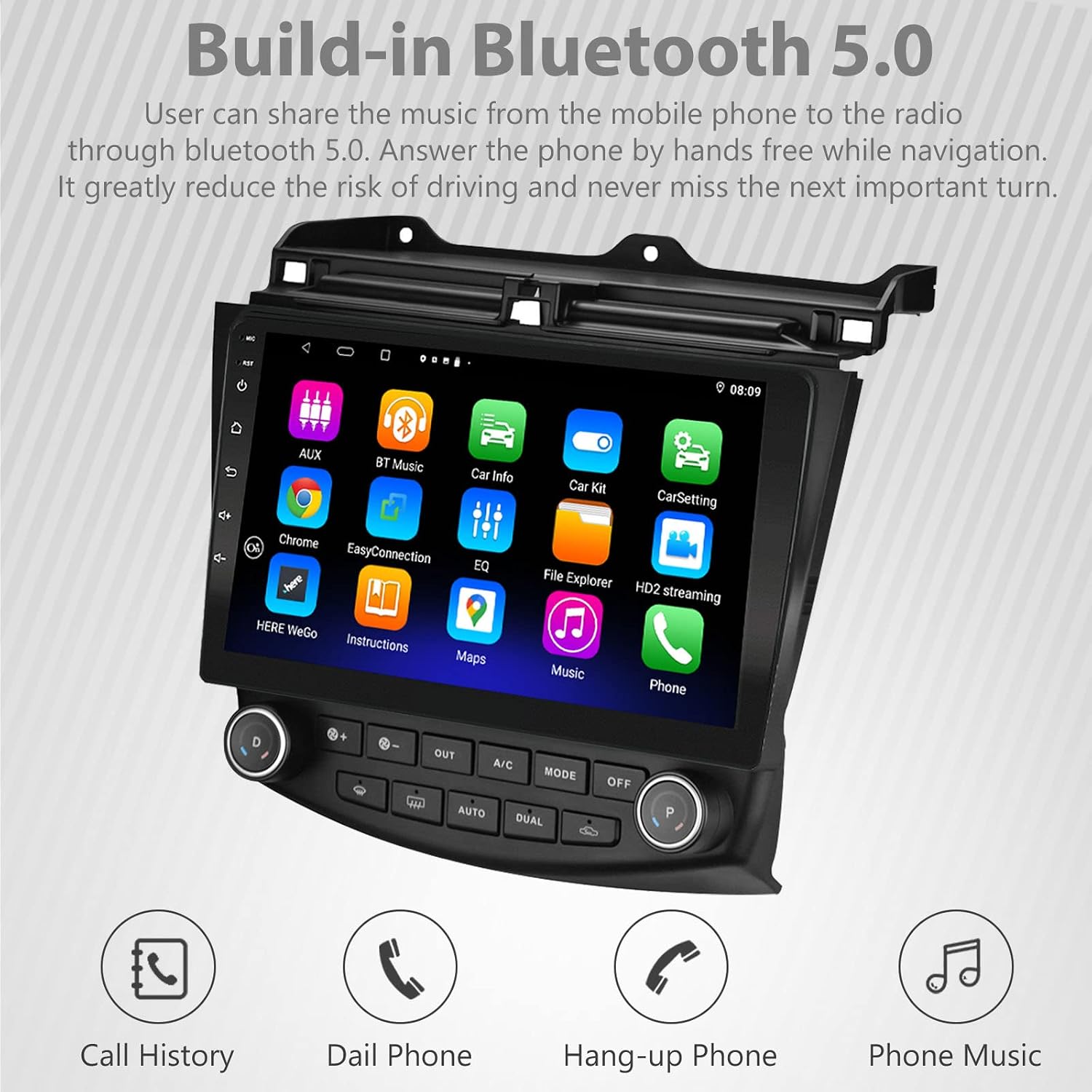
Image: Display showing the Bluetooth 5.0 interface with icons for Call History, Dial Phone, Hang-up Phone, and Phone Music.
FM/AM/RDS Radio
The unit features an automotive-grade radio chipset for optimal signal reception. It supports FM, AM, and RDS (Radio Data System) functions. You can auto-scan and store your favorite stations.

Image: Screenshot of the FM/AM/RDS radio interface, displaying frequency tuning and station presets.
Split Screen Functionality
The Android system allows for multi-tasking with its split-screen feature. You can run two applications simultaneously, such as using navigation while listening to music or browsing the web.

Image: Display showing the split-screen function in action, with a navigation application on one side and a web browser on the other.
EQ System (DSP)
The built-in Digital Sound Processor (DSP) provides a 32-band equalizer, allowing you to customize audio settings to your preference. Adjust volume, fader, balance, treble, and bass for an optimized listening experience.

Image: Screenshot of the DSP system's graphical equalizer interface, showing multiple frequency bands for audio adjustment.
Navigation and Connectivity
The unit includes a built-in GPS receiver compatible with popular navigation applications such as Waze, Navfree, Google Maps, and Yandex Map. It also features built-in Wi-Fi and is compatible with a 4G SIM card for internet access.
Rear Camera Input
Connect a compatible rear camera to the unit. The screen will automatically switch to the camera view when the vehicle is in reverse, enhancing safety during parking maneuvers.
Maintenance
- Screen Cleaning: Use a soft, lint-free cloth to gently wipe the touchscreen. For stubborn smudges, slightly dampen the cloth with water or a screen-safe cleaner. Avoid abrasive materials or harsh chemicals.
- Software Updates: Periodically check for system updates through the unit's settings menu to ensure optimal performance and access to the latest features.
- General Care: Keep the unit free from excessive dust and moisture. Ensure all connections remain secure.
Troubleshooting
| Problem | Possible Cause | Solution |
|---|---|---|
| Unit does not power on. | Incorrect wiring; Blown fuse; Power supply issue. | Check power cable connections. Verify vehicle fuses. Consult a professional if issues persist. |
| No sound output. | Speaker wiring incorrect; Volume too low; Mute function active. | Check speaker connections. Increase volume. Disable mute. Verify audio settings. |
| Bluetooth connection issues. | Device not paired; Bluetooth disabled; Interference. | Ensure Bluetooth is enabled on both devices. Re-pair the device. Move closer to the unit. |
| Navigation not working. | GPS antenna not connected; No map data; Software issue. | Ensure GPS antenna is properly connected and has a clear view of the sky. Install or update map data. Restart the navigation application. |
| Touchscreen unresponsive or freezing. | Temporary software glitch; System overload. | Restart the unit (turn off vehicle ignition and restart). If persistent, perform a factory reset (refer to settings menu, note this will erase data). |
| Steering wheel controls not functioning. | Incorrect wiring; Controls not learned. | Verify wiring connections. Re-perform the steering wheel control learning process in settings. |
Specifications
| Feature | Detail |
|---|---|
| Brand | LEXXSON |
| Model Number | RM13-HND-ACC07-2G32 |
| Operating System | Android 10.1 / 11 (as per product version) |
| CPU | Octa Core with 1.6GHz Cortex A55 |
| Memory | 2GB DDR3 RAM + 32GB Flash Memory (ROM) |
| Screen Size | 10.1 Inches |
| Screen Type | TFT Capacitive Touch Screen |
| Resolution | 1280 x 720 pixels |
| Bluetooth Version | 5.0 (with A2DP/Hands Free/Phone book) |
| Connectivity | Bluetooth, USB, Wi-Fi, 4G (SIM card compatible) |
| GPS | Built-in receiver, compatible with Waze/Navfree/Google/Yandex Map etc. |
| Radio Tuner | AM/FM/RDS Radio |
| Audio Output | 4 x 45W Power Output, 4.1 Channel RCA/Sub output |
| DSP | Preset Multi EQ Settings with 32 Band DSP |
| Inputs | 2 x Rear USB Input, 1 x Camera Input, 2 Channel Audio Input |
| Dimensions (L x W x H) | 9.84"L x 9.06"W x 5.91"H |
| Compatible Vehicle | Honda Accord 7th (2003-2007) |
Warranty and Support
For warranty information and technical support, please refer to the contact details provided with your purchase documentation or visit the official LEXXSON website. Ensure you have your model number (RM13-HND-ACC07-2G32) and purchase date available when contacting support.
For additional resources and product information, you may visit the LEXXSON Store on Amazon.


