
GEQUDIO WA9022
GEQUDIO WA9022 RJ Headset User Manual
Model: WA9022
1. Introduction
Thank you for choosing the GEQUDIO WA9022 RJ Headset. This wired headset is designed to provide clear and reliable communication for professional use, compatible with a range of IP phones including Yealink, Snom, Avaya, and Grandstream models. This manual provides detailed instructions on how to set up, operate, and maintain your headset to ensure optimal performance and longevity.
The GEQUDIO WA9022 features two wideband speakers for excellent sound quality, an adjustable microphone with noise suppression, and comes with all necessary accessories for immediate use. Its lightweight design ensures comfort during extended periods of wear.
2. Safety Information
Please read all safety instructions carefully before using the headset. Keep this manual for future reference.
- Avoid exposing the headset to extreme temperatures, humidity, or corrosive substances.
- Do not attempt to disassemble or modify the headset. This may void the warranty and pose a safety risk.
- Keep the headset away from water and other liquids. It is not water-resistant.
- Use only the provided accessories and cables.
- Adjust volume to a comfortable level to prevent hearing damage. Prolonged exposure to loud sounds can cause permanent hearing loss.
- Ensure the cable is not a tripping hazard.
3. Package Contents
Verify that all items are present in your GEQUDIO WA9022 package:
- GEQUDIO WA9022 Headset with Quick-Release (QR) Cable
- Connection Cable (from QR to RJ-4P4C phone connector)
- Cable Clip
- Replacement Earpads (2 pairs)
- Replacement Microphone Foam Cover
- User Manual (this document)
- Secure Transport Packaging

Figure 3.1: Contents of the GEQUDIO WA9022 Headset package. This image shows the headset, the coiled RJ connection cable, spare earpads, a spare microphone foam cover, and the user manual, all neatly arranged.
4. Product Overview
4.1 Key Features
- Hands-Free Communication: Designed for comfort and productivity, eliminating the need to hold a phone handset.
- Wired Connection: Ensures stable and uninterrupted communication without battery concerns or radio interference.
- High-Quality Audio: Features two wideband speakers for clear incoming audio and a microphone with directional effect and interference suppression for clear outgoing audio.
- Adjustable Microphone Arm: The microphone arm can be rotated 300 degrees, allowing the headset to be worn on either the left or right ear.
- Volume Control: Integrated volume control on the cable for easy audio adjustment.
- Hearing Protection: Includes high volume peak filtering to protect your hearing.
- Lightweight Design: Weighing approximately 80g (headset only), it provides comfort for all-day use.
- Durable Construction: Made from Acrylonitrile Butadiene Styrene (ABS) for robust performance.
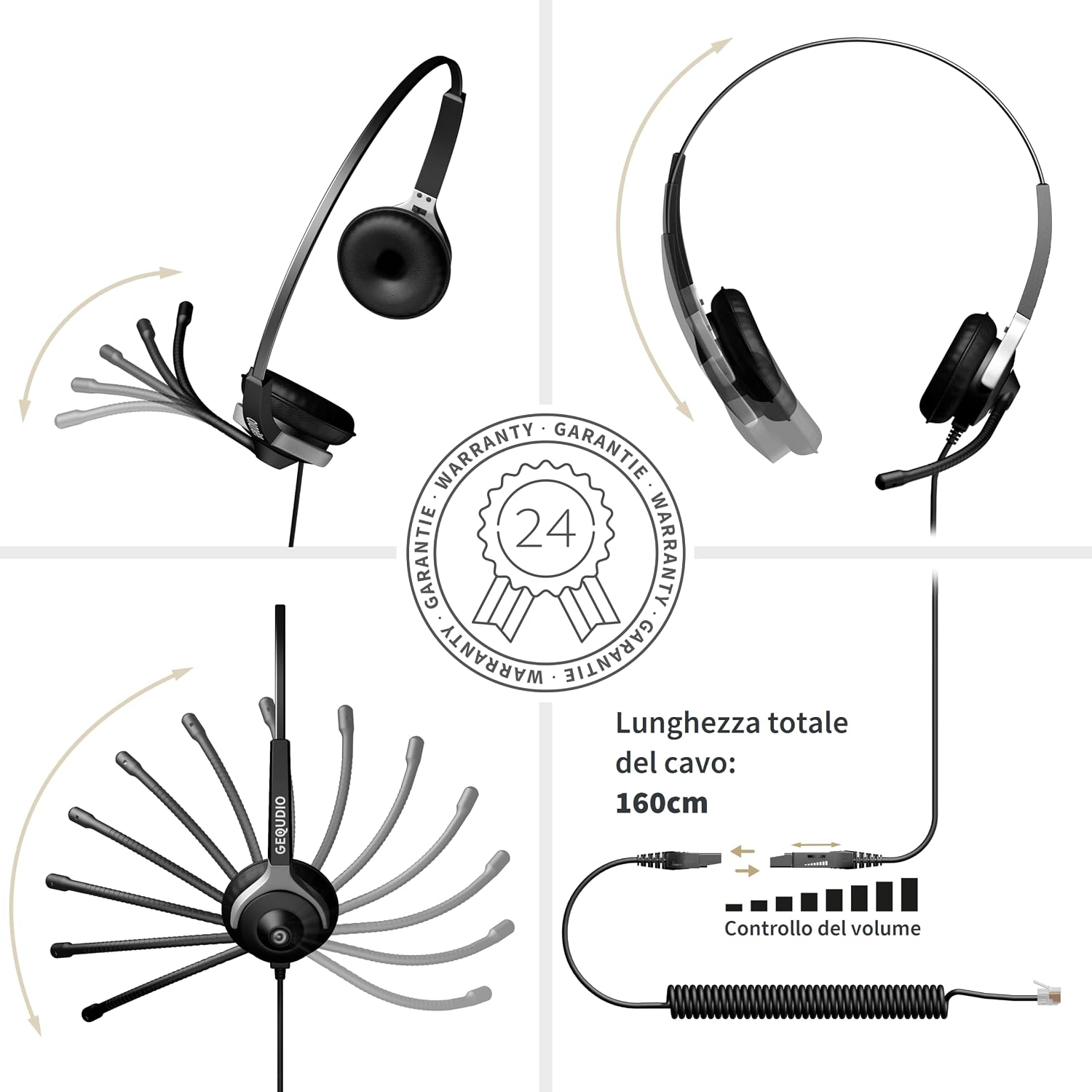
Figure 4.1: Key features and adjustability of the GEQUDIO WA9022 Headset. This image highlights the rotatable microphone arm, adjustable headband, the total cable length of 160cm, and the inline volume control.

Figure 4.2: User demonstrating the hands-free comfort of the GEQUDIO WA9022 Headset. The image emphasizes the lightweight design suitable for extended wear.
5. Setup
Follow these steps to connect your GEQUDIO WA9022 Headset to your compatible IP phone:
- Identify the RJ-4P4C Port: Locate the dedicated headset port on your IP phone. This is typically a small, square port similar to an Ethernet port but usually smaller (RJ-9 or RJ-11/12, often referred to as RJ-4P4C for headsets). Consult your phone's manual if unsure.
- Connect the Quick-Release Cable: The headset comes with a quick-release (QR) cable attached. Connect the other end of this QR cable to the provided RJ-4P4C connection cable. Ensure it clicks securely into place.
- Connect to Phone: Insert the RJ-4P4C connector of the connection cable into the headset port on your IP phone. Push firmly until it clicks.
- Adjust Headset Fit:
- Place the headset on your head so the earpads comfortably cover your ears.
- Adjust the headband for a snug but comfortable fit.
- Rotate the microphone arm to position the microphone approximately 2 cm (about one inch) from the corner of your mouth. The microphone arm can be rotated 300 degrees to be worn on either side.
- Secure Cable (Optional): Use the included cable clip to secure the headset cable to your clothing, preventing tangles and reducing strain.
Note: The headset is designed for direct connection to compatible IP phone headset ports. It is not compatible with Grandstream models requiring a 2.5mm jack.
6. Operation
Once connected, your GEQUDIO WA9022 Headset is ready for use. Operation is straightforward:
- Making/Receiving Calls: Use your IP phone's controls to make or answer calls. The audio will automatically route through the headset.
- Volume Control: Use the inline volume control on the headset cable to adjust the listening volume. Turn the dial up or down to increase or decrease the volume.
- Mute Function: If your phone supports it, you can mute the microphone directly from your phone's interface. The GEQUDIO WA9022 headset itself does not have an inline mute button.
- Ending Calls: End calls using your IP phone's controls.
7. Maintenance
Proper care and maintenance will extend the life of your GEQUDIO WA9022 Headset:
- Cleaning: Wipe the headset with a soft, dry cloth. Do not use harsh chemicals, cleaning solvents, or strong detergents.
- Earpad Replacement: The headset comes with replacement earpads. If the original earpads become worn or damaged, they can be easily replaced. Gently peel off the old earpads and stretch the new ones over the speaker housing.
- Microphone Foam Replacement: The microphone foam cover can also be replaced if it becomes worn. Gently slide off the old foam and slide on the new one.
- Storage: When not in use, store the headset in a clean, dry place, away from direct sunlight and extreme temperatures.
- Cable Care: Avoid sharp bends or kinks in the cable. Do not pull the cable to disconnect the headset; always grasp the plug.

Figure 7.1: Instructions for replacing the earpads. The image illustrates the process of removing old earpads and fitting new ones, highlighting the included spare earpads.
8. Troubleshooting
If you encounter issues with your GEQUDIO WA9022 Headset, refer to the following common problems and solutions:
| Problem | Possible Cause | Solution |
|---|---|---|
| No audio from headset. |
|
|
| Microphone not working. |
|
|
| Poor audio quality (static, distortion). |
|
|
| Headset is uncomfortable. |
|
|
If the problem persists after trying these solutions, please contact GEQUDIO customer support for assistance.
9. Specifications
| Feature | Detail |
|---|---|
| Model | WA9022 |
| Connectivity Technology | Wired |
| Headphone Jack | RJ-4P4C |
| Speaker Type | Two wideband speakers |
| Frequency Response | 20 Hz - 20,000 Hz |
| Impedance | 150 Ohm |
| Microphone | Directional with interference suppression |
| Noise Control | Passive Noise Cancellation |
| Cable Feature | Tangle-free, Coiled Quick-Release cable |
| Cable Length | Approx. 160 cm (total) |
| Weight | 80g (headset only), 159g (total item weight) |
| Material | Acrylonitrile Butadiene Styrene (ABS) |
| Color | Black |
| Water Resistance Level | Not water-resistant |
| Included Components | Replacement earpads and microphone foam |
10. Compatible Devices
The GEQUDIO WA9022 Headset is designed for compatibility with a wide range of IP phones that feature an RJ-4P4C headset connector. Below is a list of commonly compatible models from various brands. Please note that this list is not exhaustive, and compatibility may vary based on specific phone firmware or regional variants. Always consult your phone's manual for headset port specifications.

Figure 10.1: Detailed compatibility list for GEQUDIO WA9022 Headset. This image provides specific model numbers for Yealink, Snom, Avaya, and Grandstream phones that are compatible with the RJ connector.
Known Compatible Brands and Series:
- Yealink: SIP-T19P E2, T20P, T21P E2, T22P, T23G, T26P, T27G, T28P, T29G, SIP-T32G, T38G, SIP-T40P, T40G, T41P, T41S, T42U, T42G, T42S, T43U, T46G, T46S, T46U, T48G, T48S, T48U, T52S, T53(W), T54W/S, T56A, T57W, T58A, T58V, VP59
- Snom: 320, 360, 370, D120, D305, D315, D335, D345, D375, D385 (N), 820, 821, 870, 710, 715, 720, 760, D710, D712, D713, D715 (W), D717 (W), D725, D735 (W), D745, D765, D785 (N), D862, D865
- Avaya: 1608, 1616, 9608, 9610, 9611, 9620, 9621, 9630, 9640, 9641, 9650, 9670, J139, J169, J179, J189, 94xx, 95xx
- Grandstream: GXP1200, GXP14xx, GXP16xx, GXP2020, GXP2100, GXP2110, GXP2120, GXP2124, GXP2130, GXP2140, GXP2160, GXP2170, GXP2135, GXP1760, GXP1780, GXP1782, GXV3240, GXV3270, GRP2612 ... GRP2616
Important Note: Not compatible with Grandstream models that require a 2.5mm jack.
11. Warranty and Support
GEQUDIO stands behind the quality of its products. Your GEQUDIO WA9022 Headset comes with a 24-month manufacturer's warranty from the date of purchase.
GEQUDIO is a German manufacturer of high-quality audio devices, founded in Berlin in 2016. We prioritize clear and detailed instructions for easy use and provide direct support from our development team.
Customer Support:
For technical assistance, warranty claims, or any questions regarding your GEQUDIO product, please contact our customer support team. Refer to the contact information provided on the GEQUDIO website or your purchase documentation.
We are committed to providing excellent service and ensuring your satisfaction with our products.

Figure 11.1: Image representing the long lifespan and manufacturer support for GEQUDIO products. The image shows a user comfortably wearing the headset, implying durability and reliable assistance.
Related documentsWA9022

Ask a question about this manual
Ask about setup, troubleshooting, compatibility, parts, safety, or missing instructions. Manuals+ will review the question and use this page’s manual context to help answer it.