
1. Introduction
Thank you for choosing the TelPal Wireless Noise Cancelling Headphones Model 520. This headset is designed for clear communication and comfortable use in various environments, including busy offices, call centers, and for gaming. It features advanced noise reduction technology and versatile connectivity options. This manual provides detailed instructions for setup, operation, maintenance, and troubleshooting to ensure optimal performance.
2. Product Overview
Key Features
- Professional Noise Cancelling Microphone: Equipped with a single-direction noise-proof microphone that effectively removes background noise beyond a 1-meter range, ensuring clear voice transmission.
- Comfortable Design: Lightweight structure with soft protein ear pads and an adjustable headband for extended wear comfort.
- Adjustable Microphone Boom: Microphone arm and boom arm are easily adjustable for optimal voice pickup.
- Versatile Connectivity: Bluetooth version CSR8615-V4.0 CLASS 2, compatible with PC and mobile devices (Bluetooth phones 1.1 to 4.1).
- Seamless Function Switching: Allows switching between music playback and call answering functions.
- Long Battery Life: Up to 12 hours of talk or music time and 250 hours of standby time on a single charge.
- Quick Charging: Fully recharges in approximately 2 hours via Micro USB.
- Hands-Free Operation: Supports hands-free talk over cell phones and network communication platforms like Skype, MSN, and Messenger.
- Integrated Controls: Features a multi-functional key and volume control buttons.
Product Components and Controls
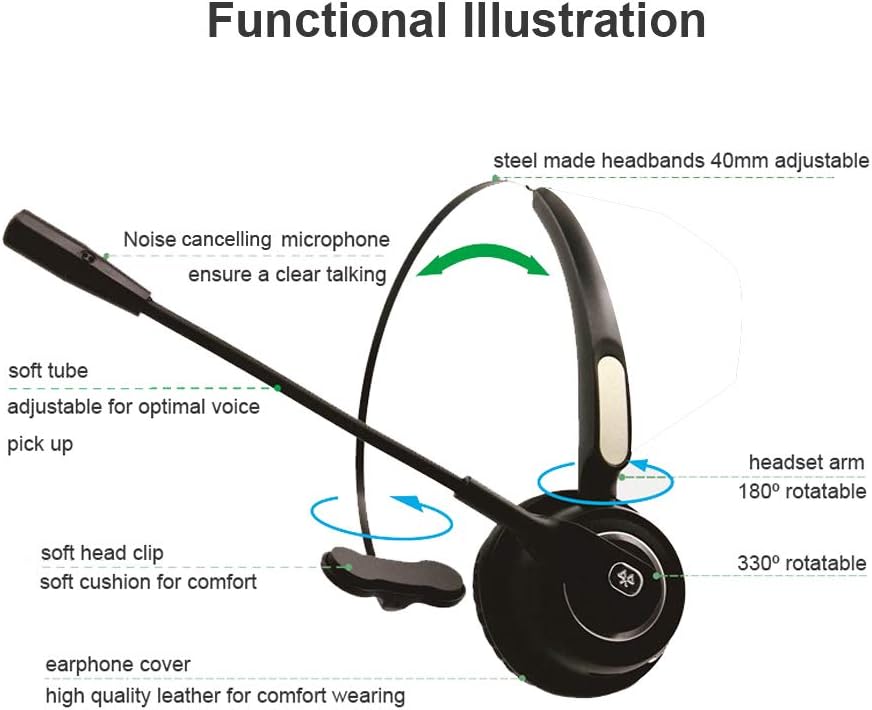

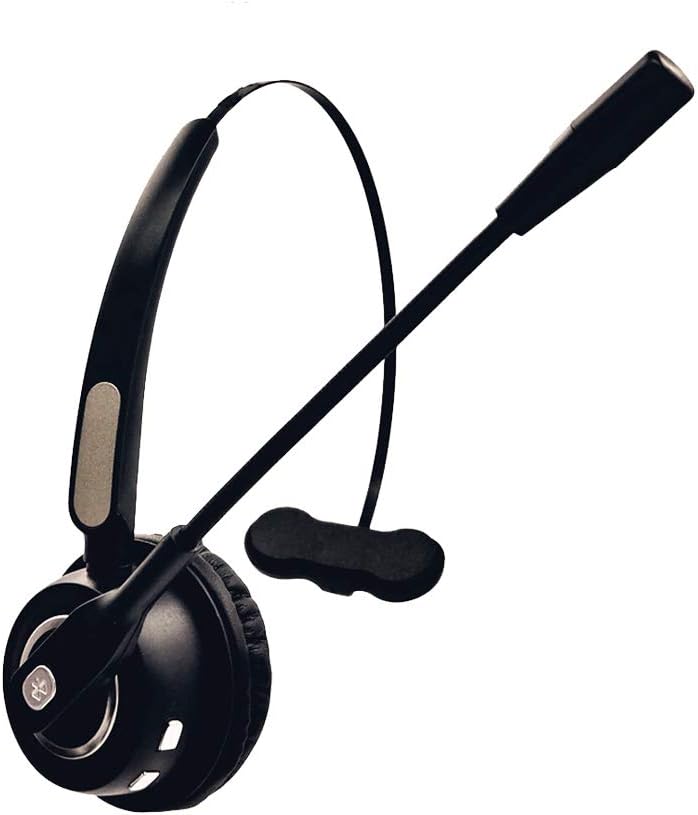
Product Visuals


Product Video

Official product video demonstrating the key features and benefits of the TelPal Wireless Noise Cancelling Headphones, including noise cancellation, comfort, and connectivity.
3. Setup
3.1 Charging the Headset
- Connect the Micro USB charging cable to the charging port on the headset.
- Connect the other end of the cable to a 5VDC, 100-240VAC adapter or a USB port on your computer.
- The LED indicator will illuminate during charging.
- A full charge takes approximately 2 hours. The LED indicator will change or turn off once charging is complete.
3.2 Bluetooth Pairing
- Ensure the headset is sufficiently charged.
- Press and hold the On/Off button on the TelPal Wireless Headset for 2 seconds until the LED indicator flashes, indicating it is in pairing mode.
- On your device (PC or mobile), enable Bluetooth and search for available devices.
- Select "BH520" from the list of found devices to connect.
- Once connected, the LED indicator will show a steady light or flash slowly, depending on the headset's status.
4. Operating Instructions
4.1 Power On/Off
- Power On: Press and hold the On/Off button until the LED indicator lights up.
- Power Off: Press and hold the On/Off button until the LED indicator turns off.
4.2 Call Handling
- Answer Call: Press the Multi-functional Key once when a call comes in.
- End Call: Press the Multi-functional Key once during a call.
- Reject Call: Press and hold the Multi-functional Key for 2 seconds when a call comes in.
- Redial Last Number: Double-press the Multi-functional Key when not on a call.
4.3 Music Playback
- Play/Pause: Press the Multi-functional Key once during music playback.
- Next Track: Press and hold the Volume Up button.
- Previous Track: Press and hold the Volume Down button.
4.4 Volume Control
- Increase Volume: Press the Volume Up button.
- Decrease Volume: Press the Volume Down button.
4.5 Switching Between Music and Calls
When listening to music, you can receive or dial out calls from Bluetooth phones with the headset. After you hang up the phone, the music will automatically resume playing.
5. Maintenance
- Cleaning: Use a soft, dry cloth to clean the headset. Do not use abrasive cleaners or solvents.
- Storage: Store the headset in a cool, dry place away from direct sunlight and extreme temperatures.
- Battery Care: To prolong battery life, avoid fully discharging the battery frequently. Charge the headset regularly, even if not in use for extended periods.
- Avoid Water: The headset is not water-resistant. Avoid exposure to water or moisture.
6. Troubleshooting
6.1 Headset Does Not Power On
- Ensure the headset is fully charged. Connect it to a power source and allow it to charge for at least 30 minutes before attempting to power on again.
6.2 Cannot Pair with Device
- Make sure the headset is in pairing mode (LED flashing).
- Ensure Bluetooth is enabled on your device and it is within 10 meters of the headset.
- Turn off and on the Bluetooth function on your device, then try searching again.
- If previously paired, try deleting "BH520" from your device's Bluetooth list and re-pairing.
6.3 No Sound or Poor Sound Quality
- Check the volume levels on both the headset and your connected device.
- Ensure the headset is properly connected to your device via Bluetooth.
- Move closer to your device to ensure you are within the 10-meter transmission range and there are no significant obstructions.
- Restart both the headset and your device.
6.4 Microphone Not Working
- Ensure the microphone boom is properly positioned near your mouth.
- Check microphone settings on your connected device to ensure the headset is selected as the input device.
- Verify that the microphone is not muted on the headset or your device.
7. Specifications
| Feature | Specification |
|---|---|
| Model Name | 520 |
| Bluetooth Version | CSR8615-V4.0 CLASS 2 |
| Bluetooth Name | BH520 |
| Frequency Range | 2.4GHz-2.48GHz |
| Transmission Distance | 10 meters |
| Charging Time | 2 hours |
| Working Time (Talk/Music) | 12 hours |
| Standby Time | 250 hours |
| Battery Specification | Rechargeable lithium battery (3.7V/180mA) |
| Charging Port | Micro USB |
| Speaker Unit | External diameter 28mm |
| Microphone | One-direction noise-proof |
| Microphone Impedance | 2.2KΩ |
| Microphone Sensitivity | 40±3dB |
| Noise-Signal Ratio (S/N) | ≥ 30dB |
| Distortion Factor (THD) | ≤ 1% |
| Sound Track | Single track |
| Compatible Devices | PC and Mobile |
| Product Dimensions | 3.94 x 1.97 x 1.18 inches |
| Item Weight | 5.4 ounces |
8. Warranty and Support
For warranty information and customer support, please refer to the documentation included with your purchase or contact TelPal customer service directly. Keep your proof of purchase for any warranty claims.