1. Introduction
The Gigaset Box 100 is a DECT base station designed to create a flexible and personalized telephone system. It allows you to connect up to six Gigaset HX handsets, which can be placed freely throughout your home or office. This system is ideal for families, home offices, or larger living environments, enabling two simultaneous conversations: one external and one internal between two handsets. Internal calls are free of charge, and handset names can be customized for easy identification.
This manual provides essential information for the proper setup, operation, and maintenance of your Gigaset Box 100.
2. Package Contents
Please check the package for the following items:
- 1x Gigaset Box 100 Base Station
- 1x Power Adapter
- 1x Telephone Connection Cable
- 1x Quick Start Guide (this manual)
3. Setup
3.1 Connecting the Base Station
- Connect the telephone connection cable to the designated port on the Gigaset Box 100 and to your analog telephone line (TAE socket).
- Connect the power adapter to the power socket on the Gigaset Box 100 and then plug it into a wall outlet.
- Ensure the base station is placed in a central location for optimal range, away from large metal objects or other electronic devices that may cause interference.

Image: The Gigaset Box 100 base station shown with several compatible Gigaset handsets, illustrating its multi-handset support.
3.2 Registering Handsets
The Gigaset Box 100 supports up to 6 Gigaset HX handsets. To register a handset:
- Ensure the handset is charged and powered on.
- On the Gigaset Box 100, press and hold the registration button (usually a small circular button) for approximately 3 seconds. The registration LED on the base station will start flashing.
- Within 60 seconds, follow the registration instructions on your Gigaset HX handset. This typically involves navigating to the 'Register Handset' or 'Settings' menu and entering a PIN (default is usually 0000).
- Once registered, the handset will display the base station name or number, and the registration LED on the base station will stop flashing.
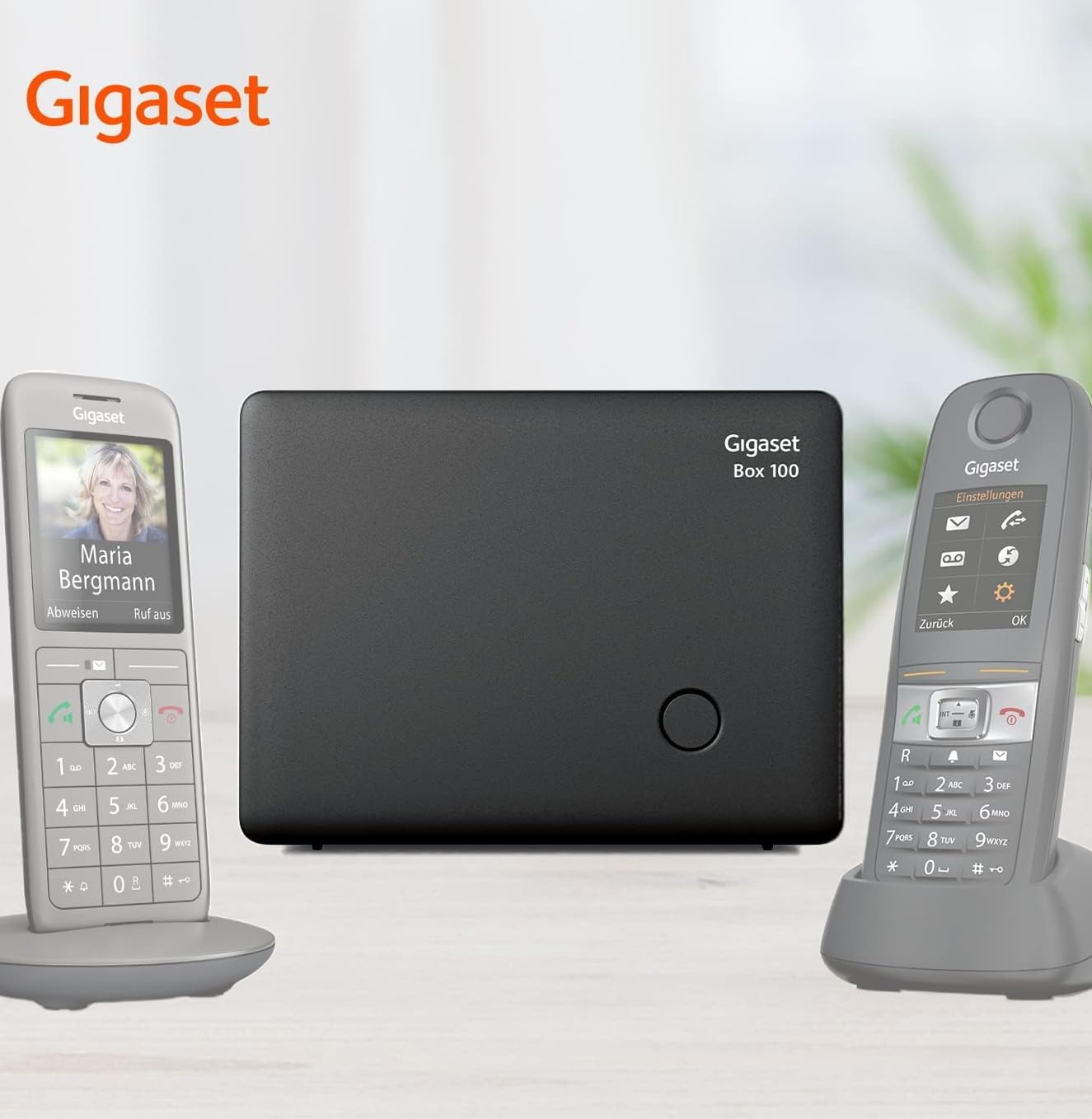
Image: The Gigaset Box 100 base station positioned between two Gigaset handsets, demonstrating a typical setup.
4. Operating Instructions
4.1 Making and Receiving Calls
- Making an external call: Pick up a registered handset, dial the desired number, and press the call button.
- Receiving an external call: When the phone rings, press the call button on any registered handset to answer.
- Making an internal call: To call another registered handset, pick up your handset, dial the internal number (usually 1-6 depending on registration order), and press the internal call button (if available) or the call button. Internal calls are free.
4.2 Call Management
- Two simultaneous conversations: The Gigaset Box 100 supports one external call and one internal call concurrently.
- Personalized Handset Names: You can customize the name of each registered handset for easier identification during internal calls. Refer to your specific Gigaset HX handset manual for instructions on changing handset names.
5. Maintenance
To ensure the longevity and optimal performance of your Gigaset Box 100:
- Clean the base station with a soft, damp cloth. Do not use abrasive cleaners or solvents.
- Avoid exposing the device to extreme temperatures, direct sunlight, or high humidity.
- Do not attempt to open or repair the device yourself. Refer to qualified service personnel for any repairs.
6. Troubleshooting
If you encounter issues with your Gigaset Box 100, try the following solutions:
- No dial tone: Check all cable connections (power adapter, telephone cable) to ensure they are securely plugged in. Verify that your analog telephone line is active.
- Handset not registering: Ensure the handset is a compatible Gigaset HX model. Repeat the registration process as described in Section 3.2. Make sure the base station is not already at its maximum capacity of 6 registered handsets.
- Poor range or interference: Relocate the base station to a more central position, away from other electronic devices (Wi-Fi routers, microwaves) or large metal objects.
- No power: Check the power adapter connection and the wall outlet. Try plugging another device into the same outlet to confirm it is working.
7. Specifications
| Feature | Specification |
|---|---|
| Brand | Gigaset |
| Model Number | S30852-H2818-B101 |
| Color | Black |
| Operating System | Gigaset proprietary |
| Compatible Devices | Gigaset HX handsets |
| Special Features | Free internal calls, 2 simultaneous conversations |
| Indoor Range | Up to 50 meters |
| Outdoor Range | Up to 300 meters |
| Dimensions (L x W x H) | 12 x 9.2 x 4 cm |
| Weight | 89 Grams |
| Power Source | AC Adapter |
| ECO DECT Technology | Reduces radio power based on handset distance |

Image: The Gigaset Box 100 with its dimensions indicated: 120mm (width), 92mm (height), and 40mm (depth).
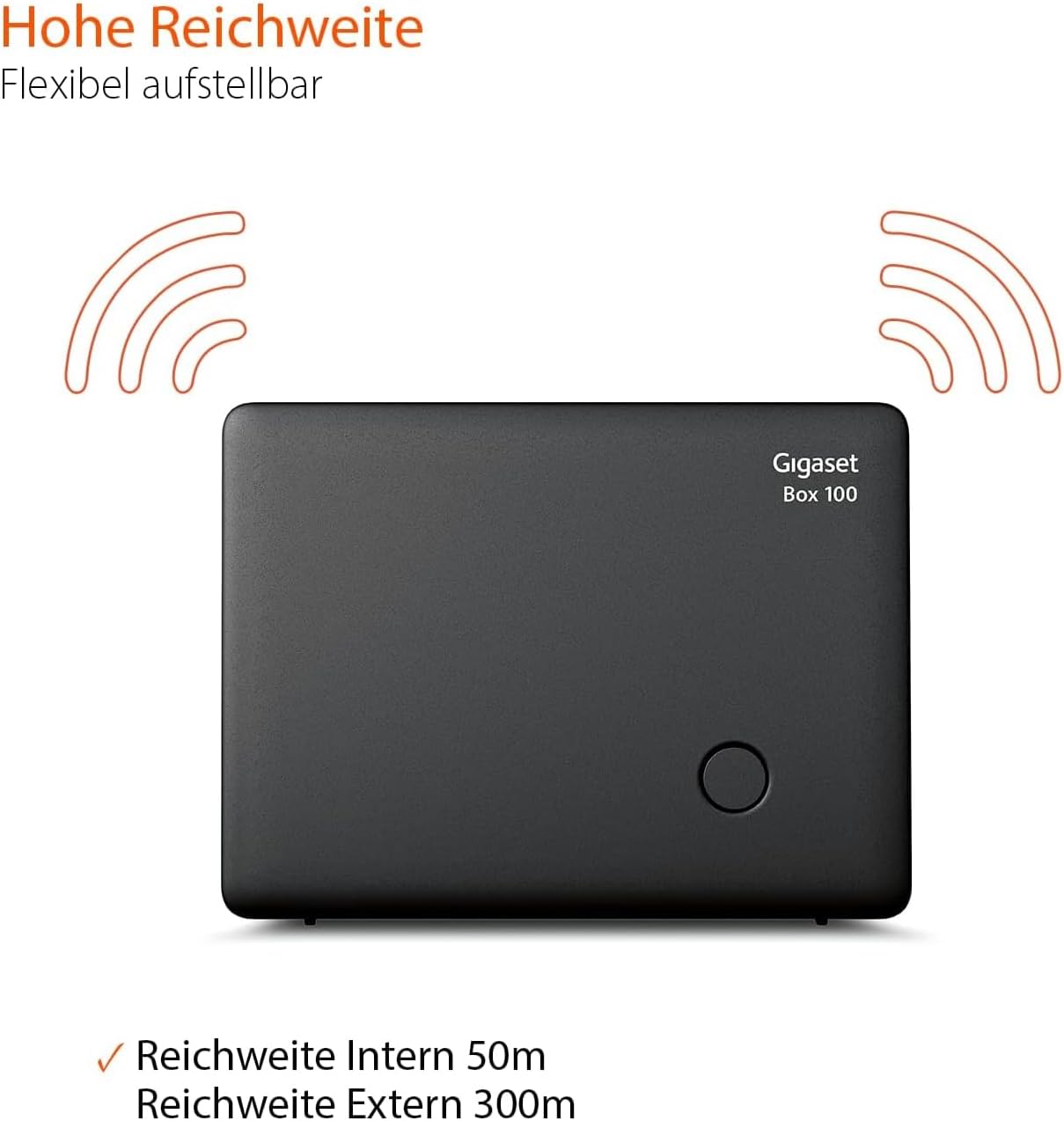
Image: The Gigaset Box 100 illustrating its signal range, with an internal range of 50m and an external range of 300m.
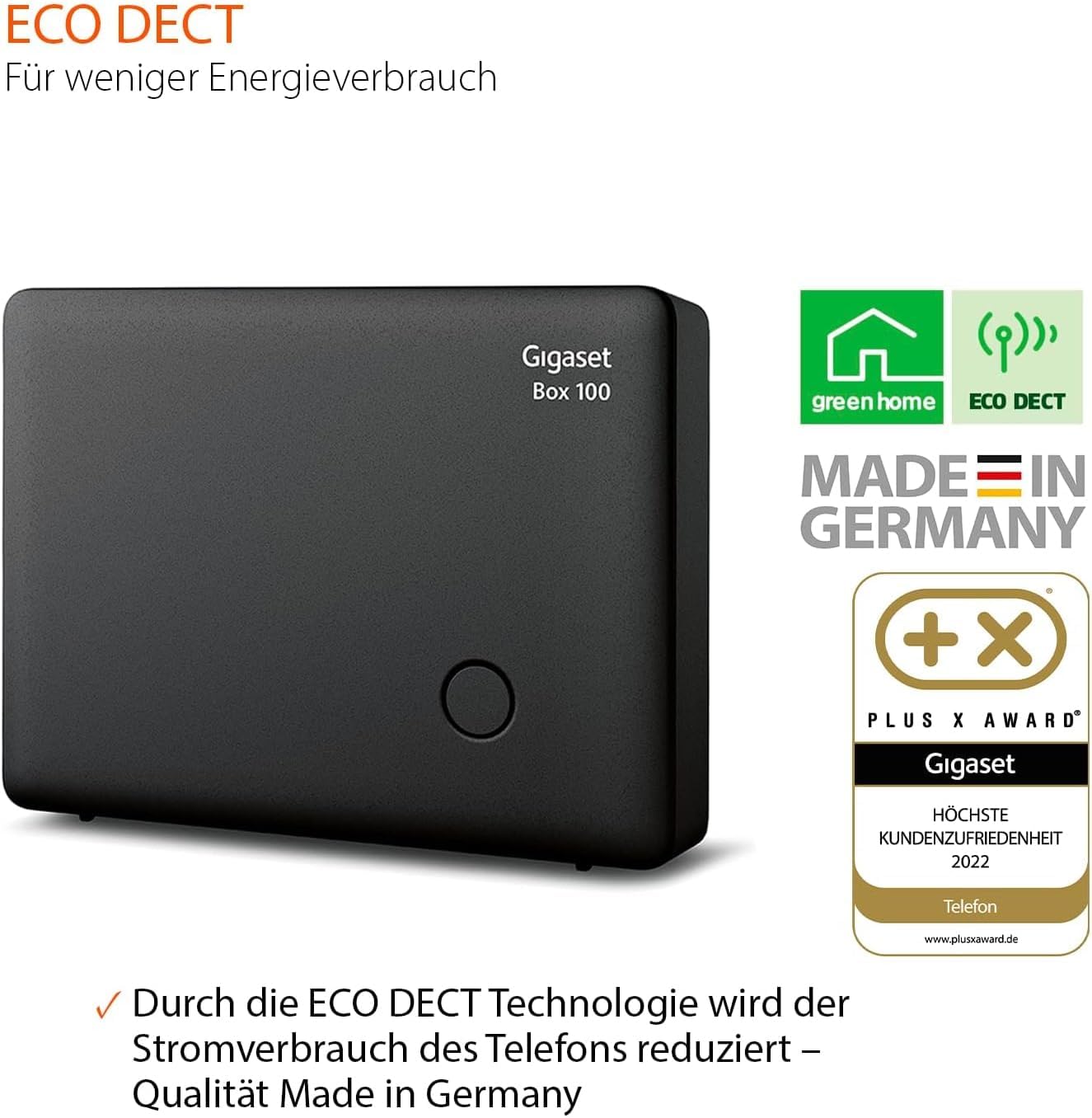
Image: The Gigaset Box 100 highlighting its ECO DECT feature for reduced energy consumption and its 'Made in Germany' quality, along with a 'Plus X Award'.
8. Warranty
Warranty information for the Gigaset Box 100 is typically provided with the product packaging or can be found on the official Gigaset website. Please refer to these sources for detailed warranty terms and conditions.
9. Support
For further assistance or technical support regarding your Gigaset Box 100, please contact Gigaset customer service:
- Gigaset Customer Service: 02871-912 912 (Standard landline rates may apply, please check with your provider).


