
1. Introduction
Thank you for purchasing the Artlii Energon2 4K WiFi Bluetooth Projector. This manual provides essential information for setting up, operating, and maintaining your projector. Please read it thoroughly before use to ensure optimal performance and safety.
2. Safety Instructions
- Do not look directly into the projector lens when the lamp is on.
- Ensure proper ventilation around the projector to prevent overheating.
- Do not expose the projector to rain, moisture, or extreme temperatures.
- Use only the power adapter supplied with the projector.
- Avoid placing the projector on unstable surfaces.
- Do not attempt to disassemble or repair the projector yourself. Contact qualified service personnel.
- Keep the projector away from children and pets.
3. Product Overview
Familiarize yourself with the various ports and controls on your Artlii Energon2 projector.

Image: Rear view of the Artlii Energon2 projector highlighting its wide range of compatible input ports including VGA, HDMI, USB, AV, and Micro SD card slot.
Connectivity Ports:
- HDMI: Connect to laptops, gaming consoles, Blu-ray players, etc.
- USB: Play media from USB drives or power external devices like streaming sticks.
- AV: Connect to older devices using an AV cable.
- VGA: Connect to computers with VGA output.
- Micro SD: Insert a Micro SD card for media playback.
- Audio Out: Connect external speakers or headphones.
4. Setup
4.1 Placement
Position the projector on a stable surface, tripod, or mount it to the ceiling. Ensure the lens is perpendicular to the projection surface for the best image quality. The projector supports projection distances from 1.3 meters (44 inches image) to 9.2 meters (250 inches image).

Image: The projector displaying a large image, illustrating its capability to project up to 250 inches with native 1080P resolution and 4K support.
4.2 Power Connection
Connect the power cable to the projector and then to a power outlet. Press the power button on the projector or remote control to turn it on.
4.3 Focus and Keystone Correction
Adjust the focus ring around the lens until the image is clear. Use the keystone correction dial (usually located on the top or rear of the projector) to correct trapezoidal distortion if the projector is not perfectly aligned with the screen.
5. Operating Instructions
5.1 Basic Operation
Use the remote control or the buttons on the projector to navigate the menu, select input sources, and adjust settings.
5.2 Connecting Devices
Connect your desired device (e.g., laptop, game console, USB drive) to the corresponding port on the projector. Select the correct input source from the projector's menu.
5.3 Wireless Connection (WiFi Screen Mirroring)
The Artlii Energon2 supports 2.4G and 5.0G WiFi for wireless screen mirroring from iOS and Android devices. Ensure your projector and mobile device are connected to the same WiFi network.
- Select 'Screen Mirroring' or 'WiFi Display' from the projector's main menu.
- For iOS devices, open Control Center and tap 'Screen Mirroring', then select your projector.
- For Android devices, enable 'Wireless Projection' or 'Smart View' in your device settings and select your projector.
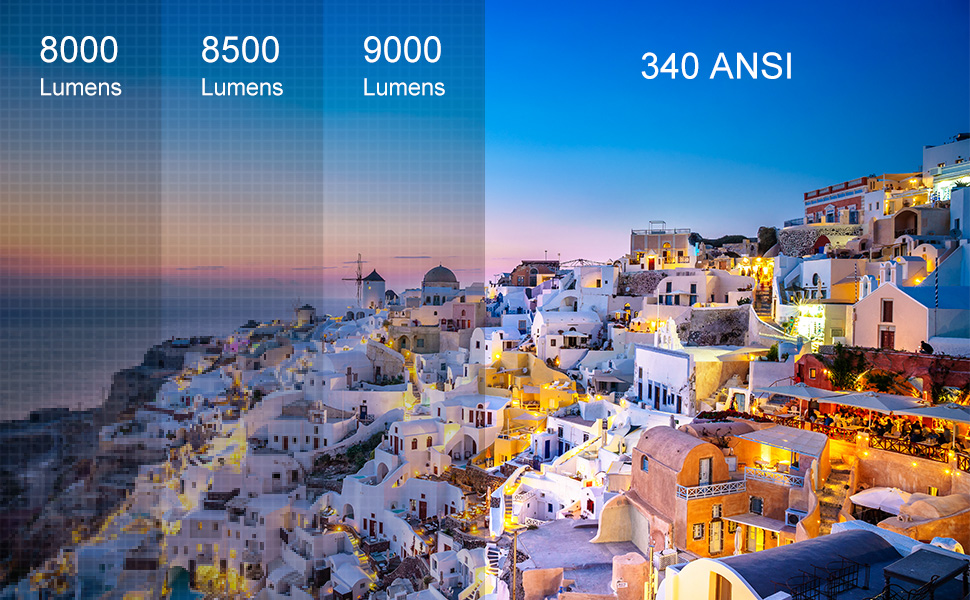
Image: A smartphone wirelessly connected to the Artlii Energon2 projector via 5.0G WiFi, demonstrating screen mirroring functionality.
5.4 Bluetooth Connection (Audio)
Connect external Bluetooth speakers or headphones for an enhanced audio experience, including Dolby Audio support.
- Enable Bluetooth on your external audio device and set it to pairing mode.
- On the projector, navigate to the Bluetooth settings menu.
- Select your audio device from the list of available devices to pair.

Image: The Artlii Energon2 projector demonstrating its Bluetooth connectivity, pairing with both headphones and a speaker for audio output.
5.5 Image Adjustment (Zoom)
The projector allows for image zoom adjustment from 60% to 100% to fit your screen size without moving the projector.
6. Maintenance
6.1 Cleaning
- Lens: Use a soft, lint-free cloth and lens cleaning solution. Avoid abrasive materials.
- Casing: Wipe with a soft, dry cloth. Do not use harsh chemicals.
- Ventilation: Regularly check and clean the ventilation openings to ensure proper airflow.
6.2 Storage
When not in use, store the projector in a cool, dry place, away from dust and direct sunlight. Use the original packaging or a protective case if available.
7. Troubleshooting
- No Power: Check power cable connections and ensure the power outlet is working.
- No Image: Verify the input source selection matches the connected device. Check HDMI/VGA cable connections.
- Blurry Image: Adjust the focus ring and keystone correction. Ensure the projection distance is within the recommended range.
- No Sound: Check volume settings on both the projector and the source device. Ensure external speakers are properly connected or paired via Bluetooth.
- WiFi Connection Issues: Ensure both projector and device are on the same 2.4G or 5.0G WiFi network. Restart both devices.
8. Specifications
| Feature | Specification |
|---|---|
| Brand | Artlii |
| Model Name | Artlii Energon 2 |
| Model Number | HK-EnergonAmentoDE-EU |
| Display Technology | LCD |
| Native Resolution | 1920 x 1080 (1080P) |
| Maximum Display Resolution | 3840 x 2160 (4K Support) |
| Brightness | 340 ANSI Lumens (8000 Lumens) |
| Contrast Ratio | High |
| Connectivity Technology | WiFi (2.4G/5.0G), HDMI, USB, Bluetooth, AV, VGA |
| Projection Size | 44 - 250 inches |
| Projection Distance | 1.3 - 9.2 meters |
| Light Source Life | 100,000 hours |
| Wattage | 150 Watts |
| Voltage | 240 Volts |
| Item Weight | 2 Kilograms |
| Control Device Type | IR Remote control |
| Compatible Devices | Laptop, Smartphone |
| Mounting Type | Ceiling / Stand / Table |
| Video Encoding | H.265 |
| Image Quality Enhancement | 4K resolution support |
9. Warranty and Support
Information regarding spare parts availability and software update guarantees is not available at this time. For any product inquiries, technical support, or warranty claims, please contact Artlii customer service through the retailer where you purchased the product or visit the official Artlii website for contact information.


