
1. Introduction
This manual provides instructions for the Perixx PERIDUO-713 Wireless Mini Keyboard and Mouse Combo. This product is designed to offer a compact and wireless input solution for various computing devices. Please read this manual thoroughly before use to ensure proper setup and operation.
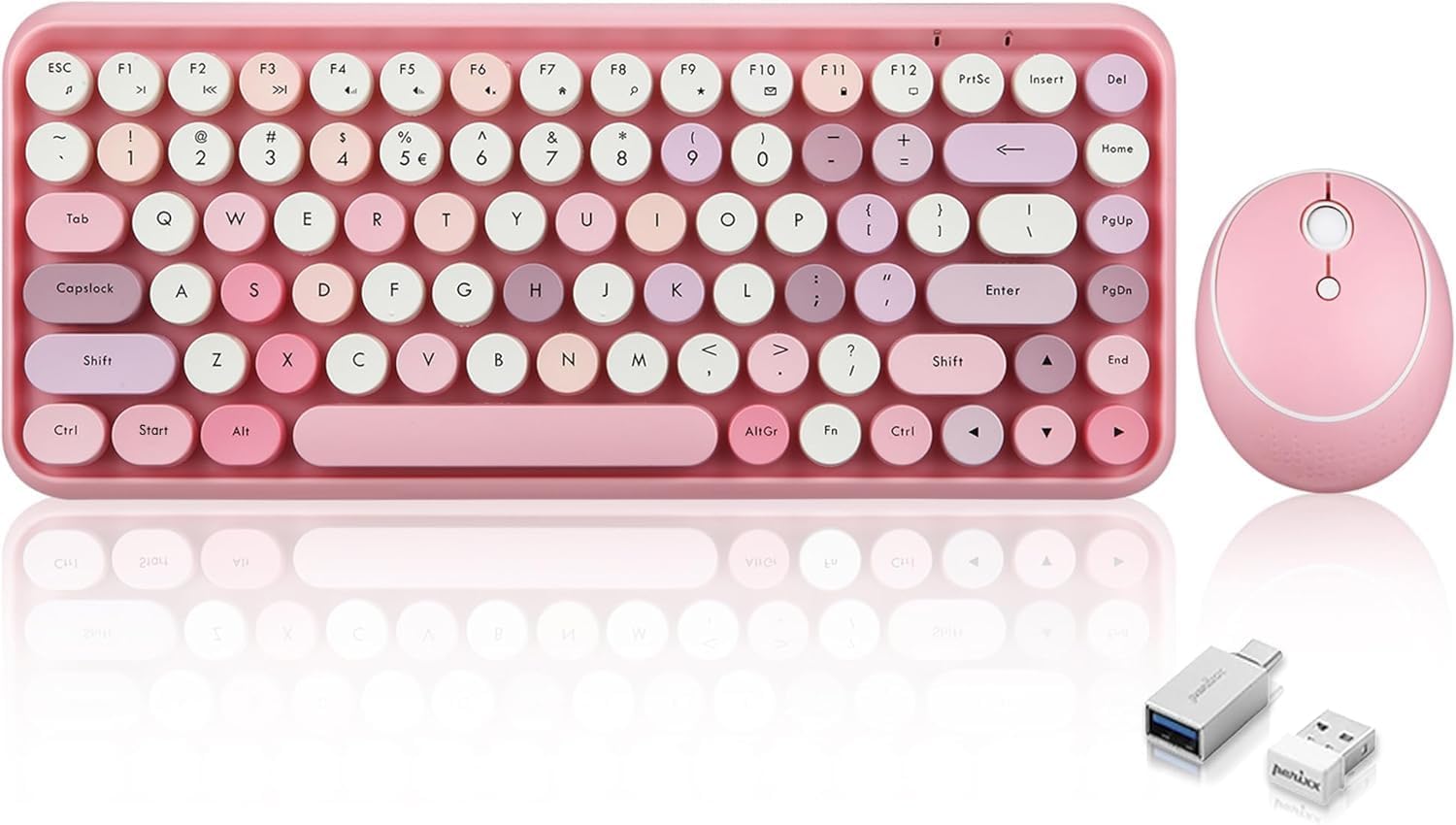
Image 1: The Perixx PERIDUO-713 Wireless Mini Keyboard and Mouse Combo, featuring a pastel pink keyboard with retro round keycaps and a matching pink optical mouse, alongside the USB receiver.
2. Package Contents
Ensure all items are present in the package:
- Perixx PERIDUO-713 Wireless Mini Keyboard
- Perixx Wireless Optical Mouse
- 2.4 GHz USB Receiver
- User Manual

Image 2: Contents of the Perixx PERIDUO-713 package, showing the keyboard, mouse, USB receiver, and the instruction manual.
Video 1: An unboxing video demonstrating the contents of the Pastel Pink Perixx PERIDUO-713 combo, including the keyboard, mouse, and accessories.
3. Setup
3.1 Battery Installation
The keyboard and mouse require batteries for operation (not included).
- Keyboard: Open the battery compartment on the underside of the keyboard. Insert two (2) AAA batteries, ensuring correct polarity. Close the compartment.
- Mouse: Open the battery compartment on the underside of the mouse. Insert two (2) AA batteries, ensuring correct polarity. Close the compartment.
3.2 Connecting the USB Receiver
The keyboard and mouse connect wirelessly via a single 2.4 GHz USB receiver.
- Locate the USB receiver, typically stored within the mouse's battery compartment or a dedicated slot.
- Plug the 2.4 GHz USB receiver into an available USB port on your computer (PC, Mac, Linux) or compatible device.
- Turn on the mouse using the On/Off switch located on its underside. The keyboard will automatically connect once the mouse is active.

Image 3: The Perixx PERIDUO-713 keyboard and mouse in use with a tablet, demonstrating connectivity via a USB adapter.
4. Operating Instructions
4.1 Keyboard Usage
The keyboard features a standard US English layout with retro round keycaps. It includes 12 shortcut keys for enhanced productivity.
- Typing: Press the keys as you would on a standard keyboard. The round keycaps are designed for comfortable typing.
- Hotkeys: Utilize the dedicated shortcut keys (F1-F12) to quickly access media controls, email, screen functions, internet browser, and search. Refer to the keycap legends for specific functions.

Image 4: A close-up view of hands typing on the Perixx PERIDUO-713 keyboard, highlighting the retro round keycaps.
4.2 Mouse Usage
The optical mouse provides precise tracking and includes adjustable sensitivity.
- Buttons: The mouse features left-click, right-click, and a scroll wheel with a clickable button.
- DPI Adjustment: Press the button located in the middle of the mouse (below the scroll wheel) to cycle through DPI levels (800/1200/1600) to adjust cursor sensitivity.
- Power Saving Mode: The mouse incorporates a 3-level power saving mode to conserve battery life during periods of inactivity.

Image 5: A hand demonstrating the ergonomic grip of the Perixx PERIDUO-713 optical mouse.
Video 2: A review video showcasing the Perixx PERIDUO Wireless Mini Keyboard and Mouse, highlighting its features and functionality.
5. Maintenance
To ensure the longevity and optimal performance of your Perixx PERIDUO-713 combo, follow these maintenance guidelines:
- Cleaning: Regularly wipe the keyboard and mouse with a soft, dry, or slightly damp cloth. Avoid using harsh chemicals or abrasive materials. The spacing between the round keycaps facilitates easy cleaning.
- Battery Replacement: Replace batteries when performance degrades or the low battery indicator (if present) illuminates. Always use fresh batteries of the specified type (AAA for keyboard, AA for mouse).
- Storage: When not in use for extended periods, turn off the mouse to conserve battery life. Store the USB receiver securely to prevent loss.
6. Troubleshooting
If you encounter issues with your Perixx PERIDUO-713 combo, try the following steps:
- No Connectivity:
- Ensure batteries are correctly installed and have sufficient charge.
- Verify the mouse is switched ON.
- Try plugging the USB receiver into a different USB port on your computer.
- Restart your computer.
- Lagging or Intermittent Connection:
- Ensure the keyboard and mouse are within the effective range of the USB receiver (typically up to 10 meters).
- Minimize interference from other wireless devices.
- Replace batteries if they are low.
- Keys Not Responding / Sticky Keys:
- Gently clean around the affected keycaps to remove any debris.
- Ensure the keyboard is powered on and connected.
- Mouse Cursor Jumps or is Inaccurate:
- Clean the optical sensor on the underside of the mouse.
- Try using the mouse on a different surface or a mouse pad.
- Adjust the DPI sensitivity using the button on the mouse.
7. Specifications
| Feature | Detail |
|---|---|
| Brand | Perixx |
| Model Number | PERIDUO-713 |
| Wireless Type | 2.4 GHz Radio Frequency |
| Keyboard Dimensions (LxWxH) | 12.6 x 5.4 x 1.2 inches (320 x 137 x 30 mm) |
| Mouse Dimensions (LxWxH) | 75 x 95 x 40 mm |
| Item Weight | 1.2 pounds |
| Mouse DPI Levels | 800/1200/1600 |
| Keyboard Batteries | 2 AAA batteries (not included) |
| Mouse Batteries | 2 AA batteries (not included) |
| Compatible Operating Systems | Windows 7, 8, 10, 11; Linux; Mac; PC |
| Special Features | Lightweight, Portable, Round Keycaps, 12 Hotkeys |
8. Warranty and Support
Perixx products are designed with quality and reliability in mind. For warranty information, technical support, or to explore additional products, please visit the official Perixx store or contact customer service.
You may also consider purchasing extended protection plans for your device:
- 3-Year Protection Plan
- 4-Year Protection Plan
- Complete Protect: One plan covers all eligible past and future purchases
For further assistance, please visit the Perixx Store on Amazon.