
Huawei Hector-B19S
Huawei Watch Casual User Manual
Model: Hector-B19S
1. Introduction
This manual provides comprehensive instructions for the Huawei Watch Casual, model Hector-B19S. It covers everything from initial setup and daily operation to maintenance and troubleshooting, ensuring you get the most out of your device. The Huawei Watch Casual is designed for an active lifestyle, featuring a long-lasting battery, numerous training modes, and automatic sports routine detection.

Figure 1.1: Front view of the Huawei Watch Casual (Hector-B19S) displaying its digital interface.
2. Setup Guide
Before using your Huawei Watch Casual, please follow these steps to ensure proper setup.
2.1. Charging the Device
The watch requires 1 D battery, which is included. For initial use, ensure the watch is fully charged. Connect the charging cable to the charging port on the back of the watch and plug the other end into a USB power adapter.

Figure 2.1: Rear view of the watch, highlighting the charging contacts and sensor array.
2.2. Initial Pairing
- Download the official Huawei Health app from your smartphone's app store (available for Android).
- Ensure Bluetooth is enabled on your smartphone.
- Open the Huawei Health app and follow the on-screen instructions to add a new device.
- Select "Huawei Watch Casual" from the list of available devices.
- Confirm the pairing request on both your watch and smartphone.
3. Operating Instructions
The Huawei Watch Casual offers a variety of features accessible through its intuitive interface.
3.1. Basic Navigation
- Touchscreen: Swipe up, down, left, or right to navigate through menus and notifications. Tap to select items.
- Side Buttons: The watch features two side buttons. The top button typically acts as a home/menu button, while the bottom button can be customized for quick access to specific functions.
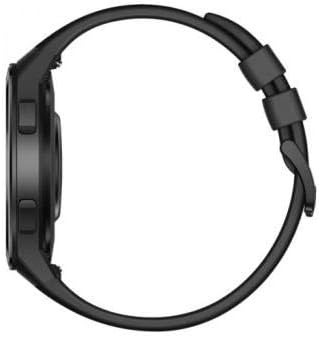
Figure 3.1: Side view illustrating the watch's physical buttons.
3.2. Key Features
- Long Battery Life: Enjoy extended usage without frequent charging.
- 100 Training Modes: Track a wide range of sports and activities with dedicated modes.
- Automatic Sports Routine Detection: The watch can automatically recognize and record certain exercises.
- GPS Connectivity: Accurately track your outdoor activities and routes.
- SpO2 Monitoring: The watch supports blood oxygen saturation monitoring.

Figure 3.2: The watch face with an indicator for SpO2 monitoring capability.
4. Maintenance
Proper care will extend the life and performance of your Huawei Watch Casual.
- Cleaning: Regularly wipe the watch screen and strap with a soft, damp cloth. Avoid using harsh chemicals or abrasive materials.
- Water Resistance: Refer to the product specifications for water resistance ratings. Avoid exposing the watch to hot water, steam, or high-pressure water jets.
- Storage: When not in use for extended periods, store the watch in a cool, dry place away from direct sunlight.
- Battery Care: Avoid completely draining the battery frequently. Charge the watch before the battery level becomes critically low.
5. Troubleshooting
If you encounter issues with your Huawei Watch Casual, try these common solutions:
- Watch not turning on: Ensure the watch is fully charged. Connect it to the charger for at least 30 minutes.
- Cannot pair with smartphone:
- Ensure Bluetooth is enabled on your phone and the watch is in pairing mode.
- Restart both your watch and smartphone.
- Clear the Bluetooth cache on your phone (if applicable).
- Ensure the Huawei Health app is updated to the latest version.
- Inaccurate data tracking:
- Ensure the watch is worn snugly on your wrist, but not too tight.
- Clean the sensors on the back of the watch.
- Update the watch firmware via the Huawei Health app.
- Short battery life:
- Reduce screen brightness.
- Disable unnecessary notifications or features.
- Limit continuous heart rate monitoring if not needed.
If problems persist, contact Huawei customer support for further assistance.
6. Specifications
| Feature | Detail |
|---|---|
| Brand Name | Huawei |
| Model Name | Hector B19S |
| Item Model Number | Hector-B19S |
| Product Dimensions | 53 x 46.8 x 10.8 cm; 43 grams |
| Screen Size | 1.39 inches |
| Visible Screen Diameter | 2 inches / 4 cm |
| Item Shape | Round |
| Operating System | Android |
| Memory Storage Capacity | 4 GB |
| Connectivity Technology | GPS |
| Wireless Communication Standard | Bluetooth |
| Batteries | 1 D battery required (Included) |
| Battery Cell Composition | Lithium Ion |
| Department | Men's |
| Manufacturer | Huawei |
| First Available Date | April 29, 2020 |
7. Warranty and Support
Your Huawei Watch Casual (Hector-B19S) comes with a manufacturer's warranty. For specific warranty terms and conditions, please refer to the documentation included with your purchase or visit the official Huawei support website.
7.1. Extended Protection Plans
Extended warranty options may be available for purchase to provide additional coverage beyond the standard manufacturer's warranty. These plans typically cover accidental damage or extended mechanical and electrical failures.
- One-year extended warranty from Salama (Email delivery) - E£371.00
- Two-year extended warranty from Salama (Email delivery) - E£600.00
7.2. Customer Support
For technical assistance, troubleshooting not covered in this manual, or warranty claims, please contact Huawei customer support. You can often find contact information on the official Huawei website or through the Huawei Health application.
Visit the official Huawei store for more information: Huawei Official Store
Related documentsHector-B19S


Ask a question about this manual
Ask about setup, troubleshooting, compatibility, parts, safety, or missing instructions. Manuals+ will review the question and use this page’s manual context to help answer it.