1. Introduction
This manual provides comprehensive instructions for the installation, setup, and operation of your EZoneTronics 10-inch Android Car Radio Replacement. Designed specifically for 2003-2007 Honda Accord models, this unit integrates advanced features such as wireless CarPlay, Android Auto, Bluetooth 4.1, GPS navigation, and support for both single and dual zone AC systems. Please read this manual thoroughly before installation and use to ensure proper functionality and safety.
2. What's in the Box
Verify that all components listed below are included in your package:
- 1 x 10-inch Carplay Screen Radio with Install Kit
- 1 x Power Cord
- 1 x RCA Cable
- 1 x GPS Antenna
- 2 x USB Cables
- 1 x Backup Camera
- 1 x Microphone

Figure 2.1: Product overview and included components.
3. Product Features
- 10-inch 1280*720 Touch Screen: High-definition Android car radio with capacitive touch.
- Built-in Wireless Apple CarPlay & Wired Android Auto: Connect your smartphone for navigation, music, calls, and apps.
- Bluetooth 4.1: Hands-free calling and audio streaming.
- FM/RDS Radio: Access real-time traffic, news, and weather.
- GPS Navigation: Compatible with Waze/Navfree/Yandex Map (download from Play Store).
- Steering Wheel Control Support: Retains factory SWC features (requires digital-to-resistive converter for CANBUS signals).
- 2G RAM 32G ROM: Provides ample memory for smooth operation and app storage.
4. Installation Guide
4.1. Disassembly of Original Radio
Carefully remove the trim panels and screws securing the original radio unit. Ensure the vehicle's power is off before beginning disassembly.
Video 4.1: Detailed steps for car radio stereo installation, including disassembly.
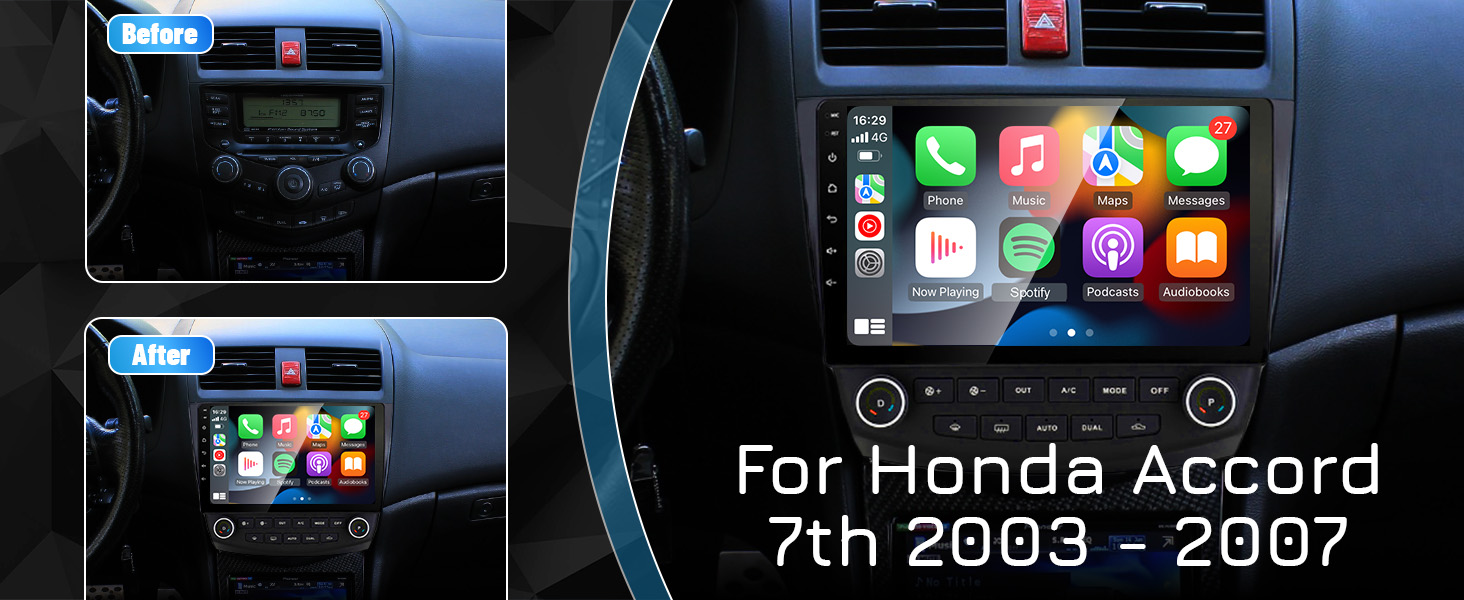
Figure 4.1: Visual comparison of the dashboard before and after the new radio installation.
4.2. Wiring Connections
Connect the provided power cord, RCA cable, and other harnesses to the corresponding ports on the new unit and the vehicle's wiring. Pay close attention to the AC cord connection based on whether your vehicle has single or dual zone AC.
Figure 4.2: Rear connections and AC wiring for the EZoneTronics unit.
Video 4.2: Detailed wiring and installation process for the Ezonetronics Honda Accord Android car stereo.
4.3. GPS Antenna Installation
Connect the GPS antenna to the unit and route it to a location with a clear view of the sky, typically on the dashboard or under the windshield trim, to ensure optimal signal reception.
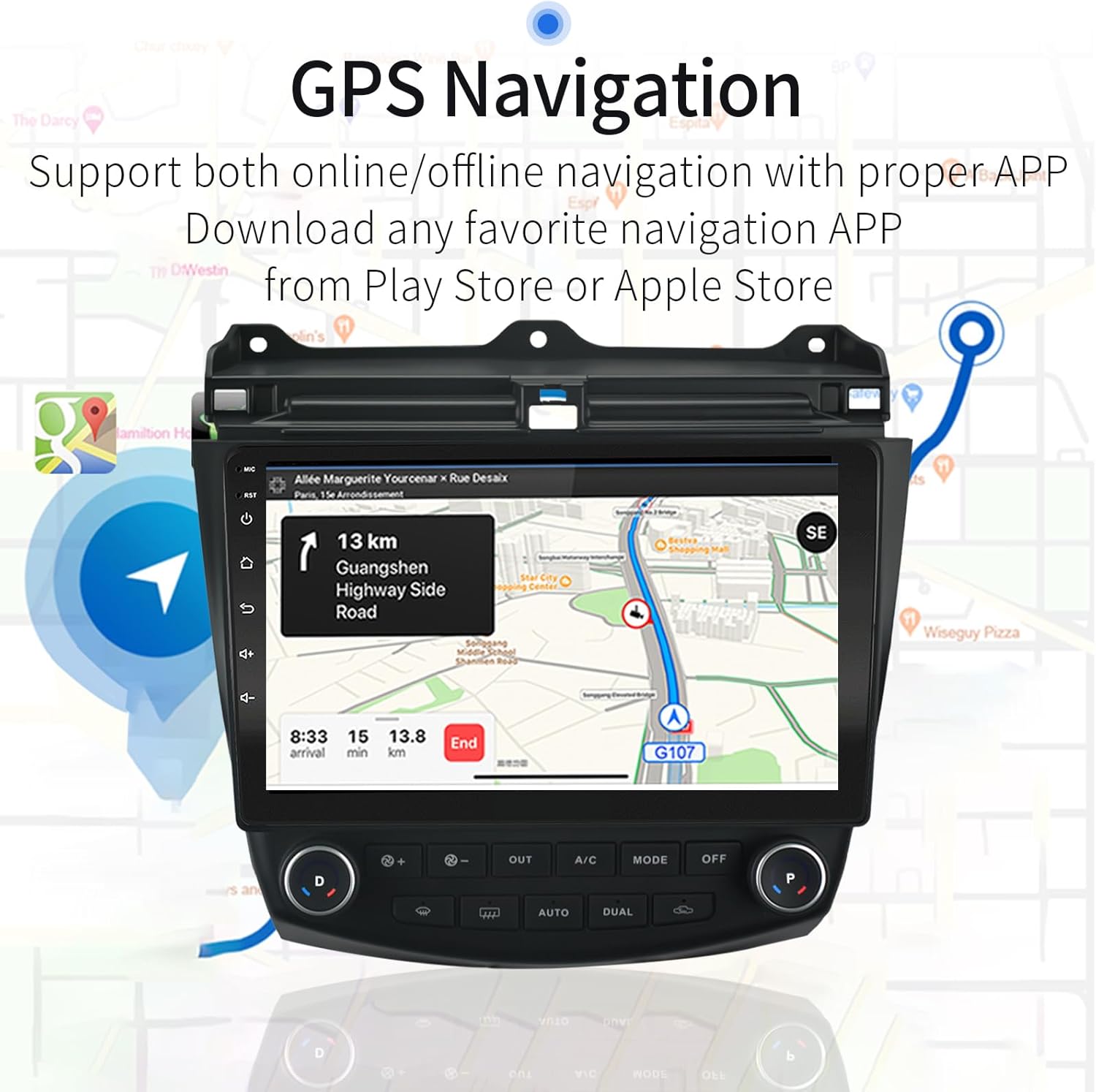
Figure 4.3: GPS antenna connection and navigation display.
4.4. Backup Camera Installation
Connect the included backup camera to the designated input on the unit. Route the camera cable to the rear of the vehicle and mount the camera securely. Ensure proper power connection for the camera.

Figure 4.4: Reverse camera input display.
Video 4.3: Troubleshooting guide for backup camera issues.
5. Setup & Initial Configuration
5.1. Wireless CarPlay & Android Auto
Connect your iPhone via Bluetooth to activate wireless CarPlay, or use a USB cable for wired Android Auto. This allows access to navigation, music, and other smartphone applications directly on the car radio display.

Figure 5.1: Wireless CarPlay interface.

Figure 5.2: Android Auto interface.
Video 5.1: Guide on how to use CarPlay with the Honda Accord stereo upgrade.
5.2. Bluetooth Pairing
Enable Bluetooth on your smartphone and search for the car radio unit. Pair the devices to enable hands-free calling and music streaming.

Figure 5.3: Bluetooth 4.1 interface for phone calls and music.
5.3. GPS Navigation
The unit comes with built-in GPS. Connect to Wi-Fi to download your preferred navigation apps from the Play Store. The main image shows how to change the bottom row of apps after connecting to the network and installing a launcher from the store.
5.4. Steering Wheel Control
If your vehicle has factory steering wheel controls based on resistive analog signals, they can be retained. For digital CANBUS data signals, an applicable digital-to-resistive converter may be required. An external steering wheel controller is needed if your car does not have this feature.
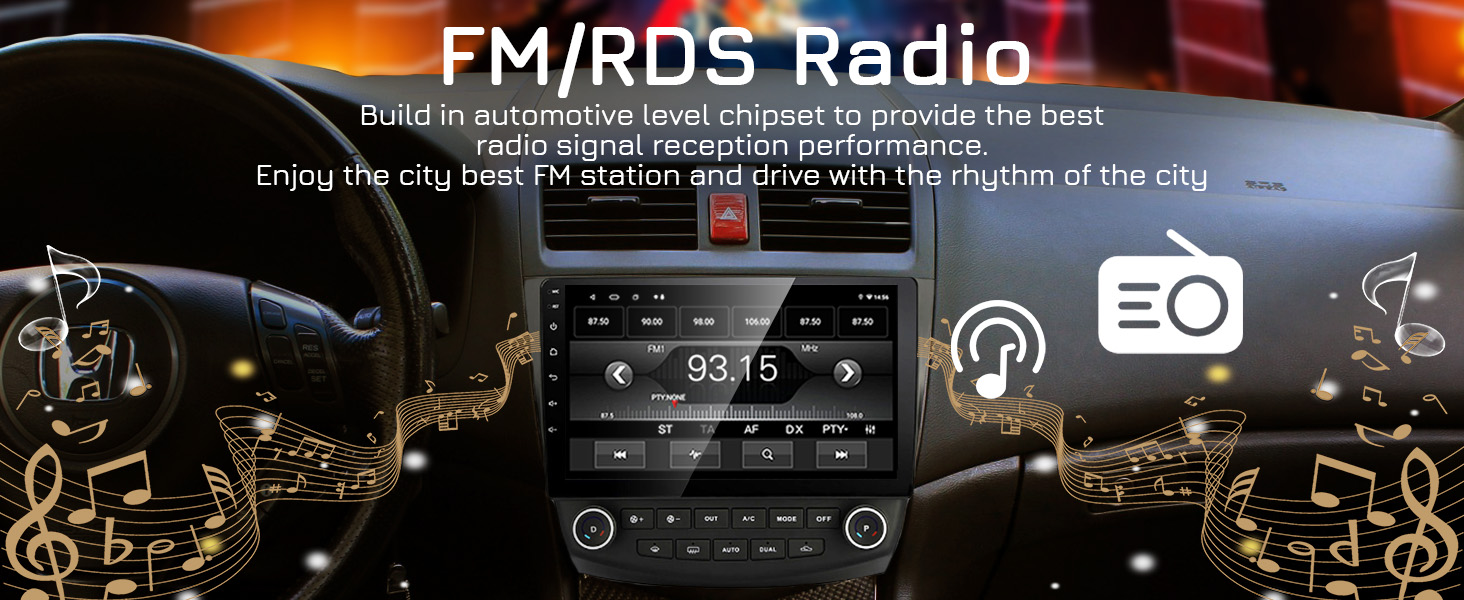
Figure 5.4: Steering Wheel Control setup interface.
5.5. FM/RDS Radio
Utilize the built-in FM/RDS radio to listen to local broadcasts. The automotive-level chipset ensures optimal signal reception.

Figure 5.5: FM/RDS Radio interface.
6. Operating Instructions
6.1. Split Screen Mode
The unit supports split-screen functionality, allowing you to run two applications simultaneously, such as navigation and video playback.
Video 6.1: Demonstration of Android system features, including split-screen mode.
6.2. UI Themes
Customize the user interface with various themes available. Themes can be changed through the system settings or by downloading new launchers from the Play Store.
Video 6.2: Instructions on how to change the UI theme for the car radio.
Video 6.3: How to refresh themes on XTRONS ID series.
7. Maintenance
To ensure the longevity and optimal performance of your EZoneTronics car radio, regularly clean the screen with a soft, lint-free cloth. Avoid using harsh chemicals or abrasive materials. Keep the software updated by connecting to Wi-Fi and checking for system updates. Periodically clear cache and unnecessary files to maintain system speed.
8. Troubleshooting
- AC Not Blowing Cold Air: Some users have reported issues with AC functionality after installation. Ensure all AC-related wiring is correctly connected, especially if your vehicle has single-zone AC. Adjust CAN settings to match your specific trim. If issues persist, consult a professional installer.
- Bluetooth Connectivity Issues: If Bluetooth frequently disconnects, try resetting the unit or re-pairing the device. Ensure no other devices are interfering with the Bluetooth signal.
- Backup Camera Not Displaying: Verify all camera connections are secure. Check the settings within the car radio to ensure the reverse camera input is correctly configured. Refer to Video 4.3 for troubleshooting steps.
- Sluggish Performance: If the unit feels slow, try closing unused applications or clearing the system cache. Ensure sufficient free storage space.
9. Specifications
| Item Weight | 4.23 pounds |
| Package Dimensions | 12.52 x 12.52 x 4.13 inches |
| Item Model Number | Honda Accord Radio |
| Display Size | 10 Inches |
| Voice Command | Touchscreen |
| Connectivity Technology | Android Auto, Bluetooth, USB, Wi-Fi, Wireless Carplay |
| Map Type | North America, South America |
| Audio Output Mode | Stereo |
| Mounting Type | Dashboard Mount |
10. Warranty & Support
This product comes with a standard manufacturer's warranty. For detailed warranty information, technical support, or assistance with any issues not covered in this manual, please contact EZoneTronics customer service. Keep your purchase receipt for warranty claims.


