
1. Introduction
This manual provides essential information for setting up, operating, and maintaining your ViewSonic VX2776-SH 27-inch Full HD IPS monitor. Please read these instructions carefully before using the product.
The ViewSonic VX2776-SH monitor features a 27-inch (68.58 cm) Full HD (1920x1080) IPS display, offering vibrant colors and wide viewing angles. It includes SuperClear IPS Technology, a sleek frameless design, and a 75Hz refresh rate for smooth visuals. Eye-care technologies such as Flicker-Free and a Blue Light Filter are integrated to reduce eye strain. Connectivity options include HDMI and VGA inputs.

Figure 1: ViewSonic VX2776-SH Monitor Overview with Key Features
2. Package Contents
Verify that all items are present in the package:
- ViewSonic VX2776-SH Monitor x1
- 3-pin Power Plug (IEC C13 / CEE22) x1
- HDMI Cable (v1.4; Male-Male) x1
3. Setup Instructions
3.1. Stand Assembly
To assemble the monitor stand:
- Carefully place the monitor face down on a soft, clean surface to prevent scratches.
- Align the triangular base with the stand neck.
- Secure the base to the neck using the provided screw.
- Attach the assembled stand to the back of the monitor by aligning the mounting points and securing it firmly.
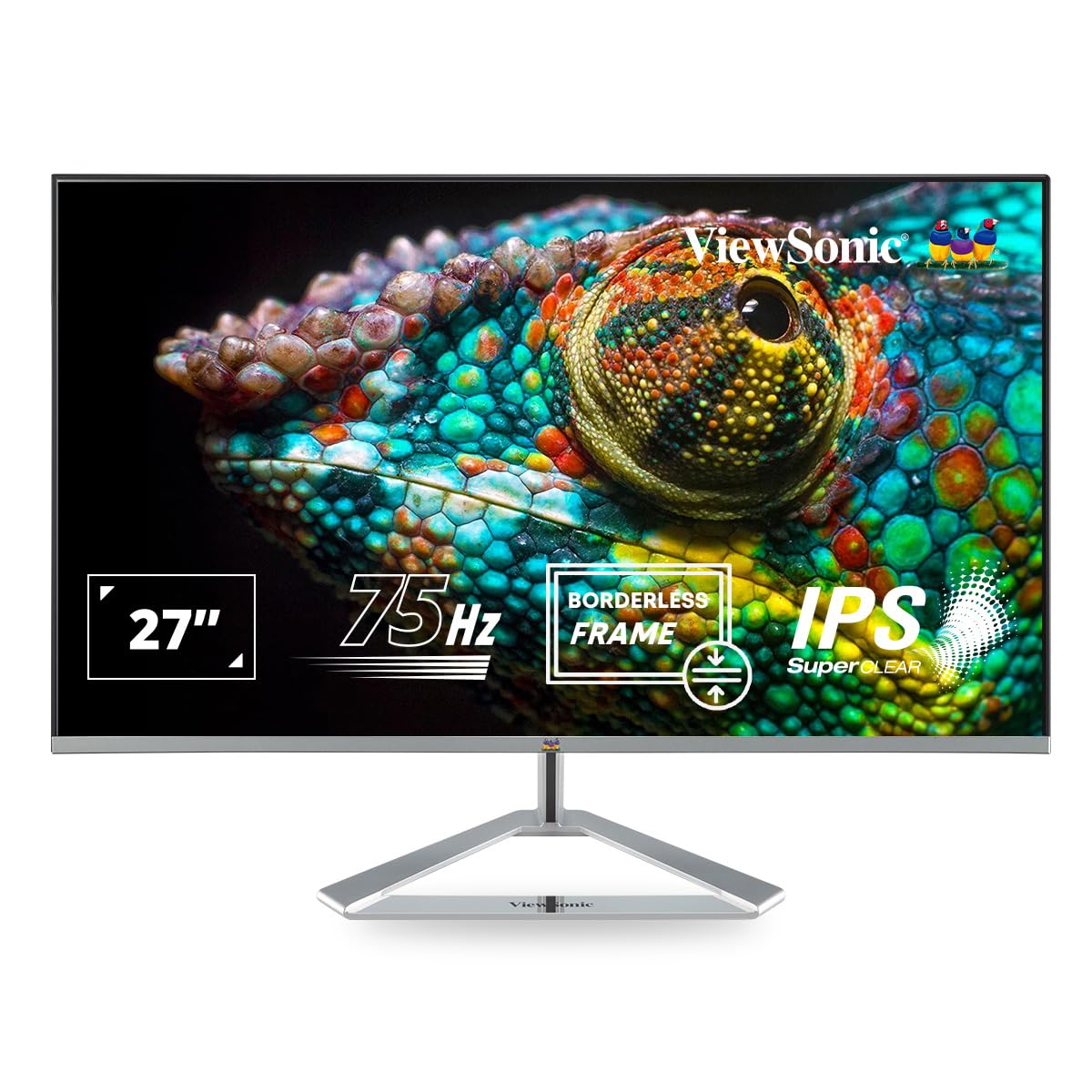
Figure 2: Monitor with Assembled Triangular Stand
3.2. Connecting the Monitor
Ensure the monitor and your computer are powered off before making any connections.
- Power Connection: Connect the power cable to the monitor's power input and then to a power outlet.
- Video Connection: Connect one end of the HDMI cable (or VGA cable) to the corresponding port on your computer's graphics card and the other end to an HDMI or VGA input port on the monitor. The monitor supports dual HDMI inputs.
- Audio Output (Optional): If you are using external speakers or headphones, connect them to the monitor's audio out port.

Figure 3: Monitor Connectivity Ports (HDMI, VGA)
3.3. VESA Wall Mount (Optional)
The monitor is VESA mount compatible (100x100mm). To mount the monitor on a wall or monitor arm, remove the stand and attach the VESA-compatible bracket (not included) to the mounting holes on the back of the monitor.

Figure 4: VESA Mounting Area on Monitor Back
4. Operating Instructions
4.1. Power On/Off
Press the power button located on the bottom right side of the monitor to turn it on or off. The power indicator light will illuminate when the monitor is on.
4.2. On-Screen Display (OSD) Menu
The OSD menu allows you to adjust various display settings. Use the buttons located on the bottom right of the monitor to navigate the menu:
- Press a button to activate the OSD menu.
- Use the navigation buttons to move through options.
- Press the select button to confirm a selection.
- Press the exit button to close the OSD menu.
4.3. ViewMode Settings
ViewMode provides optimized presets for different screen applications. These presets adjust gamma curve, color temperature, contrast, and brightness to enhance your viewing experience.
- Game: Optimized for gaming visuals.
- Movie: Enhanced for video playback.
- Web: Suitable for general web browsing.
- Text: Ideal for reading documents, reducing eye strain.
- Mono: Displays content in grayscale.

Figure 5: ViewMode Optimized Settings
4.4. Eye-Care Technology
The monitor incorporates eye-care features to promote comfortable viewing during extended use:
- Flicker-Free: Eliminates screen flickering, which can cause eye strain and fatigue.
- Blue Light Filter: Reduces harmful blue light emissions, helping to protect your eyes.

Figure 6: Flicker-Free Technology

Figure 7: Blue Light Filter
4.5. Eco Mode
Eco Mode helps reduce power consumption and prolong the monitor's lifespan. You can enable or disable this feature through the OSD menu.

Figure 8: Eco Mode Functionality
5. Maintenance
To ensure optimal performance and longevity of your monitor:
- Cleaning the Screen: Gently wipe the screen with a soft, lint-free cloth. For stubborn marks, dampen the cloth with a mild, non-abrasive screen cleaner. Do not spray cleaner directly onto the screen.
- Cleaning the Casing: Use a soft, dry cloth to clean the monitor casing. Avoid using strong detergents or abrasive cleaners.
- Ventilation: Ensure the ventilation openings on the monitor are not blocked to prevent overheating.
- Power Off: Always power off the monitor when not in use for extended periods.
6. Troubleshooting
If you encounter issues with your monitor, refer to the following common solutions:
| Problem | Possible Solution |
|---|---|
| No image on screen |
|
| Image is blurry or distorted |
|
| No sound from external speakers/headphones |
|
| Monitor power LED is off |
|
7. Specifications
| Feature | Detail |
|---|---|
| Model Number | VX2776-SH |
| Screen Size | 27 inches (68.58 cm) |
| Panel Type | IPS |
| Native Resolution | 1920 x 1080 (Full HD) |
| Refresh Rate | 75Hz |
| Aspect Ratio | 16:9 |
| Connectivity | 2x HDMI (v1.4), 1x VGA |
| Eye Care Features | Flicker-Free, Blue Light Filter |
| VESA Mount Compatible | 100x100mm |
| Product Dimensions (LxWxH) | 61.4 x 18.4 x 44.3 cm |
| Item Weight | 4 kg |
8. Warranty and Support
For warranty information and technical support, please refer to the warranty card included with your product or visit the official ViewSonic website. You can also contact ViewSonic customer service for assistance with product registration, troubleshooting, and service inquiries.


