1. Introduction
Welcome to the AWOW Mini PC AK41 user manual. This guide provides essential information for setting up, operating, maintaining, and troubleshooting your new mini desktop computer. The AWOW Mini PC AK41 is a compact yet powerful device, featuring an Intel J4125 processor, 8GB LPDDR4 RAM, and a 128GB M.2 SSD, designed for business, home, and office use. It supports 4K triple display output, dual-band WiFi, and various connectivity options.
2. What's in the Box
Please verify that all items listed below are included in your package:
- AWOW Mini PC AK41
- Power Charger
- HDMI Cable
- User Manual (this document)
- SSD M.2_SATA_2280 (pre-installed)
- 2.5-inch SATA HDD (for expansion, not always included)
- 512GB Micro SD Card (for expansion, not always included)
3. Product Overview
The AWOW Mini PC AK41 is designed for efficiency and versatility. Below are key visual components and their descriptions.


4. Setup Guide
Follow these steps to set up your AWOW Mini PC AK41:
- Connect to Power: Plug the power charger into the DC-in port on the Mini PC, then connect it to a power outlet.
- Connect to Display: Use the provided HDMI cable to connect the Mini PC to your monitor or TV. The device supports up to three displays via dual HDMI 2.0 ports and one full-function Type-C port.
- Connect Peripherals: Connect your keyboard, mouse, and other USB devices to the available USB 3.0 or USB 2.0 ports.
- Network Connection: For wired internet, connect an Ethernet cable to the Gigabit Ethernet port. For wireless internet, the device supports 2.4G/5.8G Dual Band WiFi 802.11a/b/g/n/ac.
- Power On: Press the power button on the front of the Mini PC. The power indicator light will illuminate.
- Initial Setup: Follow the on-screen instructions to complete the Windows 11 Pro initial setup, including language, region, and user account creation.
5. Operating Instructions
Once set up, your AWOW Mini PC AK41 is ready for use.
- Power On/Off: Press the power button to turn the device on. To shut down, click the Start button in Windows, then select Power > Shut down.
- Restart: To restart the system, click the Start button, then select Power > Restart.
- Sleep Mode: To put the device into sleep mode, click the Start button, then select Power > Sleep.
- Connectivity: Utilize the dual-band WiFi for wireless internet access or the Gigabit Ethernet port for a stable wired connection. Bluetooth 4.2 allows for wireless peripheral connections.
- Multi-Display: Connect up to three 4K@60Hz displays simultaneously using the two HDMI 2.0 ports and the full-function Type-C port for enhanced productivity.
- Storage Expansion: The Mini PC comes with a 128GB M.2 NVMe SSD. You can expand storage by adding a 2.5-inch SATA HDD/SSD or a Micro SD Card (not included).
6. Maintenance
Regular maintenance helps ensure the longevity and optimal performance of your Mini PC.
- Cleaning: Regularly clean the exterior of the Mini PC with a soft, dry cloth. Use compressed air to clear dust from ventilation grilles to prevent overheating. Ensure the device is powered off and unplugged before cleaning.
- Software Updates: Keep your Windows 11 Pro operating system and drivers updated. Go to Windows Settings > Update & Security > Windows Update to check for and install updates.
- Storage Management: Periodically check your storage usage. Delete unnecessary files, uninstall unused programs, or utilize external storage solutions to free up space on your SSD.
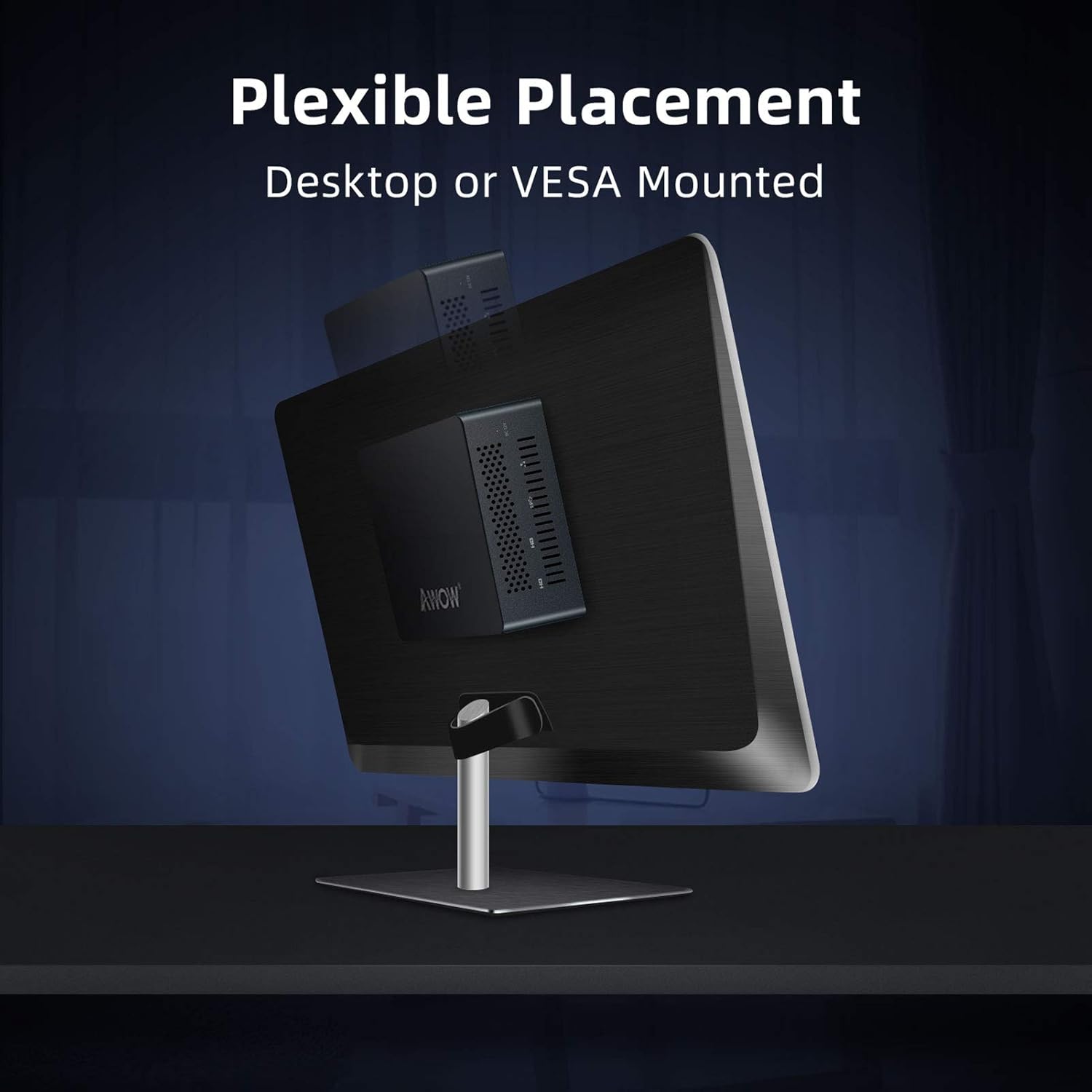
- Ventilation: Ensure the Mini PC is placed in a well-ventilated area, away from direct sunlight or heat sources, to allow for proper airflow and prevent overheating.
7. Troubleshooting
This section addresses common issues you might encounter with your AWOW Mini PC AK41.
| Problem | Possible Cause | Solution |
|---|---|---|
| No display on monitor | Loose cable connection, incorrect input source, monitor off. | Check HDMI/Type-C cable connections. Ensure monitor is on and set to the correct input source. Try a different cable or port. |
| Mini PC does not power on | Power adapter not connected, power outlet issue. | Verify the power adapter is securely connected to the Mini PC and a working power outlet. Try a different outlet. |
| Slow performance | Too many applications running, low storage space, outdated drivers. | Close unnecessary applications. Free up disk space. Update Windows and drivers. |
| Wi-Fi connection issues | Router issue, incorrect Wi-Fi password, driver problem. | Restart your router. Re-enter Wi-Fi password. Update Wi-Fi drivers. |
| Cannot wake from sleep mode | System configuration, power settings. | Press the power button briefly. If unresponsive, unplug the power cable, wait a few seconds, then plug it back in and power on. Adjust power settings in Windows to prevent deep sleep issues. |
| Second monitor not detected | Cable issue, display settings, driver issue. | Check the cable connection. Go to Windows Display Settings and click 'Detect'. Update graphics drivers. Try a different port or cable. |
8. Specifications
Detailed technical specifications for the AWOW Mini PC AK41:
| Feature | Detail |
|---|---|
| Processor | Intel Celeron J4125 (Quad Core, 2.0 GHz base, up to 2.7 GHz burst) |
| RAM | 8 GB LPDDR4 |
| Storage | 128 GB M.2 SSD (NVMe PCIe Gen2) |
| Graphics | Intel UHD Graphics 600 |
| Operating System | Windows 11 Pro |
| Video Output | 2x HDMI 2.0, 1x Full Function Type-C (supports 4K@60Hz triple display) |
| USB Ports | 2x USB 3.0, 2x USB 2.0 |
| Network | Gigabit Ethernet, 2.4G/5.8G Dual Band WiFi 802.11a/b/g/n/ac |
| Bluetooth | BT 4.2 |
| Audio | 1x 3.5mm earphone jack |
| Dimensions (LxWxH) | 4.92 x 4.41 x 1.69 inches |
| Weight | 1.55 pounds |
9. Warranty and Support
For warranty information, technical support, or service inquiries, please refer to the warranty card included with your product or visit the official AWOW website. Contact information for customer support is typically available on the manufacturer's website or in the product packaging.


