
ORICO 3559U3
ORICO 5 Bay External Hard Drive Enclosure USB 3.0 (Model 3559U3) - User Manual
Model: 3559U3
1. Introduction
This manual provides detailed instructions for the ORICO 5 Bay External Hard Drive Enclosure, Model 3559U3. This device is designed to house up to five 2.5-inch or 3.5-inch SATA HDDs or SSDs, offering a total storage capacity of up to 80TB. It connects to your computer via USB 3.0, providing high-speed data transfer for various applications, including data storage, backup, and server expansion. The enclosure features a built-in cooling fan to maintain optimal operating temperatures for your drives.
2. Package Contents
Please verify that all items listed below are included in your package:
- 1x ORICO 5 Bay Hard Drive Enclosure
- 1x 12V Power Adapter
- 1x 1-meter USB 3.0 Type-A Cable
- 1x User Manual (this document)
3. Product Features
- 5-Bay Design: Accommodates up to five 2.5-inch or 3.5-inch SATA HDDs/SSDs, supporting a maximum total capacity of 80TB (16TB per drive).
- Universal Compatibility: Compatible with Windows XP/7/8/8.1/10, VISTA, Linux, and Mac OS 9.1/10.2 or higher.
- High-Speed Data Transfer: Features a USB 3.0 interface with a transmission rate of up to 5Gbps, enabling quick file transfers.
- Robust Power Supply: Includes a 150W power adapter to ensure stable and safe operation for multiple hard drives.
- Efficient Heat Dissipation: Equipped with an 80x80mm built-in cooling fan and an aluminum enclosure for optimal thermal management.
- Secure Drive Mounting: Spring-switch doors and screw-mounting for each drive bay ensure stability and shock protection.

Figure 1: Front view of the ORICO 5 Bay External Hard Drive Enclosure.
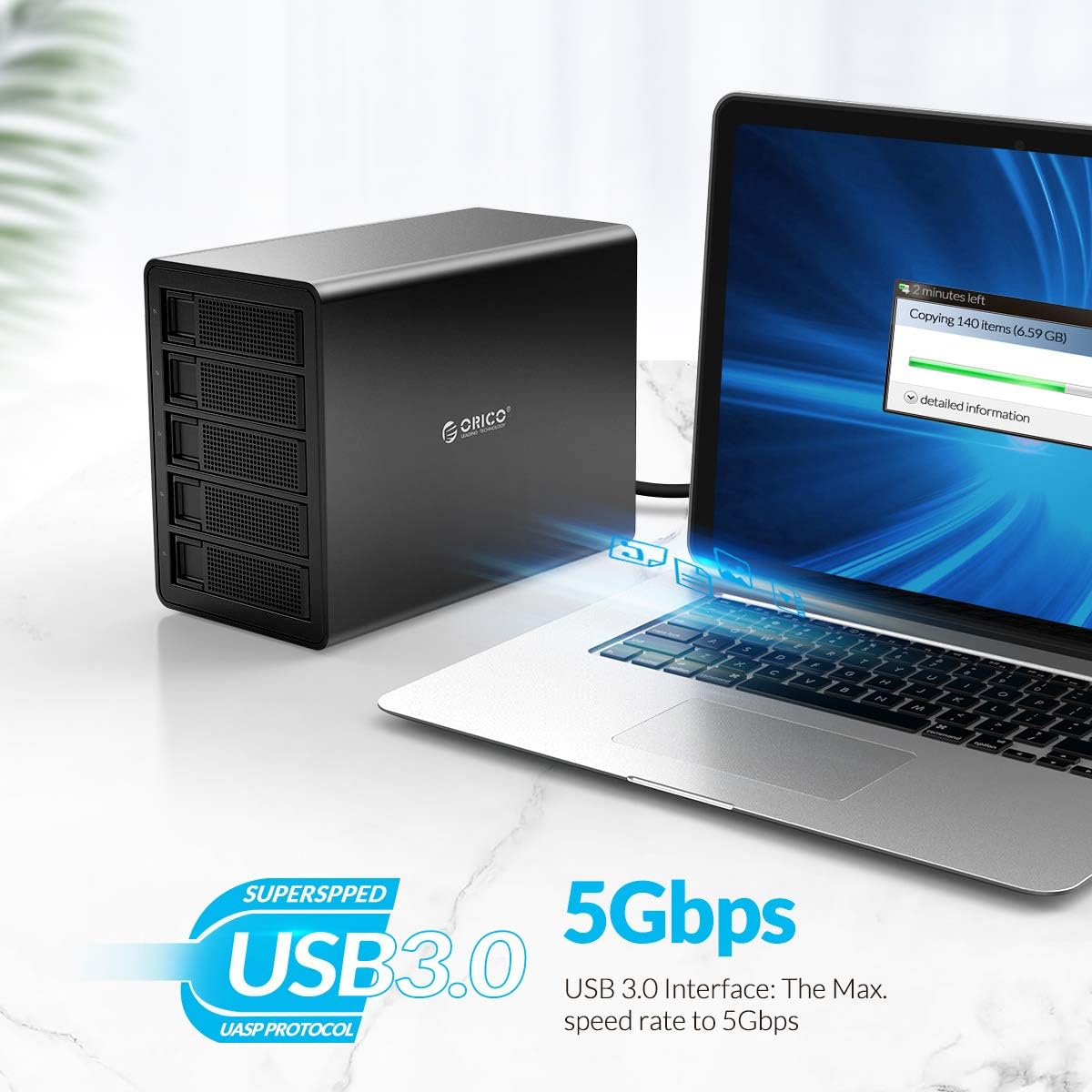
Figure 2: Illustrates the USB 3.0 interface providing up to 5Gbps data transfer speed.

Figure 3: Depicts the 5-bay design supporting up to 80TB total storage capacity.

Figure 4: Rear view highlighting the 80x80mm quiet cooling fan for effective heat dissipation.

Figure 5: Illustration of the 150W built-in power supply ensuring stable operation.
4. Setup Instructions
4.1. Hard Drive Installation
- Prepare Drives: Ensure your 2.5-inch or 3.5-inch SATA HDDs/SSDs are ready for installation. For 2.5-inch drives, you may need an adapter tray (not included) to fit them securely into the 3.5-inch bays.
- Open Bay Door: Gently press the spring-switch door of the desired bay to open it.
- Mount Drive: Slide your hard drive into the bay. Align the screw holes on the drive with the mounting points on the tray. Secure the drive using the provided screws.
- Close Bay Door: Once the drive is securely mounted, close the bay door until it clicks into place.
- Repeat for additional drives.

Figure 6: Illustrates the screw-fixing mechanism for securing 2.5/3.5-inch SATA drives.
4.2. Connecting to Computer
- Connect Power: Plug the 12V power adapter into the enclosure's power input port and then into a wall outlet.
- Connect USB: Connect one end of the provided USB 3.0 Type-A cable to the USB 3.0 port on the rear of the enclosure and the other end to an available USB 3.0 port on your computer.
- Power On: Flip the power switch on the rear of the enclosure to the 'ON' position.

Figure 7: Rear panel of the enclosure showing power input, power switch, and USB 3.0 port.
4.3. Initializing and Formatting Drives (New Drives Only)
If you are installing new hard drives, they will need to be initialized and formatted before use. This process is typically done through your operating system's Disk Management utility (Windows) or Disk Utility (macOS).
- Windows: Right-click 'This PC' (or 'My Computer'), select 'Manage', then 'Disk Management'. Locate the unallocated drive(s), right-click, and follow the prompts to initialize and format.
- macOS: Open 'Disk Utility' (Applications > Utilities). Select the uninitialized drive(s) and use the 'Erase' function to format them.
5. Operating Instructions
5.1. Power On/Off
- To power on the enclosure, ensure the power adapter is connected and flip the rear power switch to 'ON'.
- To power off, safely eject all drives from your operating system first, then flip the rear power switch to 'OFF'.
5.2. Accessing Drives
Once connected and powered on, the installed drives will appear as individual storage devices in your operating system's file explorer (Windows) or Finder (macOS). You can access, read, and write data to them as you would with any internal or external drive.
5.3. Drive Sleep Function
The enclosure features an automatic drive sleep function, which may spin down drives after approximately 10 minutes of inactivity. This is a power-saving feature and is part of the enclosure's design. Drives will spin back up when accessed.
6. Maintenance
6.1. Cleaning
- Ensure the enclosure is powered off and disconnected from all power sources before cleaning.
- Use a soft, dry cloth to wipe the exterior surfaces.
- Periodically check the rear cooling fan vent for dust accumulation. Use compressed air to gently clear any dust to ensure optimal airflow.
6.2. General Care
- Avoid exposing the enclosure to extreme temperatures, humidity, or direct sunlight.
- Do not place heavy objects on top of the enclosure.
- Handle with care to prevent physical damage.
7. Troubleshooting
7.1. Drives Not Detected
- Check Power: Ensure the enclosure is powered on and the power adapter is securely connected.
- Check USB Connection: Verify the USB cable is firmly connected to both the enclosure and your computer. Try a different USB port or cable.
- Drive Installation: Confirm that the hard drives are correctly installed and securely screwed into their bays.
- New Drives: If using new drives, ensure they have been initialized and formatted via your operating system's disk management tools.
- Operating System: Restart your computer.
7.2. Slow Transfer Speeds
- USB 3.0 Port: Ensure the enclosure is connected to a USB 3.0 port on your computer. Connecting to a USB 2.0 port will result in slower speeds.
- Cable Quality: Use the provided USB 3.0 cable or a high-quality replacement.
- Drive Performance: The speed of individual drives can affect overall transfer rates.
- Simultaneous Access: Accessing multiple drives simultaneously may distribute the available bandwidth, potentially reducing individual drive speeds.
7.3. Enclosure Fan Noise
- The built-in fan operates to cool the drives. Some operational noise is normal.
- Ensure the fan vents on the rear of the enclosure are not obstructed, allowing for proper airflow.
7.4. No Official Product Videos Available
Based on the provided product data, no official product videos are available for embedding in this manual.
8. Specifications
| Feature | Detail |
|---|---|
| Model Number | 5*16TB-5Bay USB3.0 (3559U3) |
| Brand | ORICO |
| Drive Bays | 5 |
| Compatible Drive Types | 2.5/3.5 inch SATA HDD/SSD |
| Max Capacity Supported | 80 TB (16TB x 5) |
| Hardware Interface | USB 3.0 Type A |
| Data Transfer Rate | Up to 5 Gbps |
| Power Supply | 150W External Power Adapter |
| Cooling System | Built-in 80x80mm Cooling Fan |
| Compatible Operating Systems | Windows XP/7/8/8.1/10, VISTA, Linux, Mac 9.1/10.2 or higher |
| Material | Metal |
| Color | Black |
| Item Weight | 9.98 pounds |
| Package Dimensions | 13.31 x 11.81 x 8.74 inches |
9. Warranty and Support
For warranty information, technical support, or service inquiries, please refer to the official ORICO website or contact their customer support directly. Details are typically available on the manufacturer's product page or within the packaging materials.
Related documents3559U3


Ask a question about this manual
Ask about setup, troubleshooting, compatibility, parts, safety, or missing instructions. Manuals+ will review the question and use this page’s manual context to help answer it.