
1. Introduction
The LENTION 8-in-1 USB C Hub, Model C37-1M, is a versatile docking station designed to expand the connectivity of your USB-C enabled devices. It provides a range of ports including 4K HDMI, USB-A, USB-C, SD/TF card readers, and a 3.5mm audio jack, alongside 100W Power Delivery charging. Its extended 3.3-foot cable offers flexible placement options for a tidy workspace.

Image: The LENTION 8-in-1 USB C Hub, showcasing its multiple ports and connectivity options.
2. Key Features
This hub is engineered to enhance your productivity and connectivity with the following features:
- 3.3ft Long Cable: Provides extended reach for flexible placement, allowing the hub to be tucked away for a cleaner desk setup. An integrated LED light indicates active status.
- 8-in-1 Port Expansion: Includes 4K HDMI output, a 3.5mm audio/mic jack, independent SD and TF card readers, two USB 3.0 ports, and two USB-C ports (one for 100W Power Delivery charging, one for 5Gbps data transfer).
- 100W Power Delivery: Supports pass-through charging for your laptop at full speed while simultaneously transferring data. Features an upgraded power chip for stable performance.
- Dual USB 3.0 Ports & Card Readers: Connect peripherals like mice, keyboards, and external drives via two high-speed USB 3.0 ports. SD and TF card slots support UHS-I speeds (up to 104 MB/s) for efficient data access.
- Stable Driver 3.0 Certified: Ensures safe and stable operation with minimal interference, consistent power delivery, and controlled heat buildup.
3. Setup Instructions
The LENTION 8-in-1 USB C Hub is designed for plug-and-play functionality. Follow these steps to set up your hub:
- Connect to Host Device: Plug the USB-C connector of the hub's integrated cable into an available USB-C port on your laptop, tablet, or compatible device. Ensure your device's USB-C port supports DisplayPort Alternate Mode (DP Alt Mode) for video output.
- Power Connection (Optional): For optimal performance and to charge your host device, connect your laptop's original USB-C power adapter to the 100W PD USB-C port on the hub.
- Connect Peripherals: Connect your desired devices to the corresponding ports on the hub:
- HDMI: Connect an HDMI cable from the hub to your external monitor or TV for video output.
- USB 3.0: Plug in USB-A devices such as external hard drives, keyboards, or mice.
- USB-C Data: Connect USB-C peripherals for data transfer.
- SD/TF Card Readers: Insert SD or microSD cards for data access.
- 3.5mm Audio: Connect headphones or speakers.
- Verify Connection: The LED indicator on the hub will illuminate when properly connected and active. Your operating system should automatically detect and configure the connected devices.
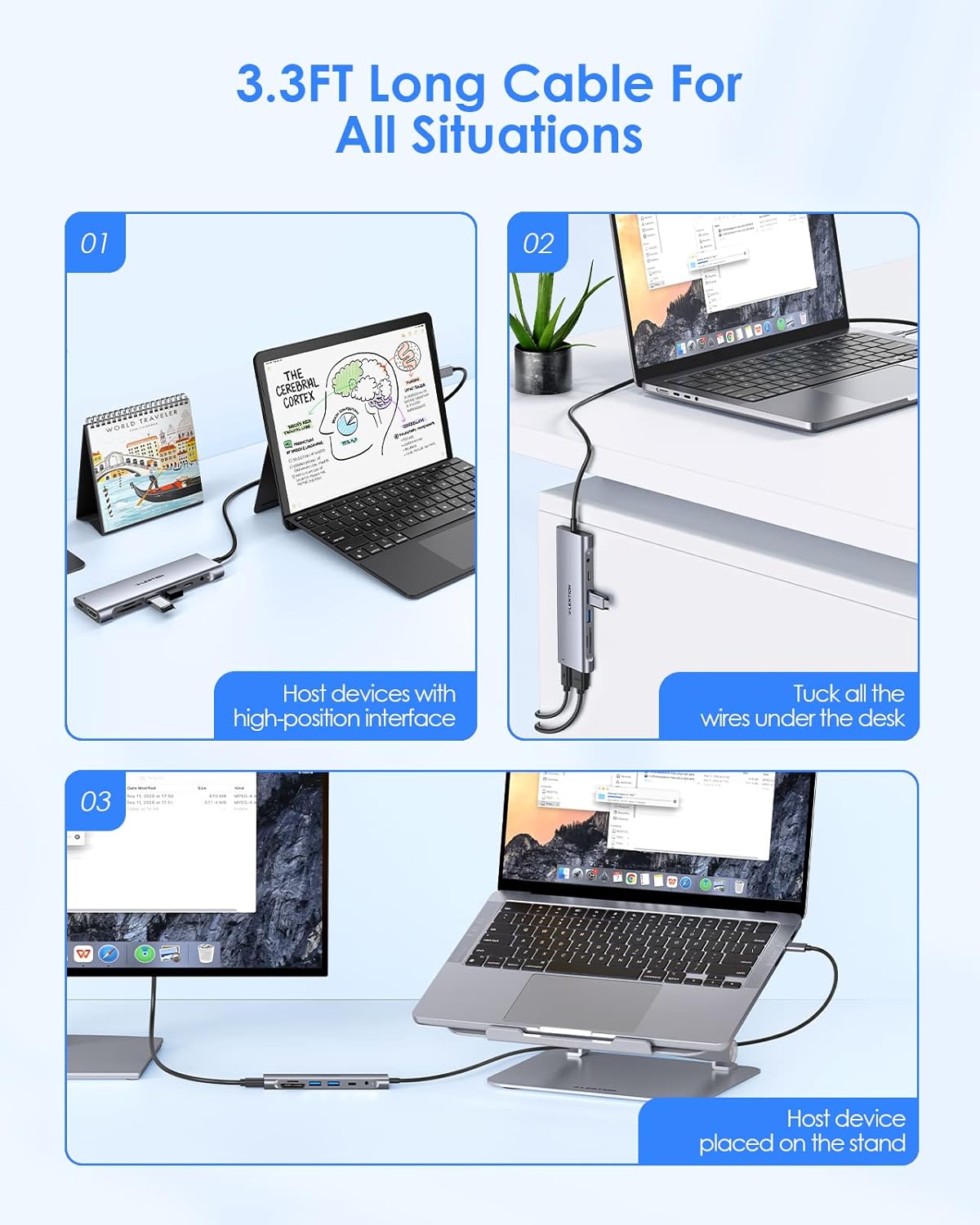
Image: The hub's 3.3-foot cable allows for flexible placement, such as under a desk or behind a monitor, to maintain a clean workspace.
4. Operating Instructions
4.1. Video Output (HDMI)
Connect an HDMI cable from the hub's HDMI port to your external display. The hub supports 4K resolution at 30Hz. Your device should automatically detect the external display. You can configure display settings (mirror or extend mode) through your operating system's display preferences.

Image: Experience 4K UHD visuals on a larger screen by connecting your device to an external monitor via the hub's HDMI port.
4.2. USB Data Transfer
Use the two USB 3.0 ports and the 5Gbps USB-C data port to connect external storage devices, keyboards, mice, or other USB peripherals. Data transfer speeds can reach up to 5Gbps.

Image: The hub facilitates 5Gbps data transfer, allowing for quick movement of files, videos, and photos.
4.3. SD/TF Card Access
Insert your SD or microSD (TF) cards into the dedicated slots. The hub supports UHS-I speeds up to 104 MB/s. You can read from one card at a time. Ensure cards are inserted correctly to avoid damage.
4.4. Audio Output
Connect headphones, earphones, or speakers to the 3.5mm audio/mic jack for audio output. This port also supports microphone input.
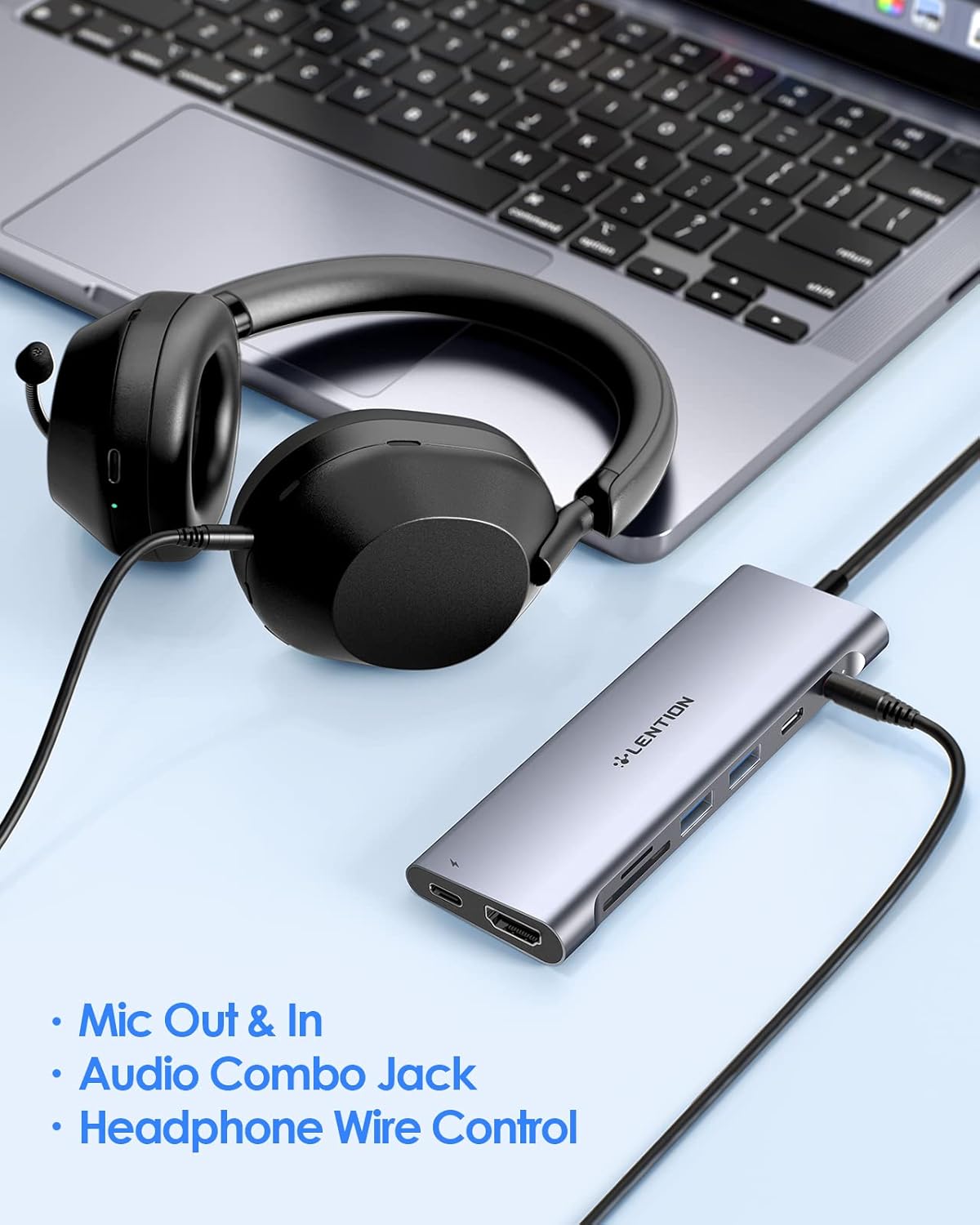
Image: The 3.5mm audio port supports both microphone input and audio output, enabling headphone wire control.
4.5. Power Delivery (PD) Charging
The dedicated 100W PD USB-C port allows you to charge your host device while using the hub. Connect your original power adapter to this port. The hub's upgraded power chip ensures stable charging even with multiple devices connected.

Image: A detailed view of the LENTION 8-in-1 USB C Hub, highlighting the 3.5mm Audio, USB-C, USB 3.0, SD/Micro SD, HDMI, and Power Delivery ports.
5. Product Overview Videos
LENTION C37 8-in-1 Long Cable USB C Hub
Video: An official overview of the LENTION C37 8-in-1 USB C Hub, demonstrating its features and long cable design for flexible use.
Lenton USB-C Digital Multiport Adapter
Video: A detailed look at the LENTION USB-C Digital Multiport Adapter, showcasing its various ports and how it integrates into a workspace.
6. Specifications
| Feature | Detail |
|---|---|
| Brand | LENTION |
| Model Number | CB-TP-C37HACR-1M-GRY |
| Color | Space Gray |
| Hardware Interface | HDMI, MicroSD, USB 3.0, USB Type C |
| Number of Ports | 8 |
| Total USB Ports | 4 (2x USB 3.0, 1x USB-C Data, 1x USB-C PD) |
| Data Transfer Rate | 5 Gigabits Per Second (USB 3.0, USB-C Data) |
| Power Delivery | Up to 100W |
| HDMI Output | 4K@30Hz |
| Card Reader Support | SD, MicroSD (TF), UHS-I (up to 104 MB/s) |
| Audio Jack | 3.5mm Audio/Mic Combo |
| Cable Length | 3.3 feet (1 meter) |
| Enclosure Material | Aluminum |
| Item Dimensions (L x W x H) | 7.08"L x 4.8"W x 0.59"H (Hub body only) |
| Item Weight | 0.09 Kilograms |
| Compatible Devices | MacBook Pro (2016-2025, M1-M5), MacBook Air (2018-2024), Surface, Dell XPS, Chromebook, Steam Deck, TVs, Monitors, Projectors, USB Flash Drives |
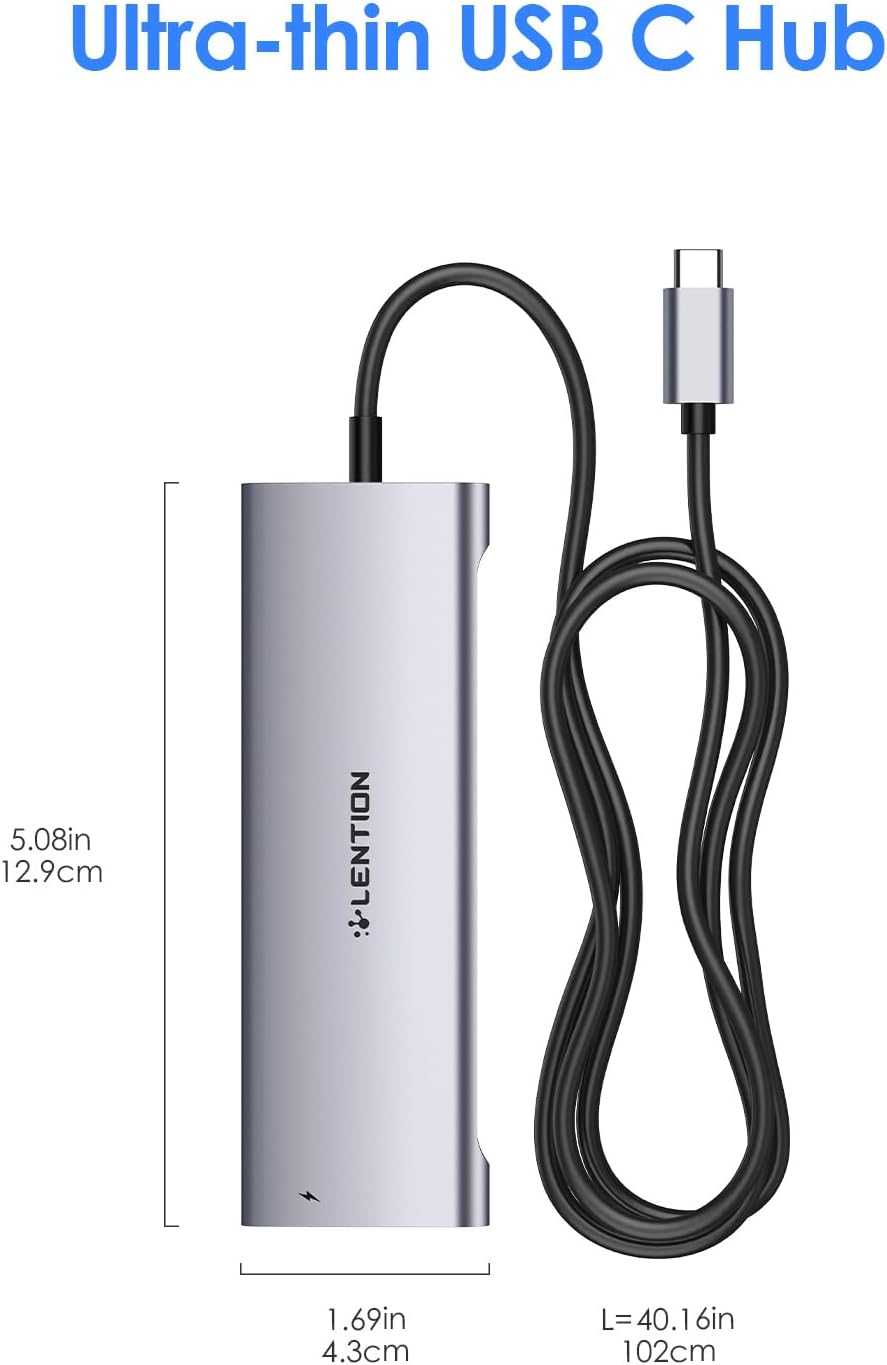
Image: Dimensions of the LENTION USB C Hub, highlighting its compact and ultra-thin design.
7. Troubleshooting
- No Display Output via HDMI:
- Ensure your host device's USB-C port supports DisplayPort Alternate Mode (DP Alt Mode). Check the HDMI cable connection between the hub and the monitor. Try a different HDMI cable or monitor if available. Restart your host device.
- Devices Not Recognized:
- Ensure the hub is securely connected to your host device. Try connecting the peripheral directly to your host device to confirm it's functional. Disconnect and reconnect the hub. If using high-power devices, ensure the hub is connected to a power source via the PD port.
- Slow Data Transfer Speeds:
- Verify that your connected devices and cables support USB 3.0 or 5Gbps speeds. Avoid connecting too many power-hungry devices simultaneously without external power to the hub.
- Charging Issues:
- Ensure your power adapter is connected to the 100W PD USB-C port on the hub. Use your laptop's original power adapter for best results. Check if the power adapter and cable are functioning correctly.
- Hub Overheating:
- The aluminum casing is designed for heat dissipation. If the hub feels excessively hot, disconnect some peripherals or ensure it's in a well-ventilated area. Avoid placing it on soft surfaces that can block airflow.
8. Warranty and Support
The LENTION 8-in-1 USB C Hub comes with a 2-year warranty. For technical support, troubleshooting assistance, or warranty claims, please visit the official LENTION website or contact their customer service directly. Keep your purchase receipt for warranty validation.
For more information, you may visit the LENTION Store on Amazon.

