
1. Introduction
This manual provides detailed instructions for the installation, operation, and maintenance of your Phonocar VM011D 2-DIN Car Radio. Please read this manual thoroughly before using the product to ensure correct operation and to prevent damage.
The Phonocar VM011D is a versatile 2-DIN car radio featuring a 6.75-inch capacitive touchscreen monitor, Apple CarPlay, Android Auto, DAB+ digital radio, Bluetooth connectivity, and GPS capabilities.
2. Safety Information
Observe the following safety precautions to prevent accidents and damage to the unit:
- Do not operate the unit in a way that distracts you from driving.
- Ensure all wiring is correctly connected to prevent short circuits or electrical hazards.
- Consult a qualified technician for installation if you are unsure about any steps.
- Do not expose the unit to extreme temperatures, direct sunlight for prolonged periods, or excessive moisture.
3. Package Contents
Verify that all items are present in the package:
- Phonocar VM011D Main Unit
- Power Harness
- GPS Antenna
- USB Extension Cable
- Mounting Hardware
- User Manual (this document)
4. Setup and Installation
Installation of the Phonocar VM011D requires basic automotive electrical knowledge. If you are not confident in performing the installation yourself, it is recommended to seek professional assistance.
4.1 Wiring Diagram
Refer to the detailed wiring diagram provided with your unit for specific connections. Key connections include:
- Power (Yellow): Constant 12V (Battery)
- Accessory (Red): Switched 12V (Ignition)
- Ground (Black): Chassis Ground
- Speaker Outputs: Front Left, Front Right, Rear Left, Rear Right (ensure correct polarity)
- Antenna: Connect the car's radio antenna.
- GPS Antenna: Connect the GPS antenna and mount it in a location with a clear view of the sky.
- USB Ports: For Apple CarPlay, Android Auto, and media playback.

Figure 1: Front view of the Phonocar VM011D display showing the main menu with icons for Radio, Bluetooth Phone, Bluetooth Music, DAB, and AV In1. USB and SD card slots are visible at the bottom.
4.2 Mounting the Unit
- Remove the existing car radio from the dashboard.
- Connect all necessary wiring harnesses to the VM011D.
- Slide the VM011D into the 2-DIN opening in your dashboard.
- Secure the unit using the provided mounting brackets and screws.
- Reassemble the dashboard trim.
5. Operating Instructions
5.1 Power On/Off
The unit will power on automatically when the vehicle's ignition is turned on. To manually power off (if supported by vehicle wiring), press and hold the power button (usually located on the front panel).
5.2 Touchscreen Interface
The VM011D features a 6.75-inch capacitive touchscreen. Navigate through menus and select functions by tapping icons or swiping across the screen.

Figure 2: The VM011D display highlighting compatibility with Apple CarPlay and Phonelink, indicating its smartphone integration features.
5.3 Radio (DAB+/FM/AM)
- Selecting Source: Tap the "Radio" or "DAB" icon on the main menu.
- Scanning: Use the scan function to automatically find and store available stations.
- Presets: Save your favorite stations to preset buttons for quick access.
5.4 Bluetooth Connectivity
Pair your smartphone to the VM011D for hands-free calling and audio streaming.
- Go to the Bluetooth settings on the VM011D.
- Enable Bluetooth on your smartphone and search for available devices.
- Select "Phonocar VM011D" from the list on your phone.
- Confirm the pairing code if prompted.
Once paired, you can access "BT Phone" for calls and "Musica BT" for audio streaming.
5.5 Apple CarPlay / Android Auto
Connect your compatible smartphone via USB to access Apple CarPlay or Android Auto functionalities directly on the VM011D screen.
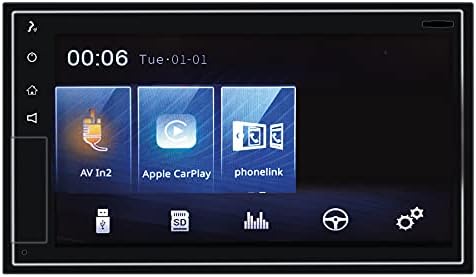
Figure 3: The VM011D display showing icons for AV In2, Apple CarPlay, and Phonelink, indicating various input and smartphone integration options.
- Apple CarPlay: Connect your iPhone using a certified USB cable. The CarPlay interface will automatically launch.
- Android Auto: Connect your Android phone using a certified USB cable. Ensure Android Auto is installed on your phone. The Android Auto interface will automatically launch.
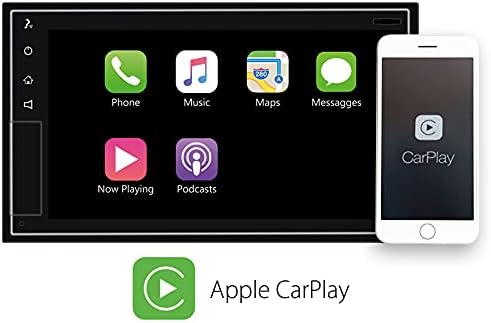
Figure 4: The VM011D display showing the Apple CarPlay interface with common applications like Phone, Music, Maps, and Messages, alongside an iPhone demonstrating connectivity.

Figure 5: The Phonocar VM011D integrated into a car's dashboard, displaying the Apple CarPlay interface with multiple application icons, demonstrating in-car usage.
5.6 GPS Navigation
The unit includes GPS functionality. Depending on the software pre-installed or accessed via CarPlay/Android Auto, you can use navigation applications for route guidance.

Figure 6: The VM011D display showing a navigation map, likely mirrored from a smartphone via Phonelink, with route details and traffic information.
5.7 Media Playback (USB/SD)
Insert a USB drive or SD card into the designated slots to play audio or video files. The unit supports various media formats.
6. Maintenance
- Cleaning the Screen: Use a soft, lint-free cloth to gently wipe the touchscreen. Do not use abrasive cleaners or solvents.
- Software Updates: Periodically check the Phonocar website for any available firmware updates for your VM011D model. Follow the instructions provided with the update carefully.
- General Care: Avoid exposing the unit to extreme temperatures, direct sunlight, or excessive dust.
7. Troubleshooting
| Problem | Possible Cause | Solution |
|---|---|---|
| No power | Incorrect wiring; Blown fuse; Vehicle ignition off. | Check power and ground connections. Inspect vehicle fuse box and unit's fuse. Ensure ignition is on. |
| No sound | Volume too low; Mute activated; Incorrect speaker wiring. | Increase volume. Deactivate mute function. Verify speaker connections and polarity. |
| Bluetooth not connecting | Bluetooth not enabled on phone/unit; Device not in pairing mode; Interference. | Ensure Bluetooth is active on both devices. Put unit in pairing mode. Try pairing again. Move closer to the unit. |
| CarPlay/Android Auto not launching | Faulty USB cable; Incompatible phone; Software issue. | Use a certified USB cable. Ensure your phone is compatible and has the latest OS. Restart phone and unit. |
| Touchscreen unresponsive | Temporary software glitch; Screen dirty. | Restart the unit (turn vehicle ignition off and on). Clean the screen with a soft cloth. |
8. Specifications
- Model: VM011D
- Brand: Phonocar
- Display: 6.75-inch Capacitive Touchscreen
- Form Factor: 2-DIN
- Connectivity: Bluetooth, USB
- Smartphone Integration: Apple CarPlay, Android Auto, Phonelink
- Radio Tuner: DAB+, FM, AM
- Audio Output Power: 50 Watts (per channel, typically 4 channels)
- Compatible Devices: Smartphone
- Control Method: Touch
9. Warranty and Support
For warranty information and technical support, please refer to the warranty card included with your product or visit the official Phonocar website. Keep your purchase receipt as proof of purchase.
Phonocar Official Website: www.phonocar.com


