
Perixx PERIBOARD-426
Perixx PERIBOARD-426 Wired Mini Low Profile Keyboard User Manual
Model: PERIBOARD-426 (11665)
Introduction
This manual provides comprehensive instructions for the setup, operation, and maintenance of your Perixx PERIBOARD-426 Wired Mini Low Profile Keyboard. Please read this manual thoroughly before using the product to ensure proper functionality and longevity.
The Perixx PERIBOARD-426 is a compact, low-profile keyboard designed for efficiency and comfort in various computing environments. It features a wired USB connection for reliable performance and integrated multimedia keys for enhanced control.
Package Contents
- Perixx PERIBOARD-426 Wired Mini Low Profile Keyboard
- User Manual (this document)
System Requirements
- Operating System: Windows 7, Windows 8, Windows 10, or later
- Available USB port
Setup
The Perixx PERIBOARD-426 is a plug-and-play device, requiring no additional driver installation for basic functionality.
- Unpack the Keyboard: Carefully remove the keyboard from its packaging.
- Connect to Computer: Locate an available USB port on your computer. Insert the USB connector of the PERIBOARD-426 into the USB port.
- System Recognition: Your operating system will automatically detect and install the necessary drivers. This process may take a few moments.
- Begin Use: Once the installation is complete, the keyboard is ready for use.

Operating Instructions
General Typing
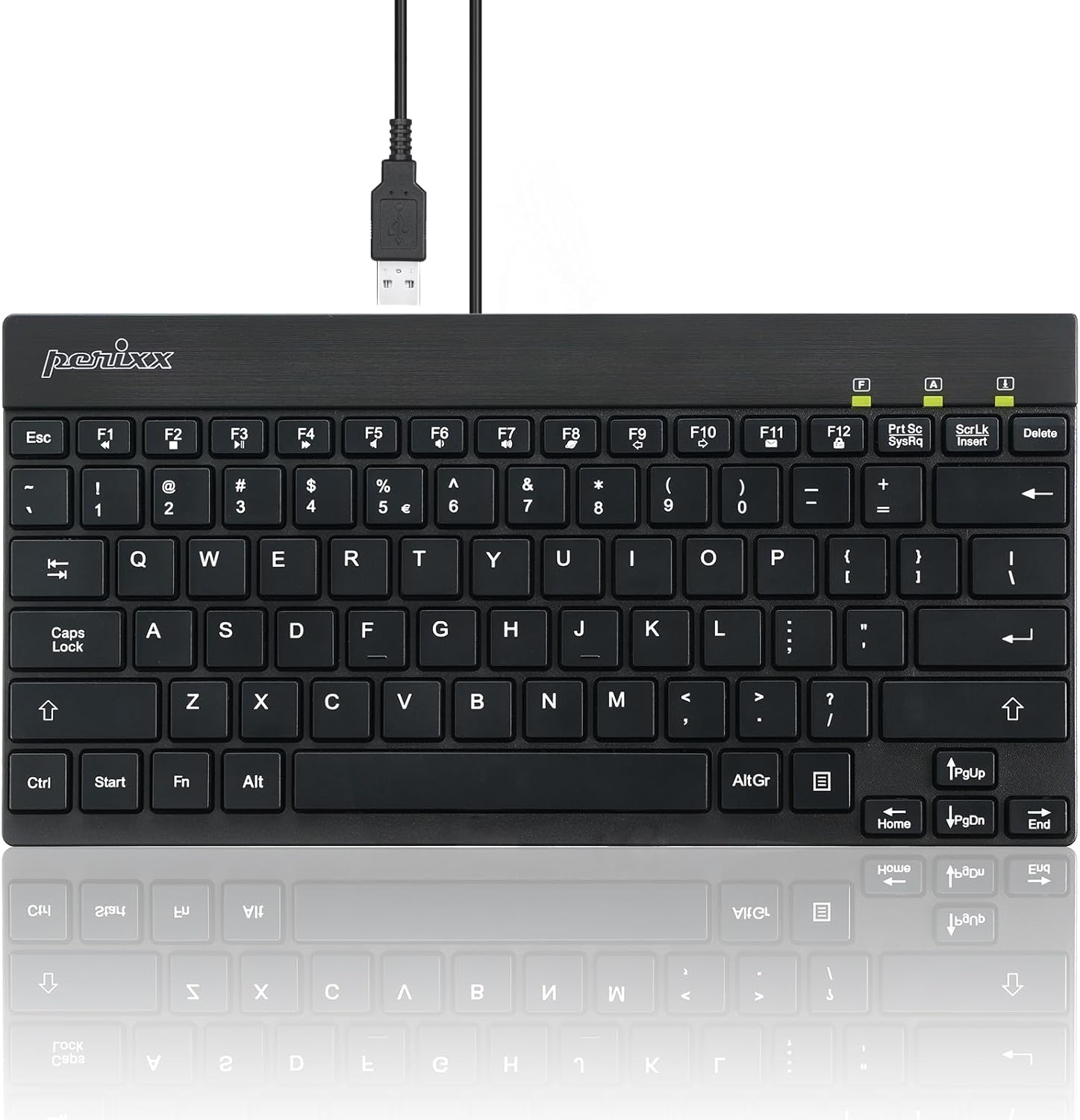
The PERIBOARD-426 features a standard US English layout with low-profile keys for a comfortable typing experience. The responsive key mechanism ensures accurate input.
Multimedia Keys
The keyboard includes dedicated multimedia function keys (F1-F12) that can be accessed by pressing the Fn key in combination with the desired function key. These keys provide quick access to common media controls and system functions.
| Key Combination | Function |
|---|---|
| Fn + F1 | Open Media Player |
| Fn + F2 | Volume Down |
| Fn + F3 | Volume Up |
| Fn + F4 | Mute |
| Fn + F5 | Previous Track |
| Fn + F6 | Next Track |
| Fn + F7 | Play/Pause |
| Fn + F8 | Stop |
| Fn + F9 | Open Web Browser |
| Fn + F10 | Open Email Client |
| Fn + F11 | My Computer |
| Fn + F12 | Calculator |
Note: Specific multimedia functions may vary slightly depending on your operating system and installed software.
Maintenance and Care
- Cleaning: To clean the keyboard, disconnect it from your computer. Use a soft, lint-free cloth slightly dampened with water or a mild cleaning solution. Avoid harsh chemicals or abrasive materials.
- Dust Removal: Use compressed air to remove dust and debris from between the keys.
- Storage: When not in use, store the keyboard in a clean, dry environment away from extreme temperatures.
- Liquid Exposure: Avoid spilling liquids on the keyboard. In case of accidental spills, immediately disconnect the keyboard and allow it to dry completely before reconnecting.
Troubleshooting
Keyboard Not Responding
- Check USB Connection: Ensure the USB cable is securely plugged into a functional USB port on your computer. Try a different USB port.
- Restart Computer: Sometimes a simple system restart can resolve connectivity issues.
- Test on Another Computer: If possible, test the keyboard on another computer to determine if the issue is with the keyboard or your system.
- Driver Reinstallation: Although plug-and-play, you can try uninstalling the keyboard driver from Device Manager (Windows) and then reconnecting the keyboard to allow the system to reinstall it.
Keys Not Functioning Correctly
- Clean Keys: Ensure no debris is lodged under the affected keys. Use compressed air to clear any obstructions.
- Software Interference: Check if any software or system settings are interfering with keyboard input.
Multimedia Keys Not Working
- Fn Key Usage: Ensure you are pressing the Fn key simultaneously with the desired function key.
- Operating System Support: Verify that your operating system and media player software support the standard multimedia key commands.
Specifications
| Feature | Detail |
|---|---|
| Model | PERIBOARD-426 (11665) |
| Connectivity | Wired USB |
| Layout | US English |
| Key Type | Low Profile, Membrane Switch |
| Material | ABS (Acrylonitrile Butadiene Styrene) |
| Dimensions (L x W x H) | 10.87 x 5.43 x 0.55 inches (27.6 x 13.8 x 1.4 cm) |
| Weight | 0.84 lb (381 g) |
| Cable Length | Approximately 4.9 feet (1.5 meters) |
| Color | Black |
| Compatible OS | Windows 7/8/10 or later |
Warranty and Support
The Perixx PERIBOARD-426 comes with a one-year limited warranty from the date of purchase. This warranty covers manufacturing defects and workmanship under normal use.
For technical support, warranty claims, or further assistance, please visit the official Perixx website or contact their customer service department. Contact information can typically be found on the Perixx brand store page or product packaging.
You can visit the Perixx Store for more information: Perixx Official Store
Safety Information
- Do not expose the device to extreme temperatures, humidity, or direct sunlight.
- Keep the device away from water and other liquids.
- Do not attempt to disassemble or modify the device. This will void the warranty.
- Keep out of reach of children.
Related documentsPERIBOARD-426


Ask a question about this manual
Ask about setup, troubleshooting, compatibility, parts, safety, or missing instructions. Manuals+ will review the question and use this page’s manual context to help answer it.