
1. Introduction
This manual provides essential information for the installation and care of your E-YIIVIIL LCD Touch Screen Display Assembly. This product is specifically designed for the Huawei P Smart Z and Huawei Y9 Prime 2019 models, including STK-L21, STK-L22, and STK-LX3. Please verify your phone model before proceeding with any installation.
Each screen undergoes a series of strict quality control tests and is carefully packaged before shipment to ensure optimal performance upon arrival.

Image 1.1: Front view of the LCD Touch Screen Display Assembly.
2. Setup and Installation
The package includes necessary tools and two 3M adhesive tapes to assist with the installation process. However, detailed step-by-step instructions are not provided within this manual. Due to the intricate nature of smartphone repairs, professional installation technology is highly recommended.
Important: We are not responsible for any damage incurred due to improper operation or installation. Numerous instructional videos are available on platforms like YouTube; searching for '[Your Phone Model] screen replacement' can provide visual guidance.
2.1 Pre-Installation Checks
- Verify Compatibility: Ensure the screen is compatible with your specific Huawei P Smart Z or Y9 Prime 2019 model (STK-L21, STK-L22, STK-LX3).
- Inspect Product: Before beginning installation, carefully inspect the new display assembly for any visible damage or defects.
- Power Off Device: Always power off your device completely and disconnect the battery before attempting any repairs.

Image 2.1: Rear view of the LCD assembly, highlighting flex cables.
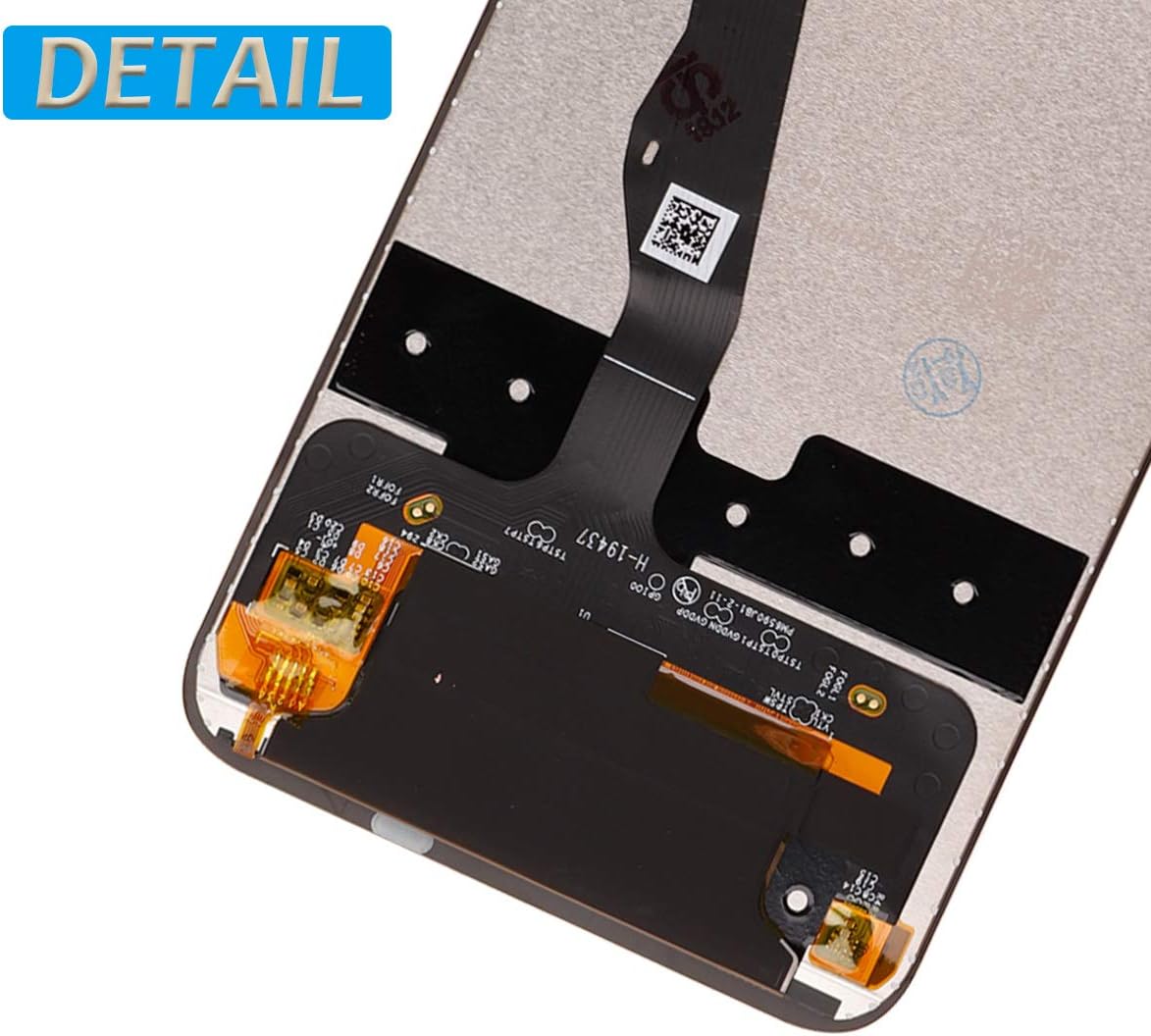
Image 2.2: Detailed view of the flex cable connection points.
3. Operating (Pre-Installation Testing)
Before fully installing and adhering the new screen, it is crucial to perform a test to ensure full functionality. This step helps prevent issues after final assembly.
3.1 Testing Procedure
- Connect Flex Cables: Carefully connect the display and touch flex cables from the new screen to the corresponding connectors on your phone's motherboard. Do not apply excessive force.
- Reconnect Battery: Reconnect the phone's battery.
- Power On: Power on the device.
- Functionality Test: Test the following functions:
- Display: Check for any dead pixels, lines, or discoloration across the entire screen.
- Touch Sensitivity: Test touch response across all areas of the screen. Drag an icon around the screen to ensure uniform touch detection.
- Brightness: Adjust screen brightness to ensure it functions correctly.
- Power Off: If all tests pass, power off the device and disconnect the battery before proceeding with final installation. If issues are found, contact support.

Image 3.1: Visual representation of a successful screen replacement.
4. Maintenance and Care
To ensure the longevity and optimal performance of your new LCD screen, follow these maintenance guidelines:
- Handle with Care: Avoid dropping the device or subjecting it to strong impacts, which can damage the screen.
- Avoid Pressure: Do not place heavy objects on the screen or apply excessive pressure, as this can cause internal damage.
- Cleaning: Use a soft, lint-free cloth, slightly dampened with water or a screen-safe cleaner, to gently wipe the screen. Avoid harsh chemicals or abrasive materials.
- Temperature Extremes: Protect your device from extreme temperatures, both hot and cold, as these can affect screen performance and lifespan.
5. Troubleshooting
If you encounter issues after installation, consider the following common troubleshooting steps:
- Screen Not Displaying / Black Screen:
- Ensure all flex cables are securely connected to the motherboard. A loose connection is a common cause.
- Verify the battery is properly connected and charged.
- Perform a hard reset on your device (refer to your phone's original manual for instructions).
- Touch Not Responding / Ghost Touch:
- Check the touch screen flex cable connection.
- Ensure there is no debris or foreign material between the screen and the phone frame.
- Restart the device.
- Lines or Discoloration on Screen:
- This could indicate a damaged flex cable or a faulty display. Recheck connections carefully.
- If the issue persists after rechecking connections, the screen may be defective.
If these steps do not resolve the issue, please refer to the Support section for further assistance.
6. Product Specifications
| Compatible Models | Huawei P Smart Z / Y9 Prime 2019 (STK-L21, STK-L22, STK-LX3) |
| Screen Size | 6.59 inches |
| Package Dimensions | 7.2 x 4 x 0.9 inches |
| Item Weight | 6.4 ounces |
| ASIN | B0875T3S5B |
| Manufacturer | shenzhenshi derui maoyi youxiangongsi |
| Date First Available | April 8, 2020 |
7. Warranty Information
This product is covered by a manufacturer's warranty. To ensure your warranty remains valid, it is crucial to handle the product with care and follow proper installation procedures. Any damage resulting from improper operation or abuse may void the warranty.
If you encounter any issues with the product that you believe are covered under warranty, please contact our customer support team immediately. Providing detailed information about the issue will help expedite the resolution process.
8. Customer Support
For any questions, concerns, or technical assistance regarding your E-YIIVIIL LCD Touch Screen Display Assembly, please do not hesitate to contact us. Our support team is committed to responding to your inquiries within 24 hours.
Contact Method: Please use the messaging system on the platform where you purchased the product to reach our customer service. This ensures we have all necessary order details to assist you efficiently.
We encourage you to contact us directly to resolve any product-related issues. Your satisfaction is our priority.