
1. Setup Guide
1.1 Unboxing and Initial Inspection
Carefully remove the TV and all accessories from the packaging. Inspect for any signs of damage. Ensure all components listed in the 'What's in the Box' section are present.
1.2 Attaching the Stand
Place the TV screen-down on a soft, clean surface to prevent scratches. Align the TV stand with the designated slots on the bottom of the TV. Secure the stand using the provided screws. Refer to the included quick start guide for detailed illustrations.
1.3 Connecting Power
Connect the power cord to the TV's power input, then plug the other end into a wall outlet. The TV will enter standby mode.
1.4 Connecting External Devices
The Toshiba TF-32A710U21 TV supports various connections for external devices:
- HDMI: For high-definition video and audio from devices like cable boxes, gaming consoles, or Blu-ray players.
- Antenna/Cable In: For receiving over-the-air broadcast channels or connecting to a cable service.
- AV In (Composite): For older devices using yellow (video), white (left audio), and red (right audio) RCA connectors.
- LAN (Ethernet): For a wired internet connection.
Locate the appropriate ports on the back of your TV and connect your devices. Ensure cables are securely inserted.

Image: Detailed view of the TV's rear input ports for connecting external devices.
1.5 Initial Setup and Remote Control Pairing
Upon first power-on, the TV will guide you through the initial setup process. This includes selecting your language, connecting to a Wi-Fi network, and logging into your Amazon account for Fire TV services. The remote control will typically pair automatically during this process. If not, press and hold the Home button on the remote for 10 seconds to initiate pairing.

Image: The Fire TV interface and voice remote, essential for initial setup and navigation.
2. Operating Instructions
2.1 Power On/Off
Press the Power button on the remote control or the TV itself to turn the TV on or off. A short press will toggle power, while a long press may bring up power options.
2.2 Navigating the Fire TV Interface
Use the directional pad and the Select button on your Fire TV remote to navigate through the home screen, apps, and menus. The Home button returns you to the main Fire TV interface.
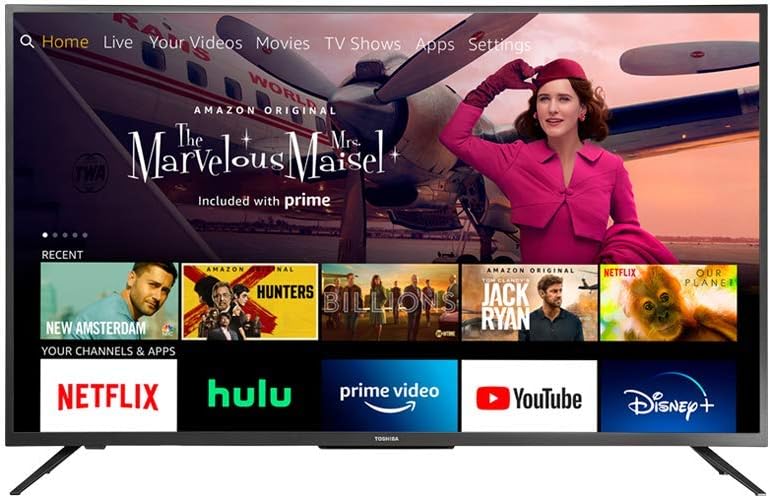
Image: The Fire TV home screen, showing access to various streaming services and content.
2.3 Using the Voice Remote with Alexa
Press and hold the Microphone button on your remote, then speak your command. Alexa can help you launch apps, search for titles, play music, switch inputs, and control compatible smart home devices.
2.4 Accessing Streaming Services
The Fire TV Edition TV provides direct access to popular streaming services such as Disney+, Netflix, YouTube, Prime Video, and Hulu. Select the app icon from the home screen to launch. A subscription may be required for some services.
2.5 Watching Live Over-the-Air TV
If an HD antenna is connected, you can watch live over-the-air channels. Navigate to the 'Live' section on the Fire TV home screen or select the appropriate HDMI input if using a cable box. The TV will scan for available channels during initial setup.
2.6 Switching Inputs
To switch between connected devices (e.g., HDMI 1, HDMI 2, AV), press the 'Input' button on your remote or navigate to the 'Inputs' section on the Fire TV interface.
3. Maintenance
3.1 Cleaning the Screen and TV Body
To clean the screen, gently wipe with a soft, dry, lint-free cloth. For stubborn marks, slightly dampen the cloth with water. Avoid using harsh chemicals or abrasive materials. For the TV body, use a soft, dry cloth.
3.2 Software Updates
The TV automatically receives over-the-air software updates to enhance features and performance. Ensure your TV is connected to the internet for these updates to download and install.
3.3 Remote Control Battery Replacement
If the remote control's performance degrades, replace the two AAA batteries. Open the battery compartment on the back of the remote, remove old batteries, and insert new ones, ensuring correct polarity.
4. Troubleshooting
This section addresses common issues you might encounter with your Toshiba Fire TV Edition.
4.1 No Power / TV Not Turning On
- Check if the power cord is securely plugged into both the TV and the wall outlet.
- Ensure the wall outlet is functional by testing it with another device.
- Try pressing the power button on the TV itself, not just the remote.
4.2 Remote Control Not Responding
- Replace the batteries in the remote control.
- Re-pair the remote: Press and hold the Home button on the remote for 10 seconds. If this doesn't work, navigate to Settings > Controllers & Bluetooth Devices > Amazon Fire TV Remotes > Add New Remote on the TV (using the Fire TV app on a smartphone if needed) and follow on-screen instructions.
- Ensure there are no obstructions between the remote and the TV.
4.3 No Picture or Poor Picture Quality
- Verify that the correct input source is selected (e.g., HDMI 1, Antenna).
- Check all cable connections (HDMI, antenna) to ensure they are secure.
- If using an antenna, try repositioning it or performing a channel scan again.
- Adjust picture settings (brightness, contrast, color) in the TV's menu.
4.4 No Sound or Poor Sound Quality
- Increase the volume on both the TV and any connected external audio devices.
- Check audio cables for secure connections.
- Ensure the TV is not muted.
- Access audio settings in the TV menu to verify output selection (e.g., TV speakers, external audio system).
4.5 Wi-Fi Connectivity Issues
- Restart your Wi-Fi router and modem.
- Go to Settings > Network on your TV and try reconnecting to your Wi-Fi network.
- Ensure the TV is within range of your Wi-Fi router.
- If possible, try a wired Ethernet connection.
5. Specifications
Detailed technical specifications for the Toshiba TF-32A710U21 Smart HD TV.
| Brand | TOSHIBA |
| Model Number | TF-32A710U21 |
| Screen Size | 31.5 Inches |
| Resolution | 720p |
| Display Technology | LED |
| Refresh Rate | 60 Hz |
| Aspect Ratio | 16:9 |
| Connectivity Technology | HDMI, Wi-Fi |
| Product Dimensions | 8 x 28.8 x 19 inches |
| Item Weight | 10.4 pounds |
| Special Features | Flat, Fire TV Built-in, Voice Remote with Alexa |
| Included Components | Remote, Stand, TV |
6. Warranty Information
Warranty details for the Toshiba TF-32A710U21 TV are typically provided with your purchase documentation or can be found on the official Toshiba website. Please retain your proof of purchase for warranty claims.
7. Support
For further assistance, technical support, or service inquiries regarding your Toshiba TF-32A710U21 Smart HD TV, please contact Toshiba Customer Service. You can often find contact information and additional resources on the official Toshiba support website.