
UGREEN 80804
Contents
UGREEN 10 FT USB A to B Printer Cable Instruction Manual
Model: 80804
1. Introduction
This manual provides essential information for the proper setup, operation, and maintenance of your UGREEN 10 FT USB A to B Printer Cable. Designed for reliable data transfer, this cable connects various USB B devices to your computer or laptop.

Image 1.1: UGREEN 10 FT USB A to B Printer Cable.
2. Product Features
- Universal Compatibility: Connects printers, scanners, servers, cameras, and other USB B devices to laptops or computers (Mac/PC). Compatible with brands like Epson, Canon, HP, Brother, Dell, Samsung, Lexmark, and Xerox.
- High-Speed Data Transfer: Supports data transmission speeds up to 480Mbps (USB 2.0 standard), enabling quick printing and file transfers. Backward compatible with USB 1.1 (12 Mbps) and USB 1.0 (1.5 Mbps) devices.
- Durable Construction: Features a nylon braided exterior and aluminum alloy casing for enhanced protection and extended service life.
- High-Quality Materials: Built with high-purity core wires, multiple shielding layers, corrosion-resistant connectors, and reinforced joints to minimize interference and ensure stable, clear, and fast printing.
- Plug and Play: No driver installation required for convenient and fast setup.
3. Setup and Connection
Follow these steps to connect your UGREEN Printer Cable:
- Identify Ports: Locate the USB Type-A port on your computer or laptop and the USB Type-B port on your printer, scanner, or other compatible device.
- Connect USB-A: Insert the USB Type-A end of the UGREEN cable into an available USB Type-A port on your computer or laptop.
- Connect USB-B: Insert the USB Type-B end of the UGREEN cable into the corresponding USB Type-B port on your peripheral device (e.g., printer). Ensure a secure connection.
- Power On: Ensure both your computer and the connected device are powered on.
- Driver Installation (if necessary): For most modern devices, the cable is plug-and-play. If your operating system prompts for a driver, follow the on-screen instructions or refer to your device's specific manual for driver installation.

Image 3.1: Illustrates the plug-and-play connection of the UGREEN cable between a laptop and a printer.
4. Operating Instructions
Once connected, the UGREEN Printer Cable facilitates data transfer between your computer and the peripheral device. No special operating steps are required for the cable itself.
- Printing: To print documents, select your connected printer from your computer's print dialogue box and initiate the print job.
- Scanning: To scan documents, use your scanner's software or your operating system's scanning utility to begin the scanning process.
- Data Transfer: For other USB B devices (e.g., external hard drives, DACs), access the device through your computer's file explorer or relevant software to transfer data.

Image 4.1: Demonstrates high-speed printing from a laptop to a printer using the UGREEN cable.
Video 4.2: Official UGREEN video showcasing the USB Printer Cable's functionality.
5. Compatibility
The UGREEN Printer Cable is designed for broad compatibility with devices featuring USB Type-A and USB Type-B ports.
5.1. USB Type-A (Host Device)
- Laptops (Mac/PC)
- Desktop Computers
- Other USB-enabled host devices
5.2. USB Type-B (Peripheral Device)
- Printers (e.g., Epson, Canon, HP, Brother, Dell, Samsung, Lexmark, Xerox)
- Scanners
- Servers
- Digital Cameras
- Pianos/Keyboards with USB-B ports
- Digital-to-Analog Converters (DACs)
- Other USB B devices

Image 5.1: Visual representation of the UGREEN cable's universal compatibility with printers, scanners, fax machines, all-in-one devices, computers, and laptops.
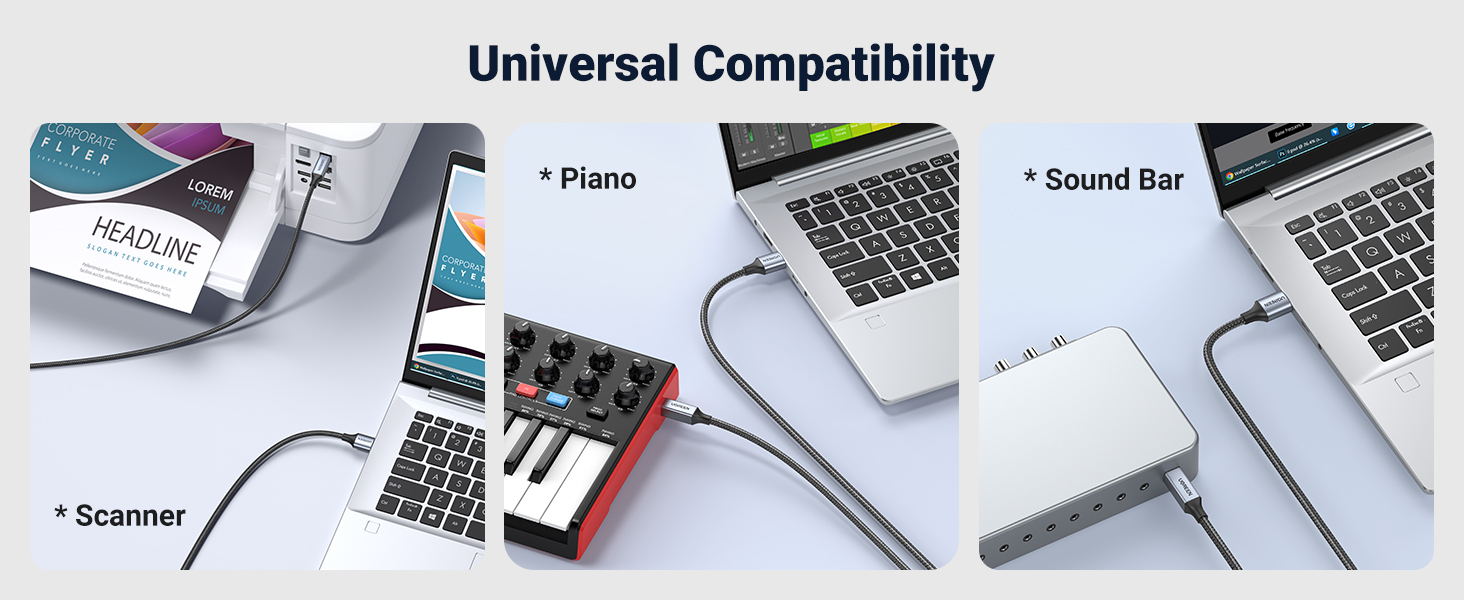
Image 5.2: Examples of UGREEN cable connections to a scanner, piano, and sound bar, highlighting universal compatibility.
Video 5.3: Official UGREEN video demonstrating the braided USB cable's compatibility.
6. Specifications
| Specification | Detail |
|---|---|
| Brand | UGREEN |
| Model Number | 80804 |
| Connector Type | USB Type-A to Type-B |
| Cable Type | USB Printer Cable |
| Data Transfer Rate | Up to 480 Mbps (USB 2.0) |
| Special Feature | Nylon Braided, Reinforced Joints, Aluminum Alloy Casing |
| Color | Grey |
| Length | 10 FT (3 meters) |
| Material | Nylon (Outer), Aluminum (Shell) |
| Voltage | 5 Volts |
| Item Weight | 1.83 ounces (52 grams) |

Image 6.1: Details of the UGREEN cable's durable construction, including nylon braiding and reinforced connectors.

Image 6.2: Illustration differentiating USB Type B 2.0 and Type B 3.0 connectors, emphasizing the correct interface for this cable.
7. Maintenance
To ensure the longevity and optimal performance of your UGREEN Printer Cable, follow these maintenance guidelines:
- Storage: When not in use, coil the cable loosely and secure it with a cable tie or the included Velcro strap. Avoid tight coiling or sharp bends to prevent internal wire damage.
- Cleaning: Gently wipe the cable and connectors with a dry, soft cloth to remove dust and debris. Avoid using liquid cleaners or abrasive materials.
- Handling: Always grasp the connector head when plugging or unplugging the cable, rather than pulling on the cable itself. This prevents strain on the cable joints.
- Environment: Store the cable in a cool, dry place away from direct sunlight, extreme temperatures, and moisture.
8. Troubleshooting
If you encounter issues with your UGREEN Printer Cable, consider the following troubleshooting steps:
- No Connection/Device Not Recognized:
- Ensure both ends of the cable are securely plugged into their respective ports.
- Try connecting the cable to a different USB port on your computer.
- Restart your computer and the connected device.
- Verify that the correct drivers for your peripheral device are installed on your computer.
- Test the cable with another compatible device or use a different USB cable to rule out cable malfunction.
- Slow Data Transfer:
- Ensure both your computer and the peripheral device support USB 2.0 for optimal speeds.
- Avoid connecting the cable through unpowered USB hubs, which can reduce performance.
- Close any unnecessary applications on your computer that might be consuming system resources.
- Intermittent Connection:
- Check for any physical damage to the cable or connectors.
- Ensure the cable is not bent or kinked excessively.
- Minimize electromagnetic interference by keeping the cable away from power cords or other electronic devices.

Image 8.1: Illustrates the stable connection provided by the UGREEN cable, contrasting it with potential instability of wireless connections for printing.
9. Warranty and Support
UGREEN products are designed for reliability and performance. For specific warranty details and customer support, please refer to the information provided with your product packaging or visit the official UGREEN website.
- Warranty Coverage: Typically includes an 18-month warranty.
- Customer Service: 24/7 customer service support is generally available.
Ask a question about this manual
Ask about setup, troubleshooting, compatibility, parts, safety, or missing instructions. Manuals+ will review the question and use this page’s manual context to help answer it.