
1. Introduction
The Washinglee 507 Control Cable is a specialized USB A to RJ12 (6P6C) adapter cable designed to facilitate direct communication between your computer (PC, ASIAIR PRO, Raspberry Pi) and compatible Meade telescope mounts. This cable enables firmware updates, telescope steering, and control via sky mapping software on your computer monitor. It features a built-in FTDI chip for reliable performance and requires no external power supply, transmitting only control signals.
This manual provides comprehensive instructions for setting up, operating, and maintaining your 507 Control Cable, along with troubleshooting tips and product specifications.
2. Product Overview

Figure 2.1: The Washinglee 507 Control Cable, featuring a USB-A connector on one end and an RJ12 (6P6C) connector on the other.
The 507 Control Cable is engineered for seamless integration with various Meade telescope mounts and operating systems. Its primary function is to establish a stable data connection for advanced telescope control and management.
Key Features:
- Built-in FTDI Chip: Ensures stable and reliable data communication.
- USB A to RJ12 (6P6C) Adapter: Standard connectors for broad compatibility.
- Control Signal Only: Does not require external power supply.
- Firmware Update Capability: Essential for updating Meade LX600/LX200/LX850 series mounts.
- Telescope Steering: Allows precise control of the telescope via computer software.
- Broad Compatibility: Supports various Meade mounts and operating systems.
Compatible Meade Mounts:
- LX600 Series
- LX200 Series (LX200, LX200 GPS, LX200 ACF, LX200 classic, LX200 GPS SMT)
- LX850 Series (LX850, LX850 ACF)
- Other computerized Meade mounts
Supported Operating Systems & Applications:
- Operating Systems: Windows (Win7/8/10/XP/11), iOS, Linux, Android.
- Applications: Autostar/Audiostar, Stellarium, Cartes Du Ciel, StarryNight Pro7, BackyardEOS, ASU, SkySafari, PHD2, StarPatch, and others.
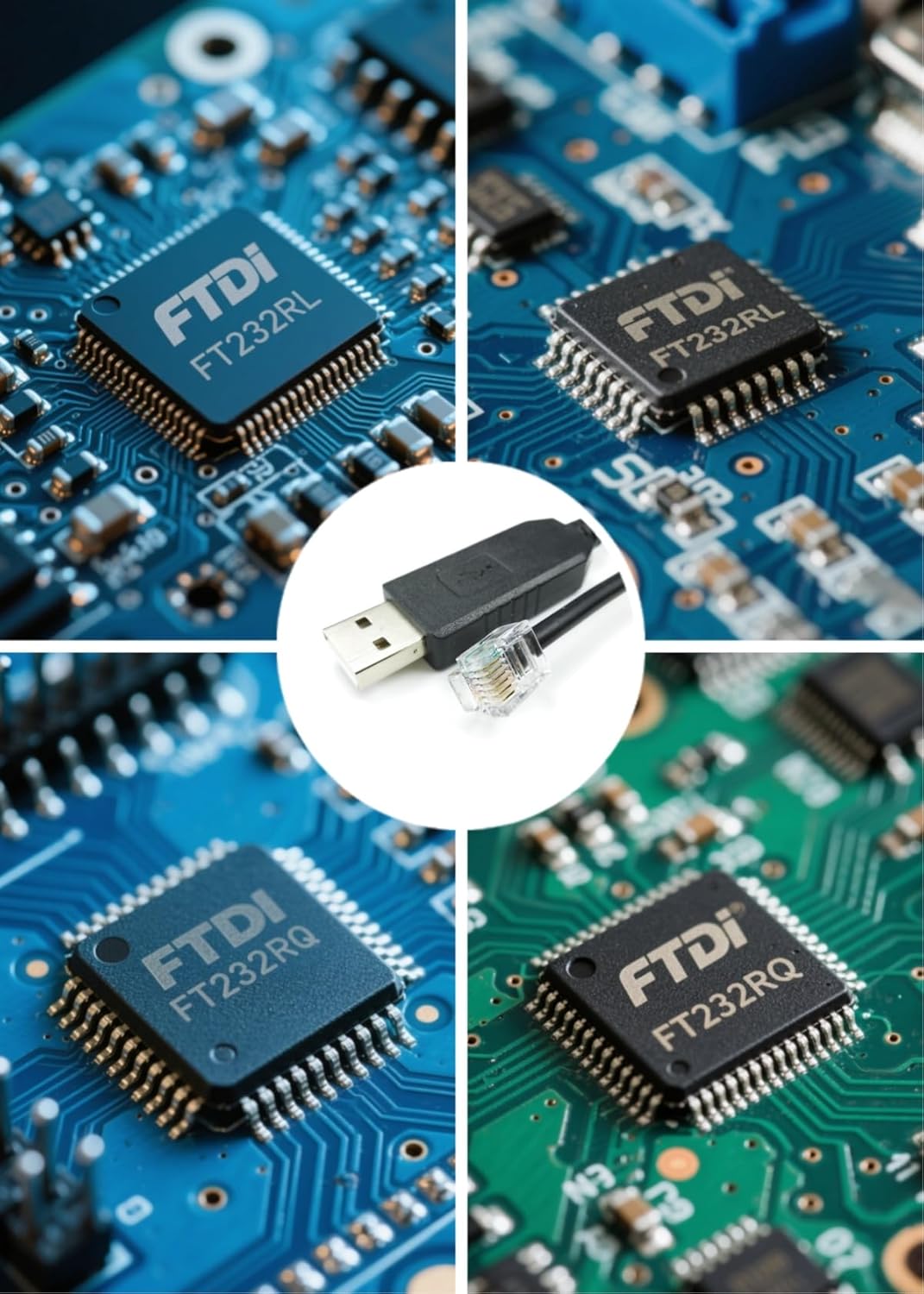
Figure 2.2: Close-up view of the FTDI chip, which is integrated into the cable for robust data transfer.
3. Setup and Connection
Connecting the Washinglee 507 Control Cable to your Meade telescope mount and computer is a straightforward process. Follow these steps to establish the connection.
3.1. Identify Connection Ports
Locate the appropriate ports on your Meade telescope mount and your computer.
- Computer: You will need a standard USB-A port.
- Meade Telescope Mount: The 507 cable connects to the HBX port (Handbox) on your Meade LX200, LX600, or LX850 series telescope. This port is typically an RJ12 (6P6C) jack.

Figure 3.1: The HBX port on a Meade LX200-ACF control panel, where the 507 cable connects.

Figure 3.2: A closer view of the "COMPUTER CONTROL" panel, showing the HBX port (circled in red) for cable connection.

Figure 3.3: The HBX port on a Meade LX850 Starlock control panel, indicating the connection point for the 507 cable.
3.2. Connect the Cable
- Insert the USB-A end of the 507 Control Cable into an available USB port on your computer.
- Insert the RJ12 (6P6C) end of the 507 Control Cable into the HBX port on your Meade telescope mount. Ensure it clicks securely into place.

Figure 3.4: A simplified diagram illustrating the connection flow from laptop to 507 cable to telescope.
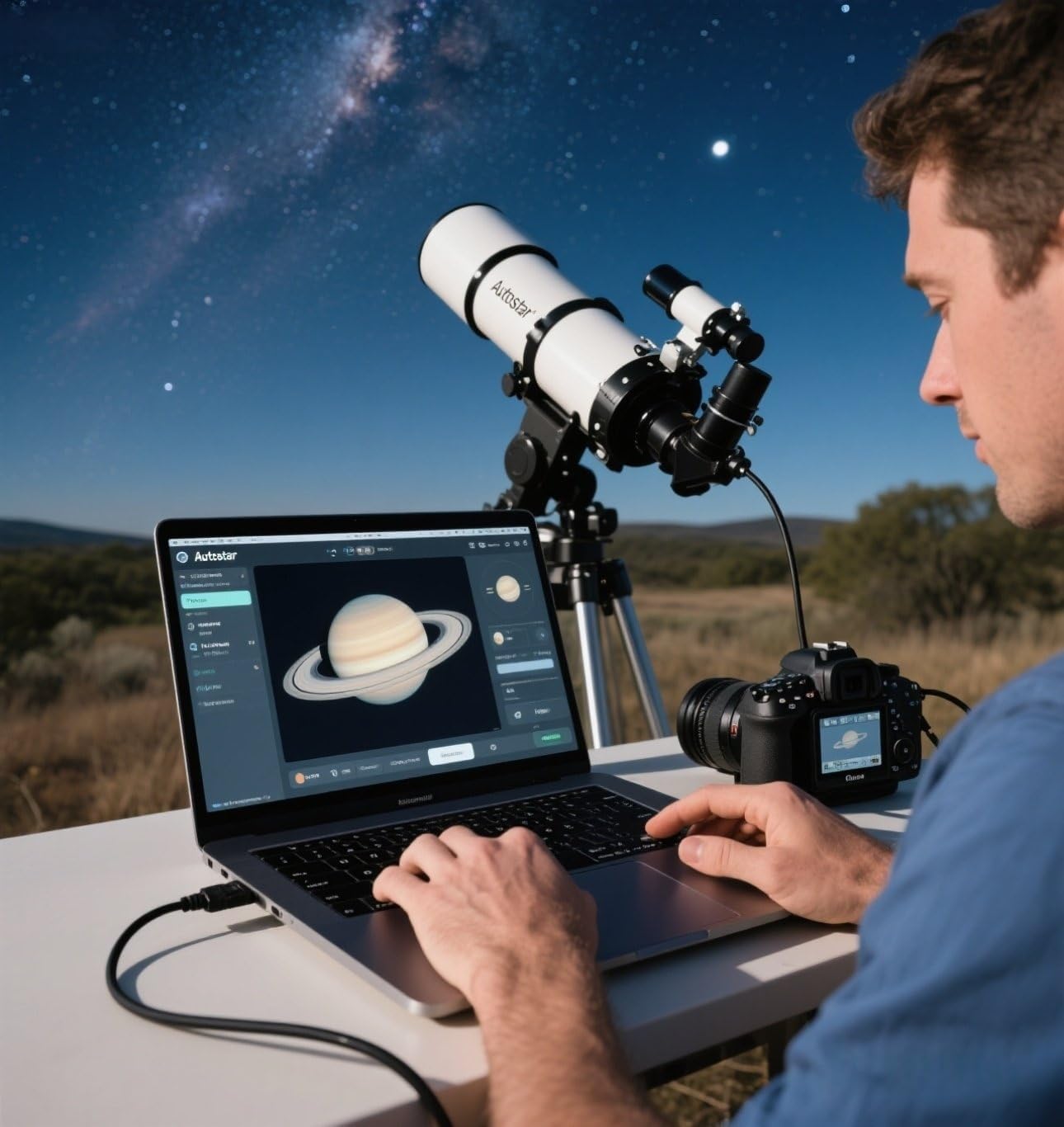
Figure 3.5: An example setup showing a user controlling a telescope via a laptop connected with a control cable.
4. Operating Instructions
Once the cable is physically connected, you will need to ensure your computer recognizes the cable and install any necessary drivers or software.
4.1. Driver Installation
The 507 Control Cable features a built-in FTDI chip, which often allows for plug-and-play functionality on modern operating systems. However, if the cable is not recognized automatically, you may need to manually install the driver.
- Automatic Recognition: On most Windows 10/11, macOS, and Linux systems, the driver should install automatically upon first connection.
- Manual Installation: If automatic installation fails, refer to the label on the cable's packaging for a QR code or link to download the latest FTDI drivers. Alternatively, contact Washinglee technical support for assistance.
- Verify Installation: After installation, check your computer's Device Manager (Windows) or System Information (macOS/Linux) to confirm the cable is recognized as a USB Serial Port (COM port).
4.2. Software Configuration
After successful driver installation, configure your astronomy software to communicate with your telescope via the newly recognized COM port.
- Open your preferred astronomy software (e.g., Autostar/Audiostar, Stellarium, SkySafari).
- Navigate to the telescope connection or setup settings within the software.
- Select the correct COM port corresponding to the 507 Control Cable.
- Set the baud rate, typically 9600 baud for Meade telescopes, as recommended by the software or telescope manufacturer.
- Initiate the connection. You should now be able to control your telescope from your computer.
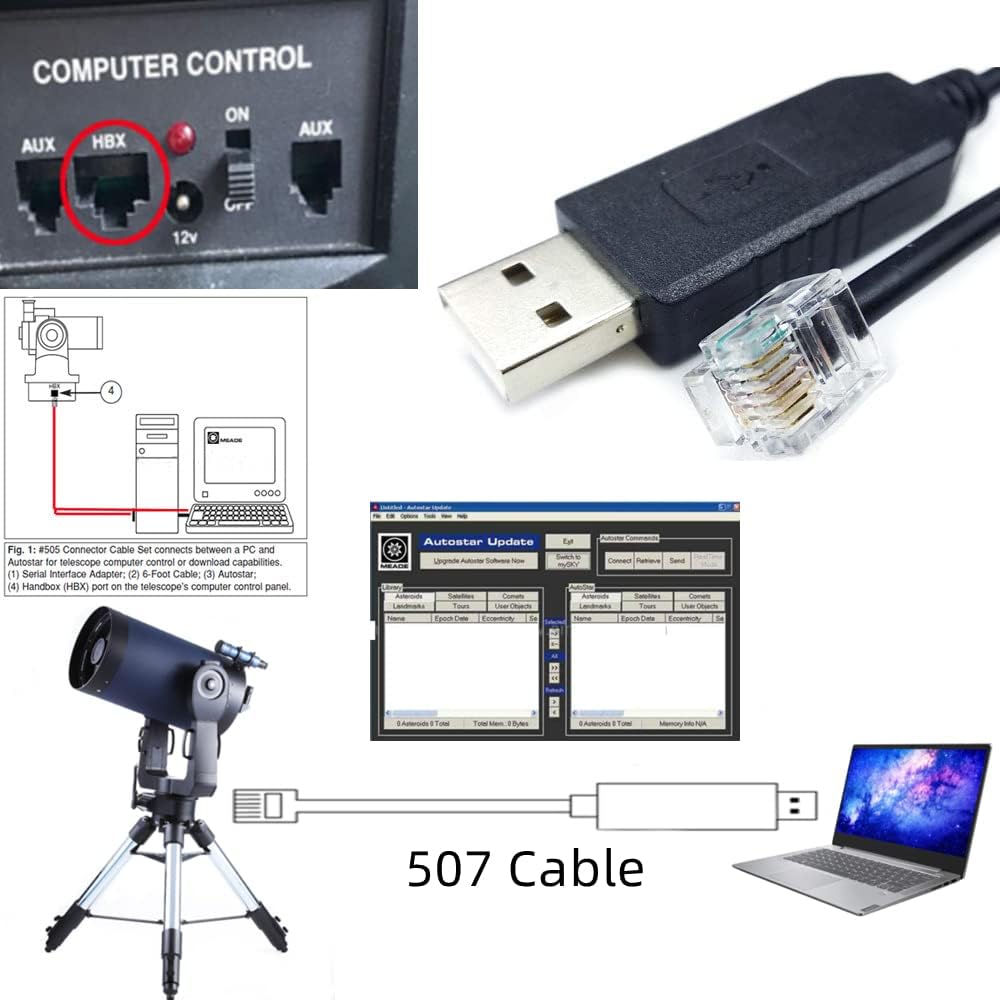
Figure 4.1: An illustrative diagram showing the complete setup, including the computer, 507 cable, telescope, and a typical software interface for control and updates.
5. Maintenance
Proper care and maintenance will extend the lifespan of your Washinglee 507 Control Cable.
- Storage: Store the cable in a cool, dry place away from direct sunlight and extreme temperatures.
- Handling: Avoid sharp bends or kinks in the cable, as this can damage the internal wires. Always grasp the connector ends when plugging or unplugging, not the cable itself.
- Cleaning: If necessary, gently wipe the cable with a soft, dry cloth. Do not use liquid cleaners or solvents.
- Protection: Keep the connectors free from dust and debris. Consider using dust caps if the cable is stored for extended periods.
6. Troubleshooting
If you encounter issues while using your 507 Control Cable, refer to the following common problems and solutions.
| Problem | Possible Cause | Solution |
|---|---|---|
| Cable not recognized by computer. | Missing or incorrect driver. | Manually install the FTDI driver from the provided link or contact support. Try a different USB port. |
| Telescope software cannot connect. | Incorrect COM port selected, incorrect baud rate, or telescope not powered on. | Verify the correct COM port in Device Manager. Set the baud rate to 9600 in your software. Ensure the telescope mount is powered on. |
| Intermittent connection. | Loose connection, damaged cable, or USB port issue. | Ensure both ends of the cable are securely connected. Try a different USB port on your computer. Inspect the cable for visible damage. |
| Firmware update fails. | Connection issue, incorrect software settings, or corrupted firmware file. | Ensure a stable connection. Double-check software settings (COM port, baud rate). Download the firmware file again from an official source. |
If these solutions do not resolve your issue, please contact Washinglee technical support for further assistance.
7. Specifications
| Feature | Detail |
|---|---|
| Brand | Washinglee |
| Model Number | 507 |
| Connector Type | USB Type A to RJ12 (6P6C) |
| Cable Type | USB Control Cable |
| Chipset | Built-in FTDI Chip |
| Function | Data Transfer (Control Signal Only) |
| Color | Black |
| Length | 6 FT / 1.8 M |
| Compatible Devices | Meade LX600, LX200, LX200 GPS, LX200 ACF, LX200 classic, LX850, LX850 ACF, LX 200 GPS SMT |
| Item Weight | 1.58 ounces (approx. 0.05 Kilograms) |
8. Warranty and Support
Washinglee stands behind the quality of its products.
8.1. Warranty Information
The Washinglee 507 Control Cable comes with a 1-year warranty from the date of purchase. This warranty covers manufacturing defects and ensures the product performs as described under normal use. Please retain your proof of purchase for warranty claims.
8.2. Technical Support
For technical assistance, driver downloads, or any questions regarding the 507 Control Cable, please refer to the following:
- Driver Download: A printed label on the cable's packaging provides information on where to download the necessary drivers.
- Email Support: User Manuals and Cable Drivers are typically sent via email through the Amazon platform. If you did not receive them, or for direct technical support, please contact Washinglee engineers via the email address provided on the product packaging or through the Amazon platform.