
Gotega External CD/DVD Drive USB-C & USB 3.0
Gotega External CD/DVD Drive User Manual
Model: USB-C & USB 3.0 External CD/DVD Drive
Introduction
This manual provides comprehensive instructions for the setup, operation, maintenance, and troubleshooting of your Gotega External CD/DVD Drive. This device is designed to provide reliable CD/DVD reading, writing, and burning capabilities for laptops, PCs, and Mac systems that lack an internal optical drive. Featuring high-speed USB 3.0 and USB-C connectivity, it offers broad compatibility and a portable, slim design.

Image: The Gotega External CD/DVD Drive, showcasing its sleek, compact design and integrated USB cable.
Package Contents
- Gotega External CD/DVD Drive
Setup
The Gotega External CD/DVD Drive is designed for plug-and-play operation, requiring no external drivers or power supply for most systems.
-
Connect to your Computer: Locate an available USB 3.0 or USB-C port on your laptop or desktop computer.

Image: The external CD/DVD drive connected to a laptop via its integrated USB cable.
-
Plug In the USB Cable: Insert the integrated USB cable (which includes both USB 3.0 Type-A and USB-C connectors) into the appropriate port on your computer.
The device will be automatically detected by your operating system (Windows, macOS, Linux). No additional software installation is typically required.

Image: Illustration demonstrating the plug-and-play nature of the drive, showing it connected to a laptop.
- Power Indicator: A small indicator light on the drive will illuminate, confirming it has received power and is ready for use.
Note: For some older or low-power USB ports, an additional USB power cable (not included) might be necessary to ensure stable operation, though this is rare with modern USB 3.0/USB-C ports.
Operating Instructions
This section details how to use your Gotega External CD/DVD Drive for various functions.
Inserting and Ejecting Discs
-
To Open the Disc Tray: Press the eject button located on the front or side of the drive. The disc tray will partially open. Gently pull the tray out completely.

Image: The external CD/DVD drive with its disc tray extended, showing a disc placed inside.
- To Insert a Disc: Place the CD or DVD onto the tray with the label side facing up, ensuring it sits securely on the center spindle.
- To Close the Disc Tray: Gently push the tray back into the drive until it clicks shut. Do not force it.
- To Eject a Disc: Press the eject button again, or use the eject function within your computer's operating system (e.g., right-click on the drive icon and select "Eject").
Reading Discs (CD/DVD Playback)
Once a disc is inserted, your computer's operating system should recognize it. You can then:
- Play Movies/Music: Use your preferred media player software (e.g., VLC Media Player, Windows Media Player, QuickTime) to play DVD movies or audio CDs.
- Access Data Discs: Open "This PC" (Windows) or "Finder" (macOS) and navigate to the CD/DVD drive icon to browse files on data discs.

Image: A graphic illustrating various uses of the drive, including watching movies, enjoying music, burning CDs/DVDs, copying files, and installing programs.
Writing/Burning Discs (CD-R/RW, DVD-R/RW)
To burn data to a blank CD-R/RW or DVD-R/RW, you will need disc burning software (e.g., Windows built-in burning utility, Nero, Roxio, or free alternatives).
- Insert a Blank Disc: Place a blank recordable CD or DVD into the drive tray.
- Launch Burning Software: Open your preferred disc burning application.
- Select Files: Follow the software's instructions to select the files or folders you wish to burn to the disc.
- Start Burning: Initiate the burning process. Do not interrupt the drive during burning to prevent disc corruption.
The drive supports high-speed data transmission for efficient burning:
- CD Read/Write Speed: Up to 24X
- DVD Read/Write Speed: Up to 8X

Image: A visual representation of the USB 3.0 and Type-C high-speed transmission capabilities, highlighting read/write speeds for CD and DVD.
Compatibility
The Gotega External CD/DVD Drive offers wide compatibility with various operating systems and devices.
- Operating Systems: Windows 98/SE/ME/2000/XP/Vista/7/8/10, Linux OS, Apple Mac OS (including macOS Mojave and newer).
- Devices: Laptops, Desktop PCs, MacBook, iMac.
- Interfaces: USB 3.0, USB 2.0, USB 1.0, USB-C.

Image: A diagram illustrating the wide compatibility of the drive with various operating systems (Windows, Mac, Linux) and devices (laptops, desktops, MacBooks, iMacs).
Maintenance
Proper care and maintenance will extend the lifespan of your external CD/DVD drive.
- Keep Clean: Regularly wipe the exterior with a soft, dry cloth. Avoid using liquid cleaners or abrasive materials.
- Protect the Lens: Do not touch the optical lens inside the disc tray. If cleaning is necessary, use a specialized CD/DVD lens cleaning kit.
- Handle Discs Carefully: Always hold discs by their edges. Ensure discs are clean and free of scratches or smudges before inserting them into the drive.
-
Store Properly: When not in use, store the drive in a clean, dry place away from direct sunlight, extreme temperatures, and dust. The integrated cable design allows for neat storage.
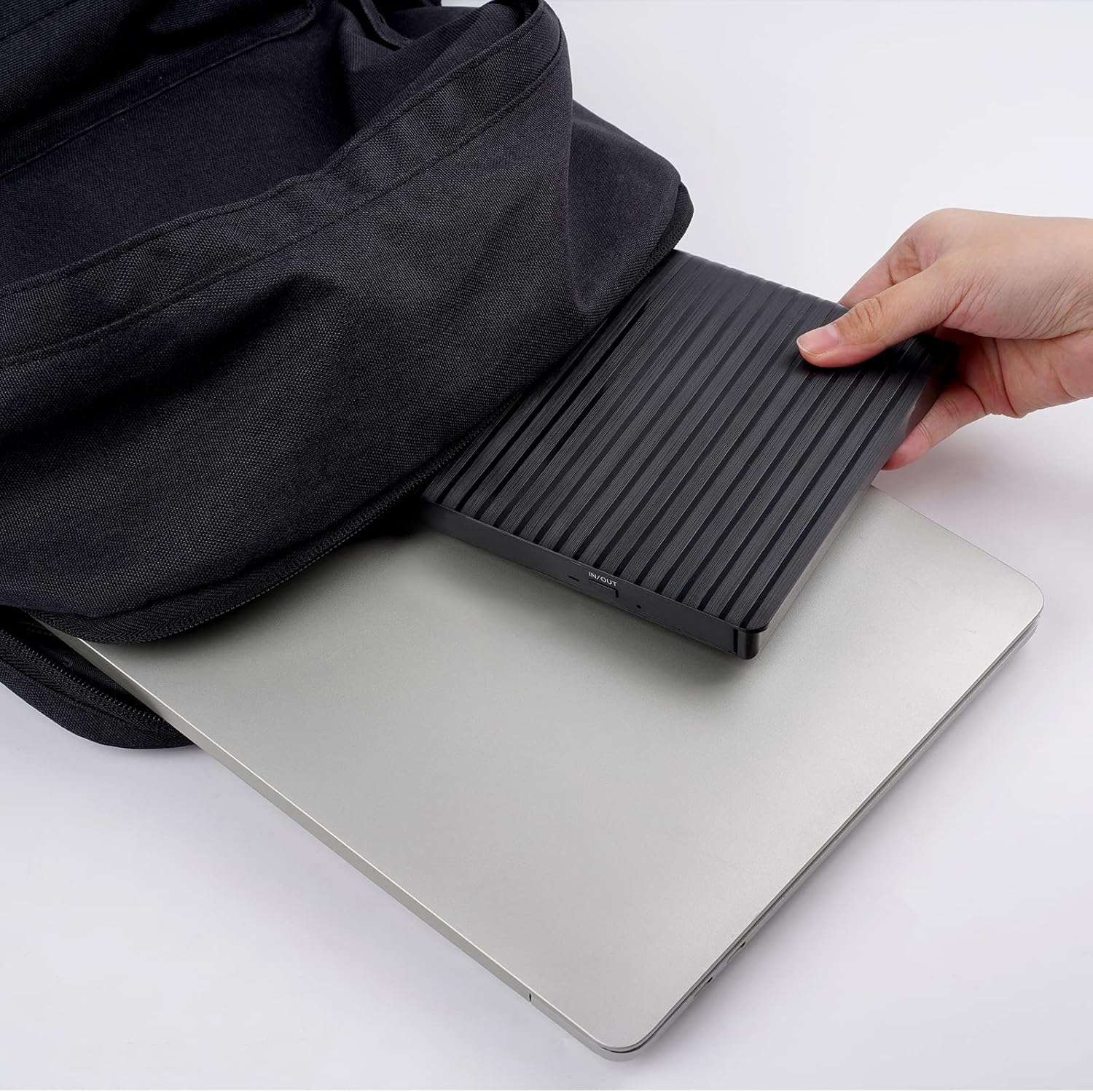
Image: The slim Gotega CD/DVD drive being easily slipped into a laptop bag, demonstrating its portability and compact size.
- Avoid Impact: Do not drop or subject the drive to strong impacts, as this can damage internal components.
Troubleshooting
If you encounter issues with your Gotega External CD/DVD Drive, refer to the following common problems and solutions:
| Problem | Possible Cause | Solution |
|---|---|---|
| Drive not recognized by computer. |
|
|
| Disc tray does not open or close. |
|
|
| Disc not reading or burning correctly. |
|
|
| Slow data transfer speed. |
|
|
Specifications
| Feature | Detail |
|---|---|
| Brand | Gotega |
| Model | External CD/DVD Drive USB-C & USB 3.0 |
| Interface | USB 3.0 Type-A, USB Type-C (backward compatible with USB 2.0/1.0) |
| Supported Disc Formats | CD-ROM, CD-R, CD-RW, DVD-ROM, DVD-R, DVD-RW, DVD+R, DVD+RW, DVD-RAM |
| Read Speed (Max) | CD: 24X, DVD: 8X |
| Write Speed (Max) | CD-R: 24X, CD-RW: 16X, DVD-R: 8X, DVD+R: 8X, DVD-RW: 6X, DVD+RW: 8X, DVD-RAM: 5X |
| Operating System Compatibility | Windows 98/SE/ME/2000/XP/Vista/7/8/10, Linux OS, Apple Mac OS |
| Dimensions (LxWxH) | Approximately 6 x 6 x 1 inches (15.24 x 15.24 x 2.54 cm) |
| Weight | Approximately 13.4 ounces (380 grams) |
| Color | Black |
Warranty and Support
Gotega is committed to providing high-quality products and excellent customer service. For any issues or inquiries regarding your External CD/DVD Drive, please contact Gotega customer support.
- Warranty Information: Please refer to the product packaging or the official Gotega website for specific warranty terms and conditions.
- Customer Support: For technical assistance, troubleshooting, or general inquiries, please visit the Gotega Store on Amazon or contact their support channels as listed on their official website.

Image: A customer service representative, symbolizing Gotega's commitment to support.
Related documentsExternal CD/DVD Drive USB-C & USB 3.0

Ask a question about this manual
Ask about setup, troubleshooting, compatibility, parts, safety, or missing instructions. Manuals+ will review the question and use this page’s manual context to help answer it.