
1. Introduction
This manual provides instructions for the proper use and maintenance of your Phomemo M02 Mini Bluetooth Thermal Photo Printer. Please read this manual thoroughly before operating the device to ensure optimal performance and longevity.
2. Package Contents
Verify that all items are present in your package:
- Phomemo M02 Mini Printer
- USB Charging Cable
- Thermal Printing Paper (rolls)
- User Manual (this document)
- Packing Box
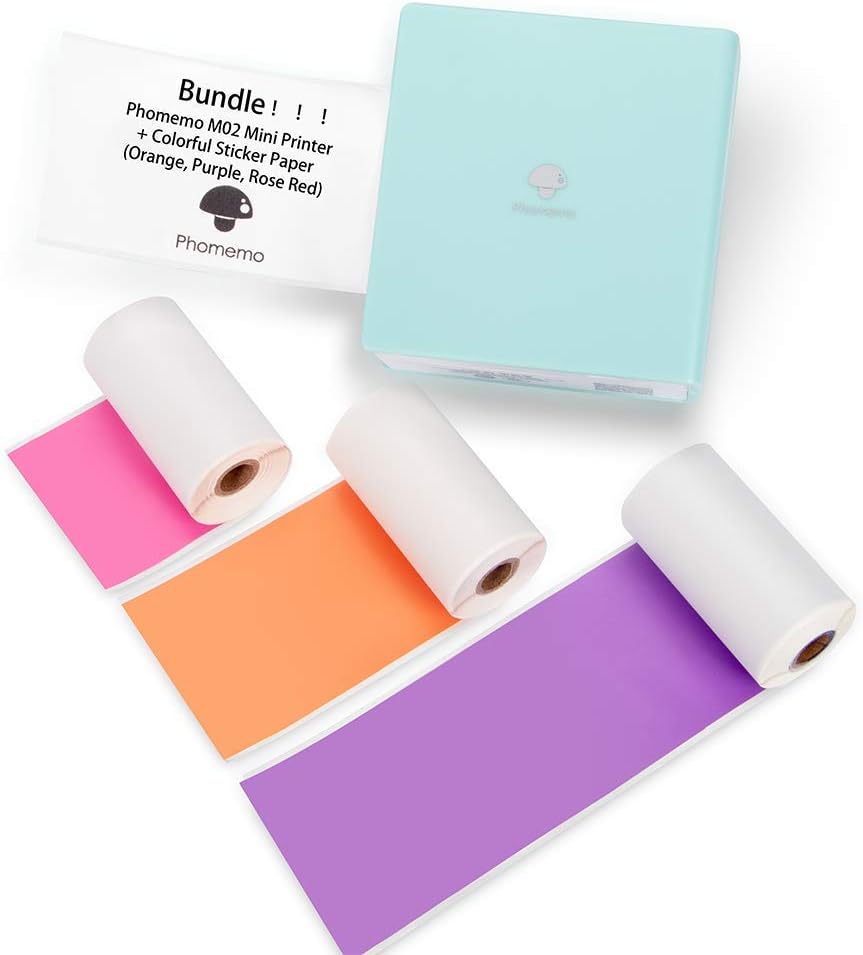
Image: The Phomemo M02 Mini Printer in light blue, shown with three rolls of colorful thermal sticker paper (orange, purple, and pink).
3. Setup
3.1 Charging the Printer
Before first use, fully charge the printer using the provided USB cable. Connect the USB cable to the printer's charging port and a standard USB power adapter (not included). The indicator light will show charging status.
3.2 Loading Thermal Paper
- Open the printer cover by sliding the latch or pressing the release button.
- Insert a roll of thermal paper into the paper compartment, ensuring the printing side faces the print head.
- Pull a small amount of paper out beyond the print head.
- Close the printer cover securely.

Image: Three rolls of Phomemo thermal paper, one orange, one purple, and one pink, with a measurement indicating a width of 53mm.
3.3 App Installation and Bluetooth Pairing
- Download the Phomemo APP from the App Store (for iOS devices) or Google Play (for Android devices).
- Ensure Bluetooth is enabled on your mobile device.
- Open the Phomemo APP.
- Turn on the Phomemo M02 printer.
- Within the app, search for and connect to your M02 printer via Bluetooth. The app will guide you through the pairing process.

Image: A Phomemo M02 Mini Printer next to a smartphone displaying the Phomemo app interface, with icons for Notes, Scan, Print Images, Templates, Micro Print, and Toolbox. Instructions for downloading from App Store and Google Play are also visible.
4. Operating Instructions
4.1 Basic Printing
Once connected to the Phomemo APP, you can print various content:
- Text Printing: Use the 'Notes' or 'Micro Print' features to input text and print.
- Photo Printing: Select 'Print Images' to choose photos from your device's gallery. The app allows for basic editing and filter application before printing.

Image: A Phomemo M02 Mini Printer printing a black and white photo, which is then being pasted into a journal. A hand is writing 'Puppy Love' next to the photo.

Image: A Phomemo M02 Mini Printer printing a list of words, demonstrating text printing capability. Also shown are small printed labels with words like 'observe' and 'accountant'.
4.2 Using App Features
The Phomemo APP offers several features to enhance your printing experience:
- Templates: Access pre-designed templates for various uses like lists, labels, and decorative frames.
- Graphic Printing: Print various graphics and illustrations available within the app.
- Print from Web: Print content directly from web pages.
- Banner Print: Create and print extended banners.

Image: A collage of smartphone screens demonstrating various functions of the Phomemo M02 app, including Photo Printing, Do do List, Scan, Graphic Printing, Print from Web, and Banner Print.
5. Maintenance
5.1 Cleaning the Print Head
To maintain print quality, periodically clean the print head. Use a cotton swab lightly dampened with isopropyl alcohol to gently wipe the print head. Ensure the printer is off and dry before use.
5.2 Battery Care
To prolong battery life, avoid fully discharging the printer frequently. Charge the printer regularly, even if not in use for extended periods.
5.3 Paper Storage
Store thermal paper in a cool, dry place away from direct sunlight and heat to prevent premature fading or damage to the paper's thermal coating.
6. Troubleshooting
- Printer not connecting via Bluetooth: Ensure the printer is turned on and within range. Restart both the printer and your mobile device. Verify Bluetooth is enabled on your device and try re-pairing through the Phomemo APP.
- Poor print quality: Check if the thermal paper is loaded correctly with the printing side facing the print head. Clean the print head as described in Section 5.1. Ensure the paper is not old or damaged.
- Paper jam: Turn off the printer, open the cover, and carefully remove any jammed paper. Ensure the paper roll is properly seated and not too tight.
- Printer not turning on: Ensure the printer is charged. Connect it to a power source and check if the charging indicator light appears.
7. Specifications
| Feature | Specification |
|---|---|
| Brand | Phomemo |
| Model Name | M02 Mini |
| Printing Technology | Thermal |
| Connectivity Technology | Bluetooth, USB |
| Printer Output | Monochrome |
| Maximum Black and White Print Resolution | 203 dpi |
| Maximum Media Size | 53mm x 30mm |
| Compatible Devices | Smartphones (iOS 8.0+, Android 4.0+) |
| Control Method | App |
| Battery | Built-in 1000mAh |
8. Warranty and Support
The Phomemo M02 Mini Printer comes with a limited warranty. For detailed warranty information and customer support, please refer to the warranty card included in your package or visit the official Phomemo website. For technical assistance, please contact Phomemo customer service.


