1. Introduction
This manual provides detailed instructions for the Eagletec KG010 Mechanical Keyboard. It covers product features, setup procedures, operating instructions, maintenance guidelines, and troubleshooting tips to ensure optimal use and longevity of your device. Please read this manual thoroughly before using the keyboard.
2. Product Features
- White LED Backlighting with 9 distinct backlight and brightness modes.
- Durable construction featuring Aircraft-Grade Aluminum and ABS materials.
- Equipped with dust-proof tactile brown mechanical switches, offering a balance between typing and gaming with quieter keystrokes.
- Compact, space-saving design with a full 104-key layout, including a full-sized numeric keypad.
- All 104 keys feature 100% conflict-free, anti-ghosting functionality for precise input.
- Includes 11 dedicated multimedia keys for convenient control.
- The Windows (WIN) key can be disabled to prevent accidental interruptions during use.
- WASD and arrow keys are interchangeable for user preference.
- Keycaps are engineered for clear lettering that resists wear.
- Compatible with Windows 10, Windows 8, Windows 7, Windows Vista, and Windows XP.
3. Package Contents
Upon opening the package, please verify that all the following items are included:
- Eagletec KG010 Mechanical Keyboard (Black Version)
- User Guide (this document)
- Warranty Card
4. Setup
- Unpack the Eagletec KG010 Mechanical Keyboard from its packaging.
- Connect the USB cable of the keyboard to an available USB port on your computer.
- The operating system will automatically detect and install the necessary drivers. This process may take a few moments.
- Once the drivers are installed, the keyboard is ready for use.
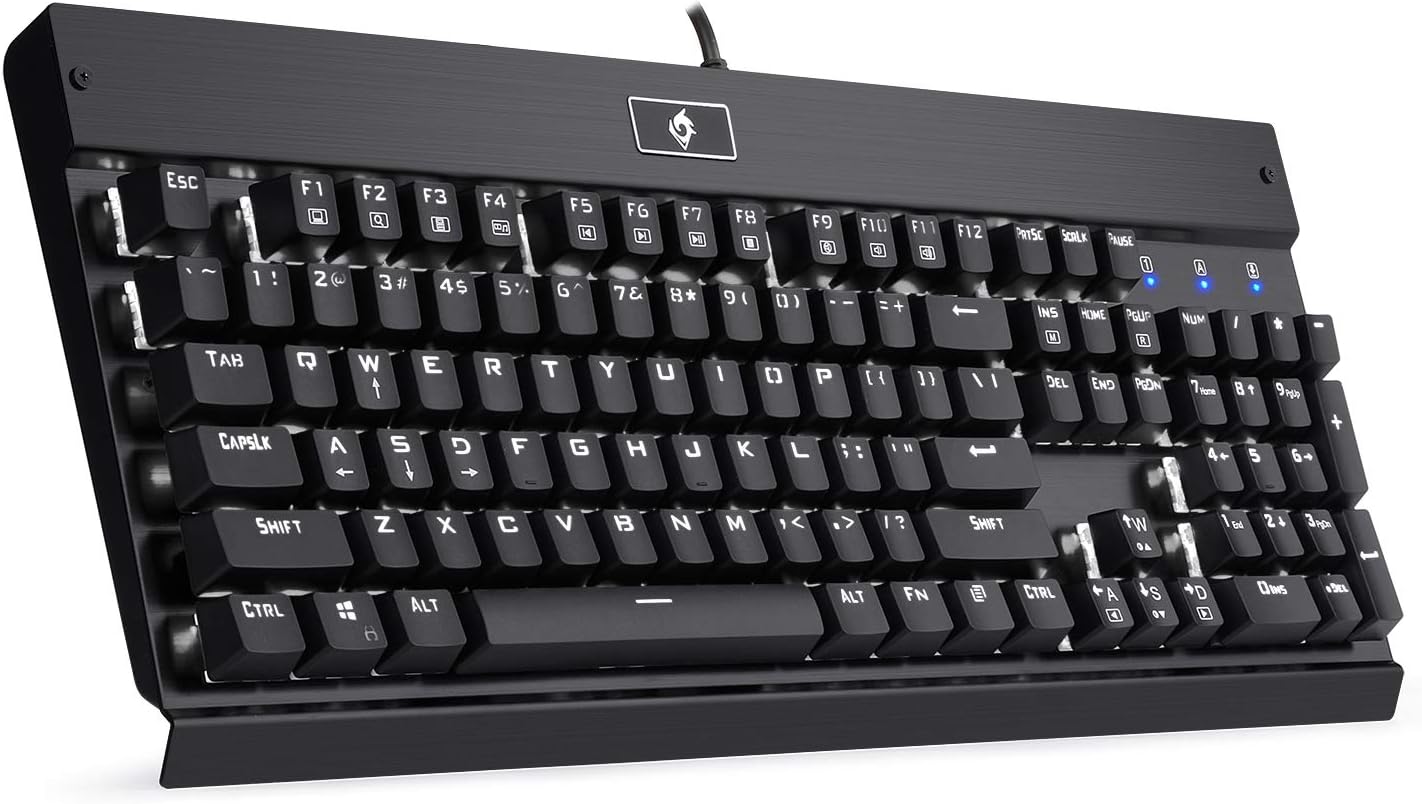
Figure 4.1: Angled view of the Eagletec KG010 Mechanical Keyboard, showcasing its full layout and design.
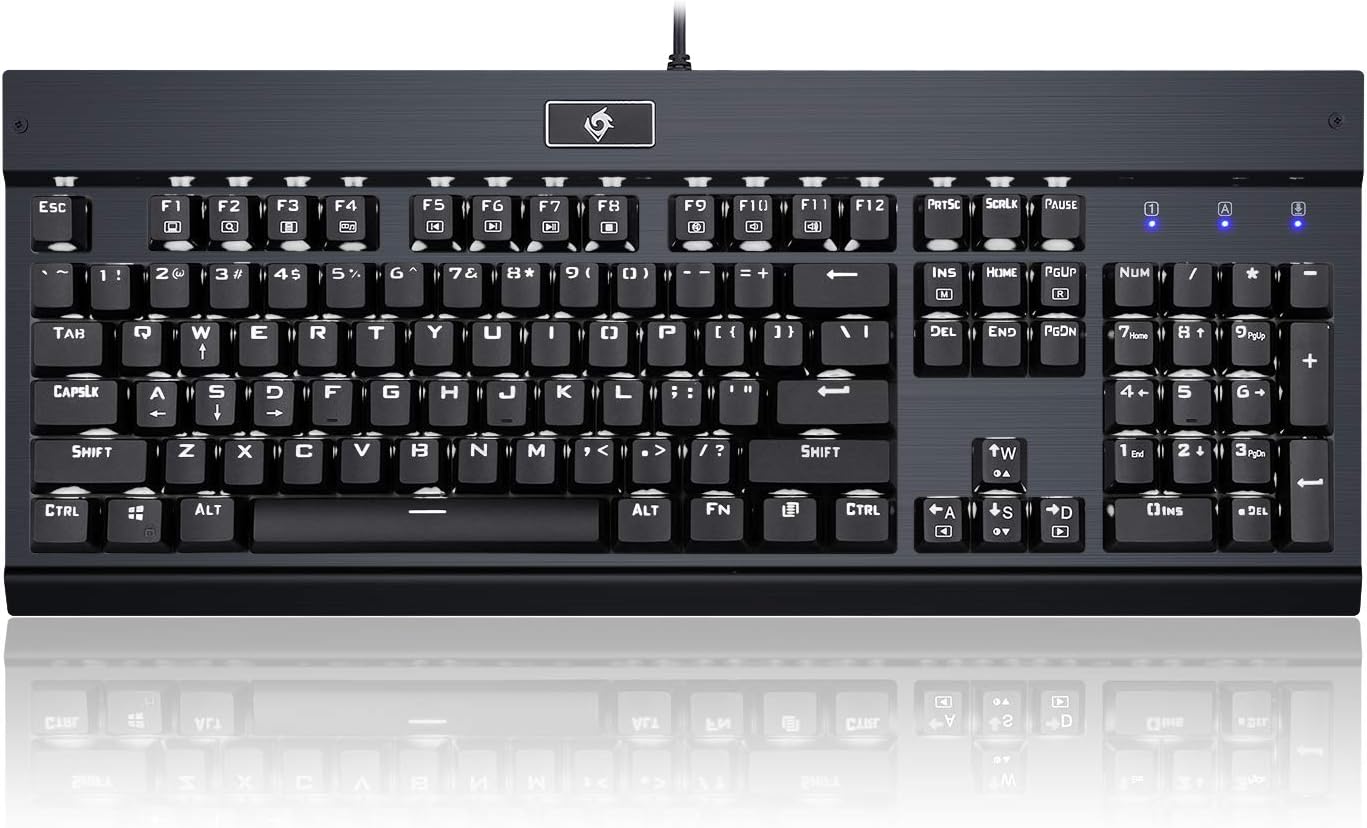
Figure 4.2: Top-down view of the Eagletec KG010 Mechanical Keyboard, highlighting the key arrangement and status indicators.
5. Operating Instructions
5.1 Backlight Modes and Brightness
The Eagletec KG010 keyboard features white LED backlighting with multiple modes and brightness levels. Use the following key combinations to adjust the backlighting:
- Fn + INS: Cycle through 9 different backlight modes.
- Fn + ↑ (Up Arrow): Increase backlight brightness.
- Fn + ↓ (Down Arrow): Decrease backlight brightness.
5.2 Multimedia Keys
Access multimedia functions by pressing the Fn key in combination with the F1-F12 keys:
- Fn + F1: My Computer
- Fn + F2: Search
- Fn + F3: Calculator
- Fn + F4: Media Player
- Fn + F5: Previous Track
- Fn + F6: Next Track
- Fn + F7: Play/Pause
- Fn + F8: Stop
- Fn + F9: Mute
- Fn + F10: Volume Down
- Fn + F11: Volume Up
- Fn + F12: Lock Keyboard
5.3 WIN Key Lock
To prevent accidental presses of the Windows key during intensive tasks, you can disable it:
- Press Fn + WIN to lock or unlock the Windows key. An indicator light may illuminate when the WIN key is locked.
5.4 WASD and Arrow Key Interchange
For users who prefer to swap the functionality of the WASD keys with the arrow keys:
- Press Fn + W to interchange the WASD keys with the arrow keys. Repeat the combination to revert to the default setting.
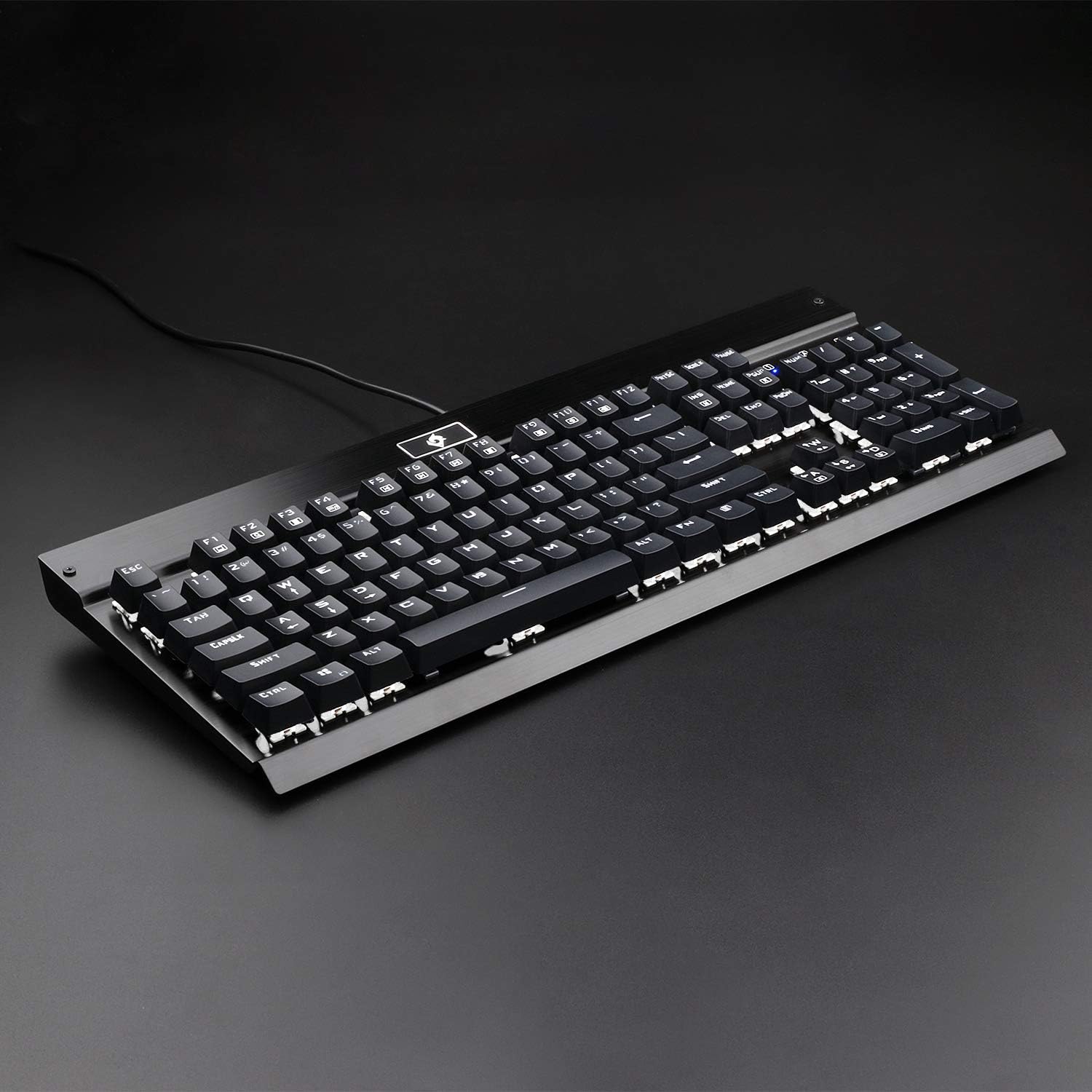
Figure 5.1: Side view of the Eagletec KG010 Mechanical Keyboard, illustrating its ergonomic profile and keycap height.
6. Maintenance
Proper maintenance ensures the longevity and performance of your keyboard.
- Cleaning: Use a soft, dry cloth to wipe the surface of the keyboard. For dust and debris between keys, use compressed air. Avoid using harsh chemicals or abrasive materials.
- Keycap Removal: If necessary, keycaps can be carefully removed for deeper cleaning using a keycap puller (not included). Exercise caution to avoid damaging the switches.
- Spill Prevention: While the keyboard has a spill-proof design, it is recommended to avoid liquid exposure to prevent potential damage. In case of a spill, immediately disconnect the keyboard and allow it to dry completely before reconnecting.
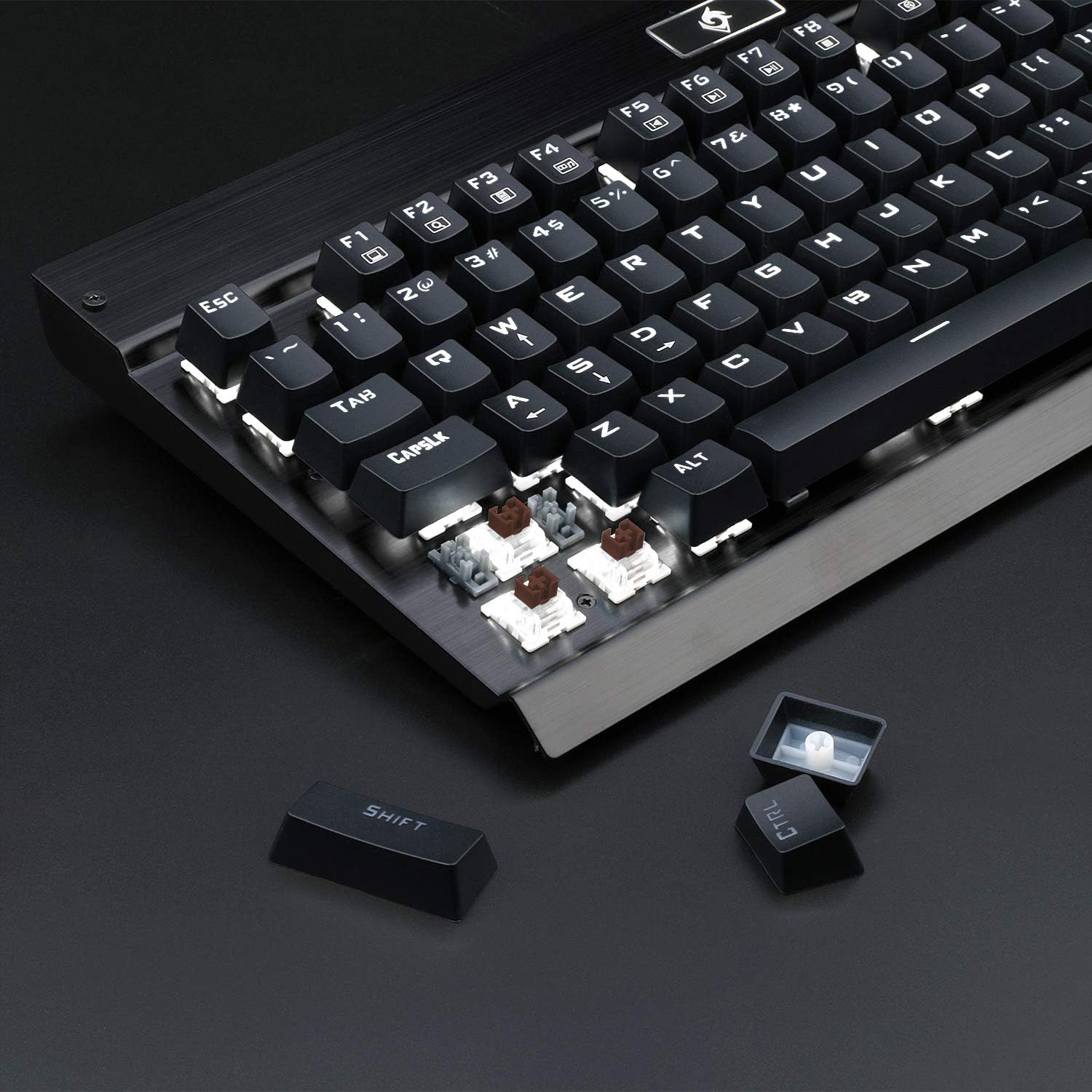
Figure 6.1: Close-up view of the Eagletec KG010 Mechanical Keyboard with several keycaps removed, revealing the brown mechanical switches and the white LED backlighting.

Figure 6.2: Detailed close-up of the brown mechanical switches used in the Eagletec KG010 keyboard, showing their construction.
7. Troubleshooting
If you encounter issues with your Eagletec KG010 Mechanical Keyboard, refer to the following common solutions:
- Keyboard Not Responding:
- Ensure the USB cable is securely connected to both the keyboard and the computer.
- Try connecting the keyboard to a different USB port on your computer.
- Test the keyboard on another computer to determine if the issue is with the keyboard or the computer.
- Backlight Not Working:
- Ensure the backlight is not set to the lowest brightness level (Fn + ↓).
- Cycle through backlight modes using Fn + INS to see if it reactivates.
- Keys Not Registering or Double-Typing:
- This can sometimes be caused by dust or debris under the keycap. Carefully remove the affected keycap and clean the switch area with compressed air.
- Ensure the keyboard is connected directly to the computer and not through a USB hub, which can sometimes cause power or signal issues.
- Windows Key is Locked:
- Press Fn + WIN to unlock the Windows key.
If these steps do not resolve the issue, please refer to the Warranty and Support section.
8. Specifications
| Feature | Specification |
|---|---|
| Brand | EagleTec |
| Model | KG010 |
| Connectivity | Wired (USB) |
| Switch Type | Dust Proof Tactile Brown Mechanical Switches |
| Key Count | 104 Keys (Full Size with Numpad) |
| Backlighting | White LED, Single Color, 9 Modes |
| Anti-Ghosting | All 104 keys, N-Key Rollover |
| Multimedia Keys | 11 (Fn + F1-F12) |
| Construction Material | Aircraft-Grade Aluminum, ABS |
| Operating System Compatibility | Windows 10, 8, 7, Vista, XP (Limited Mac OS support) |
| Product Dimensions | 44.7 x 17.8 x 3.5 cm (17.6 x 7.0 x 1.4 inches) |
| Weight | 1.03 kg (36.5 oz) |
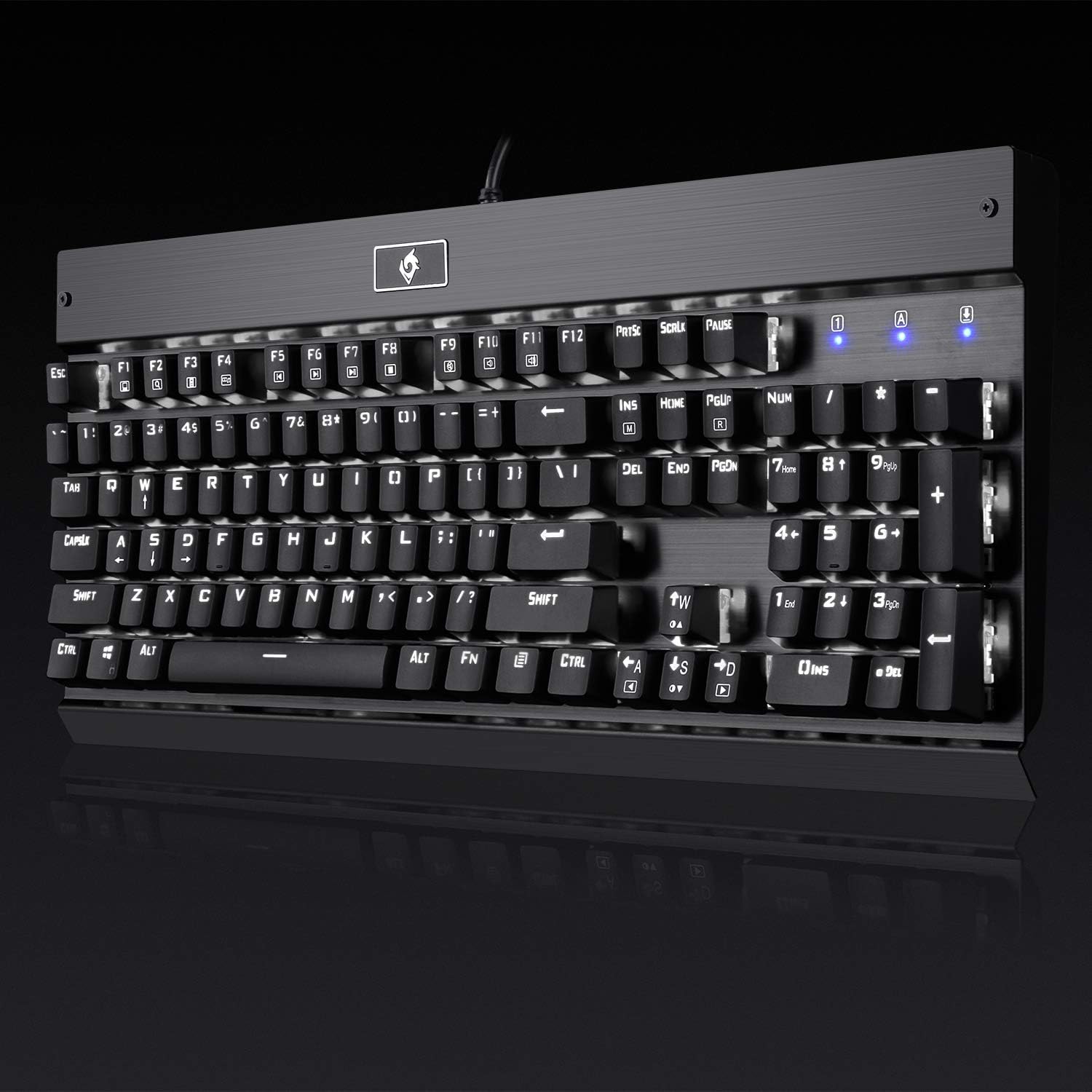
Figure 8.1: Front view of the Eagletec KG010 Mechanical Keyboard, displaying the full key layout and design.
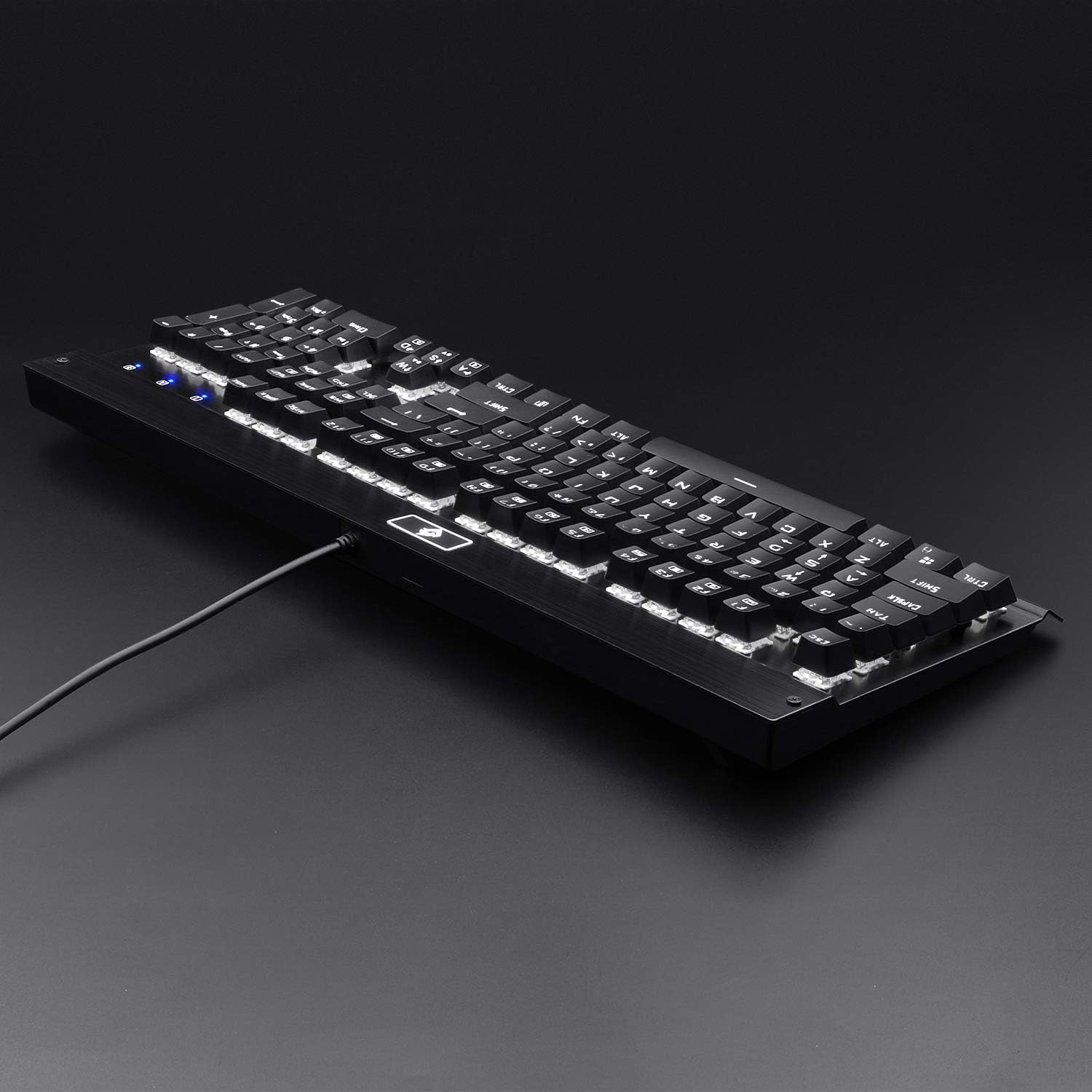
Figure 8.2: Rear angled view of the Eagletec KG010 Mechanical Keyboard, showing the integrated USB cable.
9. Warranty and Support
The Eagletec KG010 Mechanical Keyboard includes a warranty card in the package. Please refer to this card for specific warranty terms and conditions, including coverage duration and claim procedures.
For technical support, product inquiries, or warranty claims, please contact Eagletec customer service through their official channels. Contact information is typically provided on the warranty card or the manufacturer's website.