
1. Introduction
This manual provides essential information for setting up, operating, and maintaining your Toshiba 43LF421U21 43-inch Smart HD 1080p TV with built-in Fire TV. Please read this manual thoroughly before using your television to ensure proper and safe operation. Keep this manual for future reference.
2. What's in the Box
Verify that all components are present before proceeding with the setup:
- Toshiba 43LF421U21 43-inch Smart HD 1080p TV
- Voice Remote with Alexa (includes 2 AAA batteries)
- TV Stand (2 pieces)
- Power Cord
- Quick Setup Guide (this document)

Figure 2.1: Front view of the Toshiba 43LF421U21 TV, showcasing the integrated Fire TV experience with a home screen displaying various streaming services and content options.
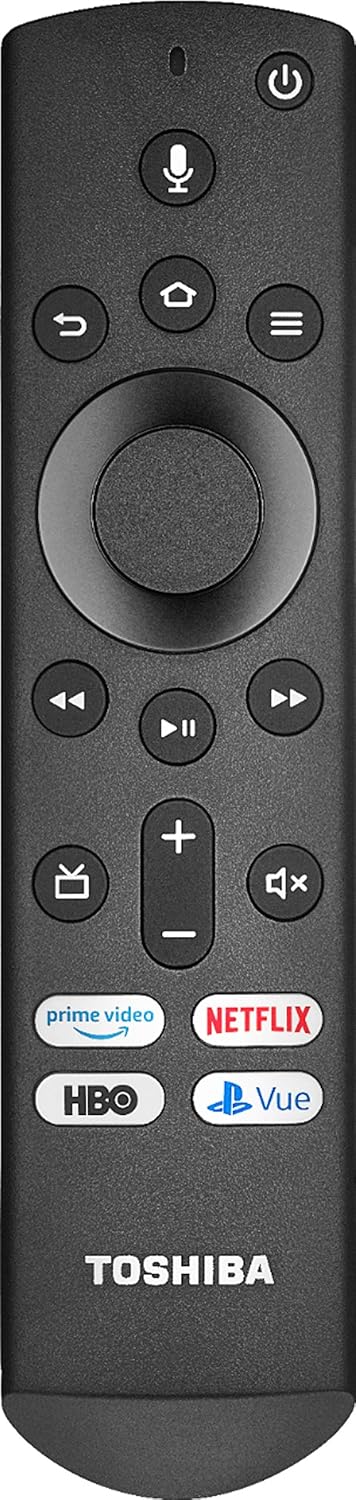
Figure 2.2: The included Voice Remote with Alexa, featuring dedicated buttons for popular streaming services like Prime Video, Netflix, and HBO.
3. Setup Guide
3.1 Attaching the TV Stand
- Carefully place the TV face down on a soft, clean surface to prevent screen damage.
- Align each stand piece with the corresponding screw holes on the bottom of the TV.
- Secure the stands using the provided screws. Ensure they are tightened firmly.
3.2 Connecting Your TV
Your Toshiba Fire TV is designed for simple setup. Just plug it in, connect to Wi-Fi, and enjoy.
- Power Connection: Plug the power cord into the TV's power input and then into a wall outlet.
- Antenna/Cable Connection: For live over-the-air TV, connect an HD antenna (sold separately) to the "ANT/CABLE IN" port.
- External Devices: Connect your cable/satellite box, gaming console, or other devices using the HDMI inputs. The TV features three HDMI inputs.
- Network Connection: Connect to your home Wi-Fi network during the initial setup process. For a wired connection, use an Ethernet cable to the LAN port.

Figure 3.1: Side profile of the TV, illustrating its slim design and the location of some input ports.

Figure 3.2: Detailed view of the side input panel, highlighting the HDMI, USB, and Digital Audio Out ports for connecting various devices.

Figure 3.3: Detailed view of the rear input panel, showing the LAN port for wired internet, AV In for older devices, and the Antenna/Cable In port.
3.3 Initial Setup and Fire TV Experience
- Turn on the TV using the power button on the remote.
- Follow the on-screen instructions to select your language, connect to Wi-Fi, and sign in to your Amazon account.
- The Fire TV experience will guide you through setting up live TV channels (if an antenna is connected) and installing your favorite streaming apps.
4. Operating Your Toshiba Fire TV
4.1 Navigating the Fire TV Interface
The Fire TV home screen integrates live over-the-air TV and your streaming content. You can easily access movies, TV shows, apps, and settings from this central hub.
- Use the directional pad on your Voice Remote to navigate through menus and content.
- Press the Home button to return to the Fire TV home screen at any time.
- The Back button allows you to go back to the previous screen.
4.2 Using the Voice Remote with Alexa
The Voice Remote with Alexa allows for intuitive control using voice commands.
- Press and hold the Microphone button and speak your command. You can launch apps, search for titles, play music, switch inputs, and control smart home devices.
- Dedicated buttons for Prime Video, Netflix, and HBO provide instant access to these popular streaming services.
4.3 Accessing Content and Apps
- Watch over 1 Million streaming movies and TV episodes with access to tens of thousands of channels, apps, and Alexa skills.
- The "Your Programs" row on the home screen makes it easy to see everything you’ve recently watched – live TV, streaming services, and connected devices – in one place.
- New Alexa skills and features are added through automatic over-the-air software updates, ensuring your TV always has the latest capabilities.
5. Maintenance
5.1 Cleaning the TV
- Always unplug the TV before cleaning.
- Use a soft, dry cloth to wipe the screen and cabinet.
- For stubborn marks, lightly dampen the cloth with water or a mild, non-abrasive screen cleaner. Do not spray cleaner directly onto the screen.
- Avoid using abrasive cleaners, waxes, or solvents as they can damage the finish.
5.2 General Care
- Ensure proper ventilation around the TV. Do not block ventilation openings.
- Avoid exposing the TV to direct sunlight, high temperatures, or high humidity.
- Protect the power cord from being walked on or pinched.
6. Troubleshooting
If you encounter issues with your TV, refer to the following common solutions:
| Problem | Possible Cause / Solution |
|---|---|
| No power / TV won't turn on |
|
| No picture, but sound is present |
|
| No sound, but picture is present |
|
| Remote control not working |
|
| Wi-Fi connection issues |
|
For more detailed troubleshooting, refer to the online support resources or contact customer service.
7. Specifications
| Feature | Detail |
|---|---|
| Brand | TOSHIBA |
| Model Number | 43LF421U21 |
| Screen Size | 42.5 Inches (diagonal) |
| Display Technology | LCD |
| Resolution | 1080p Full HD |
| Refresh Rate | 60 Hz |
| Aspect Ratio | 16:9 |
| Connectivity Technology | HDMI (x3), USB, Wi-Fi, Ethernet (LAN), AV In, Antenna/Cable In, Digital Audio Out (Optical) |
| Smart Features | Built-in Fire TV, Alexa Voice Remote, Access to streaming apps (Netflix, Prime Video, Hulu, HBO, YouTube, Disney+, etc.) |
| Speaker Type | Built-In |
| Item Weight | 17 pounds |
| Product Dimensions (W x H x D) | 38.1 x 24.3 x 8 inches (with stand) |
| Color | Black |
| Batteries Required for Remote | 2 AAA batteries (included) |
8. Warranty and Support
8.1 Warranty Information
Your Toshiba 43LF421U21 TV comes with a limited warranty. Please refer to the warranty card included with your product for specific terms, conditions, and duration. Keep your purchase receipt as proof of purchase for warranty claims.
8.2 Customer Support
For technical assistance, troubleshooting beyond this manual, or warranty service, please contact Toshiba customer support. You can typically find contact information on the Toshiba website or on the warranty card.
Online resources and FAQs may also be available on the official Toshiba support website. Ensure you have your TV's model number (43LF421U21) and serial number ready when contacting support.


