
Introduction
This manual provides essential information for setting up, operating, maintaining, and troubleshooting your Lenovo ThinkPad E15 laptop. Please read this guide thoroughly to ensure proper use and to maximize the performance and longevity of your device.
1. Setup
1.1 Unpacking and Initial Inspection
Carefully remove your ThinkPad E15 from its packaging. Verify that all components are present, including the laptop, power adapter, and any included documentation. Inspect the laptop for any physical damage before proceeding.
1.2 Connecting Power
Connect the power adapter to the laptop's power input port and then plug the adapter into a wall outlet. It is recommended to fully charge the battery before initial use.

Figure 1.1: The left side of the ThinkPad E15, illustrating the various connectivity ports including USB-C, USB-A, HDMI, and the power input.
1.3 First Boot and Operating System Setup
Press the power button to turn on your ThinkPad E15. Follow the on-screen instructions to complete the initial setup of the Windows 10 Pro operating system. This process typically involves selecting language, region, accepting terms, and creating a user account.
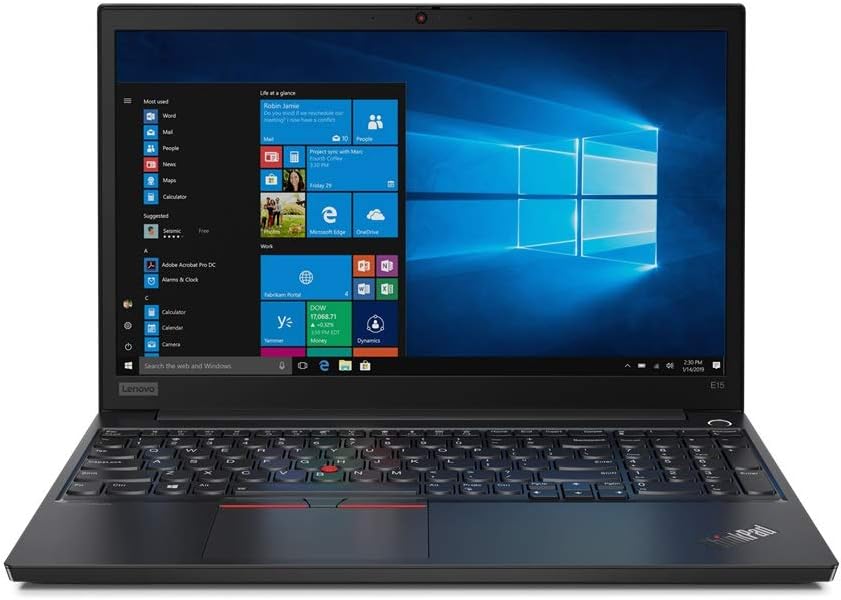
Figure 1.2: The Lenovo ThinkPad E15 laptop from the front, open and powered on, with the Windows 10 Pro operating system desktop visible on its 15.6-inch Full HD anti-glare display.
2. Operating the ThinkPad E15
2.1 Keyboard and Pointing Devices
The ThinkPad E15 features a full-sized keyboard, a TrackPoint pointing device, and a multi-touch touchpad.
- Keyboard: Standard QWERTY layout with function keys (Fn) for various system controls.
- TrackPoint: A red pointing stick located between the G, H, and B keys. Use it with the three buttons below the spacebar for precise cursor control.
- Touchpad: Supports multi-touch gestures for navigation, scrolling, and zooming.

Figure 2.1: A detailed view of the ThinkPad E15's keyboard, featuring the iconic red TrackPoint pointing device and the large touchpad below.
2.2 Display Features
The 15.6-inch Full HD (1920x1080) IPS Anti-Glare display provides clear visuals and reduced reflections, enhancing viewing comfort in various lighting conditions.
2.3 Ports and Connectors
Your ThinkPad E15 is equipped with various ports for connecting external devices:
- USB-C: For power delivery, data transfer, and video output.
- USB-A: For connecting USB devices such as external drives, mice, or keyboards.
- HDMI: For connecting to external displays or projectors.
- Ethernet (RJ-45): For wired network connections.
- Audio Jack: For connecting headphones or external speakers.
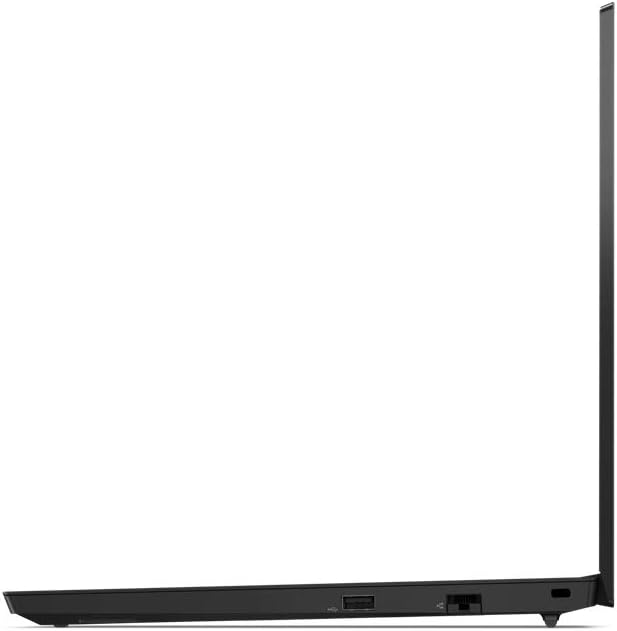
Figure 2.2: The right side of the ThinkPad E15, displaying additional ports such as USB-A and the Ethernet port.
3. Maintenance
3.1 Cleaning Your Laptop
To maintain optimal performance and appearance, regularly clean your ThinkPad E15:
- Use a soft, lint-free cloth slightly dampened with water or a screen cleaner for the display.
- For the keyboard and chassis, use a soft cloth. Avoid harsh chemicals or abrasive materials.
- Ensure the laptop is powered off and unplugged before cleaning.
3.2 Battery Care
To prolong battery life:
- Avoid extreme temperatures.
- Do not fully discharge the battery frequently.
- If storing the laptop for an extended period, ensure the battery is charged to approximately 50-60%.
3.3 Software Updates
Regularly update your operating system and drivers to ensure security, stability, and optimal performance. Windows Update can be accessed through the Settings menu.
4. Troubleshooting
This section addresses common issues you might encounter with your ThinkPad E15.
4.1 Power Issues
- Laptop does not turn on: Ensure the power adapter is securely connected to both the laptop and a working power outlet. Check if the battery is charged.
- Battery not charging: Verify the power adapter is functioning correctly. Try a different outlet.
4.2 Display Problems
- No image on screen: Connect an external monitor to check if the issue is with the laptop's display or the graphics output. Adjust display brightness.
- Flickering screen: Update your graphics drivers.
4.3 Performance Issues
- Slow performance: Close unnecessary applications. Check for background processes consuming high resources. Ensure sufficient free space on the SSD.
- Overheating: Ensure ventilation vents are clear. Use the laptop on a hard, flat surface.
5. Specifications
The following table outlines the key technical specifications for the Lenovo ThinkPad E15 (Model E15).
| Feature | Specification |
|---|---|
| Standing screen display size | 15.6 Inches |
| Screen Resolution | 1920 x 1080 pixels |
| Max Screen Resolution | 1920x1080 |
| Processor | 1.8 GHz Intel Core i7-10510U |
| RAM | 16 GB DDR4 |
| Memory Speed | 1.8 GHz |
| Hard Drive | 1 TB SSD (PCIe-NVMe) |
| Graphics Coprocessor | Intel HD Graphics/Iris Graphics/UHD Graphics (Integrated) |
| Wireless Type | Bluetooth |
| Operating System | Windows 10 Pro |
| Item Weight | 3.98 pounds |
| Product Dimensions (LxWxH) | 14.48 x 9.64 x 0.74 inches |
| Color | Black |
| Number of Processors | 4 |
| Computer Memory Type | SODIMM |
| Batteries | 1 Lithium Ion battery (included) |
6. Warranty and Support
6.1 Product Warranty
Your Lenovo ThinkPad E15 comes with a standard manufacturer's warranty. The duration and terms of the warranty may vary by region and purchase date. Please refer to the warranty documentation included with your product or visit the official Lenovo support website for detailed information.
Extended protection plans, such as 2-year or 4-year options, may be available for purchase separately to extend coverage beyond the standard warranty period.
6.2 Technical Support
For technical assistance, driver downloads, or service requests, please visit the official Lenovo Support website. You will typically need your product's serial number to access specific support resources.
- Lenovo Support Website: support.lenovo.com
- Contact Information: Refer to the support website for regional phone numbers and contact methods.