1. Introduction
Thank you for purchasing the AKAI R190BT Portable DAB/Bluetooth/USB Radio. This manual provides essential information for the safe and correct operation of your device. Please read it thoroughly before use and retain it for future reference.

Image 1.1: Front view of the AKAI R190BT Portable Radio. The radio features a display screen, control buttons (Info/Menu, Select, Preset), and a volume knob. It has a brown speaker grille and a handle for portability.
2. Safety Information
- Do not expose the unit to rain or moisture to prevent fire or electric shock.
- Do not open the casing. Refer all servicing to qualified personnel.
- Ensure proper ventilation around the unit.
- Avoid placing the unit near heat sources or in direct sunlight.
- Use only the specified power adapter or batteries.
3. Product Overview
The AKAI R190BT is a versatile portable radio offering multiple audio playback options:
- DAB/DAB+ Digital Radio: Enjoy high-quality digital radio broadcasts.
- Bluetooth Connectivity: Stream audio wirelessly from compatible devices.
- USB Playback: Play MP3 files from a USB flash drive.
- SD Card Playback: Play MP3 files from an SD card.
- AUX Input: Connect external audio sources via a 3.5mm audio cable.
- Portable Design: Features a carry handle and can be powered by batteries for on-the-go use.
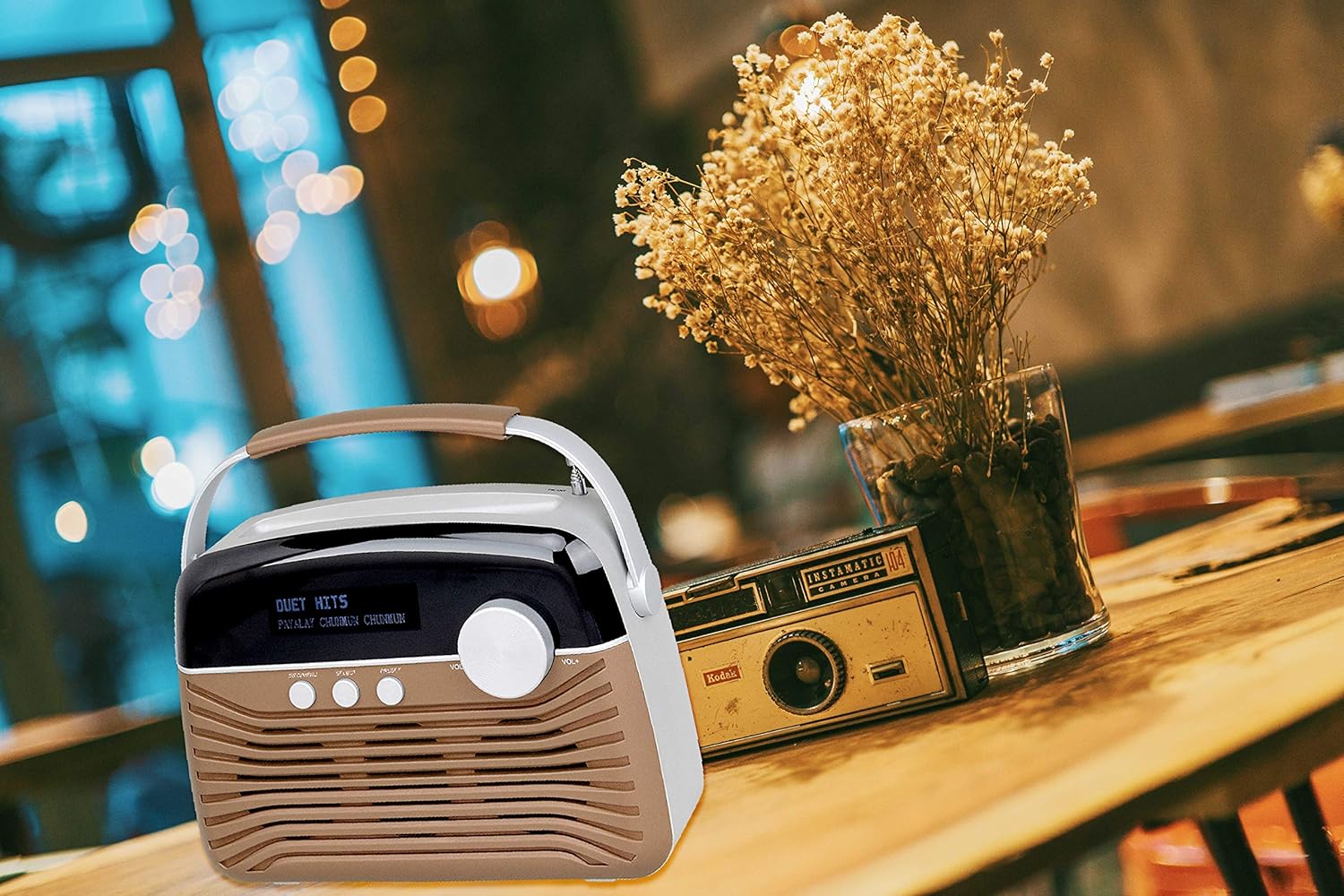
Image 3.1: The AKAI R190BT Portable Radio placed on a wooden table next to a vase of dried flowers, demonstrating its compact and portable design suitable for various indoor settings.
4. Setup
4.1 Powering the Unit
The AKAI R190BT can be powered by either AC power or batteries.
- AC Power: Connect the provided AC power adapter to the DC input jack on the radio and then to a standard wall outlet.
- Battery Power: The unit requires 4 batteries (not included). Open the battery compartment cover on the back of the unit, insert the batteries according to the polarity markings, and close the cover securely.
4.2 Antenna
Extend the telescopic antenna fully for optimal DAB radio reception.
5. Operating Instructions
5.1 Power On/Off
Press the Power button (usually integrated with the volume knob or a separate button) to turn the radio on or off.
5.2 Volume Control
Rotate the Volume knob clockwise to increase the volume and counter-clockwise to decrease it.
5.3 DAB Radio Mode
- Press the Mode button (if available, or cycle through modes using a dedicated button) to select DAB mode.
- The radio will automatically scan for available DAB stations upon first use or if a scan is initiated.
- Use the Select or navigation buttons to browse through the list of available stations.
- Press Select to confirm your station choice.
- To perform a full scan, navigate to the "Full Scan" option in the menu (accessed via Info/Menu button).
5.4 Bluetooth Mode
- Press the Mode button to select Bluetooth mode. The display will show "Bluetooth" or a similar indicator, and the unit will enter pairing mode.
- On your Bluetooth-enabled device (smartphone, tablet, etc.), enable Bluetooth and search for available devices.
- Select "AKAI R190BT" from the list of devices.
- Once paired, the radio will confirm the connection, and you can start streaming audio from your device.
5.5 USB/SD Playback Mode
- Insert a USB flash drive into the USB port or an SD card into the SD card slot.
- Press the Mode button to select USB or SD mode. The radio will automatically detect and begin playing compatible MP3 files.
- Use the navigation buttons (e.g., Previous/Next, Play/Pause) to control playback.
5.6 AUX Input Mode
- Connect an external audio device (e.g., MP3 player) to the AUX IN jack on the radio using a 3.5mm audio cable.
- Press the Mode button to select AUX mode.
- Control playback from your external audio device.
6. Maintenance
- Cleaning: Wipe the unit with a soft, dry cloth. Do not use abrasive cleaners or solvents.
- Battery Care: If the unit will not be used for an extended period, remove the batteries to prevent leakage.
- Storage: Store the radio in a cool, dry place away from direct sunlight and extreme temperatures.
7. Troubleshooting
| Problem | Possible Cause | Solution |
|---|---|---|
| No power | Power adapter not connected; Batteries depleted or incorrectly inserted. | Check AC adapter connection; Replace batteries or ensure correct polarity. |
| No sound | Volume too low; Mute function active; Incorrect mode selected. | Increase volume; Check if muted; Select the correct input mode (DAB, Bluetooth, USB, SD, AUX). |
| Poor DAB reception | Antenna not extended; Weak signal area. | Fully extend the telescopic antenna; Reposition the radio for better signal. Perform a full scan. |
| Bluetooth pairing failed | Radio not in pairing mode; Device too far; Device already paired with another unit. | Ensure radio is in Bluetooth mode and "pairing"; Move device closer; Disconnect from other devices. |
| USB/SD not playing | Incorrect file format; USB/SD card not inserted correctly or corrupted. | Ensure files are MP3 format; Reinsert USB/SD card; Try a different USB/SD card. |
8. Specifications
| Feature | Detail |
|---|---|
| Brand | AKAI |
| Model | R190BT |
| Connectivity Technology | Bluetooth, USB |
| Audio Output Mode | Stereo |
| Speaker Maximum Output Power | 4 Watts |
| Power Source | Battery-Powered (AC adapter also supported) |
| Batteries Required | Yes (4 batteries, not included) |
| Included Components | User Manual |
| Dimensions (Package) | 21.5 x 19.5 x 6.5 cm |
| Weight (Package) | 5 kg |
| Color | Brown |
9. Warranty and Support
This product comes with a user manual. For specific warranty details, please refer to the documentation included in the product packaging or contact AKAI customer support. Information regarding software updates is currently unavailable.
For further assistance or technical support, please visit the official AKAI website or contact their customer service department.


