
Phomemo M02PRO-P-A
Phomemo M02 Pro 300dpi Mini Printer Instruction Manual
Brand: Phomemo | Model: M02 Pro (M02PRO-P-A)
1. Introduction
The Phomemo M02 Pro is a compact and portable 300dpi thermal mini printer designed for a variety of uses, including study notes, organization, art creation, and personalized gifts. This inkless printer connects via Bluetooth to your smartphone, offering high-resolution printing for clear images and text. Its versatile design supports three paper sizes (15mm, 25mm, 53mm) and various paper types, enhancing creativity and efficiency in daily tasks.

Figure 1: Phomemo M02 Pro Mini Printer showcasing its printing capabilities for different applications.
2. Setup
2.1 What's in the Box
- Phomemo Pocket Printer
- USB Cable
- Thermal Printing Paper
- User Manual
- Packing Box
2.2 Charging the Printer
Before first use, fully charge the printer using the provided USB cable. The power button will blink while charging. It is recommended to charge the device when the battery level drops below 20% to maintain optimal performance and battery life.
2.3 App Installation and Bluetooth Connection
Download the official Phomemo app from your device's app store. The app is compatible with Android 7.0 (or above) and iOS 13.0 (or above). Once installed, enable Bluetooth on your smartphone and open the Phomemo app. The app will guide you through connecting to your M02 Pro printer.

Figure 2: Seamless Bluetooth connection between the Phomemo app and the M02 Pro printer.
Video 1: An introduction to the Phomemo M02 Pro Pocket Printer, demonstrating its compact size and easy Bluetooth connectivity.
2.4 Loading Thermal Paper
The Phomemo M02 Pro supports thermal paper rolls of 15mm, 25mm, and 53mm widths. To load paper, gently open the printer's cover, insert the paper roll with the printing side facing the thermal head, and close the cover. Ensure the paper is aligned to prevent jams.
Video 2: A detailed introduction to the Phomemo M02 Pocket Printer, including how to load paper rolls.
3. Operating the Printer
3.1 Basic Printing Functions
Once connected via Bluetooth, you can select various printing options within the Phomemo app. The app supports direct printing of images, text, and web content. You can adjust print thickness (fine, medium, thick) to achieve desired clarity and contrast for your prints.
Video 3: Demonstrates the high-quality 300dpi printing capabilities of the Phomemo M02 Pro, ideal for detailed prints.
3.2 Advanced App Features
The Phomemo app offers a rich set of features to enhance your printing experience:
- Notes: Create and print quick notes or reminders.
- Scan: Utilize OCR text recognition to scan and print text from documents.
- Print Images: Directly print photos and images from your phone's gallery.
- Templates: Access a wide variety of free templates for various purposes, including journaling, labels, and decorative elements.
- Micro Print: Specialized function for smaller prints.
- Print Web: Print content directly from web pages.
- Toolbox: Contains additional utilities like Banner printing and Ruler printing.

Figure 3: Overview of the Phomemo app's diverse functionalities.
Video 4: A quick demonstration of the Phomemo M02 Mini Mobile Printer's ease of use and various printing options.
3.3 Supported Paper Types and Sizes
The M02 Pro is designed to work with various Phomemo exclusive thermal papers, including:
- Standard white thermal paper
- Blue image paper
- Colorful sticker paper
- Transparent and semi-transparent paper
- Gold/Silver sticker paper
The printer supports paper widths of 15mm, 25mm, and 53mm, allowing for diverse printing needs without paper jams due to its adjustable paper holder.
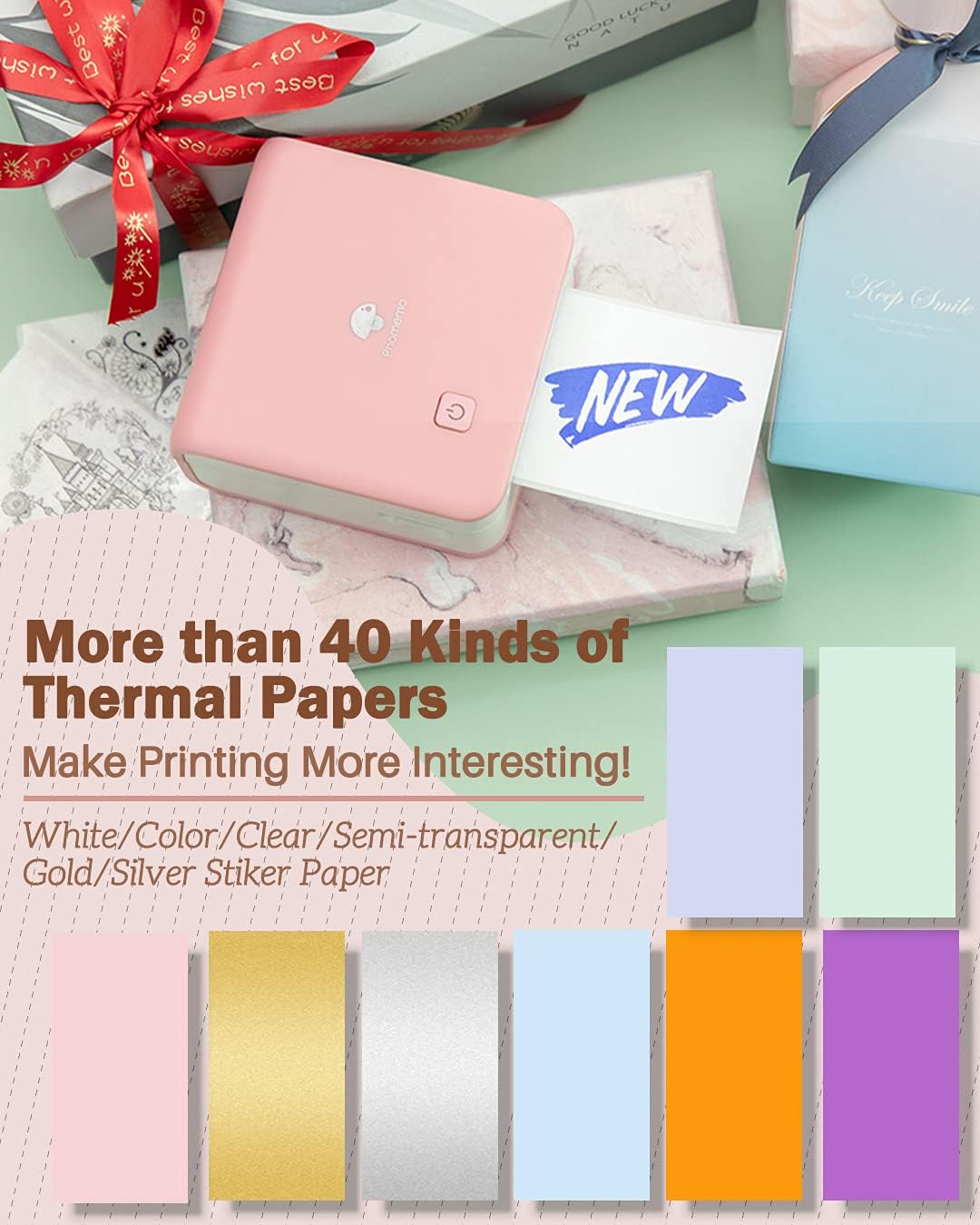
Figure 4: A selection of the many thermal paper types compatible with the Phomemo M02 Pro printer.
4. Usage Scenarios
The Phomemo M02 Pro is a versatile tool for enhancing productivity and creativity in various aspects of daily life:
- Study Notes: Print diagrams, text, or scanned notes directly into your notebooks for efficient learning.
- Organization: Create custom labels for containers, files, or personal items to keep everything tidy.
- Art Creation & DIY Projects: Design and print unique stickers, photos, or decorative elements for scrapbooking, journaling, and other crafts.
- Gift Personalization: Add a personal touch to gifts with custom printed messages or designs.
- Daily Life: Use for quick reminders, to-do lists, or printing small images for fun.

Figure 5: Multipurpose use of the Phomemo M02 Pro for various creative and organizational tasks.
Video 5: Showcases how the Phomemo Mini Printer can be integrated into daily life for various tasks.
Video 6: Demonstrates how to use the Phomemo M02 Series Pocket Printer to create personalized gifts.
5. Maintenance
5.1 Cleaning the Printer
To ensure optimal print quality and longevity, regularly clean the thermal print head. Use a soft, lint-free cloth lightly dampened with isopropyl alcohol. Gently wipe the print head, avoiding abrasive materials or excessive pressure. Ensure the printer is turned off and disconnected from power before cleaning.
5.2 Battery Care
The Phomemo M02 Pro uses a Lithium Polymer battery. To prolong battery life:
- Avoid fully discharging the battery frequently.
- Charge the printer when the battery level is low (below 20%).
- Store the printer in a cool, dry place when not in use for extended periods.
- Use only the provided USB cable for charging.
6. Troubleshooting
6.1 Common Issues and Solutions
| Issue | Possible Cause | Solution |
|---|---|---|
| Printer not turning on | Low battery; Power button not pressed correctly | Charge the printer; Press and hold the power button for a few seconds. |
| Poor print quality (faint/blurry) | Low battery; Dirty print head; Incorrect paper type; App print settings | Charge printer; Clean print head; Ensure correct thermal paper is used; Adjust 'Thickness' setting in app. |
| Paper jams | Paper not loaded correctly; Paper roll too wide/narrow | Re-load paper, ensuring it's straight; Use correct paper width (15/25/53mm). |
| Cannot connect via Bluetooth | Bluetooth off on phone; App not updated; Printer too far | Ensure phone Bluetooth is on; Update Phomemo app; Keep printer within range. |
| Printer not responding | System glitch; Low battery | Restart printer and app; Charge the printer. |
7. Specifications
| Feature | Detail |
|---|---|
| Model Name | M02 Pro |
| Item Model Number | M02PRO-P-A |
| Printing Technology | Thermal |
| Resolution | 300 x 300 dpi |
| Connectivity Technology | Bluetooth, USB |
| Compatible Devices | Smartphones (Android 7.0+, iOS 13.0+) |
| Supported Paper Widths | 15mm, 25mm, 53mm |
| Battery Type | Lithium Polymer |
| Item Weight | 10.6 ounces (approx. 300g) |
| Product Dimensions | 0.06 x 0.13 x 0.13 inches (approx. 1.5 x 3.3 x 3.3 cm) |
8. Warranty and Support
Phomemo products typically come with a standard manufacturer's warranty. For specific warranty details, please refer to the warranty card included in your product packaging or visit the official Phomemo website. For technical support, troubleshooting assistance, or inquiries about replacement parts and accessories, please contact Phomemo customer service through their official channels or the contact information provided in your product documentation.
You can find more information and support resources on the official Phomemo store: Phomemo Store on Amazon
Related documentsM02PRO-P-A


Ask a question about this manual
Ask about setup, troubleshooting, compatibility, parts, safety, or missing instructions. Manuals+ will review the question and use this page’s manual context to help answer it.