
1. Introduction
Thank you for purchasing the Samsung N4300 24-inch HD Smart TV. This manual provides essential information for the safe and efficient use of your new television. Please read these instructions thoroughly before operating the device and retain them for future reference. This TV combines high-definition visuals with smart features, offering a comprehensive entertainment experience.

Figure 1.1: Front view of the Samsung N4300 24-inch HD Smart TV.
2. Safety Information
To reduce the risk of electric shock, fire, or injury, always follow these basic safety precautions:
- Do not expose this apparatus to rain or moisture.
- Do not open the TV casing. Refer all servicing to qualified service personnel.
- Ensure proper ventilation. Do not block ventilation openings.
- Protect the power cord from being walked on or pinched.
- Unplug the TV during lightning storms or when unused for long periods.
- Keep the TV away from heat sources and direct sunlight.
3. What's in the Box
Please check that the following items are included with your TV:
- Samsung N4300 24-inch HD Smart TV
- Remote Control (with batteries)
- Power Cable
- Stand Components (base and neck)
- User Manual (this document)
4. Physical Setup
4.1 Attaching the Stand
To attach the stand to your TV:
- Place the TV face down on a soft cloth or cushion to prevent screen damage.
- Align the stand neck with the slot on the back of the TV.
- Secure the stand neck to the TV using the provided screws.
- Attach the stand base to the stand neck and secure it with screws.
- Carefully place the TV upright on a stable, level surface.
Note: Some users have reported the stand being difficult to mount. Ensure all components are correctly aligned before tightening screws.
4.2 Connecting Power
Connect the power cable to the TV's power input port, then plug the other end into a wall outlet. Ensure the power cable is securely connected.
5. Connectivity
Your Samsung N4300 TV offers various ports for connecting external devices.

Figure 5.1: Side view of the TV illustrating available ports.
5.1 Connecting External Devices
- HDMI: Connect devices like Blu-ray players, game consoles, or set-top boxes to the HDMI port. Your TV has 1 HDMI port.
- USB: Plug in USB drives for media playback. Your TV has 2 USB ports.
- Bluetooth: Connect compatible audio devices wirelessly.
5.2 Network Connection (Wi-Fi)
To access Smart TV features, connect your TV to the internet via Wi-Fi:
- Press the Home button on your remote.
- Navigate to Settings > General > Network > Open Network Settings.
- Select Wireless and choose your Wi-Fi network from the list.
- Enter your Wi-Fi password and select Done.
5.3 Antenna/Cable Connection
Connect your antenna or cable TV source to the appropriate input on the back of the TV for digital terrestrial channels (DVB-T2).
6. Initial Setup
The first time you turn on your TV, an initial setup wizard will guide you through basic configurations:
- Language Selection: Choose your preferred language.
- Network Setup: Configure your Wi-Fi connection (as described in Section 5.2).
- Channel Scan: The TV will automatically scan for available channels.
- Smart Hub Setup: Agree to terms and conditions to enable Smart TV features.
7. Operating Your TV
7.1 Remote Control Functions
Use the provided remote control to navigate your TV. Key functions include:
- Power Button: Turns the TV on or off.
- Volume Up/Down: Adjusts the sound level.
- Channel Up/Down: Changes TV channels.
- Home Button: Accesses the Smart Hub.
- Directional Pad (D-Pad): Navigates menus and selections.
- Select/Enter Button: Confirms selections.
- Back Button: Returns to the previous screen.
7.2 Basic TV Operations
- Changing Channels: Use the CH +/- buttons or enter channel numbers directly.
- Adjusting Volume: Use the VOL +/- buttons.
- Selecting Input Source: Press the Source button to switch between HDMI, TV, and other inputs.
8. Smart Features (Tizen OS)
Your Samsung N4300 TV runs on the Tizen operating system, providing access to a world of smart content and applications.

Figure 8.1: The Smart Hub interface with various applications.
8.1 Smart Hub Navigation
Press the Home button on your remote to open the Smart Hub. Here you can find:
- Apps: Access pre-installed and downloadable applications like Netflix, Disney+, Now TV, and Dazn.
- Source: Switch between connected devices.
- Settings: Configure TV options.
8.2 Using the SmartThings App
The SmartThings app allows you to control your TV and other compatible smart devices from your smartphone. It also offers features like Remote Control and Mirror Screen.

Figure 8.2: Example of the SmartThings app interface on a smartphone.
8.3 Screen Mirroring
Share content from your smartphone or PC directly to your TV screen using features like Mirror Screen, Google Cast, or DLNA.

Figure 8.3: A smartphone screen being mirrored onto the TV.
The TV also supports Steam Link for connecting your PC screen to the TV for gaming.
9. Picture and Sound Settings
9.1 Adjusting Picture Quality
Your TV features advanced technologies to enhance your viewing experience:
- HDR (High Dynamic Range): Provides precise details and rich nuances in both bright and dark scenes.
- PurColor: Delivers intense, natural, and realistic colors.
- Ultra Clean View: Analyzes original content with an advanced algorithm to reduce noise and distortion, resulting in clearer images.
- Micro Dimming Pro: Divides the screen into zones, analyzing them individually to optimize contrast, producing deeper blacks and purer whites.


Figure 9.1: Visual examples of HDR, Ultra Clean View, and PurColor technologies.
9.2 Adjusting Sound Settings
Access sound settings via Settings > Sound. Here you can adjust sound modes, balance, and other audio enhancements. While the TV offers basic sound adjustments, some users have noted that the built-in speakers may have limited bass response. For an enhanced audio experience, consider connecting an external sound system via HDMI or Bluetooth.
10. Maintenance
10.1 Cleaning Your TV
- Screen: Gently wipe the screen with a soft, lint-free cloth. For stubborn marks, use a screen cleaner specifically designed for TVs, applied to the cloth, not directly to the screen.
- Frame: Wipe the TV frame and stand with a soft, dry cloth.
- Do not use abrasive cleaners, waxes, or solvents.
10.2 Software Updates
To ensure optimal performance and access to the latest features, regularly check for and install software updates:
- Ensure your TV is connected to the internet.
- Go to Settings > Support > Software Update > Update Now.
- Follow the on-screen prompts to download and install any available updates.
11. Troubleshooting
If you encounter issues with your TV, refer to the following common problems and solutions:
| Problem | Solution |
|---|---|
| No power | Ensure the power cable is securely plugged into both the TV and the wall outlet. Check if the outlet is working. |
| No picture, but sound is present | Check the input source. Ensure external devices are powered on and connected correctly. |
| No sound, but picture is present | Check the volume level and mute status. Verify audio output settings in the TV menu. |
| Wi-Fi connection issues | Restart your router and TV. Re-enter your Wi-Fi password in network settings. Ensure the TV is within range of your router. |
| Forgotten PIN for TV settings | If you have forgotten your PIN, a factory reset may be required. This process can be complex and should be performed with caution, as it may involve accessing service menus. Consult Samsung support for guidance. |
12. Specifications
Here are the key technical specifications for the Samsung N4300 24-inch HD Smart TV:
| Feature | Detail |
|---|---|
| Screen Size | 24 Inches (59.0 cm diagonal) |
| Display Technology | LED |
| Resolution | 768p (1366 x 768 pixels) |
| Refresh Rate | 60 Hz |
| Connectivity | Wi-Fi, Bluetooth |
| HDMI Ports | 1 |
| USB Ports | 2 |
| Operating System | Tizen |
| HDR Support | HDR10 |
| Audio Output Mode | Digital (Dolby Digital Plus) |
| Energy Efficiency Class (SDR) | E |
| Model Year | 2020 |
| Model Number | UE24N4300AUXZT |
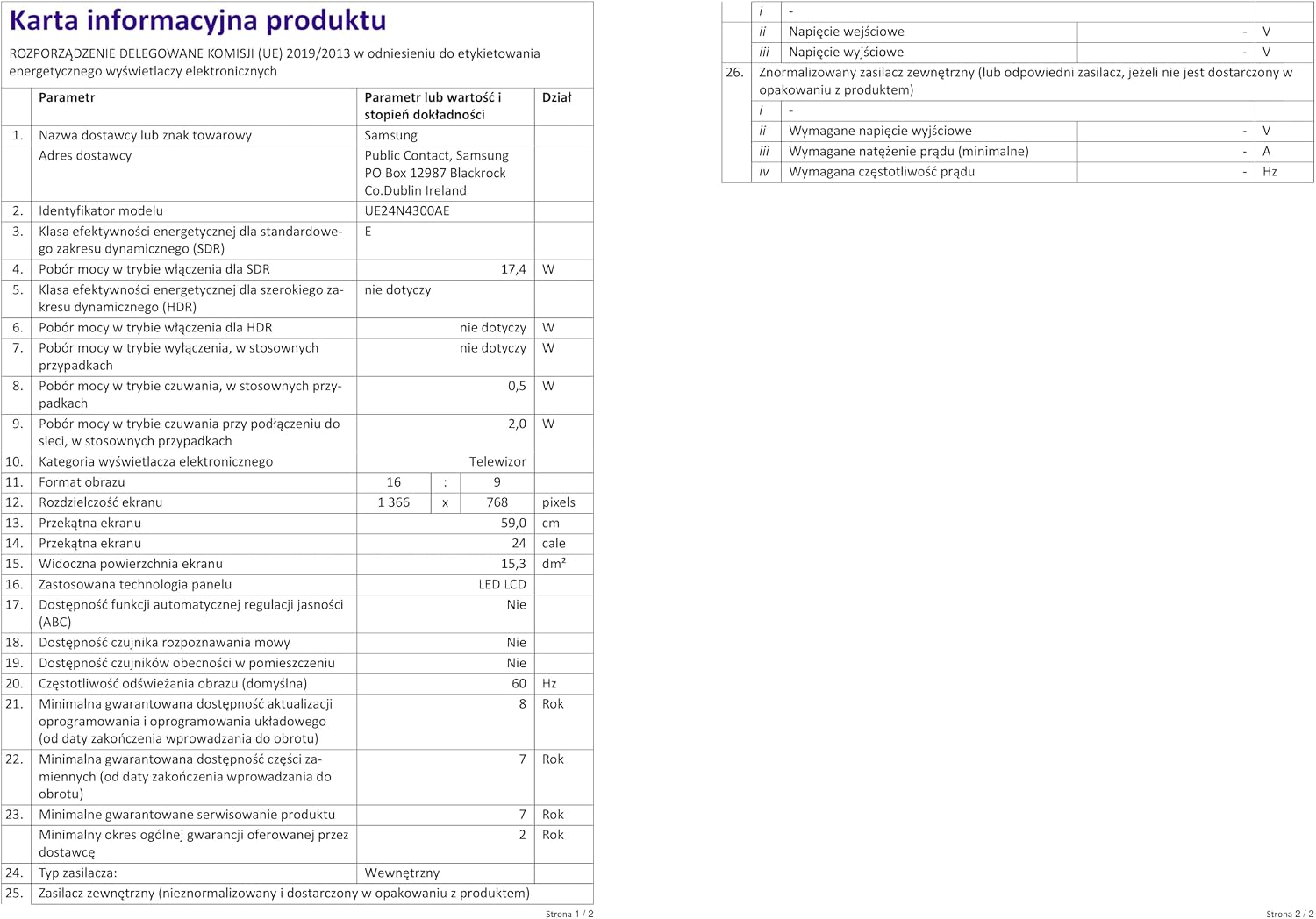
Figure 12.1: Energy Label for the Samsung N4300 TV. For more details, visit eprel.ec.europa.eu/qr/1411915.

Figure 12.2: Approximate dimensions of the Samsung N4300 TV.
13. Warranty and Support
13.1 Warranty Information
Your Samsung N4300 TV comes with a 2-year general warranty provided by the supplier. Additionally, Samsung guarantees a minimum product support period of 7 years for spare parts and software updates from the date of market introduction.
13.2 Customer Support
For further assistance, technical support, or warranty claims, please contact Samsung Customer Service. You can find contact information and additional resources on the official Samsung support website: