
Introduction
This manual provides detailed instructions for the setup, operation, and maintenance of your Accutime Superman Touchscreen Interactive Smart Watch for Kids. This device is designed to offer an engaging and educational experience with features such as a camera, games, pedometer, and more.
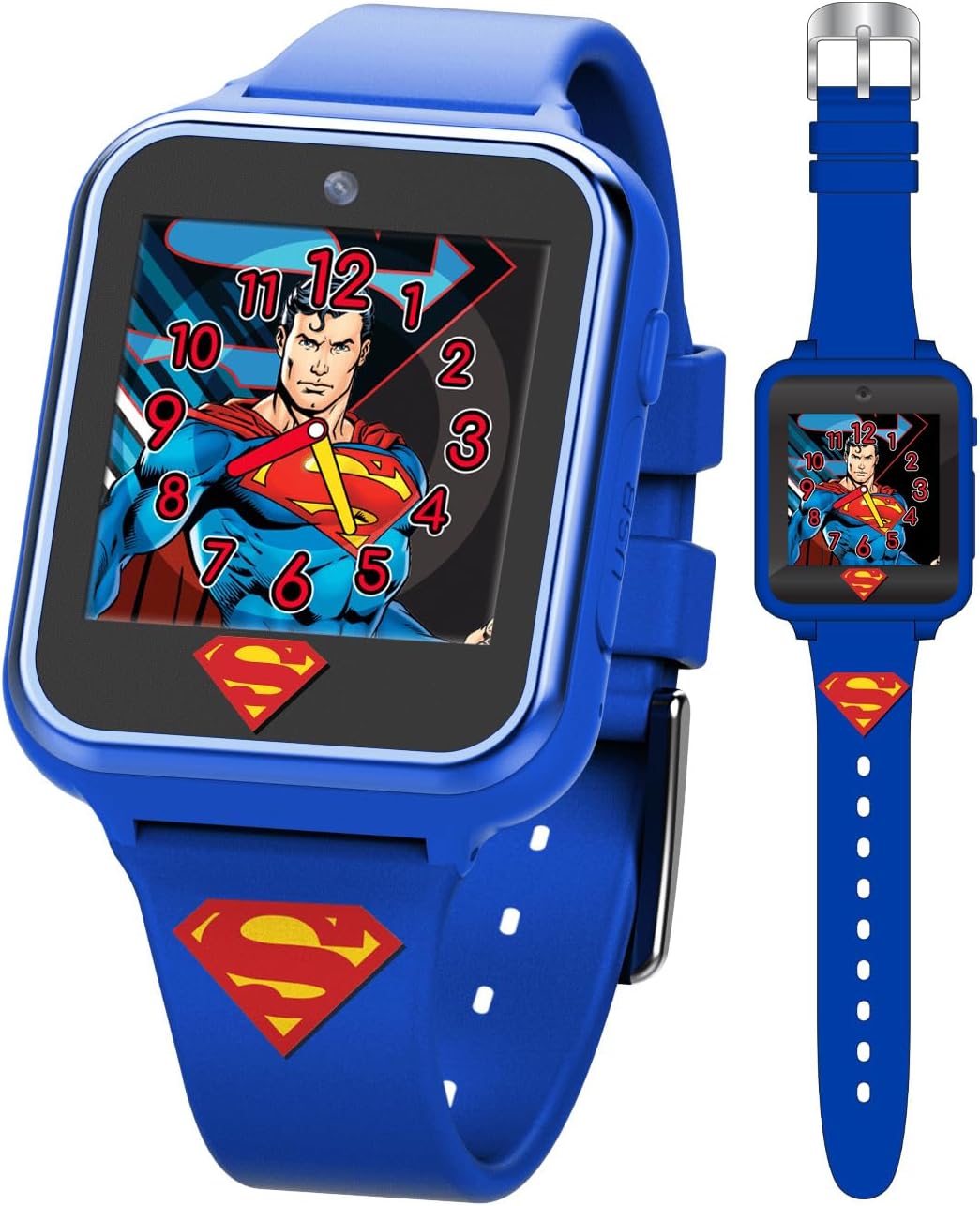
Figure 1: Front view of the Accutime Superman Smart Watch. The watch features a blue strap and a touchscreen display showing Superman.
1. Setup
1.1 Charging the Watch
Before initial use, fully charge the smart watch. The device is powered by a 3.7V Lithium Polymer rechargeable battery.
- Locate the USB charging port on the watch.
- Connect the included USB charging cable to the watch's port.
- Connect the other end of the USB cable to a compatible USB power source (e.g., computer USB port, USB wall adapter).
- Allow the watch to charge until the battery indicator shows a full charge. This may take several hours for the first charge.

Figure 2: Side view of the watch, indicating the location of buttons and the USB charging port.
1.2 Powering On/Off
- To power on: Press and hold the power button (usually located on the side of the watch) until the screen illuminates.
- To power off: Press and hold the power button until a power-off option appears on the screen, then confirm.
1.3 Setting Time and Date
Upon first power-on or after a full discharge, you may need to set the correct time and date.
- From the main watch face, swipe or tap to access the settings menu.
- Navigate to "Time" or "Date & Time" settings.
- Adjust the hour, minute, day, month, and year as required.
- Confirm your selections to save the settings.
2. Operating the Watch
2.1 Touchscreen Navigation
The watch features an intuitive touchscreen interface.
- Tap: Select an icon or confirm an action.
- Swipe: Navigate between screens or menus.
- Press and Hold: May activate specific functions or customization options (e.g., changing watch faces).
2.2 Changing Watch Faces
Customize your watch with various Superman-themed watch faces.
- From the main watch face, press and hold the screen.
- Swipe left or right to browse available watch face designs.
- Tap on your desired watch face to select it.

Figure 3: Examples of changeable Superman-themed watch faces.
2.3 Camera Function
The watch includes a built-in camera for taking photos.
- From the main menu, tap the "Camera" icon.
- Frame your shot using the screen as a viewfinder.
- Tap the shutter icon to capture a photo.
- Photos are saved to the watch's internal memory and can be viewed in the "Photo Album" or "Gallery" application.
2.4 Games
Engage with pre-loaded interactive games.
- Tap the "Games" icon from the main menu.
- Select a game from the list.
- Follow the on-screen instructions to play.
2.5 Pedometer
Track daily steps with the integrated pedometer.
- Access the "Pedometer" application from the main menu.
- The watch will automatically begin tracking steps when worn.
- View your step count and other activity data on the pedometer screen.
2.6 Voice Recorder
Record short audio clips using the voice recorder function.
- Tap the "Voice Recorder" icon.
- Tap the record button to start recording.
- Tap the stop button to end recording.
- Recordings can be played back from the application.
2.7 Calculator
Perform basic arithmetic calculations.
- Open the "Calculator" application.
- Use the touchscreen keypad to input numbers and operations.
2.8 Alarm Clock
Set alarms for reminders or wake-up calls.
- Tap the "Alarm" icon.
- Select an alarm slot or create a new one.
- Set the desired time and recurrence (if available).
- Save the alarm.
3. Maintenance
3.1 Cleaning the Watch
- Use a soft, dry, lint-free cloth to clean the screen and watch body.
- For stubborn marks, slightly dampen the cloth with water. Avoid harsh chemicals or abrasive materials.
- Ensure the charging port cover (if present) is securely closed before any cleaning involving moisture.
3.2 Battery Care
- To prolong battery life, avoid fully discharging the watch frequently.
- Charge the watch regularly, especially if it will not be used for an extended period.
- Store the watch in a cool, dry place away from extreme temperatures.
4. Troubleshooting
| Issue | Possible Cause | Solution |
|---|---|---|
| Watch does not power on. | Low or depleted battery. | Charge the watch for at least 30 minutes, then attempt to power on. |
| Screen is black after charging. | Software glitch or temporary freeze. | Locate the reset pinhole (often a small hole on the side of the watch). Use a thin, pointed object (like a paperclip) to gently press the reset button inside. This may restart the device. |
| Touchscreen is unresponsive. | Temporary software issue or screen dirt. | Restart the watch. Clean the screen with a soft, dry cloth. |
| Battery drains quickly. | Frequent use of power-intensive features (games, camera) or background processes. | Reduce usage of power-intensive features. Ensure no applications are running unnecessarily in the background. |
5. Specifications
- Model Number: SUP4360AZ
- Screen Size: 40 Millimeters
- Item Weight: 1.3 Ounces
- Battery Type: 1 Lithium Polymer battery (included)
- Memory Storage Capacity: 512 MB
- Operating System: Accutime OS
- Special Features: Alarm Clock, Audio Recording, Camera, Pedometer, Time Display
- Connectivity Technology: USB
- Shape: Rectangular
6. Warranty and Support
6.1 Product Warranty
The Accutime Superman Touchscreen Interactive Smart Watch comes with a 5-year warranty, ensuring lasting quality and peace of mind. Please retain your proof of purchase for warranty claims.
6.2 Customer Support
For further assistance, technical support, or warranty inquiries, please contact Accutime customer service. Refer to the packaging or the official Accutime website for the most current contact information.
You can visit the Accutime Store on Amazon for more product information.


