
memzuoix WM-697
Contents
memzuoix 2.4G Portable Wireless Mouse (Model WM-697) User Manual
Comprehensive instructions for setup, operation, and maintenance.
1. Introduction
This manual provides detailed instructions for the memzuoix 2.4G Portable Wireless Mouse, Model WM-697. Please read this manual carefully before using the product to ensure proper operation and to maximize its lifespan.
Package Contents
- 1 x memzuoix 2.4G Portable Wireless Mouse (Model WM-697)
- 1 x USB Nano Receiver
- 1 x User Manual (this document)

Image 1.1: The memzuoix wireless mouse and its USB nano receiver.
2. Specifications
| Feature | Detail |
|---|---|
| Model | WM-697 |
| Connectivity | 2.4GHz Wireless (USB Receiver) |
| DPI | 1400 DPI |
| Buttons | 5 (Left, Right, Scroll Wheel, Forward, Backward) |
| Movement Detection | Optical |
| Operating Range | Up to 43 feet (13 meters) |
| Power Source | 2 x AAA Batteries (not included) |
| Sleep Mode | Automatic after 7 minutes of inactivity |
| Dimensions (L x W x H) | 4.19 x 2.63 x 1.50 inches |
| Weight | 2.22 ounces |
| Compatibility | Windows 7/8/10/XP, Vista 7/8, Mac OS, Linux |

Image 2.1: Physical dimensions of the mouse.
3. Setup Guide
3.1 Battery Installation
- Locate the battery compartment cover on the underside of the mouse.
- Gently slide the cover open.
- Insert two AAA batteries (not included) into the compartment, ensuring correct polarity (+/-).
- Close the battery compartment cover until it clicks securely into place.
3.2 USB Receiver Connection
- Locate the USB nano receiver, which is typically stored in a slot within the battery compartment for safekeeping during transport.
- Remove the USB receiver from its storage slot.
- Plug the USB nano receiver into an available USB port on your computer (laptop, PC, desktop, MacBook, etc.).
- Turn on the mouse using the ON/OFF switch located on the underside.
- Your computer should automatically detect and install the necessary drivers. No manual driver installation is required.

Image 3.1: Underside of the mouse, illustrating battery compartment, USB receiver slot, and power switch.

Image 3.2: Wireless connection setup with a laptop.
4. Operating Instructions
4.1 Basic Functions
- Left Click: Primary selection and activation.
- Right Click: Accesses contextual menus.
- Scroll Wheel: Scrolls content vertically. Can also be clicked for middle-click functionality (application dependent).
4.2 Advanced Functions (5-Button Mouse)
- Forward Button: Navigates forward in web browsers or file explorers. (Located on the side of the mouse)
- Backward Button: Navigates backward in web browsers or file explorers. (Located on the side of the mouse)
Note: The side buttons (Forward/Backward) are not available for Mac OS. Other functions operate normally.
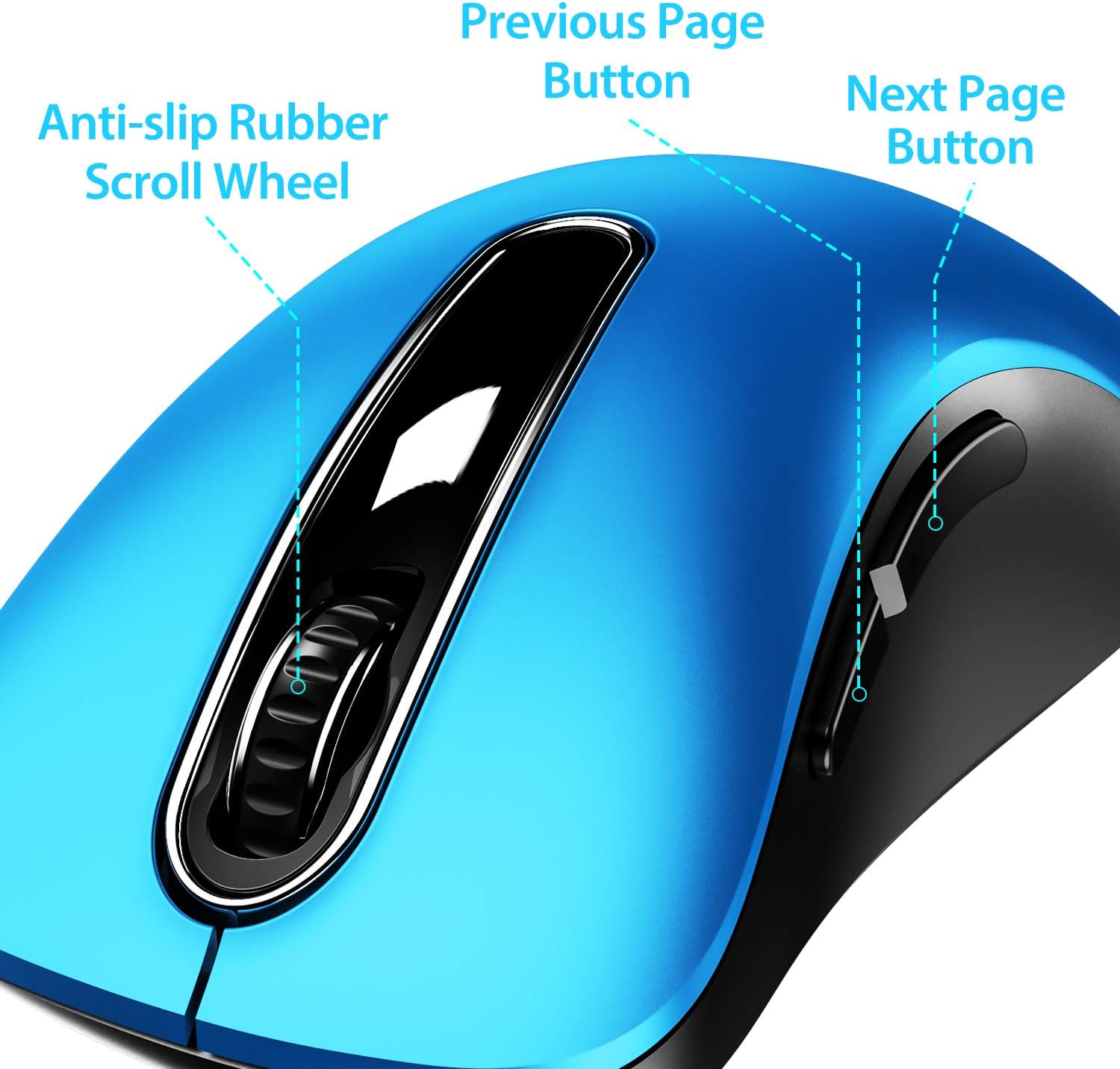
Image 4.1: Overview of mouse buttons, including the scroll wheel and side navigation buttons.
4.3 Power Saving Mode
The mouse features an automatic power-saving sleep mode. If inactive for 7 minutes, the mouse will enter sleep mode to conserve battery life. To reactivate the mouse, simply click any button.
5. Maintenance and Care
- Cleaning: Use a soft, dry cloth to clean the mouse. For stubborn dirt, a slightly damp cloth can be used, but ensure no moisture enters the internal components.
- Battery Replacement: Replace batteries when the mouse performance degrades or stops responding. Always use fresh AAA batteries.
- Storage: When not in use for extended periods, turn off the mouse using the ON/OFF switch and store the USB receiver in its dedicated slot on the mouse's underside to prevent loss.
- Avoid Extreme Conditions: Do not expose the mouse to extreme temperatures, direct sunlight, or excessive moisture.
6. Troubleshooting
| Problem | Possible Solution |
|---|---|
| Mouse not responding |
|
| Cursor movement is erratic or slow |
|
| Side buttons not working on Mac OS | This is a known compatibility limitation. The side buttons are not supported on Mac OS. Other mouse functions should work normally. |
| Mouse enters sleep mode too quickly | The mouse is designed to enter sleep mode after 7 minutes of inactivity to conserve power. This is normal operation. Click any button to wake it up. |
7. Warranty and Support
The memzuoix 2.4G Portable Wireless Mouse (Model WM-697) comes with a 365-day worry-free warranty from the date of purchase. This warranty covers manufacturing defects and malfunctions under normal use.
For warranty claims, technical support, or any inquiries, please contact memzuoix customer service through the retailer where the product was purchased or visit the official memzuoix website for contact information.
Please retain your proof of purchase for warranty validation.
Documents and downloads
Ask a question about this manual
Ask about setup, troubleshooting, compatibility, parts, safety, or missing instructions. Manuals+ will review the question and use this page’s manual context to help answer it.