
Introduction
Thank you for choosing the memzuoix Ergonomic Wireless Mouse. This manual provides detailed instructions for setting up, operating, and maintaining your new mouse. Designed for comfort and efficiency, this vertical mouse aims to reduce wrist strain during prolonged use. Please read this manual thoroughly before using the product to ensure optimal performance and longevity.
Product Overview
The memzuoix Ergonomic Wireless Mouse features a unique vertical design to promote a natural handshake grip, reducing pressure on your wrist. It operates on a 2.4G wireless connection and offers adjustable DPI settings for precise control.

Image: The memzuoix Ergonomic Wireless Mouse in purple, showcasing its vertical design and the included USB receiver.
Components
- Ergonomic Wireless Mouse (Purple)
- USB 2.0 Receiver
- User Manual (this document)
Mouse Layout

Image: A detailed diagram illustrating the six buttons and textured thumb area on the ergonomic mouse.
- Left Button: Standard left-click function.
- Right Button: Standard right-click function.
- Scroll Wheel: For vertical scrolling and middle-click.
- DPI Switch Button: Adjusts cursor sensitivity (800/1200/1600 DPI).
- Previous Page Button: Navigates back in web browsers or file explorers. (Note: Not compatible with Mac OS)
- Next Page Button: Navigates forward in web browsers or file explorers. (Note: Not compatible with Mac OS)
- Textured Thumb Area: Provides a comfortable grip for the thumb.
Setup Guide
1. Install Batteries
- Locate the battery compartment on the underside of the mouse.
- Open the battery compartment cover.
- Insert two (2) AAA dry batteries, ensuring correct polarity (+/-). (Batteries are not included and must be prepared by the user.)
- Close the battery compartment cover securely.

Image: The mouse, USB receiver, and two AAA batteries, illustrating the battery installation process.
2. Connect USB Receiver
- The USB receiver is typically stored inside the battery compartment for safekeeping. Remove it.
- Plug the USB receiver into an available USB port on your computer (Laptop, Mac, PC, Desktop).
- The computer should automatically detect and install the necessary drivers. This is a plug-and-play device.

Image: The USB receiver connected to a laptop, demonstrating the plug-and-play setup for the wireless mouse.

Image: Visual representation of the mouse's compatibility with various operating systems (Windows, macOS, Chrome OS, Linux) via its USB receiver.
Operating Instructions
Ergonomic Grip
Position your hand on the mouse so that your wrist is in a natural "handshake" position. This vertical orientation is designed to reduce pronation of the forearm and minimize wrist pressure, promoting comfort during extended use.

Image: A visual comparison demonstrating the ergonomic benefits of the vertical mouse in reducing wrist pressure compared to a traditional mouse.
Adjusting DPI Sensitivity
The mouse features an adjustable DPI (Dots Per Inch) setting, allowing you to change the cursor speed and sensitivity. Press the DPI Switch Button (located near the scroll wheel) to cycle through the available DPI settings: 800, 1200, and 1600 DPI. Choose the setting that best suits your task and preference for precise tracking.
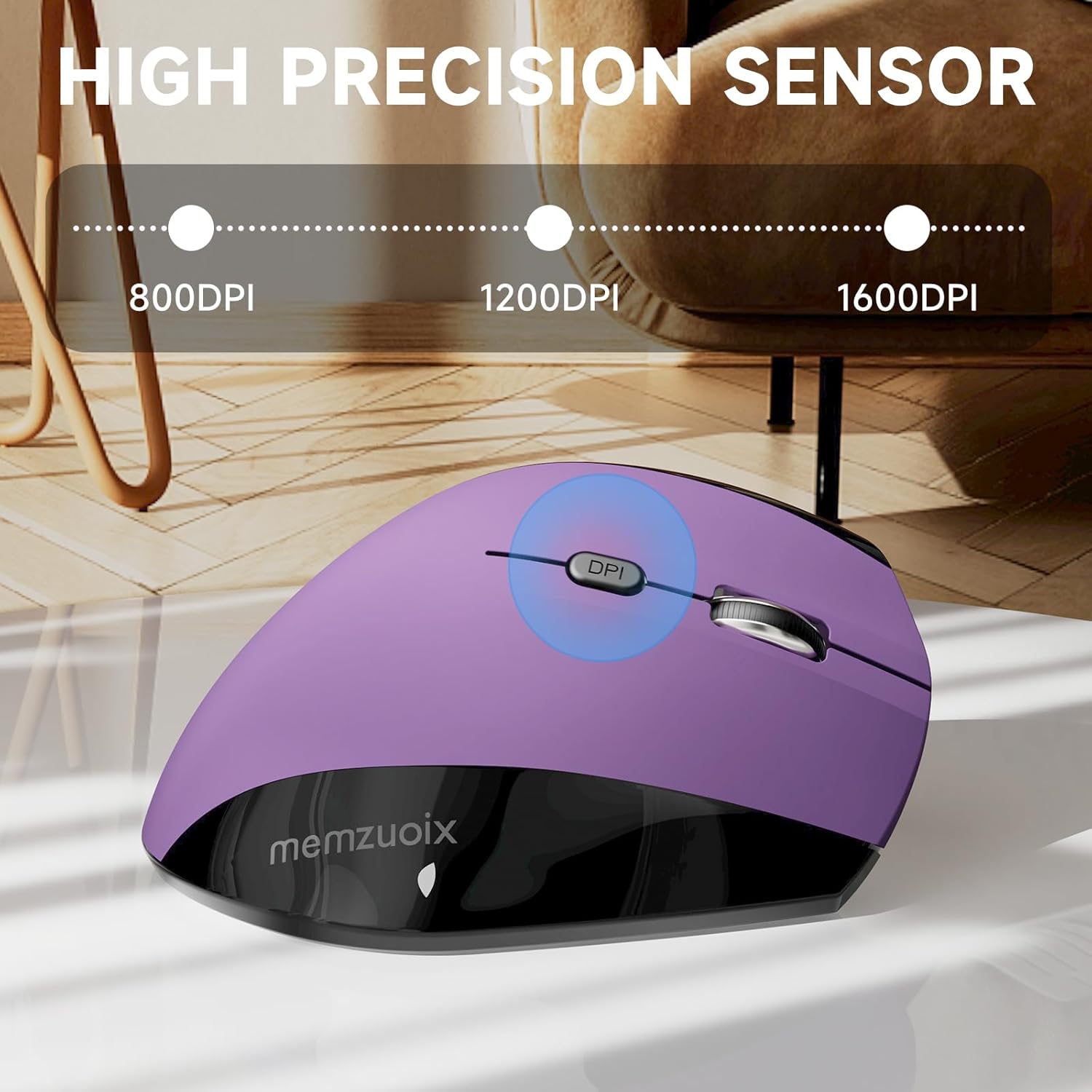
Image: The mouse with a visual indicator for the DPI button, showing the three adjustable sensitivity levels.

Image: A visual demonstrating the adjustable DPI settings (800/1200/1600) for high sensitivity and precise tracking.
Power Saving Mode
To conserve battery life, the mouse will automatically enter sleep mode after 7 minutes of inactivity. To reactivate the mouse, simply click any button.
Maintenance
Cleaning
- Ensure the mouse is powered off or batteries are removed before cleaning.
- Use a soft, dry cloth to wipe the surface of the mouse.
- For stubborn dirt, lightly dampen the cloth with water or a mild, non-abrasive cleaner. Avoid excessive moisture.
- Do not use harsh chemicals, solvents, or abrasive materials, as these can damage the mouse's finish.
- Clean the optical sensor on the underside periodically with a cotton swab to ensure accurate tracking.
Battery Replacement
When the mouse's performance degrades or it stops responding, it may be time to replace the batteries. Follow the "Install Batteries" steps in the Setup Guide to replace the two AAA batteries. Dispose of used batteries responsibly according to local regulations.
Troubleshooting
| Problem | Possible Cause | Solution |
|---|---|---|
| Mouse not responding |
|
|
| Cursor movement is erratic or jumpy |
|
|
| Forward/Back buttons not working on Mac OS | Incompatibility with Mac OS | The forward/back buttons are not compatible with Mac OS. This is a design limitation. |
| Mouse not detected on Linux | May require specific software settings | For Linux systems, you may need to configure related software settings for the mouse to function normally. Refer to your Linux distribution's documentation for peripheral setup. |
Specifications
| Feature | Detail |
|---|---|
| Model Number | ワイヤレスマウス |
| Connectivity Technology | 2.4G Wireless (USB Receiver) |
| Movement Detection | Optical |
| DPI Settings | 800 / 1200 / 1600 DPI (Adjustable) |
| Number of Buttons | 6 (Left, Right, Scroll Wheel, DPI Switch, Forward, Back) |
| Power Source | 2 x AAA Batteries (not included) |
| Product Dimensions | 4.86 x 2.78 x 2.42 inches |
| Item Weight | 3.9 ounces |
| Compatibility | Windows 8/9/10/XP, Windows Vista, Linux (Forward/Back buttons not compatible with Mac OS) |
| Special Features | Ergonomic Design, Wireless, Adjustable Sensitivity, Power Saving Mode |
Safety Information
- Keep the device away from water and other liquids.
- Avoid dropping or subjecting the mouse to strong impacts.
- Do not attempt to disassemble or repair the device yourself. This will void the warranty.
- Dispose of batteries according to local environmental regulations.
- Keep out of reach of children.
Warranty and Support
memzuoix products are designed for reliability and performance. For warranty information or technical support, please refer to the contact details provided with your purchase or visit the official memzuoix website. Please retain your proof of purchase for warranty claims.
For further assistance, you may contact the seller directly via the platform where the product was purchased.