
1. Introduction
This manual provides essential information for the installation, operation, and maintenance of your Aruba CX 6300F 48G Class 4 PoE 4SFP56 Switch. The Aruba CX 6300 Switch Series is designed for enterprise network access, aggregation, and core applications, offering high performance and robust feature support for modern network environments.
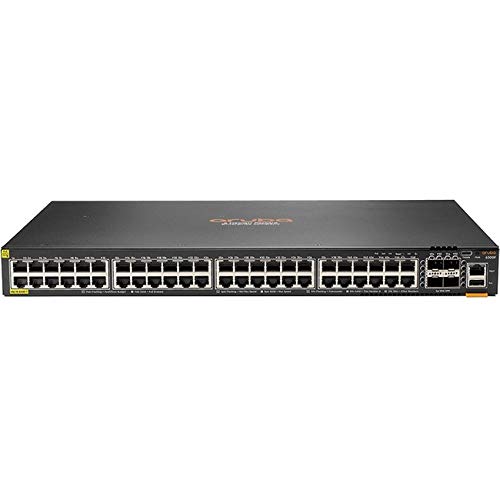
The 6300F model features 48 Gigabit Ethernet ports with Class 4 Power over Ethernet (PoE) capabilities and 4 SFP56 ports for high-speed uplinks.
Key Features
- Stackable Layer 3 switches with BGP, EVPN, VXLAN, VRF, and OSPF for robust security and Quality of Service (QoS).
- High performance with 880 Gbps system switching capacity, 660 MPPS of system throughput, and up to 200 Gbps stacking bandwidth.
- Compact 1U design with full density HPE Smart Rate (1/2.5/5GbE) multi-gigabit, 60W PoE, and SFP+ models.
- Built-in high-speed 10GbE/25GbE/50GbE uplinks.
- Intelligent monitoring, visibility, and remediation capabilities with Aruba Network Analytics Engine.
- One-touch deployment facilitated by the Aruba CX Mobile App.
- Aruba NetEdit support for automated configuration and verification.
- Aruba Dynamic Segmentation for secure and simplified access for users and IoT devices.
2. Package Contents
Verify that all items are present and in good condition. If any items are missing or damaged, contact your vendor.
- Aruba 6300F 48-port 1GbE Class 4 PoE and 4-port SFP56 Switch
- 2-post Rack Kit
3. Setup
Follow these steps to set up your Aruba 6300F switch.
3.1 Rack Mounting
- Attach the provided 2-post rack kit to the sides of the switch using the screws provided.
- Secure the switch into a standard 19-inch equipment rack. Ensure adequate ventilation around the switch.
3.2 Power Connection
- Connect the power cord to the AC power inlet on the rear panel of the switch.
- Plug the other end of the power cord into a grounded electrical outlet.
- Verify that the power LED on the front panel illuminates, indicating the switch is receiving power.
3.3 Network Connections
- Ethernet Ports (1GbE PoE): Connect network devices (e.g., computers, access points, IP cameras) to the 48 RJ-45 Ethernet ports using standard Ethernet cables. These ports support Power over Ethernet (PoE) for compatible devices.
- Uplink Ports (SFP56): Connect the 4 SFP56 ports to your core network or other switches using appropriate SFP56 transceivers and fiber optic cables for high-speed connectivity.
- Console Port: For initial configuration or direct management, connect a console cable from your management workstation to the console port on the switch.
4. Operating Instructions
This section outlines basic operational procedures for the Aruba 6300F switch.
4.1 Powering On and Off
- Power On: Once the power cord is connected, the switch will automatically power on. Observe the system status LEDs for boot sequence completion.
- Power Off: To power off the switch, disconnect the power cord from the electrical outlet. For controlled shutdown, refer to the command-line interface (CLI) documentation for proper shutdown procedures to prevent data corruption.
4.2 LED Indicators
The front panel LEDs provide status information about the switch and its ports.
- System LED: Indicates overall system status (e.g., power, fault).
- Port LEDs: Each port has LEDs indicating link status, activity, and PoE status (if applicable). Refer to the detailed product documentation for specific LED behavior.
4.3 Initial Configuration
For initial configuration, connect to the switch via the console port or through a network connection using the Aruba CX Mobile App or Aruba NetEdit. Refer to the Aruba CX documentation for detailed configuration guides, including IP address assignment, VLAN setup, and security policies.
5. Maintenance
Regular maintenance ensures optimal performance and longevity of your switch.
- Cleaning: Keep the switch and its ventilation openings clean and free of dust. Use a soft, dry cloth for cleaning. Do not use liquid or aerosol cleaners.
- Firmware Updates: Periodically check the HEWLETT PACKARD support website for firmware updates. Keeping the firmware up-to-date ensures access to the latest features, performance improvements, and security patches.
- Environmental Conditions: Ensure the switch operates within the recommended temperature and humidity ranges as specified in the product's technical documentation.
6. Troubleshooting
This section provides solutions to common issues you might encounter.
6.1 No Power
- Ensure the power cord is securely connected to both the switch and the electrical outlet.
- Verify that the electrical outlet is functional by plugging in another device.
- Check for any tripped circuit breakers.
6.2 No Network Connectivity
- Check the link/activity LEDs on the connected ports. If they are off, ensure the cables are properly connected and not damaged.
- Verify that the connected device is powered on and functioning correctly.
- Confirm that the switch's configuration (e.g., VLANs, IP addressing) is correct for your network setup.
6.3 PoE Not Functioning
- Ensure the connected device is PoE-compatible and meets the power requirements of Class 4 PoE.
- Check the PoE status LEDs on the port.
- Verify that the switch's PoE budget is not exceeded.
For more advanced troubleshooting, consult the comprehensive Aruba CX 6300 Series documentation available on the HEWLETT PACKARD support website.
7. Specifications
| Feature | Detail |
|---|---|
| Model Number | 6300F |
| Brand | HEWLETT PACKARD (HPE) |
| Number of Ports | 48 (1GbE Class 4 PoE) + 4 (SFP56 Uplink) |
| Data Transfer Rate | 48 Gigabits Per Second (per 1GbE port), up to 50GbE per SFP56 port |
| Interface Type | Stack Port, Uplink Port |
| Item Weight | 15.95 pounds (7.24 kg) |
| Product Dimensions | 23.3 x 19.6 x 7.2 inches (59.18 x 49.78 x 18.29 cm) |
| Case Material | Plastic |
| Included Components | 6300F 48-port 1GbE Class 4 PoE and 4-port SFP56 Switch, 2-post Rack Kit |
| Compatible Devices | Desktop, Laptop, Printer, Access Points, IP Cameras, etc. |
| Color | Black |
| GTIN / UPC | 190017340296 |
8. Warranty and Support
This HEWLETT PACKARD product is covered by a manufacturer's warranty. For detailed warranty information, including terms and conditions, please refer to the warranty statement provided with your product or visit the official HEWLETT PACKARD support website.
For technical support, documentation, and software downloads, please visit the HEWLETT PACKARD support portal or contact their customer service. Ensure you have your product model number (6300F) and serial number ready when seeking support.
HEWLETT PACKARD Support Website: www.hpe.com/support


